How to View Email Header in Gmail – Quick Guide
Why Users Need to Check Email Header in Gmail?
- Use Return-Path & Received headers to check phishing or spam emails.
- Resolve email delivery issues like delayed, bounced, or missing emails.
- Trace route an email traveled through different mail servers.
- Check authentication information like SPF, DKIM, & DMARC.
- Analyze email details like sender IP address, message ID, timestamps, & server details.
How to View Email Header in Gmail Manually?
- Login your Gmail account in a web browser.
- Open email that you want to analyze.
- Click three-dot (More) icon at the top-right of email.
- Choose “Show original” from the menu.

Gmail will open full email header in a new tab that allows you to view, download, or copy email header in gmail.
Professional Solution to View Message Header in Gmail
Corbett Email Viewer Tool is a dedicated tool that allows users to view full email header in Gmail. Professionals users like Forensic investigators, IT administrators & email engineers rely on such tools to analyze message headers in detail. Users perform more structured and accurate email investigation as compared to manual solutions.
It allows users to analyze or check large email data without restrictions. However, in a single process you can easily view message header in bulk. We provide 24/7 customer service. If you face any difficulty while viewing complete header information you can directly contact the customer support team for assistance.
Steps to View Email Header in Gmail
- Download and install, run software on your operating system.

- Now, click Open button and choose Email Accounts.
- Then, hit Add Account and enter your account details.
- After that, software loads emails from your account & you can easily preview the message header in detail.
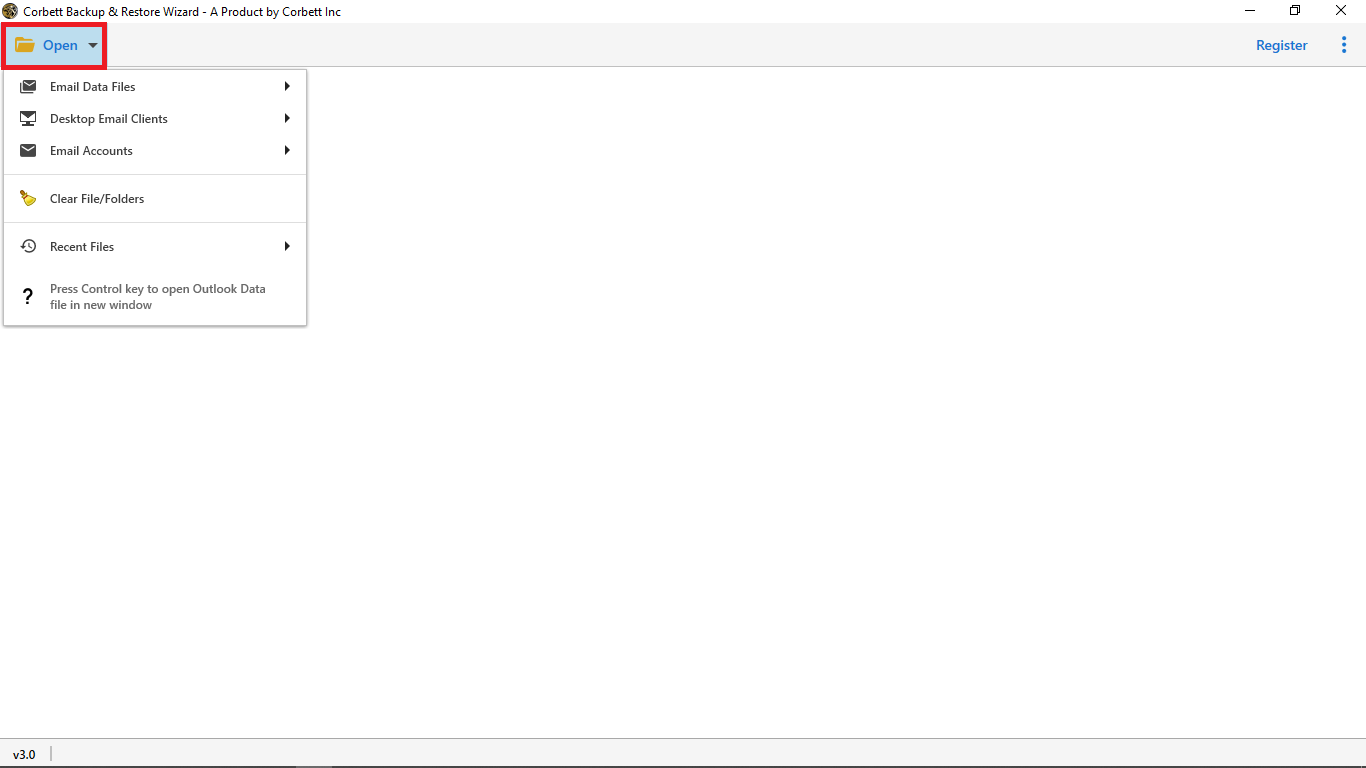
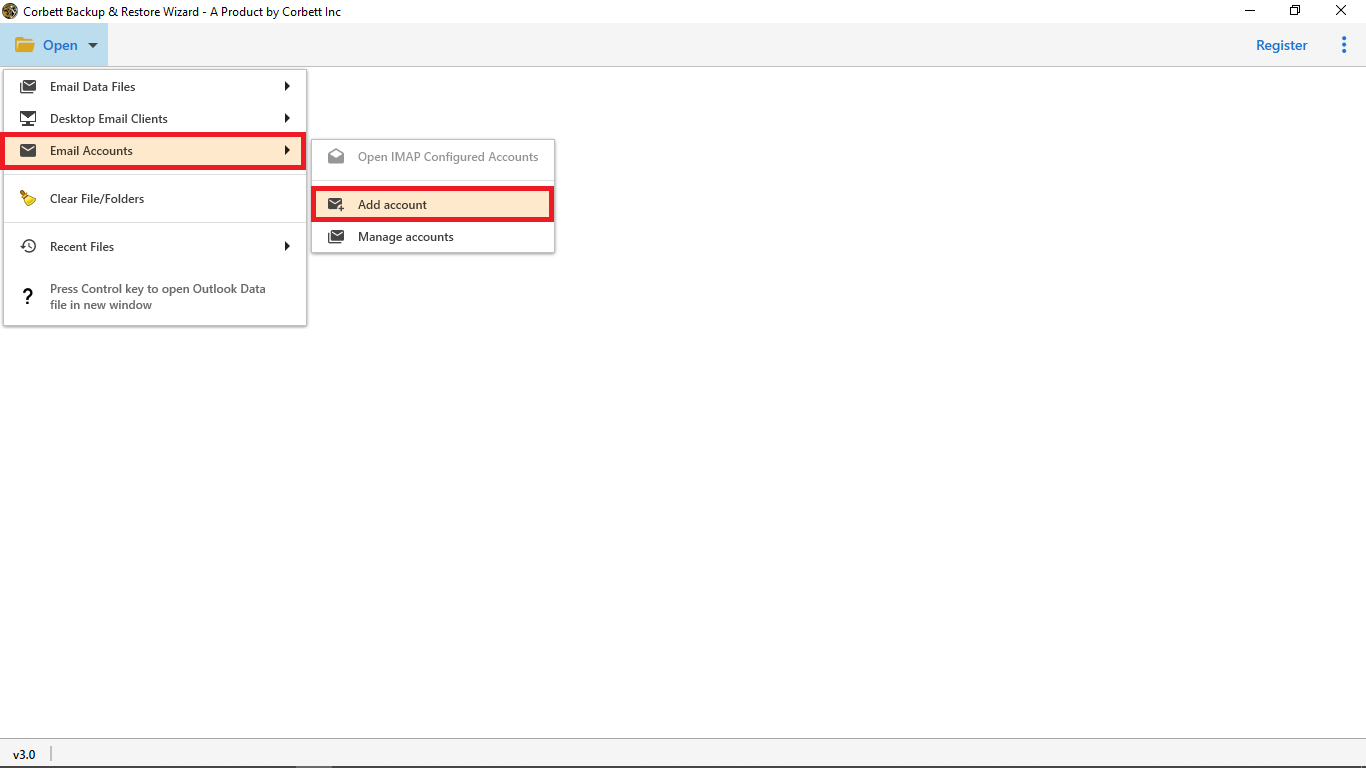
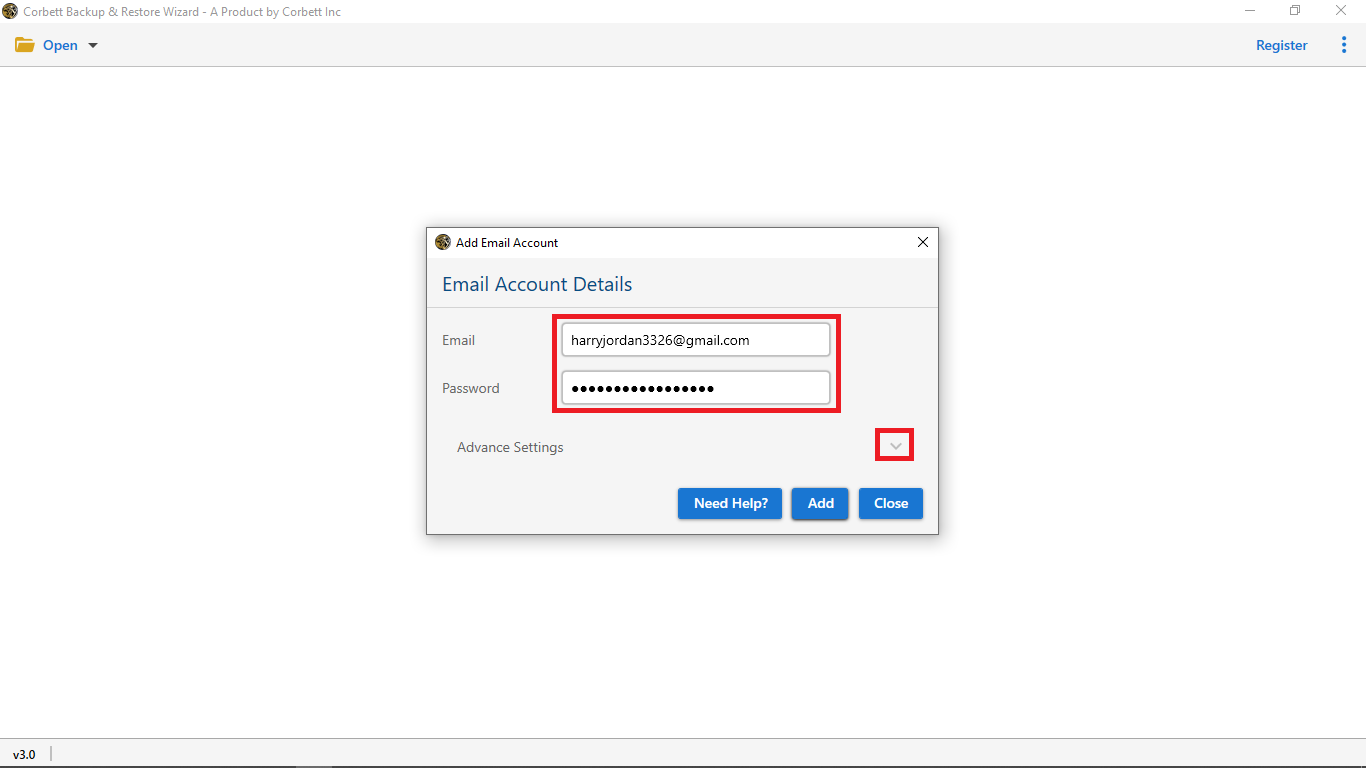
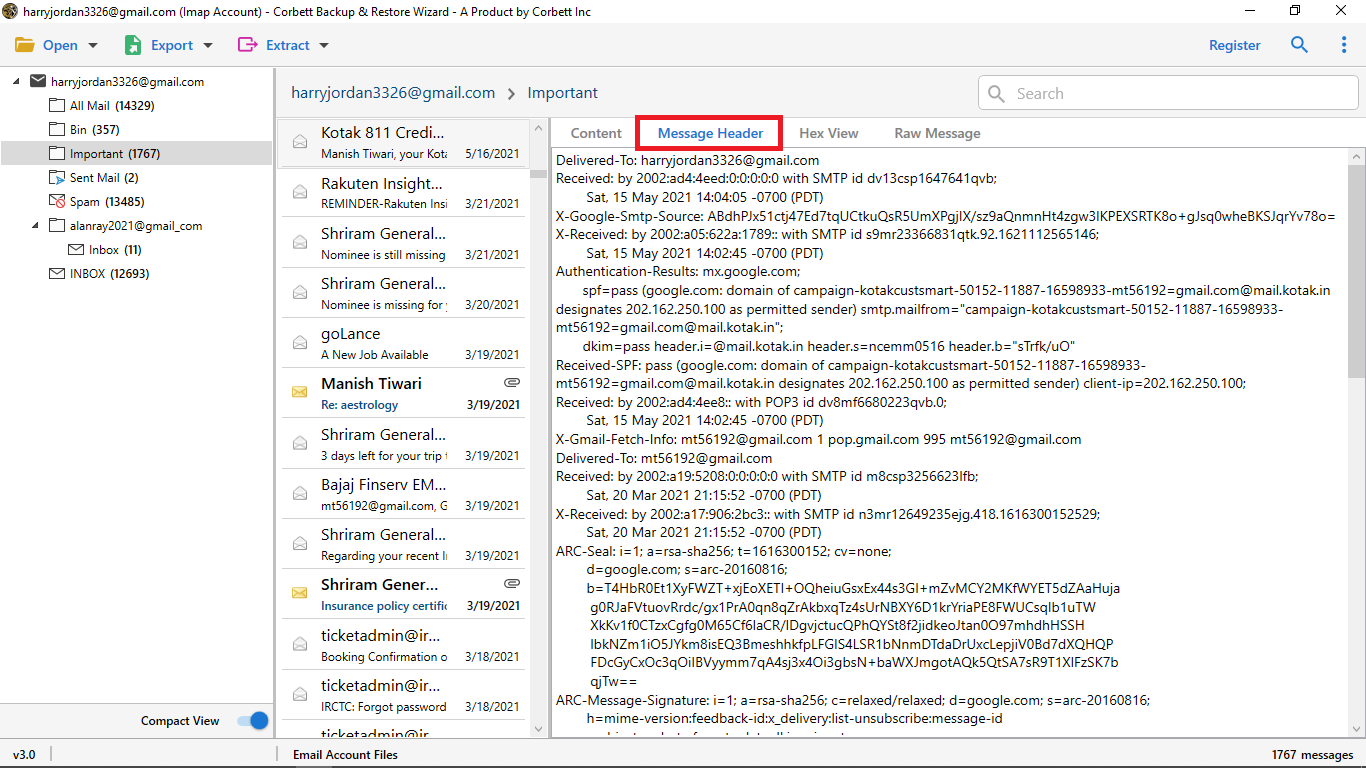
The software displays complete message properties including full headers, routing paths, sender details & additional technical metadata.
Core Features of Automated Solution
- View full email header information for detailed analysis.
- Organize complex email header data in a structured & readable format.
- Allows users to verify sender authenticity & detect suspicious emails.
- Easily analyze email routing & server pathways.
- Use built-in search options to locate specific emails quickly.
- Multiple preview modes like Content, Message Header, Hex View, & Raw Message.
- Simple & user friendly layout for both technical and non-technical users.
- Operates in offline mode to ensure 100% data safety and user privacy.
Final Thoughts
In conclusion, this guide explained how to view email headers in Gmail to examine technical email data such as sending server, authentication & route information. Both methods are cost free. The manual method is suitable for basic verification & quick checks.
However, a professional tool offers accurate results to perform deeper analysis. Users can easily examine multiple emails in a single go. When they are dealing with a large dataset. The software provides a structured way to view full message headers in Gmail & other technical metadata.
People Also Ask
Q. What is an email header in Gmail?
Ans. Email header is a section at the top of email that contains metadata like sender details, recipient address, subject, & routing path.
Q. How can I view email header in Gmail?
Ans. Open email in Gmail, click the three-dot (More) icon, select “Show original”, and Gmail will show full header information.
Q. How to view email headers in Gmail app on iPhone?
- Open Gmail app on your iPhone.
- Select email message you want to check.
- Tap the sender’s name or “Show details” arrow near the email address.
- Now, you will see email header details such as sender, receiver, & date information.
Q. What information does a Gmail email header include?
Ans. It includes details like sender IP address, Received servers, Return-Path, Message ID, SPF, DKIM, & DMARC authentication results.
Q. How to view email header in Gmail app on Android?
Ans. Open Gmail app on your Android device & choose email you want to inspect. Tap Show details (v) icon next to the email address to get email header in Gmail.
Q. How to Analyze Gmail Email Header?
- Check Return-Path domain.
- Review Received lines.
- Verify SPF, DKIM & DMARC.
- Identify sender IP address.
- Match From address with server domain.