Moving from Google Workspace to Squarespace email? You can transfer Google Workspace to Squarespace in two safe ways. You can use IMAP sync inside a mail client, or a direct migration tool that handles many users at once. This guide walks through every step. If you also need to
move Outlook mail into Gmail before the switch , that guide pairs well with this one.
Why Move Google Workspace Mail to Squarespace
Squarespace email runs on Google Workspace at the backend. A move is still useful in many cases.
One Squarespace plan for site, store, and email
Custom domain mail at squarespace.com
Lower cost for small business owners
Single billing for hosting and email
Easy team setup with admin controls
Get Both Accounts Ready for the Migration
A clean start saves time later. Run these checks first.
Enable IMAP access in Gmail under the Workspace account.
Turn on 2 Step Verification in Google and create an app password.
Create the Squarespace email account on the new domain.
Note the Squarespace IMAP and SMTP server details.
Free up space in the source account if needed.
Method 1: Manual IMAP Move With a Mail Client
This path uses Outlook or Thunderbird as a bridge. The client copies mail folder by folder.
Open Outlook and go to File > Add Account .
Enter the Workspace email and the app password.
Add the Squarespace email account in the same Outlook window.
Wait for both inboxes to load in the folder pane.
Drag the Workspace folder into the matching Squarespace folder.
This path works but it is slow for large mailboxes. It also fails on shared drives and bulk user accounts.
Method 2: Direct Workspace to Squarespace Migration
This path uses Corbett Email Migration. The tool moves mail, contacts, and calendar from Google Workspace to Squarespace email in one click. It keeps every label, attachment, and date intact.
Download Now Purchase Now
Steps to Migrate Google Workspace to Squarespace
Install and launch the software on a Windows PC.
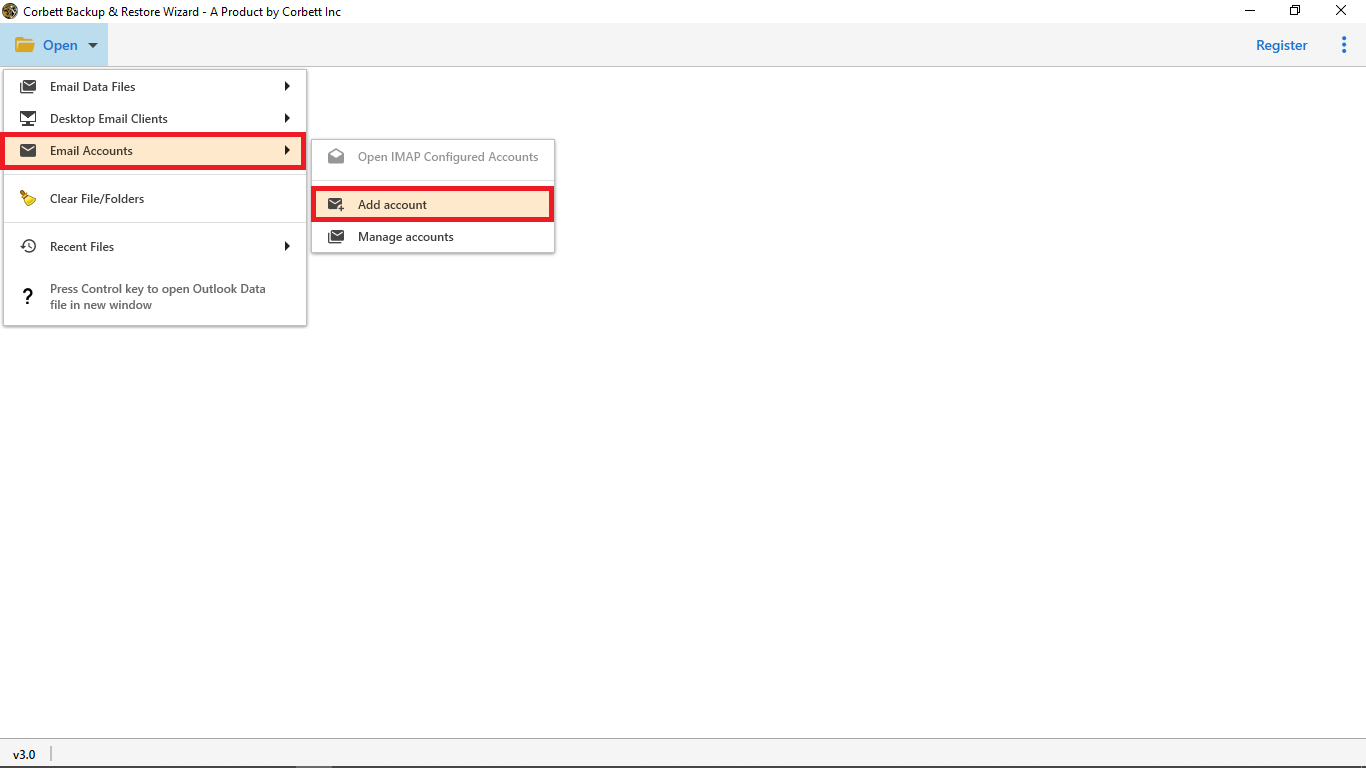
Pick G Suite as the source and sign in with admin credentials.
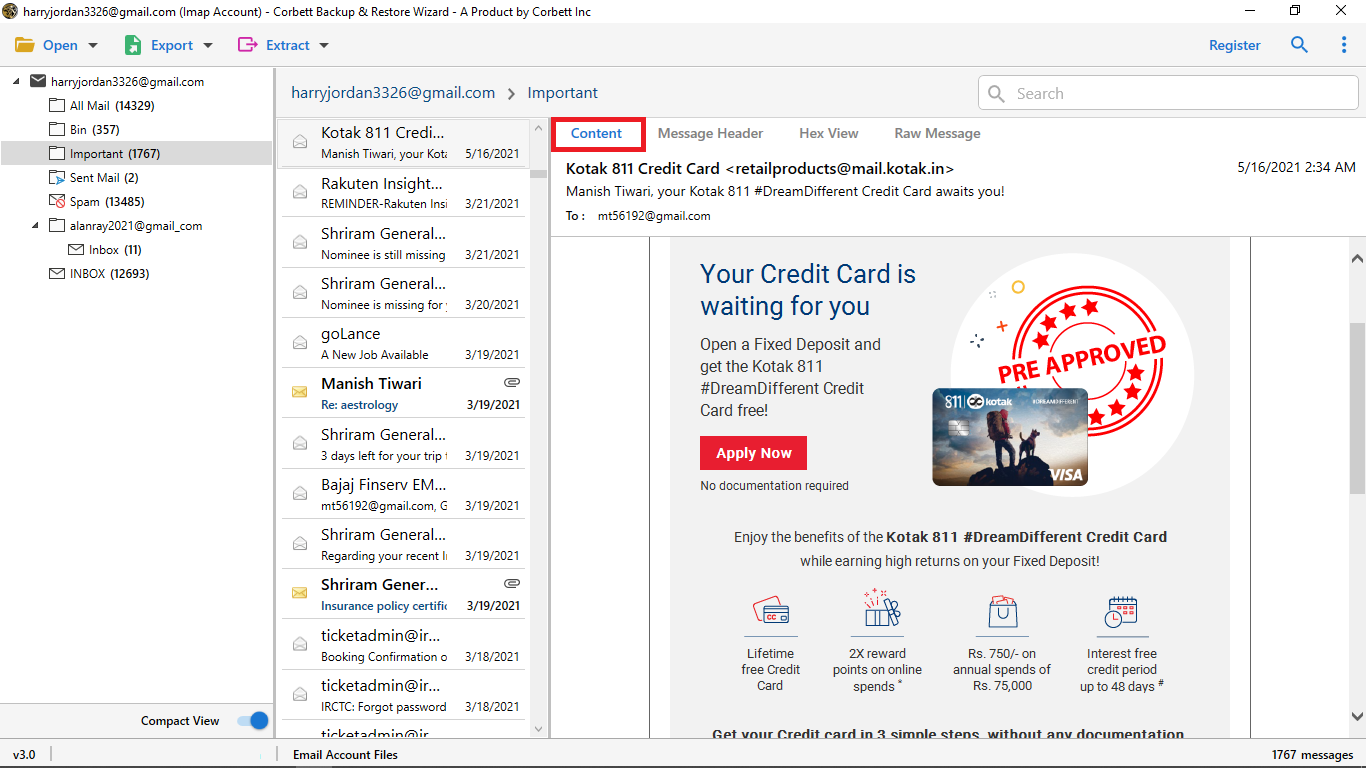
Preview every mailbox and folder in the side pane.
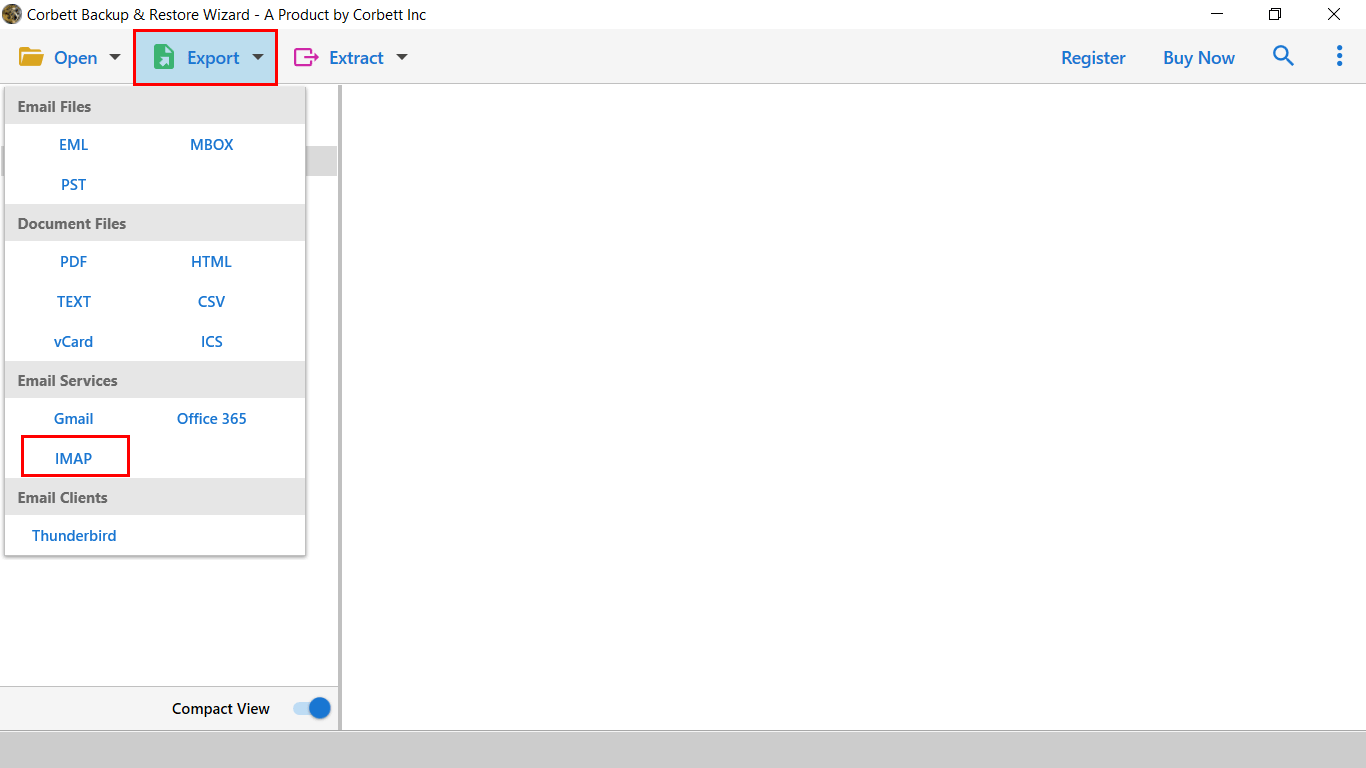
Click Export and pick IMAP as the target.
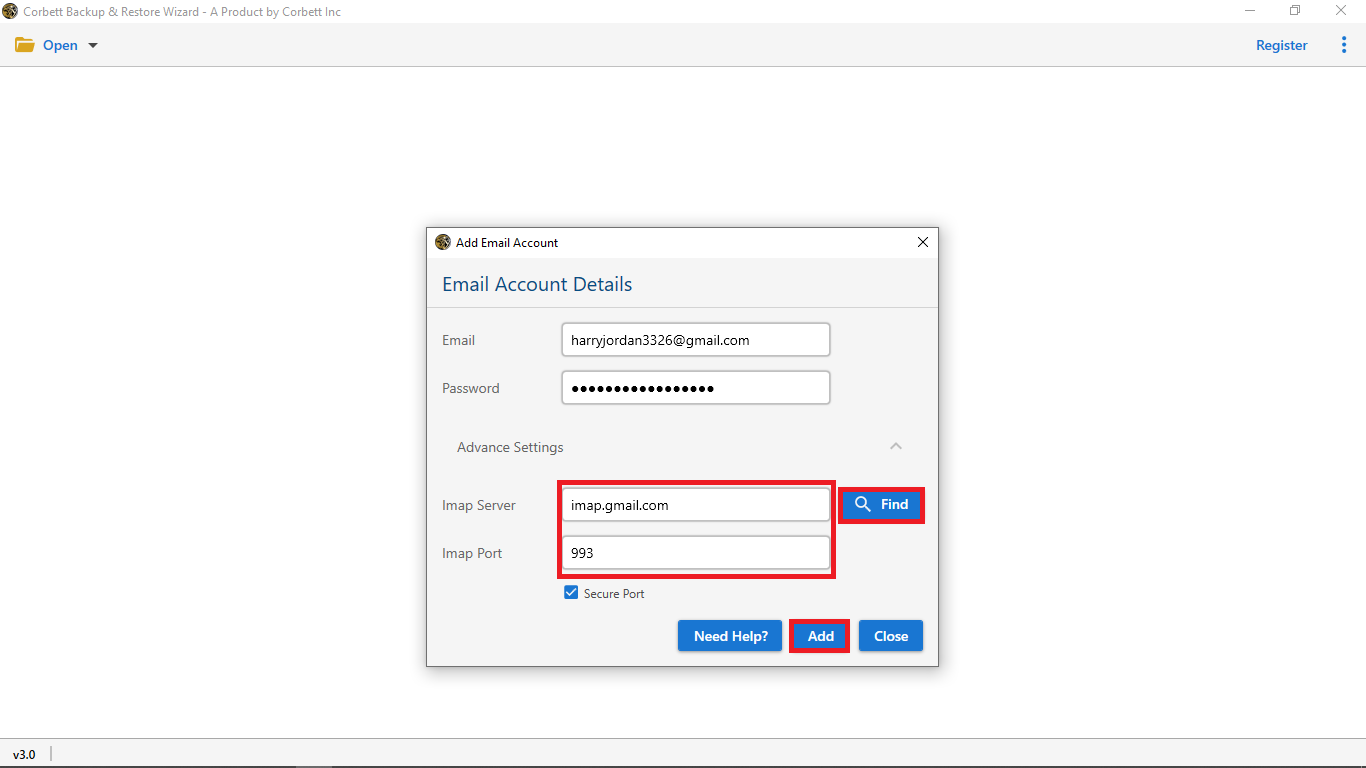
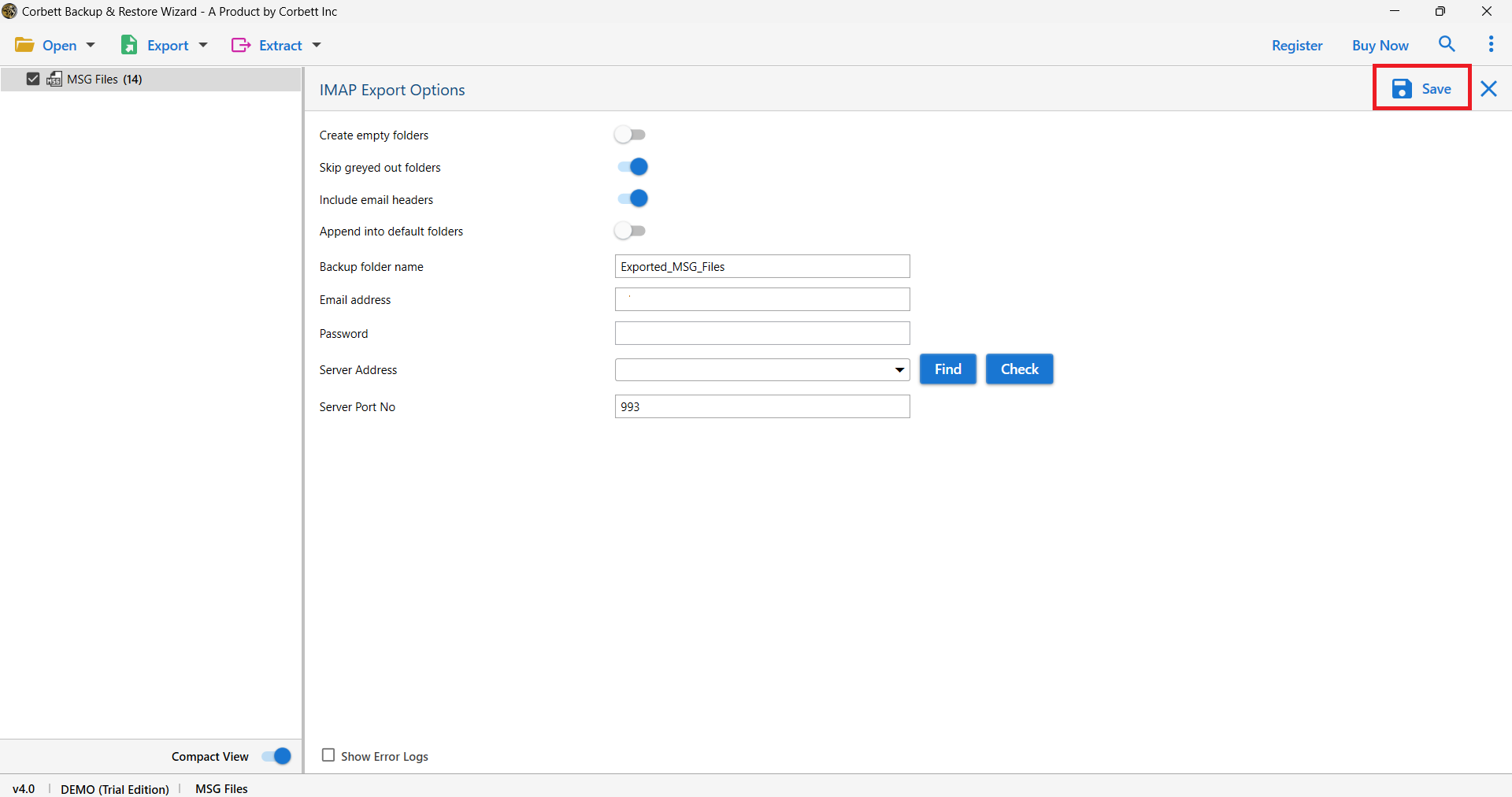
Type the Squarespace IMAP server, port, and login.
Click Start and watch the live progress bar.
You may also like to export Gmail contacts as a vCard for an offline copy. If Gmail starts to ask for the password during sign in, our Gmail password loop fix covers every common cause.
Frequently Asked Questions
Q1. Can I move many Workspace users to Squarespace at once?
Yes. The Corbett tool reads a CSV list of users and moves every mailbox in one job.
Q2. Will my labels and folders stay intact?
Yes. Each Gmail label becomes a folder in Squarespace with the same name and the same mail inside.
Q3. Do I need IMAP access on both ends?
Yes. Turn on IMAP in Gmail and confirm IMAP is enabled in the Squarespace email settings.
Q4. Is there any data loss during the migration?
No. The tool keeps every attachment, header, sender, and date. A built in log shows the count after the job.
Conclusion
You can transfer Google Workspace to Squarespace email with manual IMAP or with a direct migration tool. The manual path works for a single mailbox. The migration tool is the right pick for a full domain move. Either way, your new Squarespace inbox will hold every old message in its right place.