Complete Guide to Save Outlook Message as MSG File
However, to handle large amounts of data, an automated tool is suggested to save multiple Outlook emails as MSG. On the basis of your personal and business needs you may select a manual or professional solution.
This guide provides step-by-step methods to save outlook message as msg file. Now, let us begin by discussing some causes to save Outlook emails to MSG format.
Key Reasons to Export Outlook Emails as MSG File
- MSG file preserves original structure of email, timestamps, attachments metadata and formatting.
- Saving Outlook emails as MSG files allows you to create separate backups of emails and reduce Outlook mailbox storage.
- In case you do not have internet connection, you can still open and view your saved MSG file without any problem.
- Export Outlook emails in MSG format for legal matters, audits & compliance requirements.
- It allows users to share specific messages as each email is saved as a separate file.
Manual Method Save Outlook Email as MSG File
In this section we will learn two different methods to save Outlook email as MSG file. Follow the steps:
1st Solution: Using Drag & Drop
- Open Microsoft Outlook and select email folder that you want to save.
- Press CTRL + A to select all emails in that folder.
- Drag and drop selected emails into a specific folder on your compute.
- Wait for some time and your email automatically saves as .MSG files in that location.
2nd Solution: Using Save As Option
- Go to Outlook and double-click email that you want to export.
- Click on the File tab in the top menu.
- Select Save As option.
- Choose destination folder where you want to save file.
- In Save as type dropdown, select Outlook Message Format (*.msg).
- Now, click Save to store Outlook email as an MSG file.
Loopholes of Manual Method to Export Email from Outlook .msg
- Time Consuming Process- Exporting thousands of emails can be slow and may hang Outlook.
- No selective filtering– You are not able to export emails on the basis date, sender or subject.
- Risk of data loss– Interrupted drag-and-drop process may cause some emails to be skipped or missed.
- No folder structure maintained– There is chances you may lose original email structure or formatting during the process.
- Highly repetitive process– You need to repeat the steps for each file if you use “Save As” option.
- File naming issues– MSG files are saved with subject lines, which may contain invalid characters.
Reliable Way to Export Outlook Emails to MSG File
Corbett PST Converter is a lab tested and trustworthy software that allows users to convert Outlook emails to MSG files without risk of missing or skipping any data. It allows users to download Outlook email as MSG file including all email fields like contacts, calendars, attachments, and more.
The software allows you to multiple Outlook emails as MSG while maintaining original data structure. It save user time and allows them to export large Outlook mailbox data without any size limitations. In a single process users can easily handle large amounts of data without Outlook dependency.
Steps to Convert Outlook Emails to MSG Files
- Download, run and install the software on your Windows operating system.
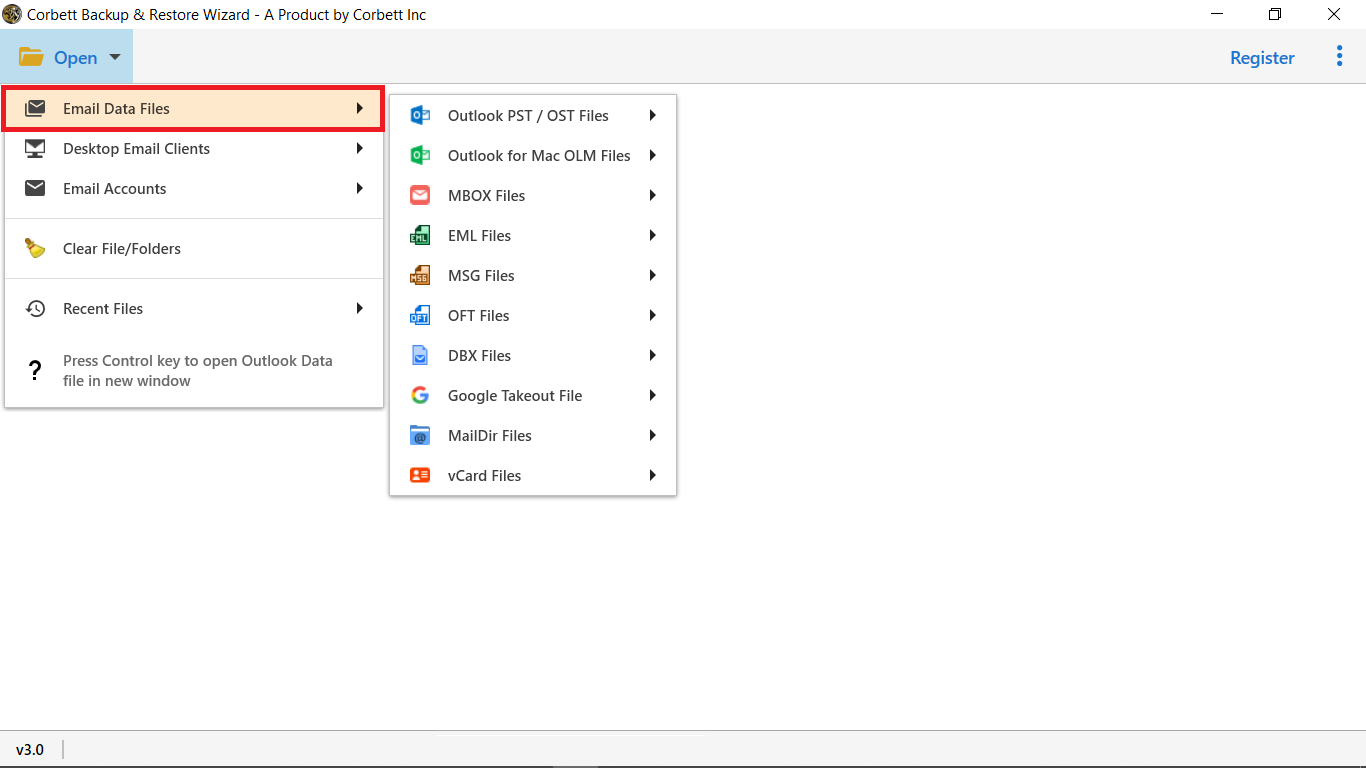
- Now, hit Open tab and select Email Data Files then choose Outlook PST/OST Files.

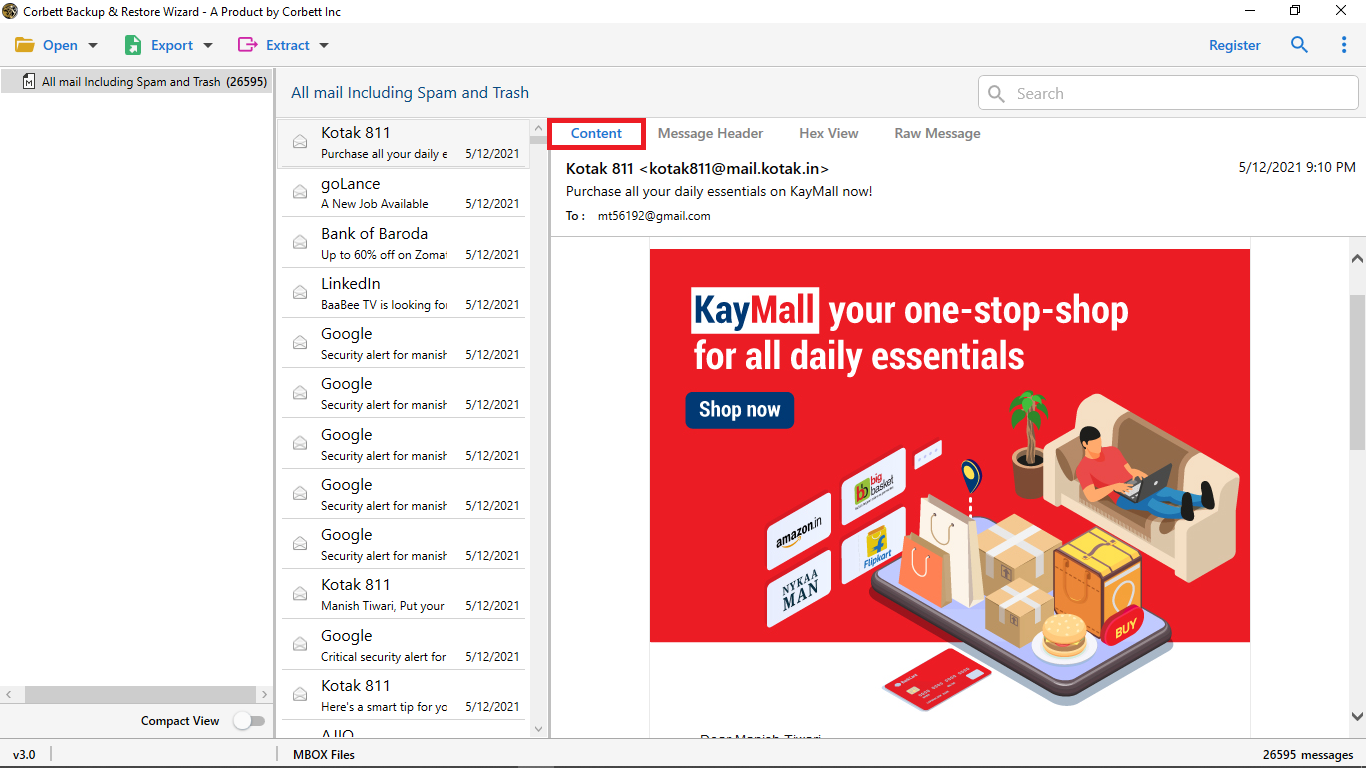
- After uploading Outlook mailbox data you can check emails in different modes (Content, Message Header, Raw Messages and Hex View) in software preview mode.
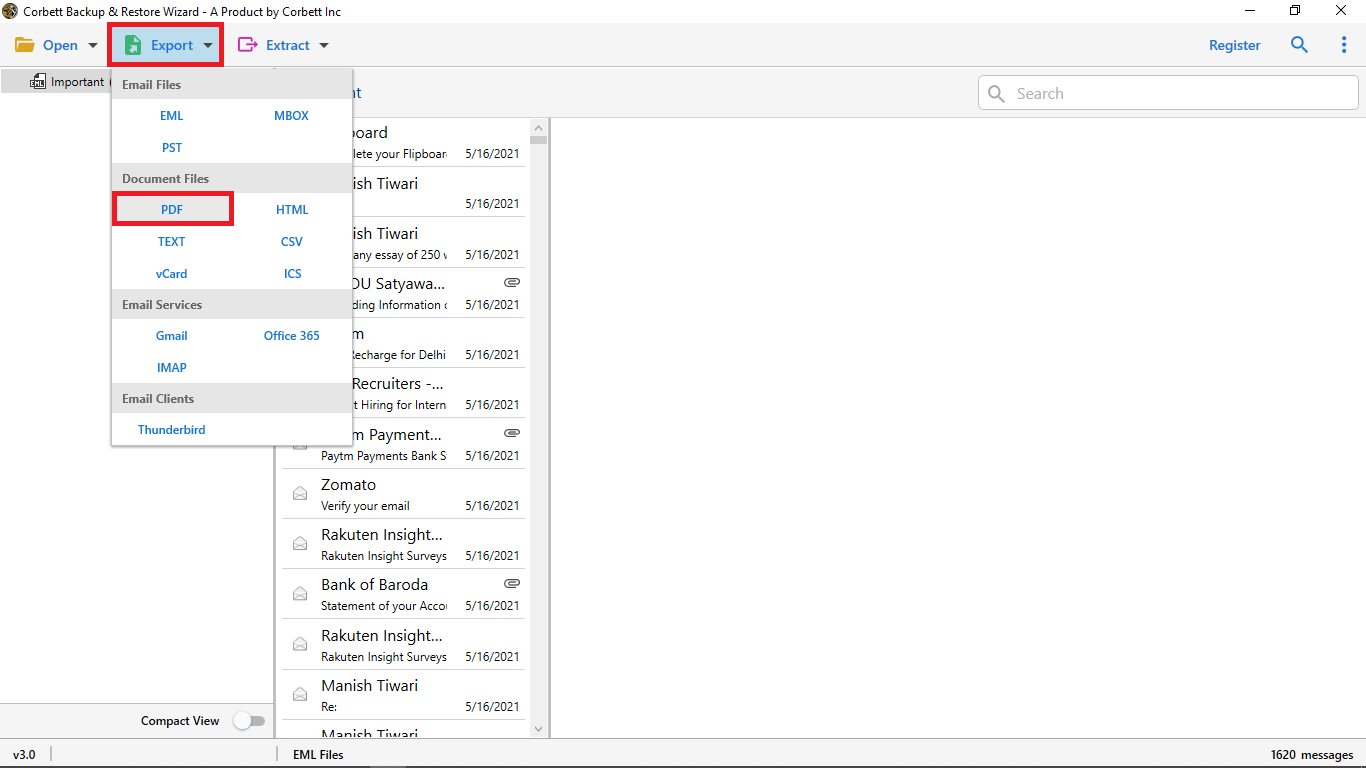
- Now, click on the Export button and choose MSG file format from the drop down list.
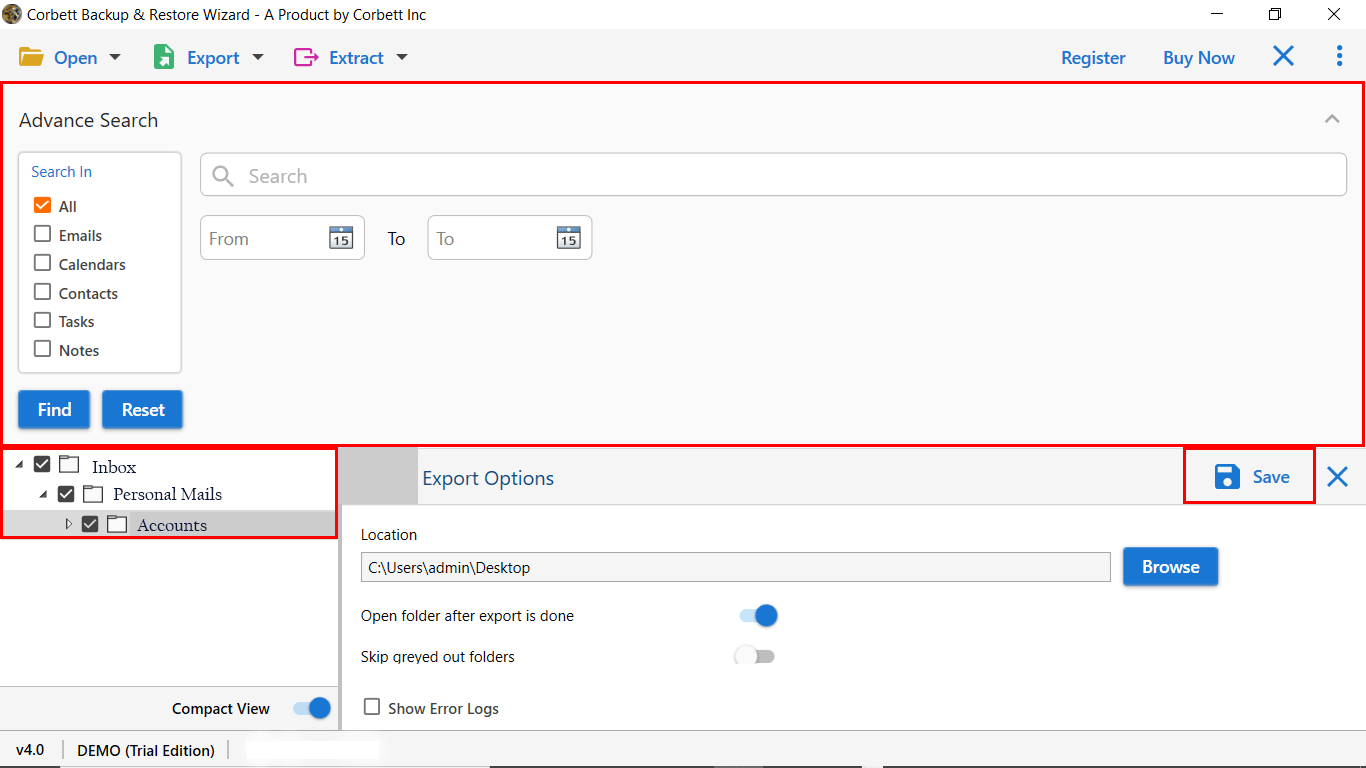
- Use search or date filter option (date, sender, subject, etc.) to select specific emails (optional).
- After that, browse destination path and choose a desirable file name to save output files.
- Finally, hit Save button to save Outlook messages as MSG files.
Time to Wrap Up
In conclusion, this guide we discussed different methods to save Outlook email as MSG file. You can choose any one on the basis of your requirements. While manual methods are useful for basic needs as they come with some limitations and are not suitable for large and complex data.
If you are a professional user we recommend you to not rely on manual solutions. Use automated tool that provides accurate, fast, & hassle-free results when saving Outlook emails to MSG format.