How to Transfer Charter Email to Gmail/Google Workspace?
Charter Mail was rebranded after Charter Communications merged with Time Warner Cable and Bright House Networks. The charter.net address now redirects to spectrum.net, and Spectrum no longer hands out new email accounts. Existing addresses keep working on legacy settings, which is exactly why moving your mail into Gmail while access is steady is the smart play.
Why Move Charter Email to Gmail Now
The case for moving is simple once you look at what each side offers today.
- No new accounts. Spectrum has stopped creating new email addresses, so the platform is in maintenance mode rather than active development.
- Storage. Charter mailboxes are small. A free Gmail account starts at 15 GB shared across Google services, with paid tiers reaching into terabytes.
- Security. Gmail gives you two factor authentication, strong spam filtering, and phishing protection that a legacy provider mailbox does not match.
- The wider toolset. Moving to Gmail also brings Drive, Docs, and the rest of Google’s apps under one login.
The Charter Server Settings You Actually Need
Both migration methods below need your Charter incoming server. Spectrum publishes a single set of settings for charter.net mailboxes, so you can use these directly rather than guessing.
| Setting | Incoming (IMAP) | Outgoing (SMTP) |
|---|---|---|
| Server | mobile.charter.net | mobile.charter.net |
| Port | 993 | 587 |
| Security | SSL / TLS | SSL / TLS |
| Username | Your full Charter email | Your full Charter email |
Method 1: Gmail’s Built-in Import
Gmail can pull mail from another account for you, with no extra software. This is the quickest free route for a single mailbox.
- Open Gmail, click the gear icon, then See all settings.
- Go to the Accounts and Import tab.
- Under Check mail from other accounts, click Add a mail account.
- Enter your Charter email address and continue.
- When asked, enter mobile.charter.net as the POP server with your full address and password, and enable SSL.
- Finish the wizard. Gmail then pulls your Charter mail in on a schedule.
Keep in mind this route uses POP, so it brings in your inbox messages but not your folder structure.
Method 2: Full Folder Copy Over IMAP
If you want every folder preserved, IMAP is the better path. Set up the Charter account in a desktop client like Outlook or Thunderbird using the IMAP settings above, add your Gmail account in the same client, then drag folders across or use the client’s copy function. IMAP keeps the folder tree intact because the mail stays organised on the server during the move.
For a related desktop walkthrough, see our guide on how to export Charter emails to Thunderbird.
Where Each Method Trips Up
Neither free method is perfect, so it helps to know the rough edges before you start.
- POP import is inbox only. Gmail’s built in import pulls messages but flattens or skips your Charter folders.
- IMAP dragging is manual. Copying folders by hand in a desktop client is slow and easy to interrupt on a large mailbox.
- Settings sensitivity. A wrong port or missing SSL is the usual reason a Charter account refuses to connect.
- No date filtering. Neither free method lets you move only mail from a certain date range.
Faster Route for a Clean, Filtered Move
If you want folders preserved and the ability to migrate only what you need, a dedicated tool removes the manual work. The Corbett Email Backup and Restore tool connects to the Charter account over IMAP, lets you select specific folders and date ranges, and exports straight into Gmail while keeping the hierarchy intact.
The honest trade-off: it is a paid Windows application, so for a single small inbox Gmail’s free import is enough. Its value shows when you want full folders, a date filtered move, or a local backup kept alongside the migration.
Steps to use the tool:
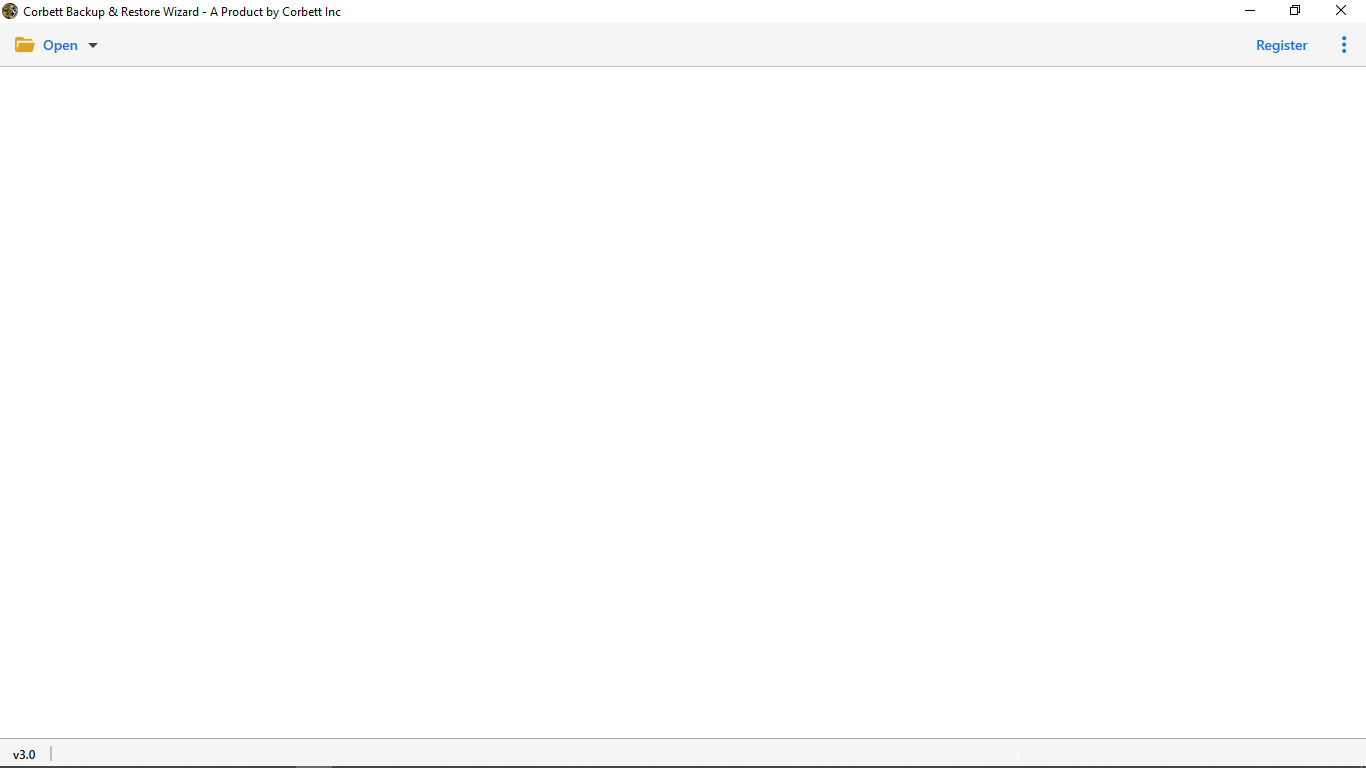
- Download and install the tool on your Windows computer.
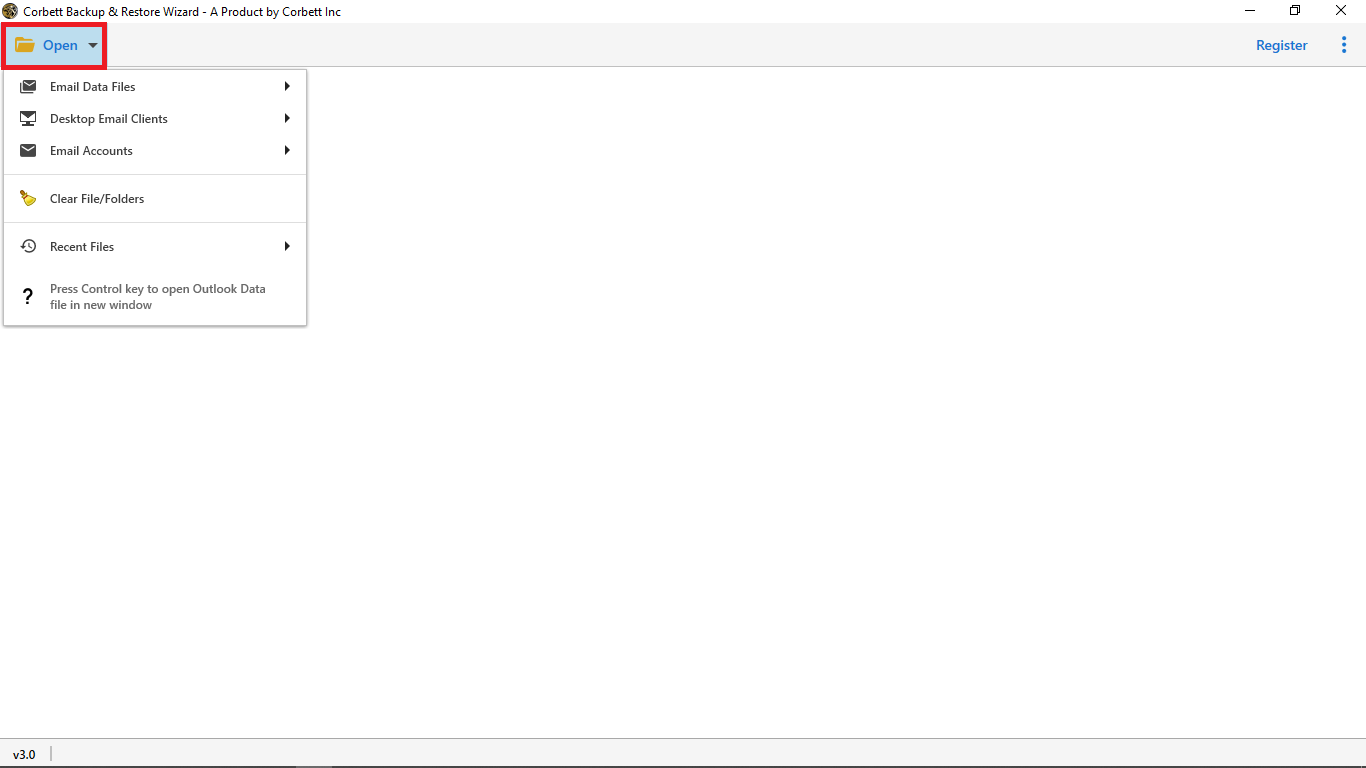
- Click the Open dropdown from the top left corner.
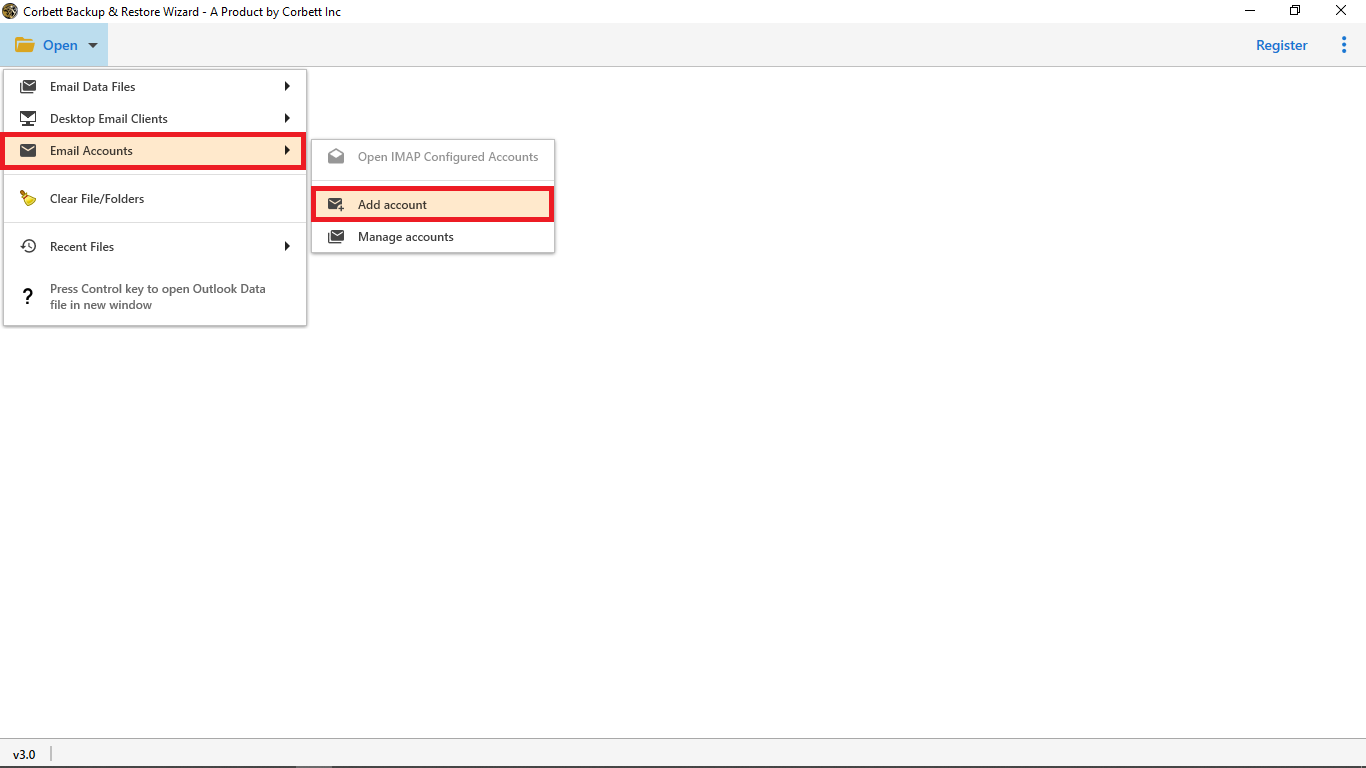
- Select Email Accounts and click Add Account.
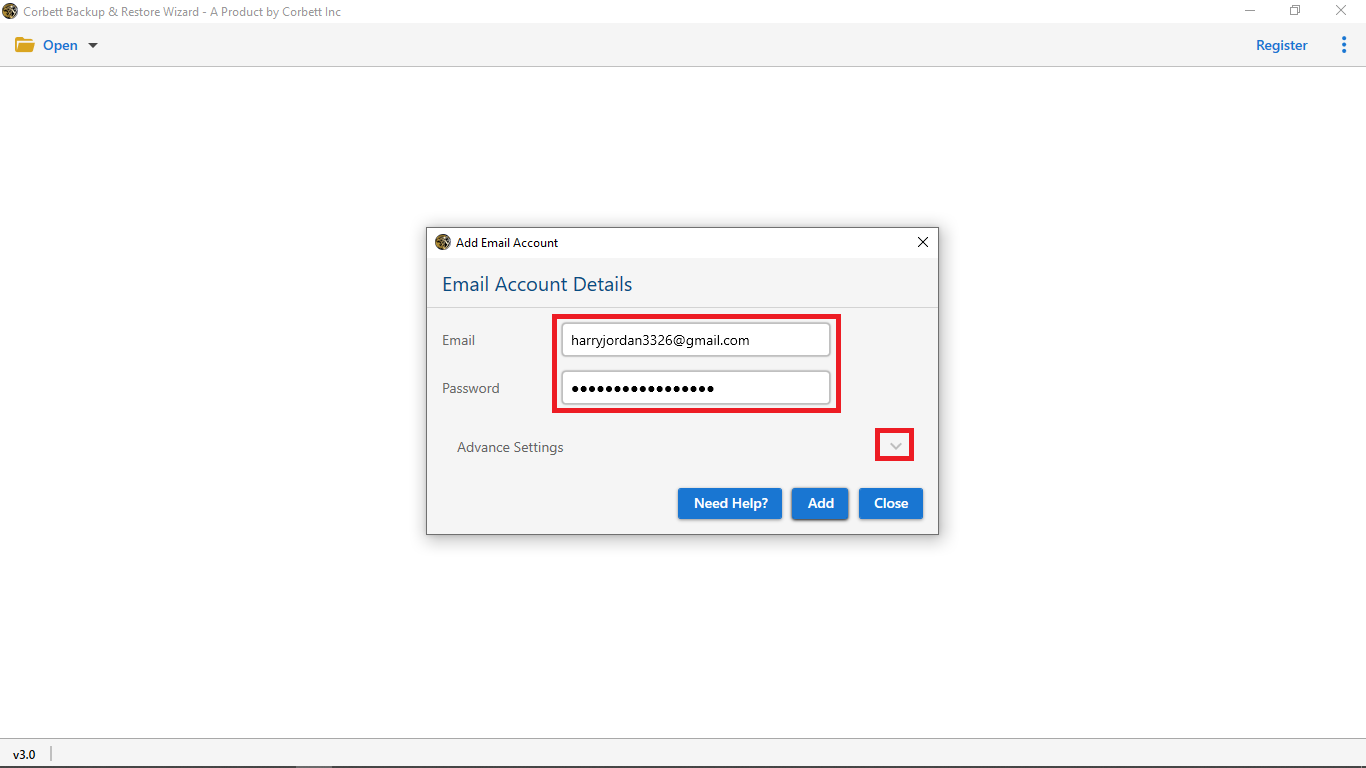
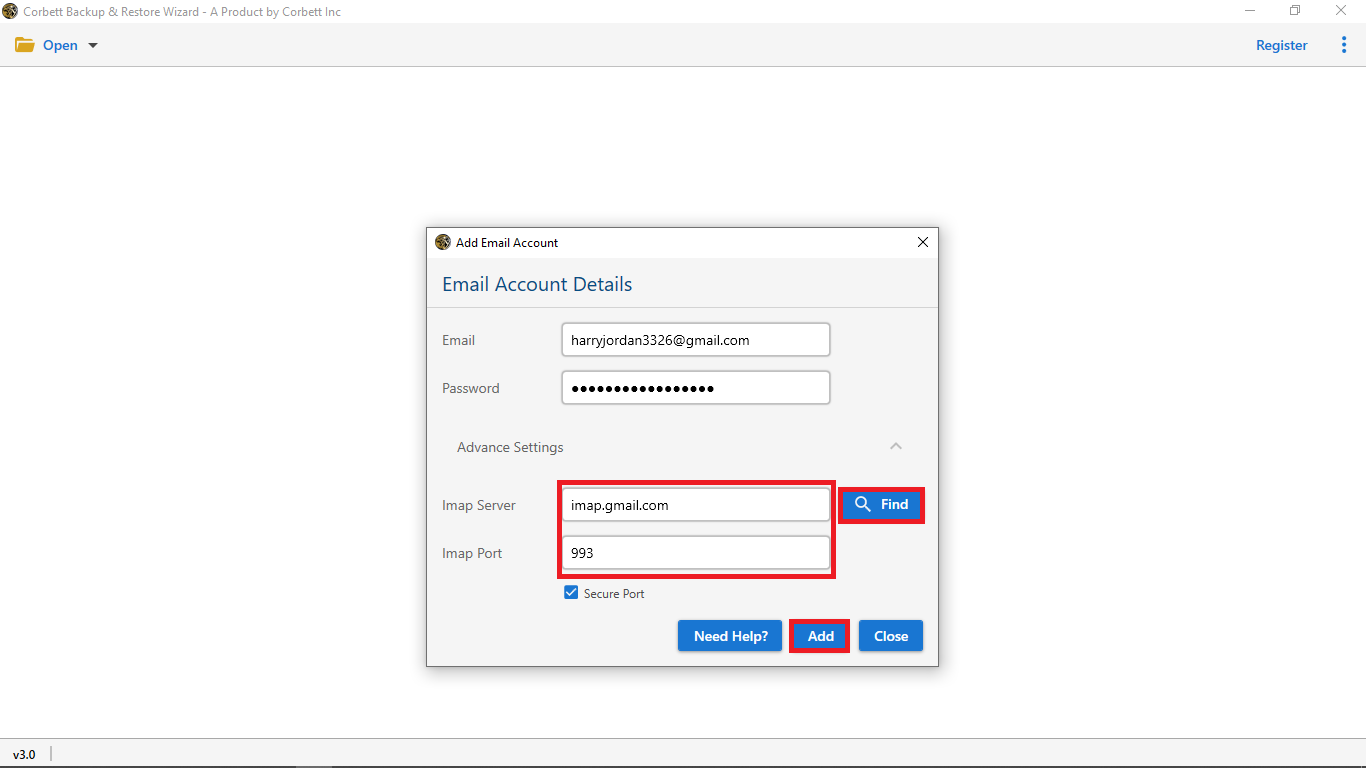
- Enter your Charter email and password, then open Advanced Settings.
- Click Find to load the IMAP server and port, then click Add.
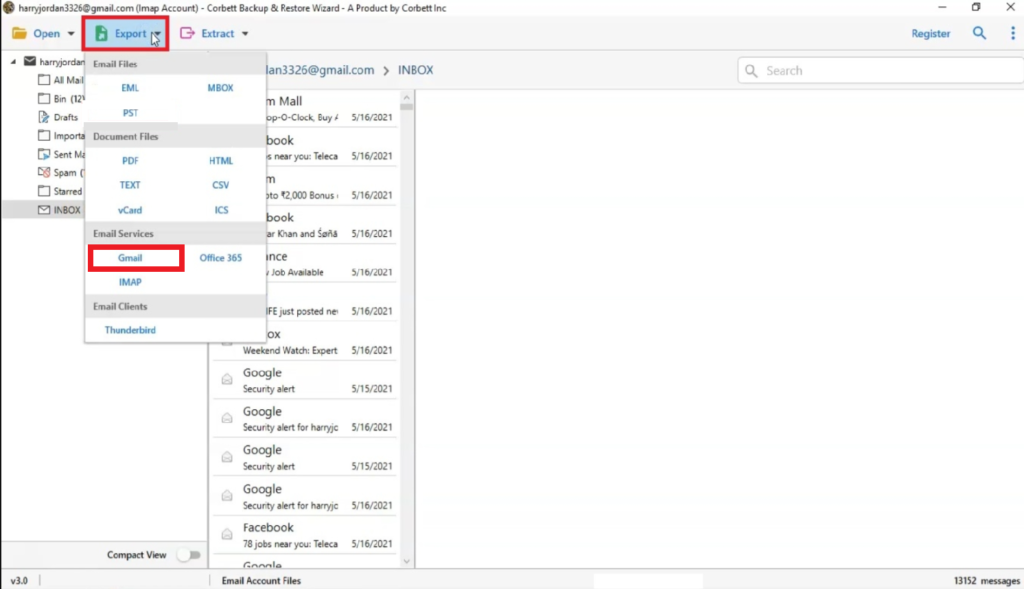
- Your folders appear on the left. Select them, choose Export, and pick Gmail as the destination.
Frequently Asked Questions
What are the Charter IMAP settings?
Incoming server mobile.charter.net on port 993 with SSL, outgoing mobile.charter.net on port 587. Your username is your full Charter email address.
Is Charter email still active?
Yes. Charter is now Spectrum, and existing charter.net mailboxes still work even though new accounts are no longer issued.
How do I access old Charter mail now?
Log in at spectrum.net with your Charter credentials, or connect the mailbox in any client using the IMAP settings above.
Should I use POP or IMAP to move it?
Use IMAP. POP only pulls the inbox, while IMAP preserves your full folder structure during the move.
Will my folders come across to Gmail?
With IMAP or a dedicated tool, yes. With Gmail’s built in POP import, only the inbox messages come across.
How do I just forward Charter mail to Gmail instead?
In your Spectrum account go to Settings, then Account, then enable email forwarding and add your Gmail address. That forwards new mail but does not move your existing messages.
Conclusion
Charter email lives on as Spectrum, but with no new accounts and a small mailbox, moving to Gmail is a sensible move while access is stable. For a quick single inbox, Gmail’s free POP import does the job. For full folders, date filtering, or a kept backup, a dedicated tool is the cleaner path. The one thing that decides success either way is using the real Charter settings, mobile.charter.net on port 993 with SSL.
Are you after a quick inbox grab, or do you need every Charter folder to land in Gmail intact?