How to View Gmail Backup Files? Quick Guide
If you are struggling to open Gmail backup files, this guide will help you. Whether your backup was downloaded using Google Takeout or created with a professional tool, this blog explains step-by-step manual and professional methods for easily viewing Gmail backup files.
Professional Method to View Gmail Backup Files
Corbett Gmail Backup Software is a reliable solution that allows users to view Gmail backup files in bulk without complications. It is a standalone tool with a user-friendly interface suitable for everyone. You can easily access Gmail emails without any additional setup or installation. If you face any kind of problem while working with this tool, you can directly contact the customer support team.
It supports single or multiple accounts and previews emails for selective backup. It also preserves attachments and other data, and allows cloud backups to Gmail, Office 365, and IMAP servers. The software also provides a free demo version that allows you to explore the software features before making a purchase.
Steps to Open Google Backup Files Without an Email Client
- Download or install the software on your computer.
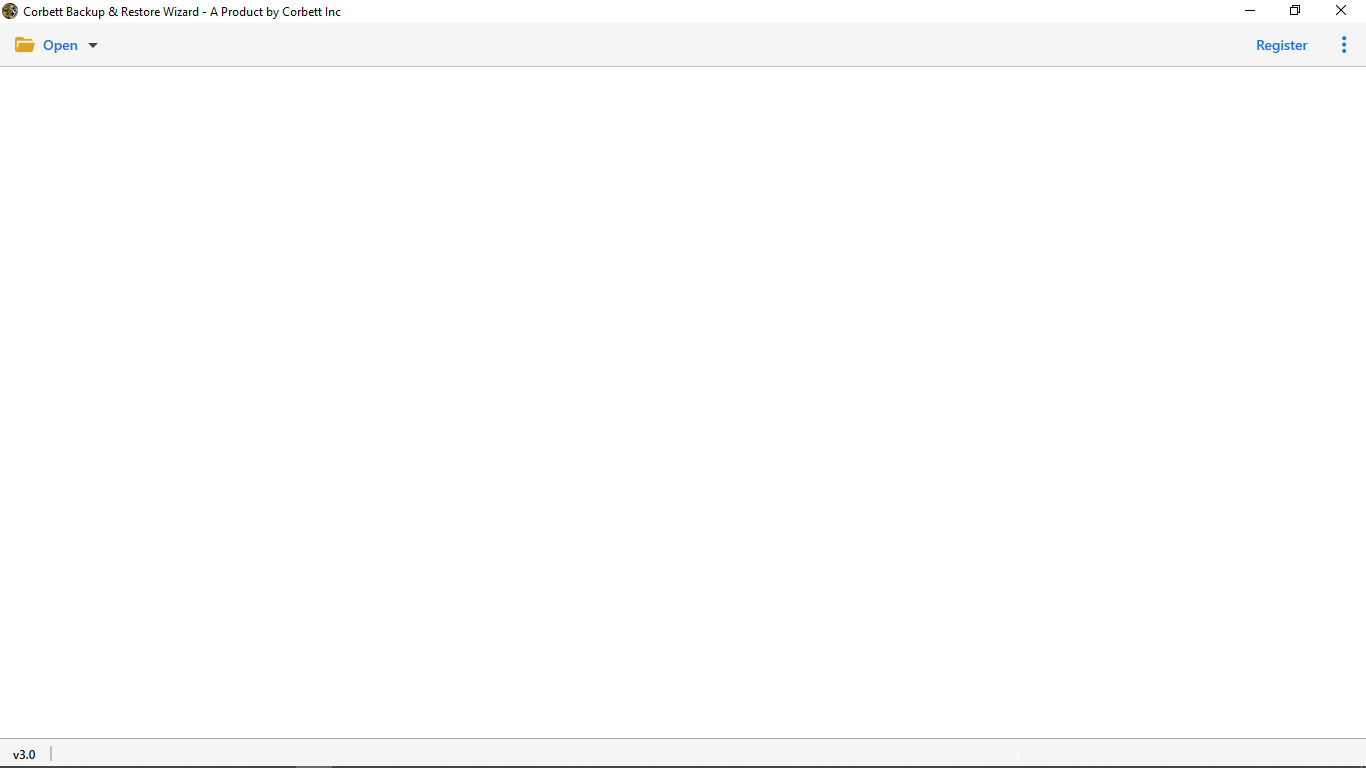
- Click on the Open tab and select Email Accounts from the given list.
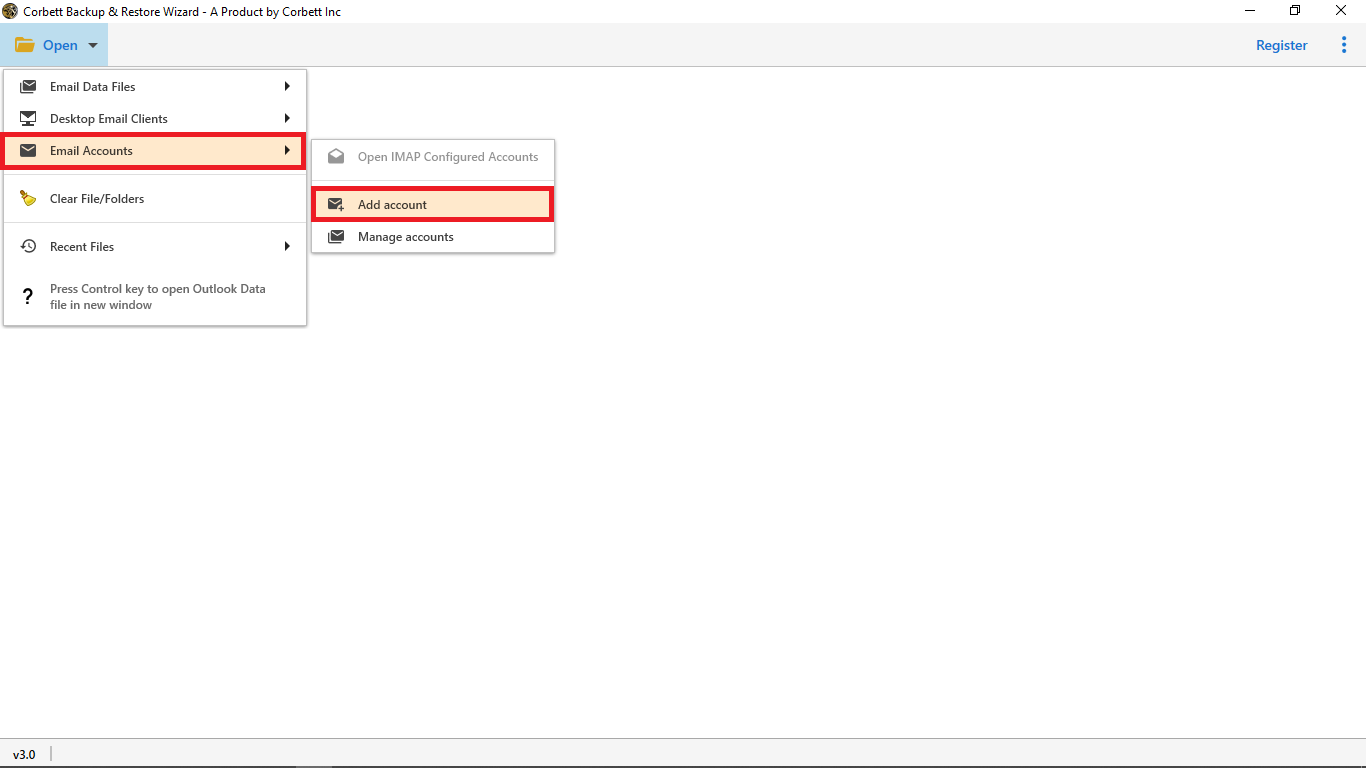
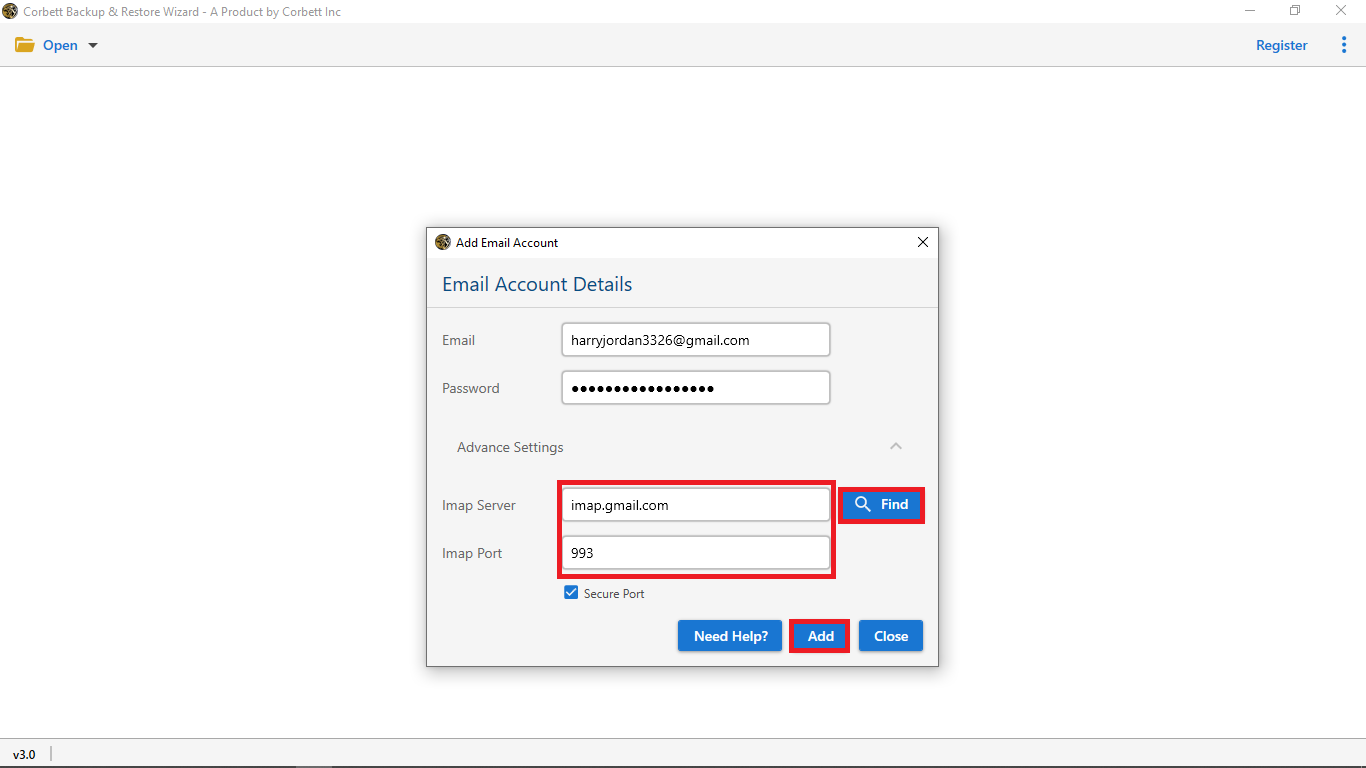
- Then, choose the Add Account option to enter your Gmail account login details in the software panel.

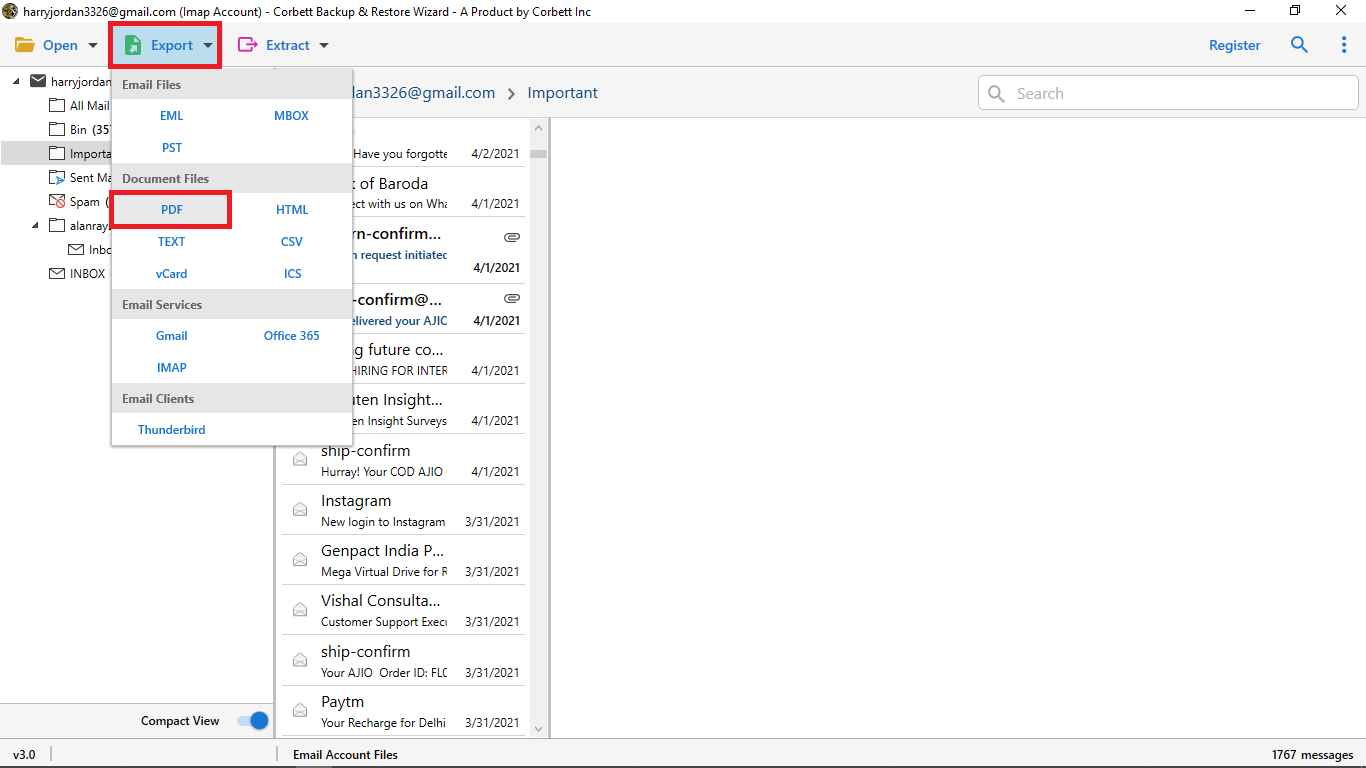
- Preview emails in different modes such as Content, Message Header, Properties, Hex View, and Raw Message.
Manual Way to Access Gmail Backup Using Google Takeout and Thunderbird
Step 1: Export Gmail Backup via Google Takeout
- First, go to Google Takeout and log in to your account.
- Deselect all services and choose only Mail.
- After that, select All Mail data included.
- Click Next step, then choose .zip file type and click Create Export.
- Now, wait for Google to get your backup ready, then download the ZIP file.
- Lastly, extract the ZIP file to access the backup in the MBOX format.
Note: Google Takeout saves Gmail backups in MBOX format.
Step 2: View Backup Emails in Thunderbird
- Download Thunderbird on your computer.
- Then, get the ImportExportTools NG addon and install it.
- Go to Tools, then click ImportExportTools NG and choose Import MBOX file.
- Now, select Import directly one or more MBOX files and click OK.
- Browse to the extracted MBOX file from Takeout and select it.
- You can now view all Gmail emails and attachments inside Thunderbird.
Drawbacks of the Manual Method
The following limitations are associated with the manual approach that users should be aware of before proceeding.
- The manual method takes a lot of time when you have large data. Viewing large volumes of emails becomes inefficient and time-consuming.
- Google Takeout allows limited exports (e.g., 3 per day, 7 per week), and large exports may fail.
- Gmail backups created through manual methods, such as Google Takeout, require an email client like Thunderbird to view Google Takeout Gmail data.
- It requires technical knowledge because the steps can be confusing for beginner-level users.
- It also creates the risk of data loss and file corruption.
Advanced Features of Automated Solution
- Backup Gmail emails in multiple file formats like PST, MBOX, EML, PDF, and more.
- It allows you to save complete email data, including attachments, contacts, and calendars.
- The software provides a built-in preview to open emails before saving them.
- It also maintains the original folder structure and keeps data 100% secure.
- It is compatible with all versions of Windows, such as Windows XP, Windows Vista, Windows 11, Windows 10, and more.
- The software provides advanced filter and search options that let you sort large volumes of data by date, subject, sender, or recipient.
- It allows you to view single as well as multiple Gmail accounts at once.
Time to Wrap Up
In conclusion, you can open Gmail backup files by extracting the Google Takeout ZIP file and importing the MBOX file into an email client like Thunderbird, or by using a professional Gmail backup viewer tool for easy access. While the manual method (using Google Takeout and Thunderbird) is time-consuming, it also increases the risk of data loss or file corruption.
On the other hand, a professional Gmail Viewer tool is a reliable solution to check Gmail backup files in bulk, with preview support and complete data protection. You can also view Gmail emails for free, but if you want to open files in bulk, you have to purchase the licensed edition of the software.