How to Archive Hotmail Emails on Windows in Easy Steps

Why Archive Hotmail Emails
A clean archive brings real gains for any user with a heavy inbox.
- Free up Hotmail mailbox space
- Offline read of old mail and attachments
- Court ready record with full header and date
- Safe long term copy in PST, PDF, or MBOX
- Faster sign in once the inbox is light
Method 1: Export Mailbox From Hotmail Settings
This is the built in path. It saves a one time copy from the Microsoft account.
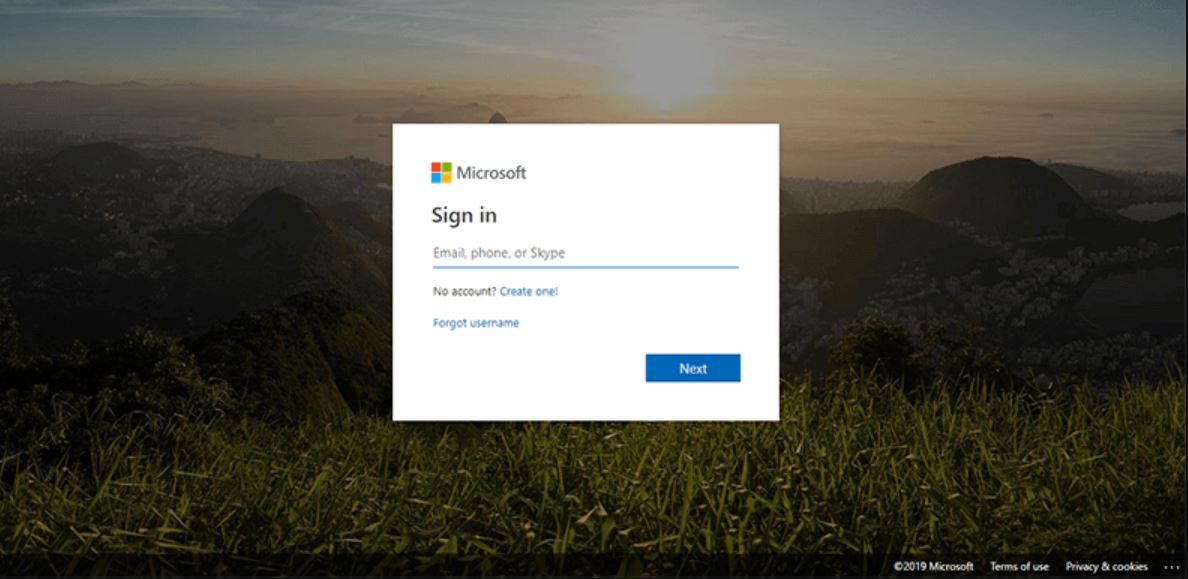
- Sign in to outlook.live.com with your Hotmail address.
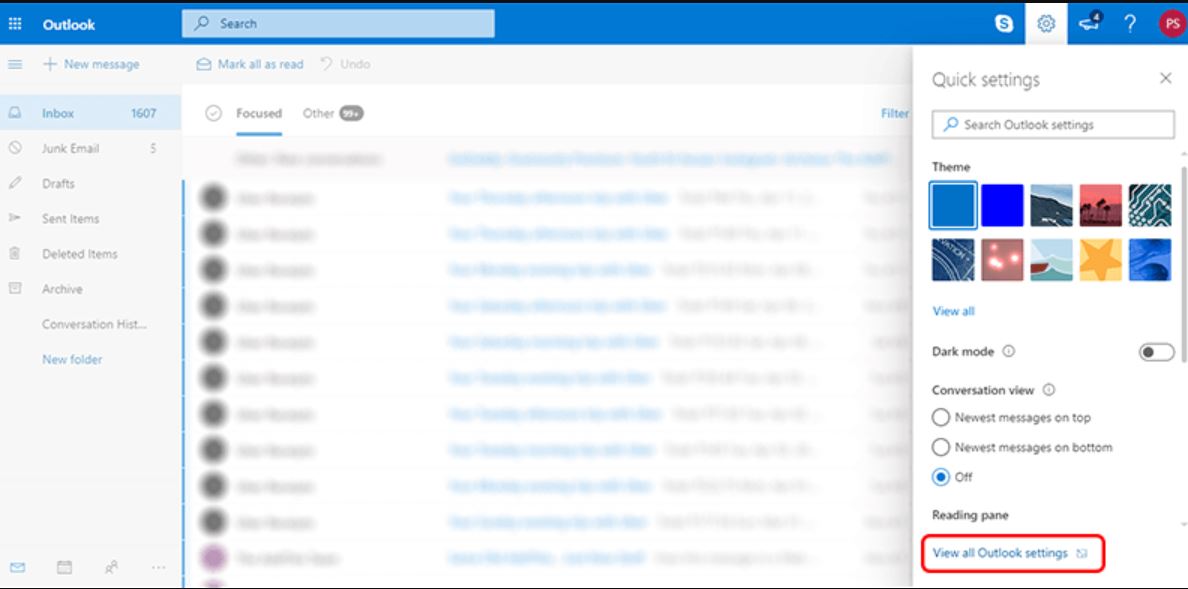
- Click the Settings gear and pick View all Outlook settings.
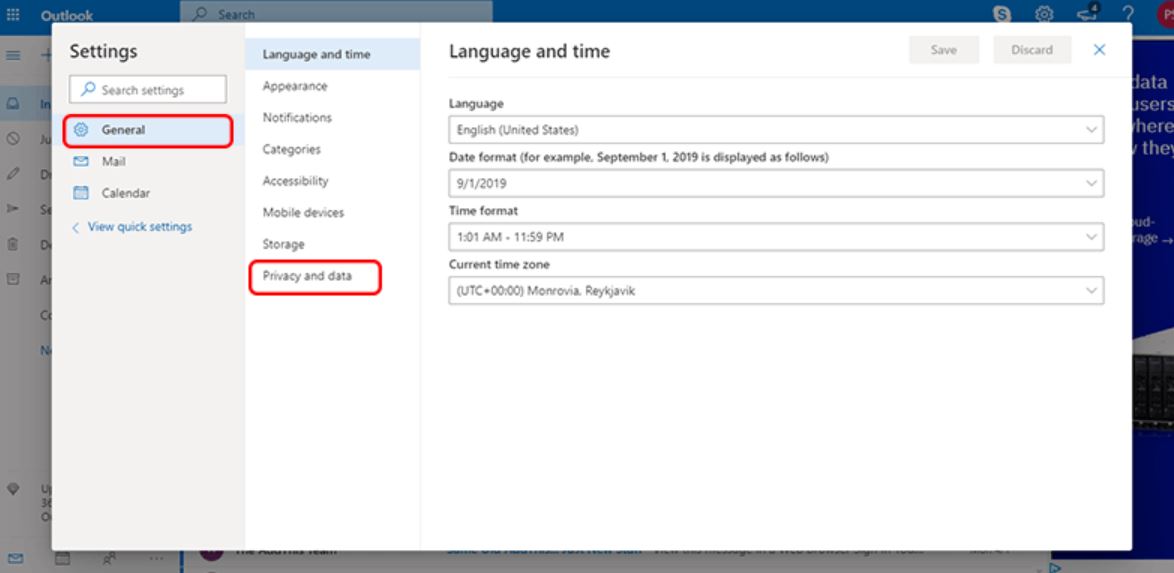
- Open General > Privacy and data.
- Click Export mailbox and wait for the request to finish.
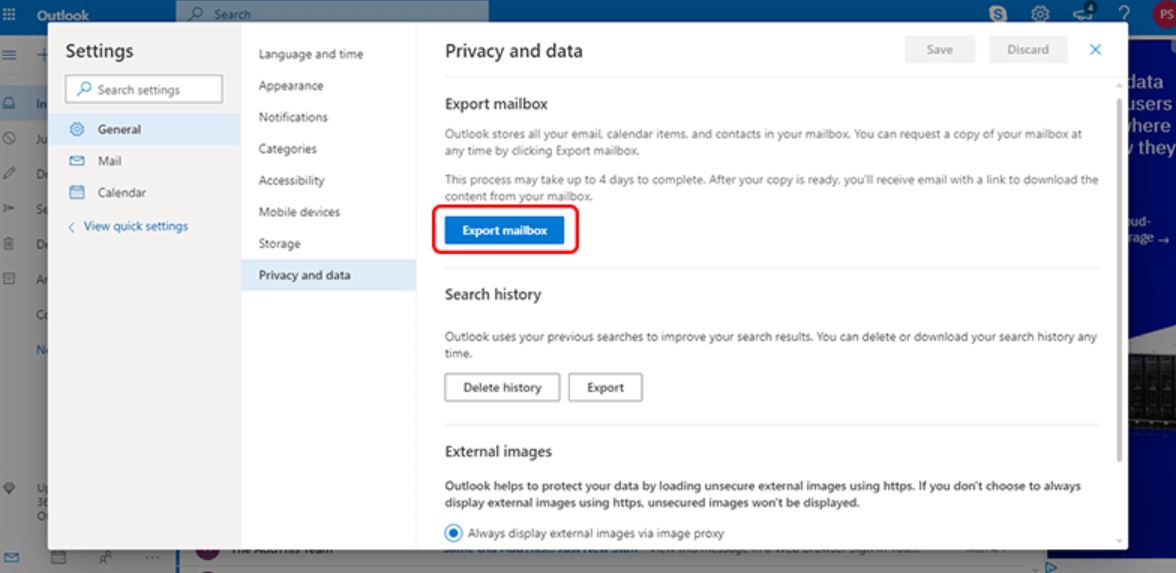
The export can take a few days. The output is one PST file with every Hotmail folder inside.
Method 2: Save Hotmail Mail as PDF With Print
This path saves one mail at a time as a PDF. Use it for a small set.
- Open any mail in Hotmail and click the Print icon.
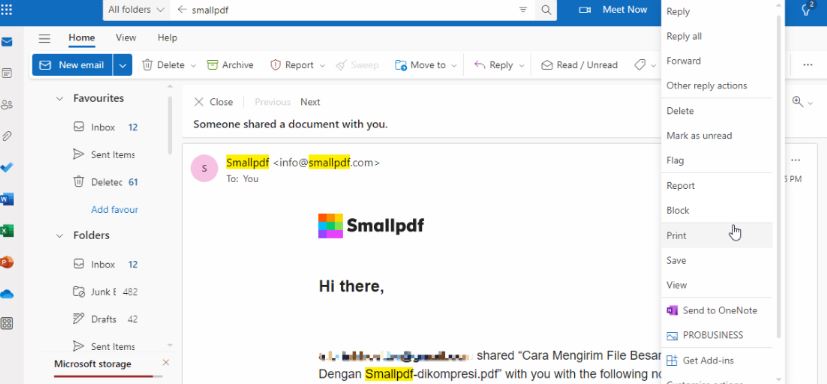
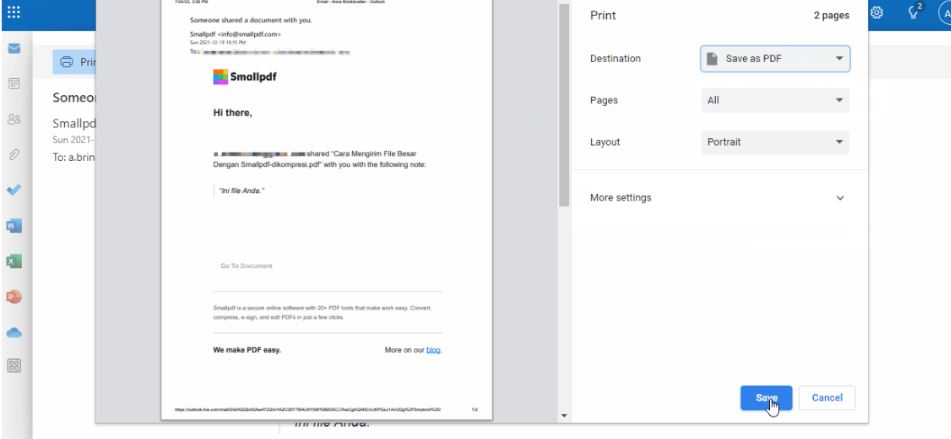
- Pick Microsoft Print to PDF as the printer.
- Browse a save folder and click Save.
Method 3: Archive Hotmail Emails With Corbett Backup
The fastest path uses a direct tool. Corbett Email Backup reads every Hotmail folder and saves the mail as PST, PDF, MBOX, or EML in one job. It keeps every folder, attachment, and date intact.
Steps to Archive Hotmail Emails in Bulk
- Install and launch the software on a Windows PC.
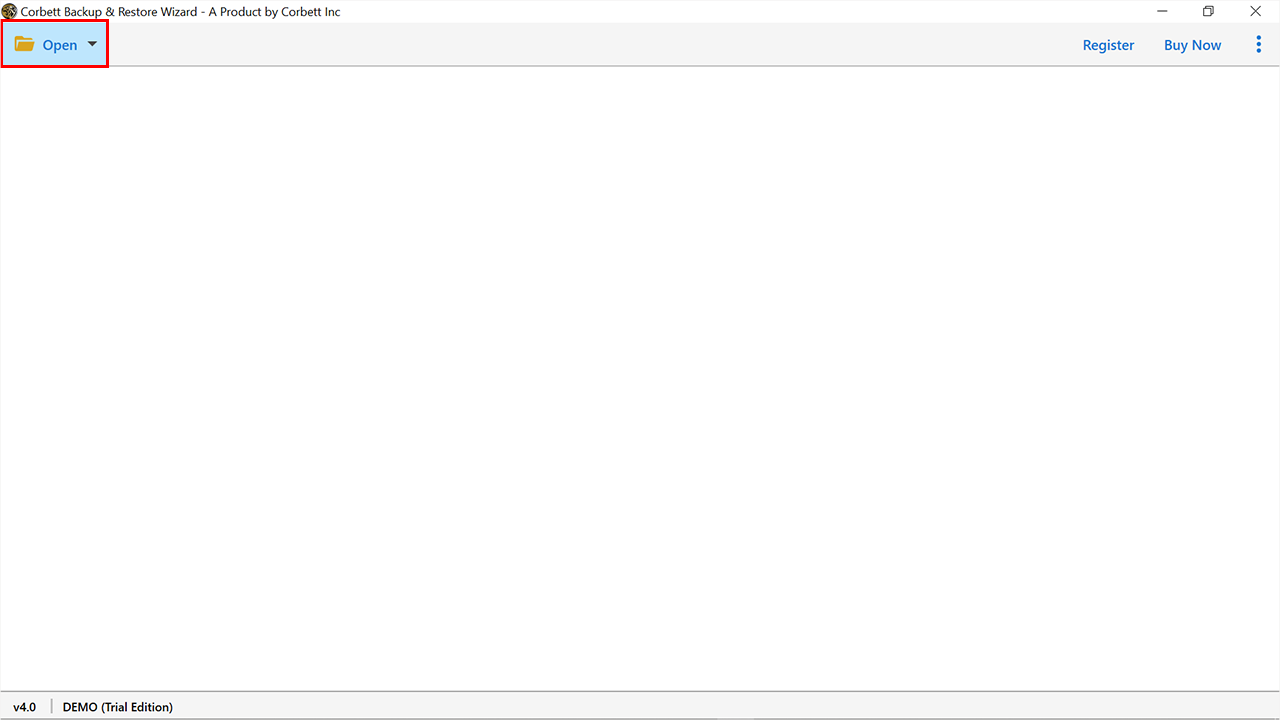
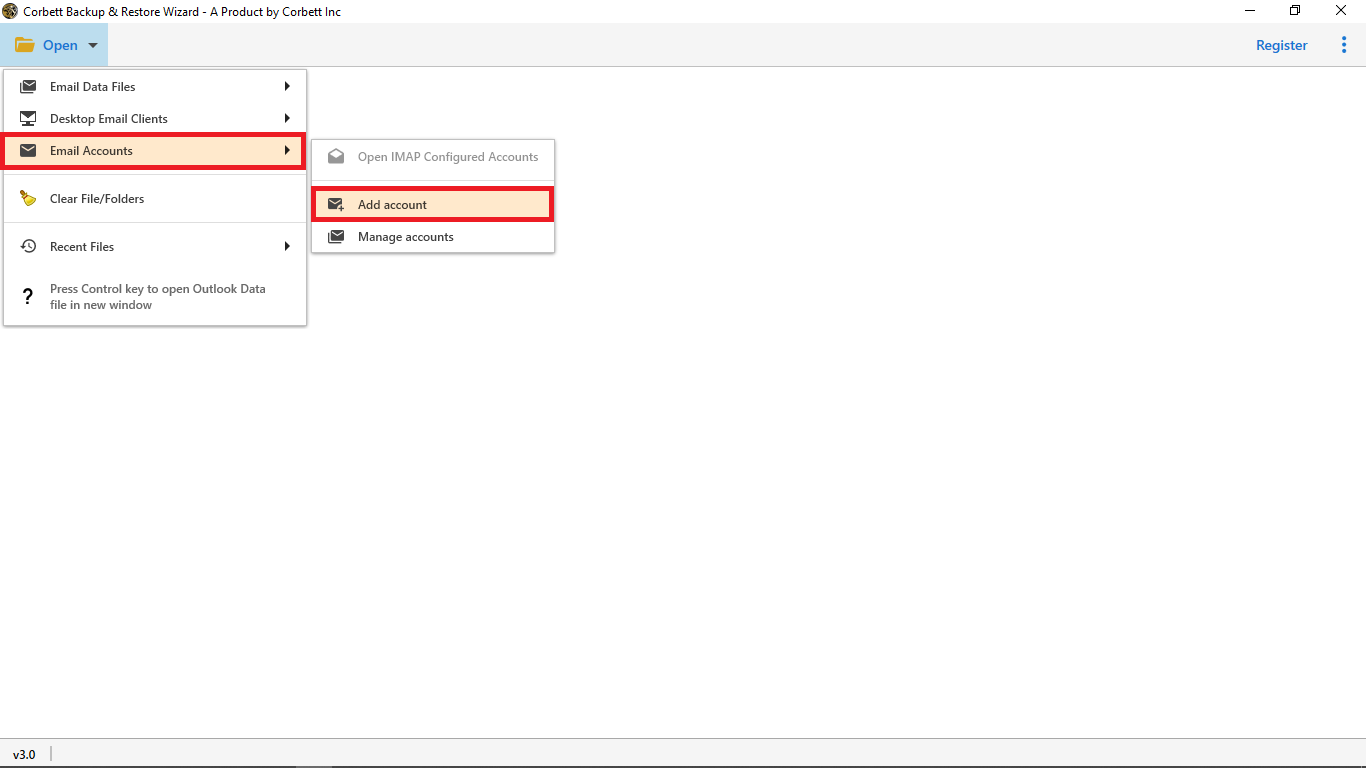
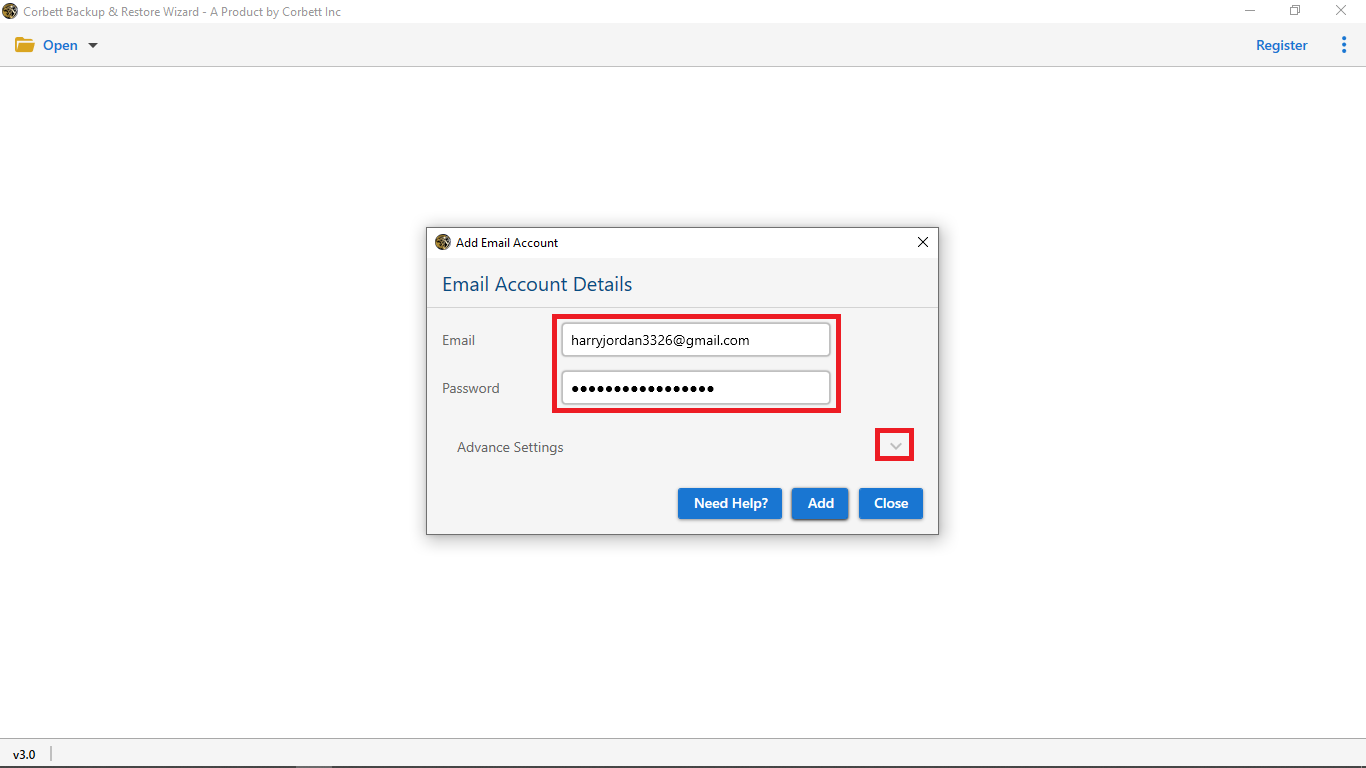
- Click Open > Email Accounts > Add Account.
- Type the Hotmail address and the app password.
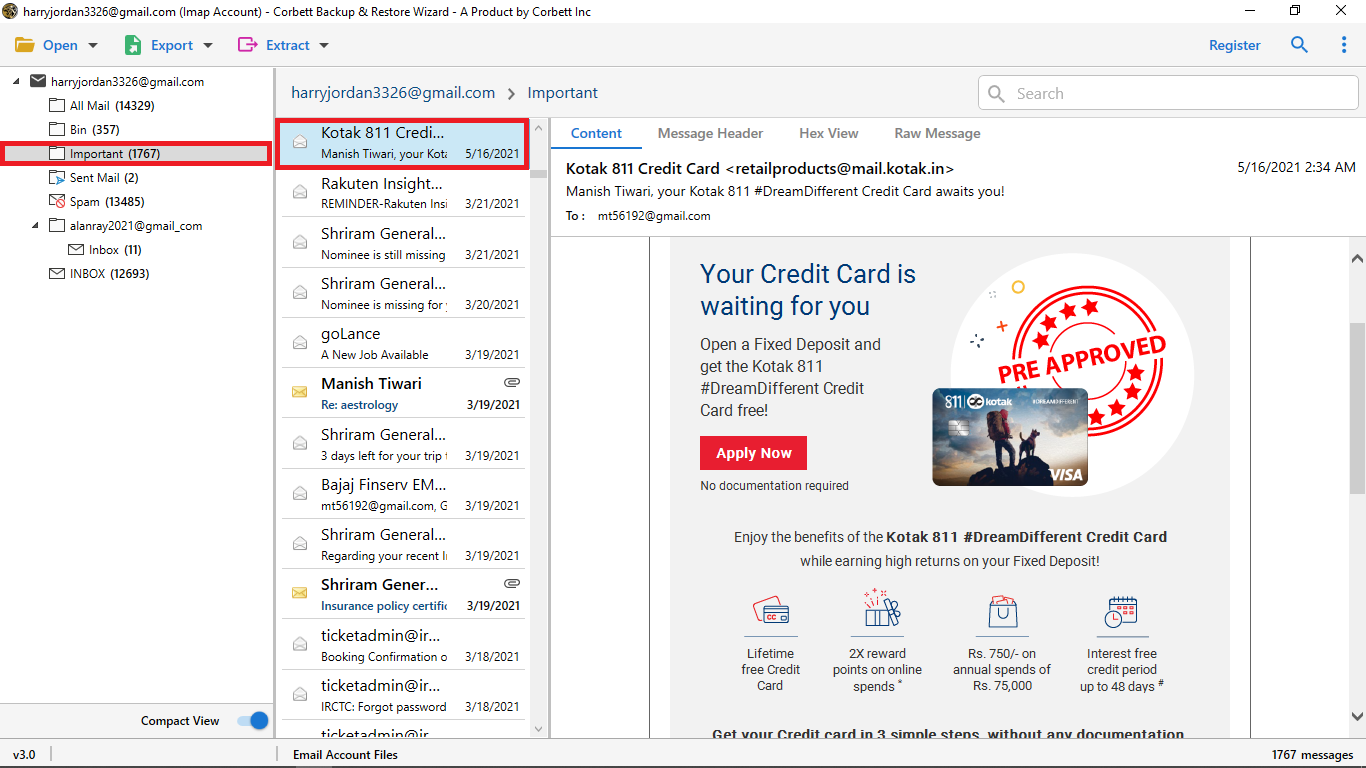
- Preview every folder and mail in the side pane.
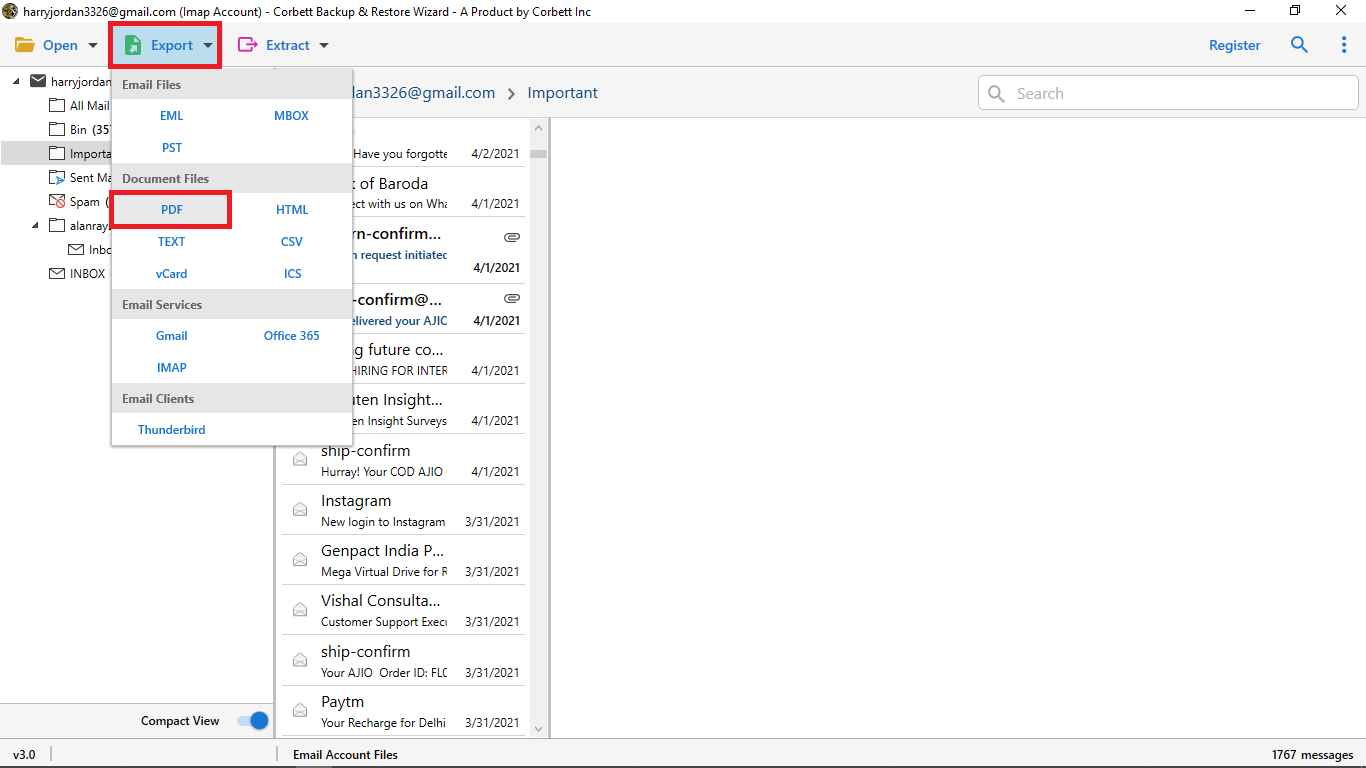
- Click Export and pick PST, PDF, MBOX, or EML as the output.
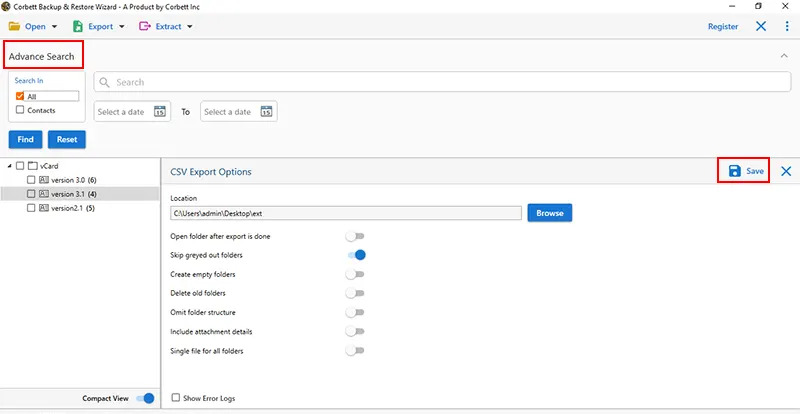
- Browse a save folder and click Save.
You may also like the guide on how to add Hotmail to Windows Live Mail for a desktop link. If you plan to move Hotmail mail into Gmail later, the dedicated guide covers every step.
Frequently Asked Questions
Q1. Can I archive Hotmail emails without the export request?
Yes. The Corbett backup tool saves every Hotmail folder as PST, PDF, MBOX, or EML in a few clicks. The Microsoft export is not needed.
Q2. Will the archive keep the folder layout?
Yes. Each Hotmail folder becomes a Windows folder with the same name and the same mail inside.
Q3. Do I need an app password for Hotmail?
Yes. Microsoft blocks normal passwords for third party access. Create an app password in the Microsoft account.
Q4. Will the archive open on a Mac or an iPhone?
A PDF or MBOX archive opens on Mac and iPhone. PST is best for Windows Outlook.
Conclusion
You can archive Hotmail emails with the built in Export Mailbox option, the Print to PDF route, or a direct backup tool. The export is fine for a one time PST. The print is great for a single PDF. The backup tool is the right pick for a clean bulk archive in any format. Your old mail will sit safe on the local drive.