How to Download Hotmail Emails to a Hard Drive
Worried about losing your Hotmail emails? Want a local copy on your hard drive? This guide shows how to download Hotmail emails to a hard drive in safe steps. You get a manual route using Outlook and a faster direct route. Pick what fits your data size.
Hotmail, now part of Outlook.com, holds important personal mail. A local backup keeps it safe from account lock outs, password loss, and accidental deletion.
Overview
Hotmail does not offer a one click download button. To save mail locally, you either bridge through Outlook desktop or use a dedicated backup app. Both methods produce a file you can store on any drive. The output can be PST, PDF, MBOX, EML, or MSG.
Why Download Hotmail Emails to a Hard Drive?
- Protect mail against account suspension or hack.
- Keep records for legal or audit needs.
- Free Hotmail space by archiving old mail offline.
- Read mail when the Hotmail server is down.
- Move mail to a new device or new email service later.
- Comply with data retention rules for your business.
If you also need to transfer Hotmail emails to a Gmail account after the backup, the same export can be reused. Many users also forward Hotmail to a Yahoo address as a backup channel.
Common Backup Scenarios and Errors
- Account closing: Hotmail will be closed by Microsoft due to inactivity.
- App password missing: IMAP login rejects without a generated app password.
- Folder mismatch: Custom Hotmail folders do not map cleanly during manual sync.
- Slow sync: Mailboxes above 5 GB time out during the first Outlook pull.
- Attachment loss: Manual save drops inline images and signed attachments.
- Disk space: Outlook PST grows large fast without compaction.
Manual vs Automated Method
Quick Side by Side
- Setup: Manual needs Outlook desktop. Automated needs only one app.
- Speed: Manual is slow for large mailboxes. Automated finishes in minutes.
- Bulk: Manual saves one folder at a time. Automated handles full mailbox at once.
- Format: Manual gives PST only. Automated supports PST, MBOX, EML, MSG, PDF, HTML.
- Filters: Manual offers none. Automated filters by date, sender, subject, folder.
- Reliability: Manual depends on Outlook sync. Automated supports pause and resume.
Manual Method With Outlook Import Export
This works if you already have Outlook desktop with your Hotmail account configured.
- Open Outlook desktop on your PC.
- Click File and pick Open and Export.
- Choose Import Export from the list.
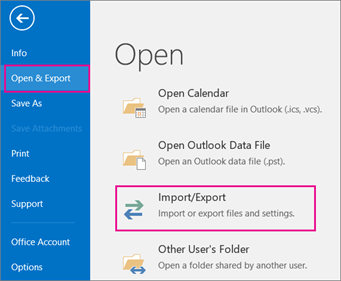
- Pick Export to a file and click Next.
- Choose Outlook Data File (.pst) and click Next.
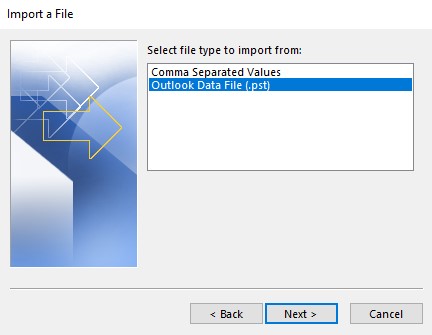
- Select your Hotmail account at the top level. Check Include subfolders.
- Click Next and pick a destination folder on your hard drive.
- Set a password if needed and click Finish.
The PST file will save to the folder you picked. You can move it to any external drive after that.
Automated Method for Direct Hotmail Backup
The Corbett Hotmail Backup downloads Hotmail emails to a hard drive in one run. You can save to PST, MBOX, EML, MSG, PDF, or HTML. Folder structure, dates, and attachments stay intact. Filters by date, sender, subject, or folder are built in.
The same app also helps you back up Outlook.com emails as PDF in case you only need a printable archive. It runs on Windows 11, 10, 8, and 7.
Step by Step Walkthrough
Follow these five steps to download Hotmail emails to your hard drive.
Step 1. Install and open the app on your Windows PC. Click Open > Email Accounts > Add Account.
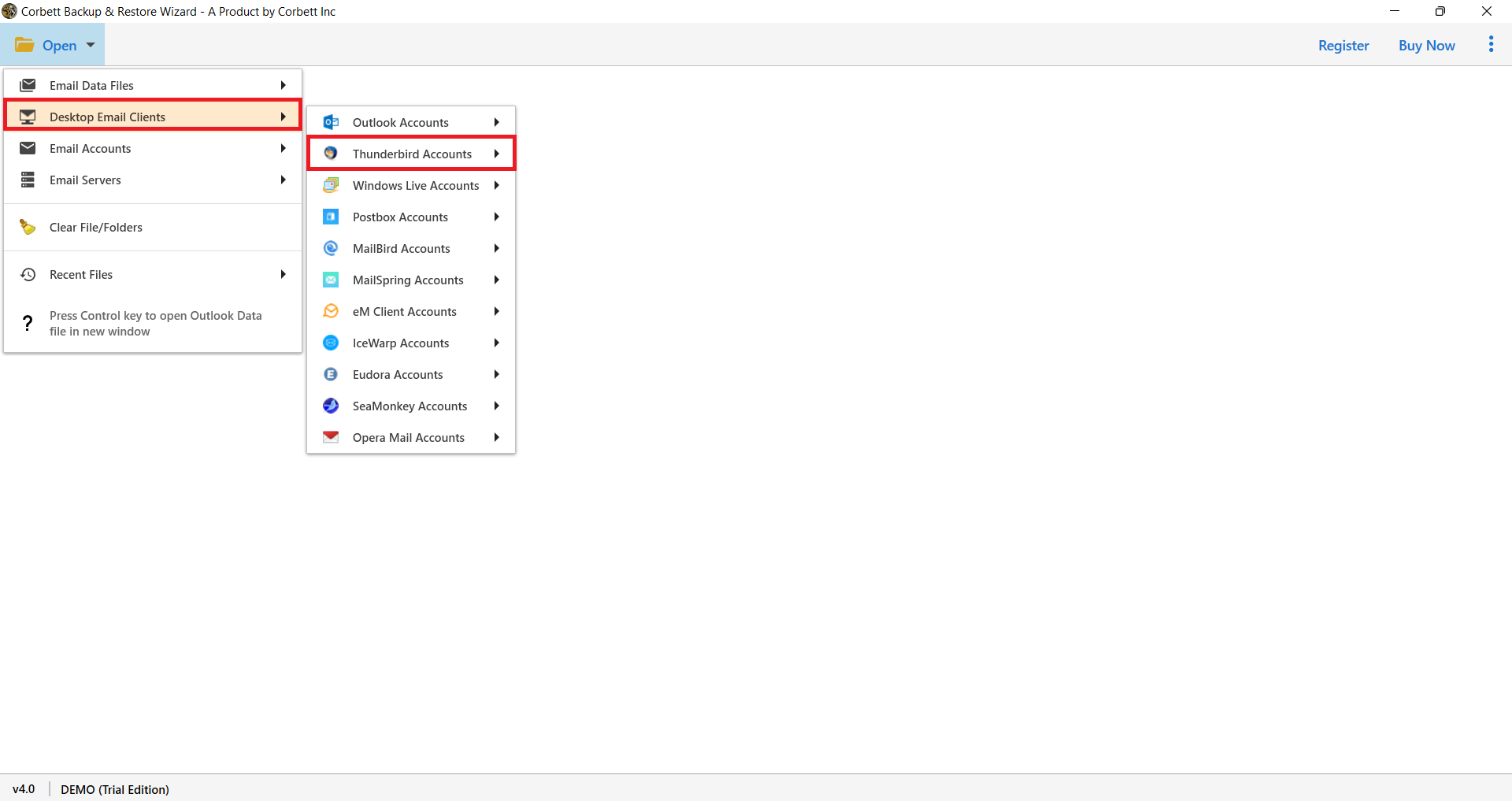
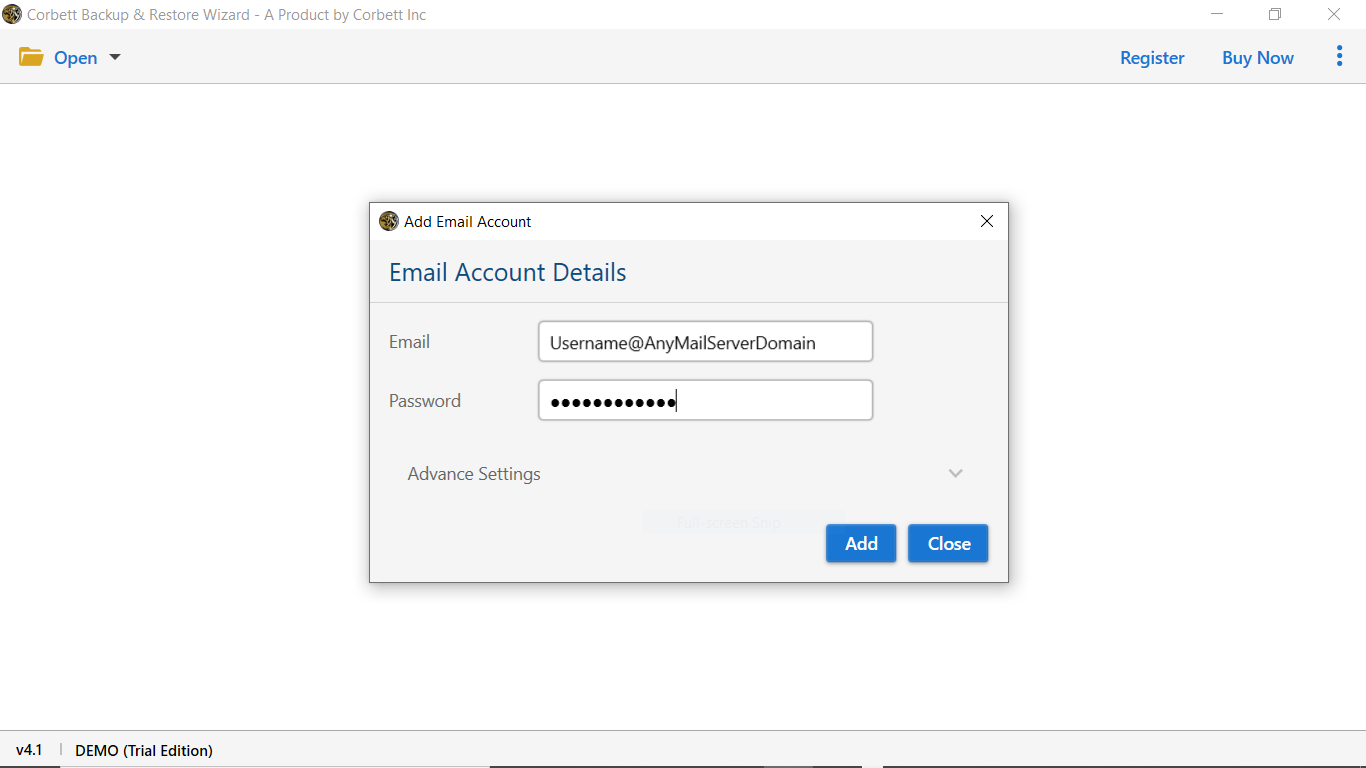
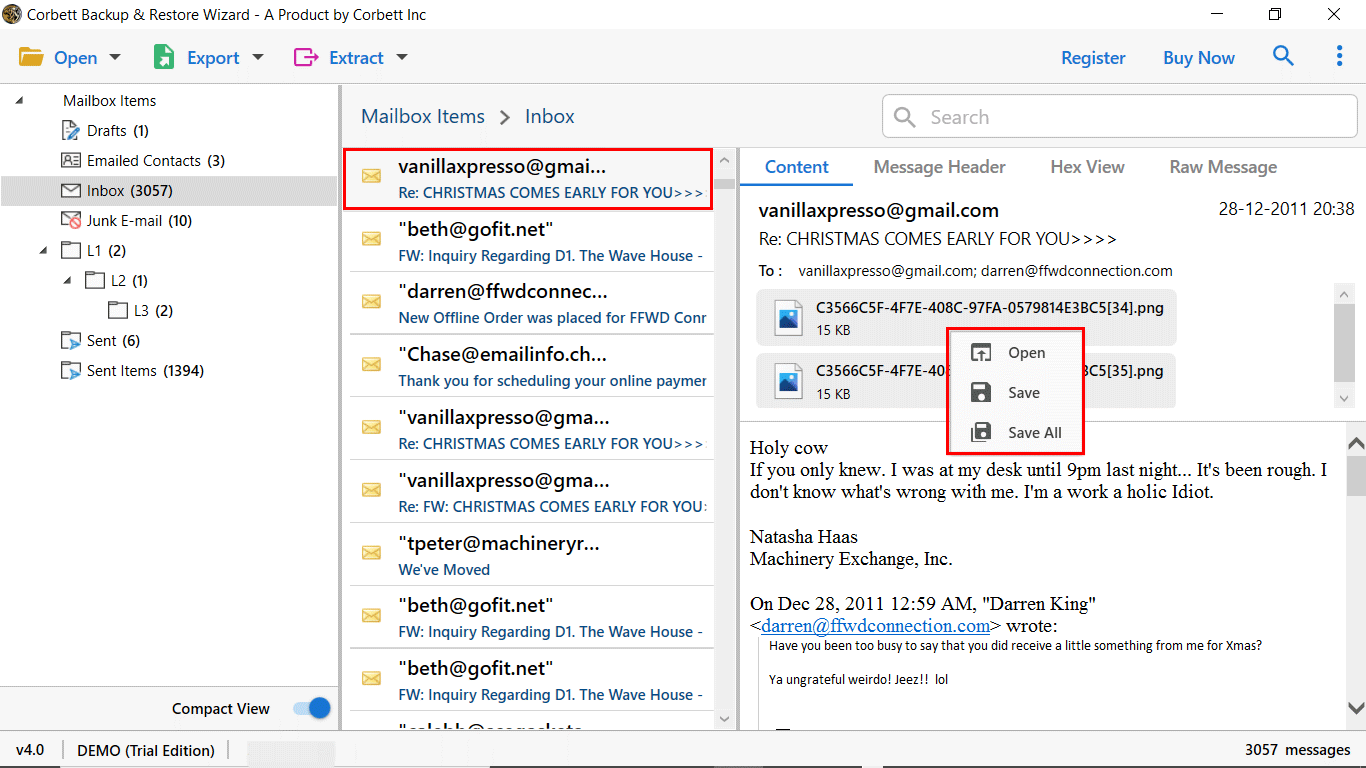
Step 3. Preview the loaded Hotmail emails. Pick folders, dates, and senders to keep.
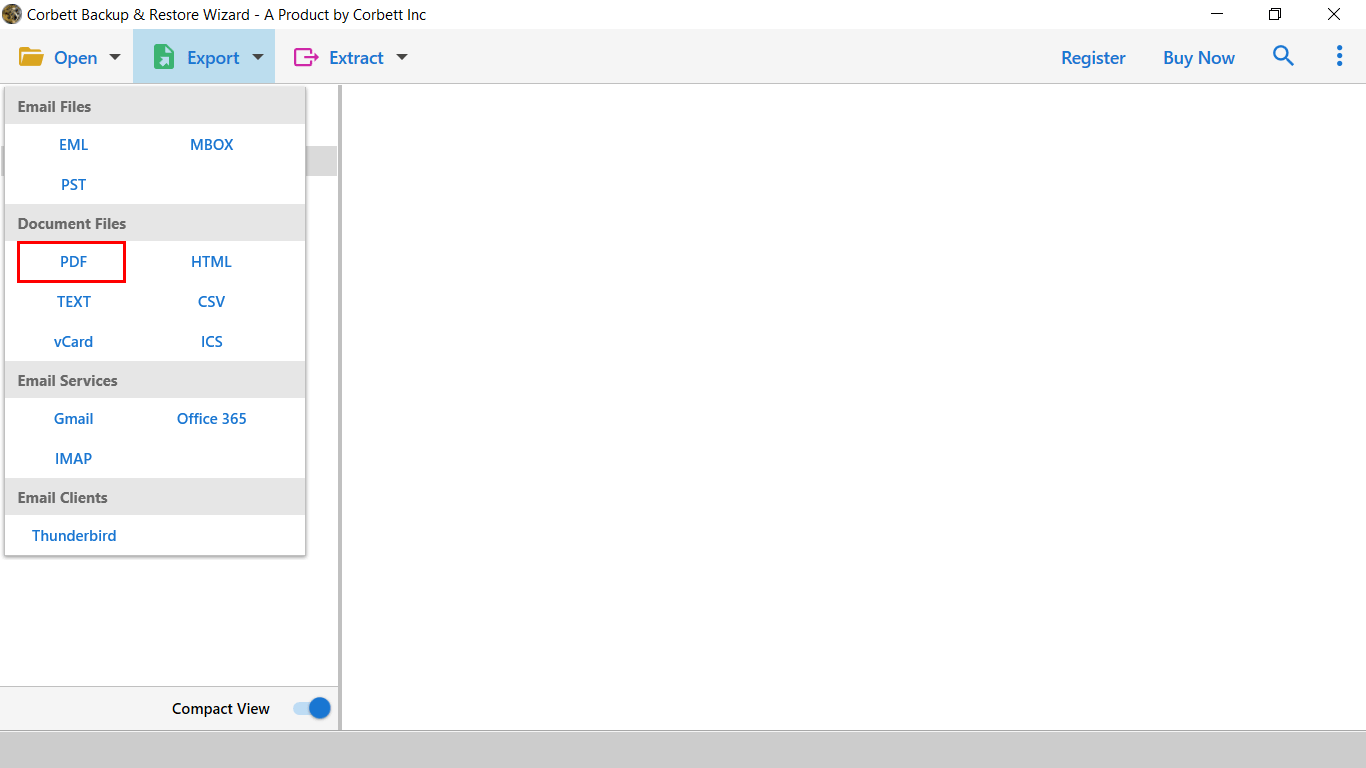
Step 4. Click Export and pick your output format. PST or MBOX is best for full mailbox saves.
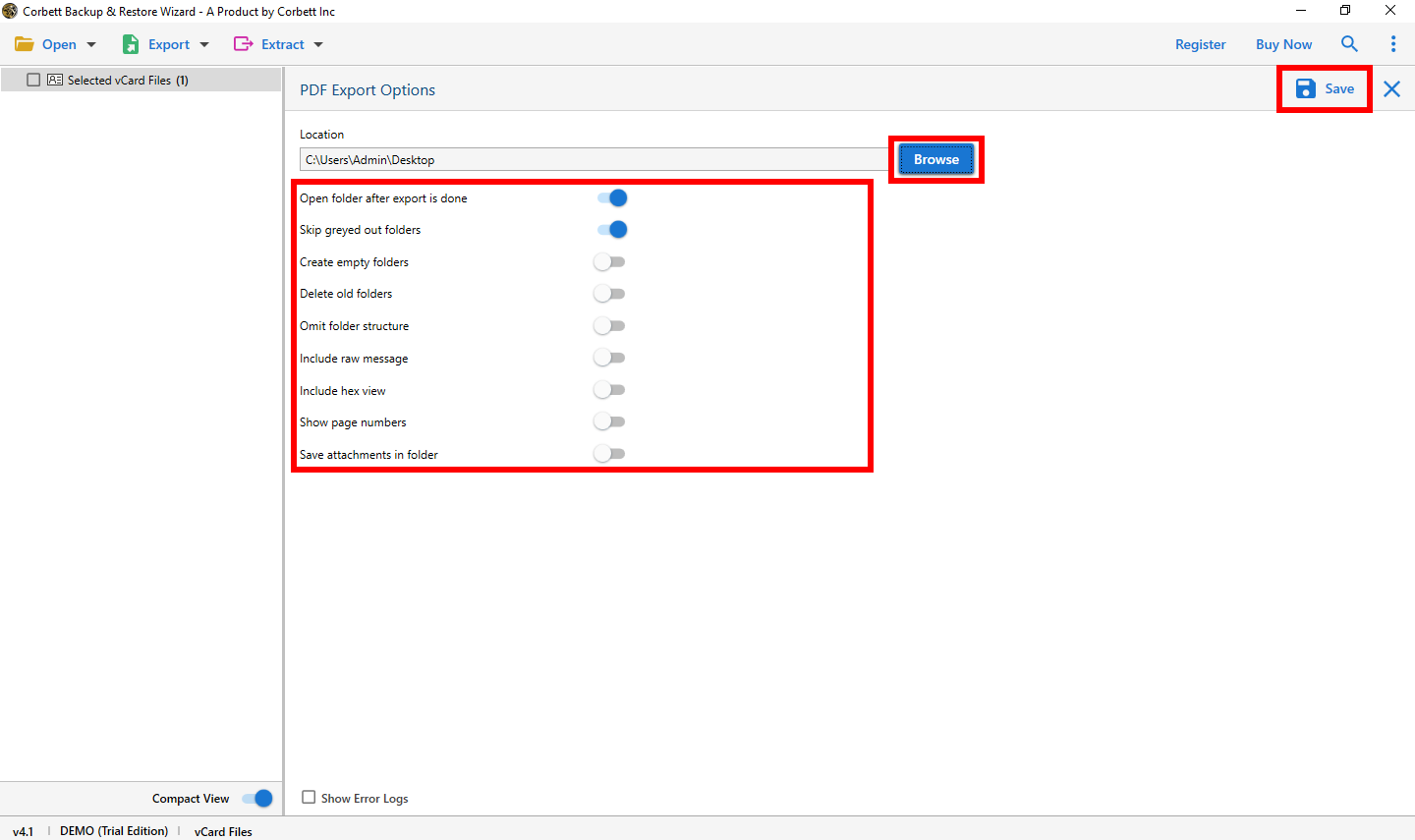
Step 5. Pick the destination folder on your hard drive and click Save to start the backup.
Output Formats You Can Save To
- PST: Best for opening later in Outlook desktop.
- MBOX: Best for Thunderbird and Apple Mail.
- EML: Best for per email files.
- MSG: Best for legal archives that need single message files.
- PDF: Best for printable or shareable backups.
- HTML: Best for browser based viewing without any client.
If you ever need to import an MBOX file back to a Hotmail account, the same app handles the reverse path too.
Pro Tips for a Safe Backup
- Use a wired connection during the first large backup.
- Split mailboxes over 10 GB by year using date filters.
- Generate a Hotmail app password before starting.
- Disable antivirus mail scans during the run.
- Verify file size and sample emails after each backup.
- Store the backup on an external drive plus a cloud copy.
Frequently Asked Questions
Q1. Can I download Hotmail emails to a hard drive without Outlook?
Yes. The automated method works without Outlook desktop. It connects to Hotmail through IMAP directly.
Q2. What file format is best for Hotmail backup?
PST is best if you plan to open the mail later in Outlook. MBOX is best for Thunderbird or Apple Mail.
Q3. Will attachments be saved during the download?
Yes. Both the manual and automated routes keep every attachment with the parent email.
Q4. Do I need an app password for Hotmail backup?
Yes if two factor auth is on. Microsoft requires an app password when basic auth is disabled.
Q5. Can I back up only a specific date range?
Yes. The automated method offers a date filter to back up only the mail you choose.
Q6. How long does a 10 GB Hotmail backup take?
About 30 minutes on a stable connection. Manual Outlook export often takes 2-3 hours for the same size.
Conclusion
Downloading Hotmail emails to a hard drive is the safest way to protect your mail. Manual Outlook export works for small accounts. For full mailboxes, a direct backup is faster, more reliable, and supports more formats. Pick the method that fits your data and store your backup safely.