How to Import MBOX to Hotmail Account Directly
Need to import MBOX files into your Hotmail account? You are not alone. Many users move from Thunderbird, Apple Mail, or Gmail to Hotmail. MBOX is the most common source format. This guide shows two safe ways to load it into Hotmail.
Hotmail does not import MBOX natively. A bridge route works for small files. A direct method works for full mailbox imports. Pick the one that fits your data size.
Overview
MBOX is a plain text mailbox format used by Thunderbird, Apple Mail, Spicebird, and others. Hotmail, now part of Outlook.com, stores mail on Microsoft servers. The two systems do not talk to each other directly. You need either a client bridge or a dedicated converter to move the mail.
Why Import MBOX to Hotmail?
- Move old mail from Thunderbird or Apple Mail to Hotmail.
- Keep one inbox for personal and archived mail.
- Access your mail on any device through outlook.live.com.
- Free up local disk space by storing mail in the cloud.
- Share old threads with co workers from the Hotmail web view.
- Use Hotmail filters and rules on imported mail.
Common Use Cases and Errors
- App password missing: Hotmail rejects IMAP login without a generated app password.
- Folder mismatch: Custom labels do not appear after manual import.
- File too large: Thunderbird hangs while opening MBOX files above 4 GB.
- Duplicate mail: Re running the same import creates duplicates in Hotmail.
- Attachment loss: Some manual paths drop inline images and signed attachments.
- Slow upload: IMAP push to Hotmail throttles on weak connections.
Manual vs Automated Method
Quick Side by Side
- Setup: Manual needs Thunderbird plus extensions. Automated needs only one app.
- Speed: Manual is slow on large MBOX files. Automated handles them in minutes.
- Folder tree: Manual may flatten folders. Automated keeps the tree intact.
- Attachments: Manual can lose inline images. Automated preserves every attachment.
- Filters: Manual offers none. Automated filters by date, sender, and folder.
- Reliability: Manual fails on flaky IMAP. Automated supports pause and resume.
Manual Method With Thunderbird Bridge
This works when the MBOX file is small and Hotmail IMAP login works.
- Open Thunderbird on your PC.
- Install the ImportExportTools NG add on.
- Right click Local Folders and create a new folder.
- Right click the new folder and choose ImportExportTools NG > Import mbox file.
- Select your MBOX file from disk.
- Wait for the mail to load into Thunderbird.
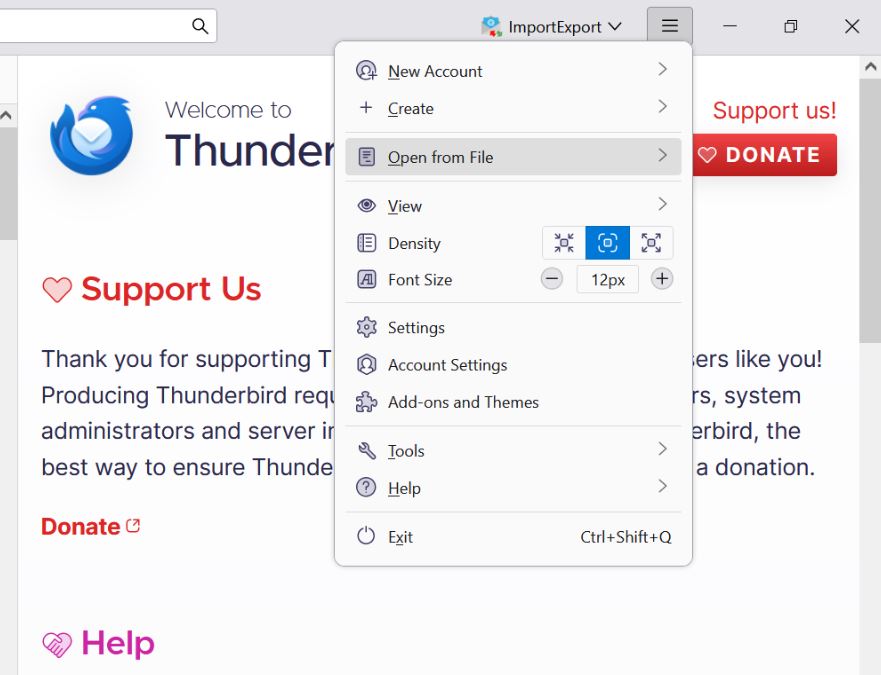
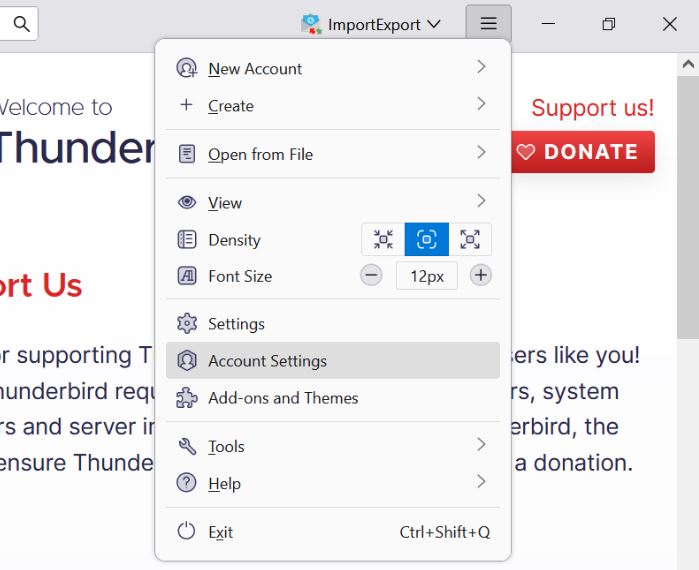
- Open Account Settings in Thunderbird.
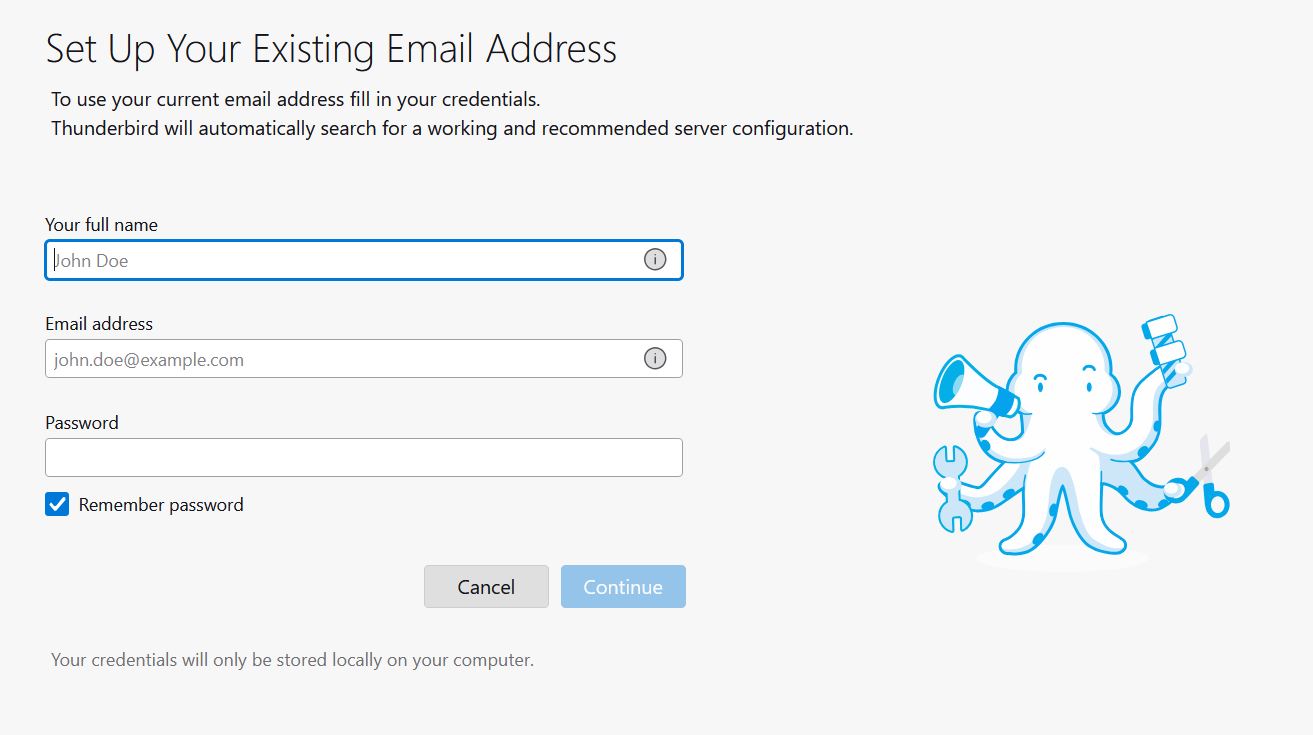
- Click Add Mail Account and enter your Hotmail credentials.
- Select IMAP as the protocol. Use outlook.office365.com on port 993.
- Select the messages inside the imported folder.
- Right click and choose Move To, then pick a Hotmail folder.
- Wait for IMAP to upload the mail to your Hotmail account.
This route works but it is slow for large MBOX files. Re running it can also create duplicates.
Automated Method for Direct Import
The Corbett MBOX Converter imports MBOX files directly into Hotmail. It supports IMAP push to Hotmail in one run. Folder structure, labels, and attachments stay intact. It also keeps senders, dates, and metadata exactly as in the source MBOX.
The same app can also export MBOX to PST, EML, MSG, PDF, or HTML if needed. Filters by date, subject, and folder are built in. It runs on Windows 11, 10, 8, and 7.
Step by Step Walkthrough
Follow these five steps to import MBOX into Hotmail in one go.
Step 1. Install and open the application on your Windows PC.
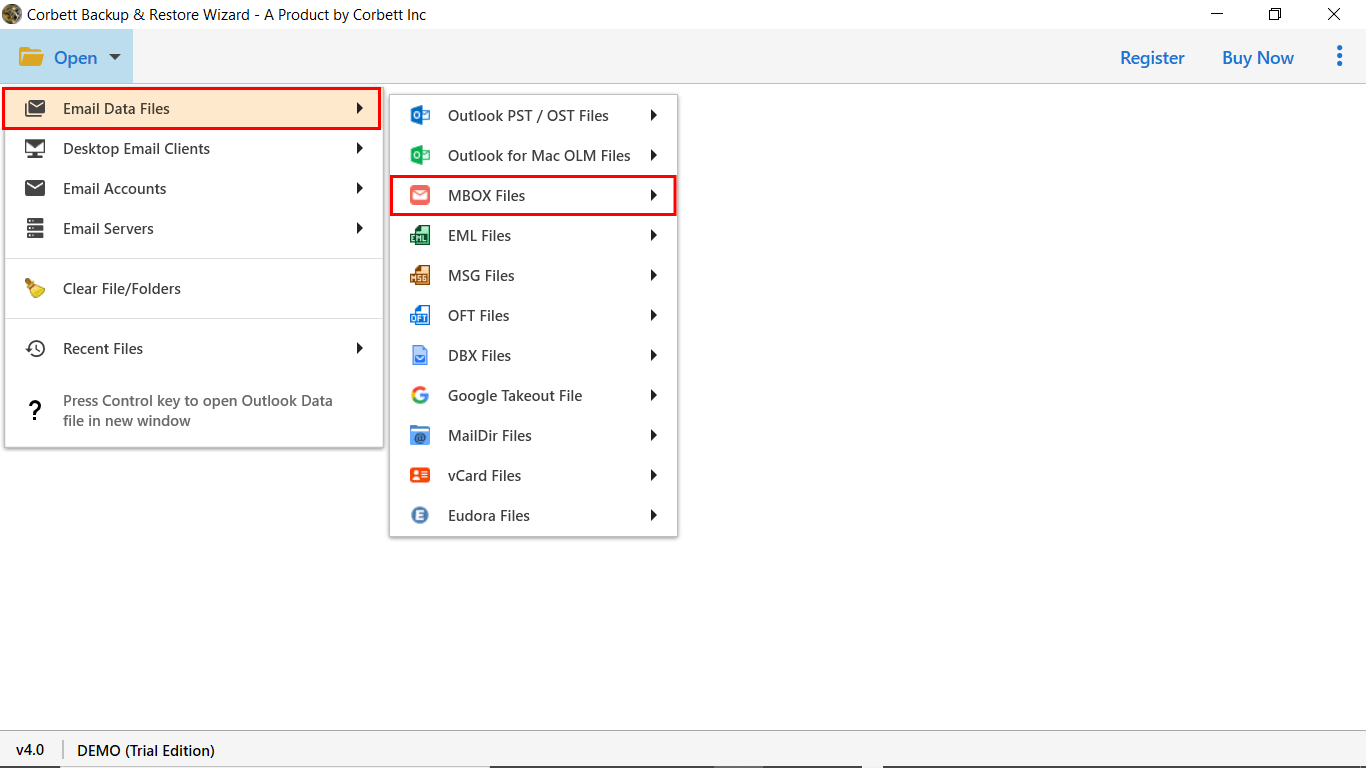
Step 2. Click Open > Email Data Files > MBOX File and load your MBOX file.
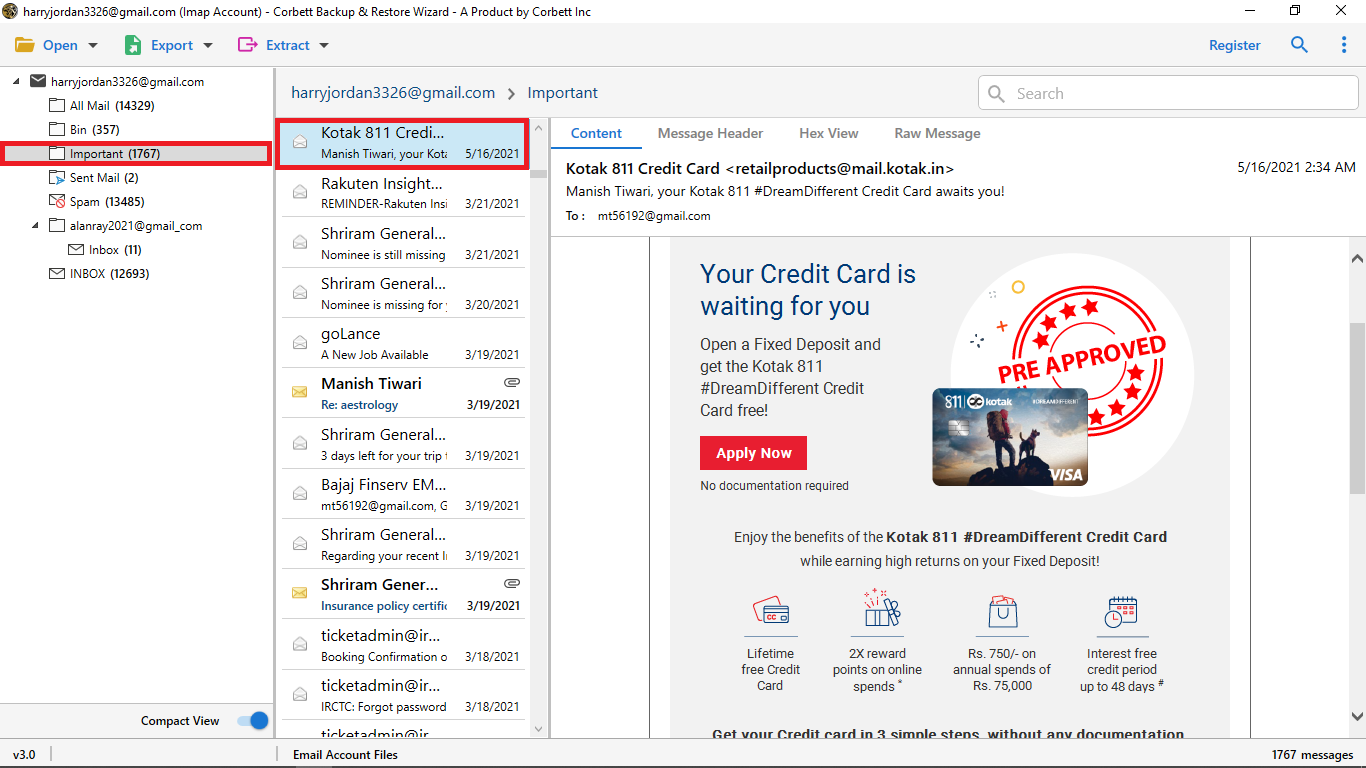
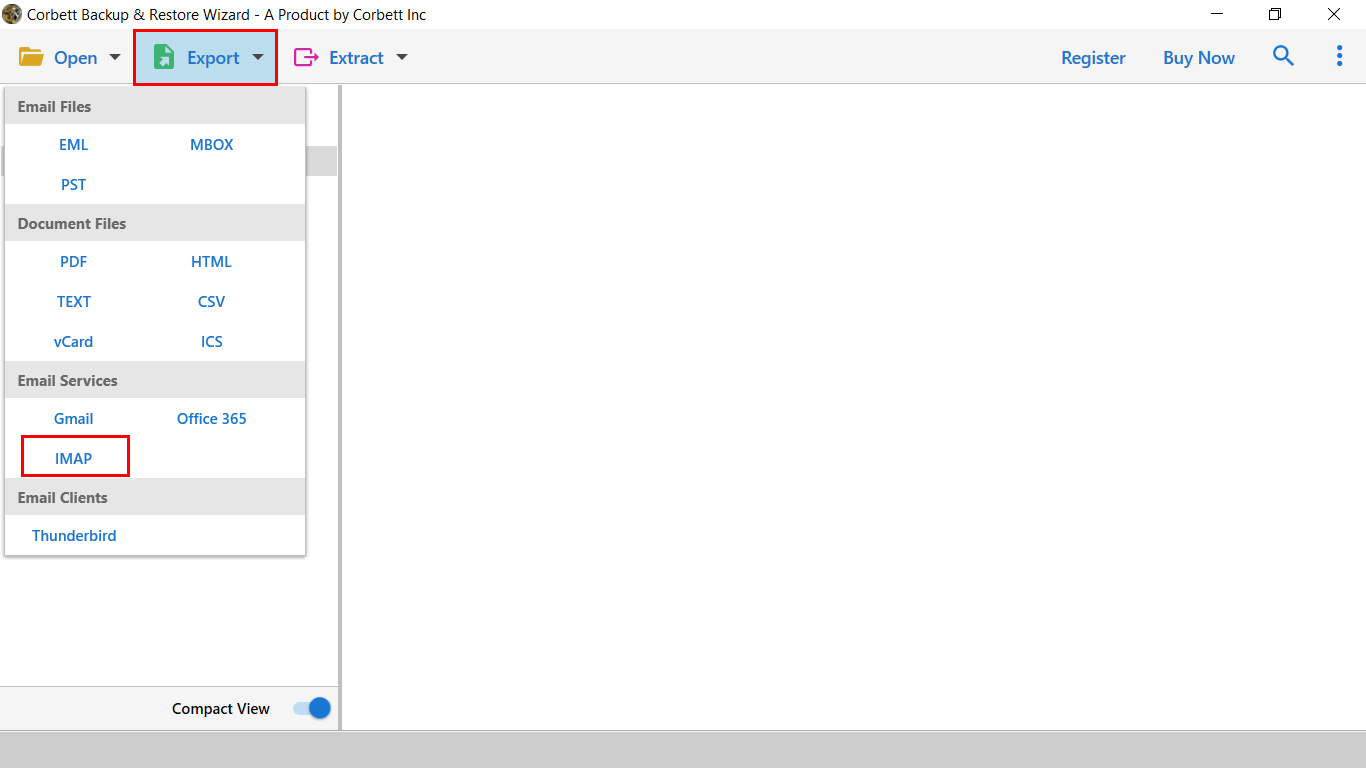
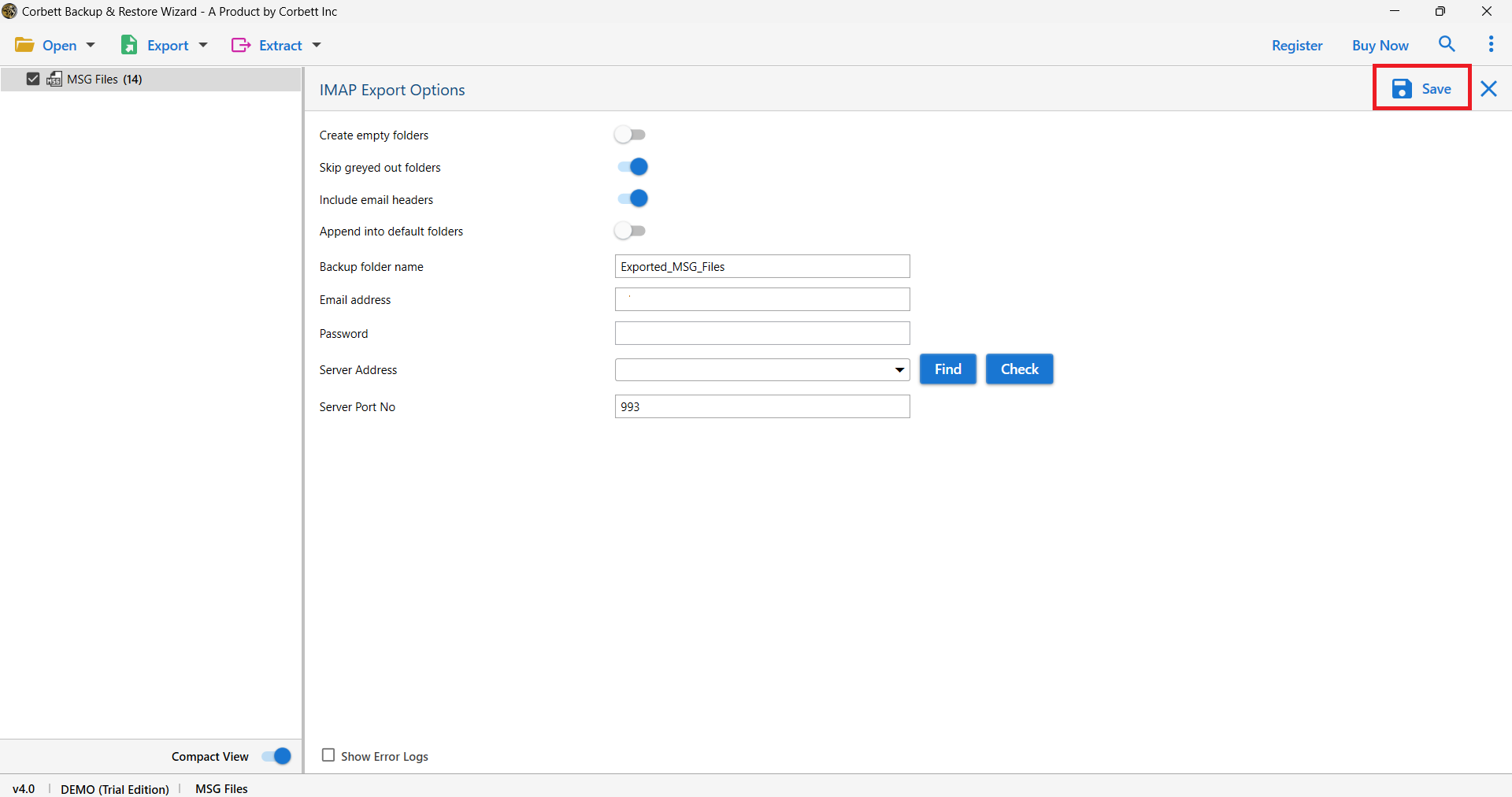
Step 4. Click Export and select IMAP as the target. Pick Hotmail from the IMAP server list.
Step 5. Enter your Hotmail address and app password. Click Save to start the upload.
Pro Tips for a Clean Import
- Generate a Hotmail app password before starting the import.
- Split MBOX files larger than 5 GB by year for faster uploads.
- Use a wired connection during the upload to avoid timeouts.
- Disable mail antivirus scans during the run.
- Verify a few sample threads after the first upload pass.
- Keep the source MBOX file safe until verification is complete.
Frequently Asked Questions
Q1. Can Hotmail import MBOX files natively?
No. Hotmail and Outlook.com do not support MBOX import. A bridge or a converter is required.
Q2. Do I need a Hotmail app password for IMAP upload?
Yes. Microsoft requires an app password when basic auth is disabled on the account.
Q3. Will attachments survive the import?
Yes. Both the manual bridge and the automated converter keep attachments intact.
Q4. What is the maximum MBOX size for upload?
There is no hard cap. Splitting files above 5 GB makes the upload smoother.
Q5. Will folder structure be preserved in Hotmail?
Yes. The automated method maps the MBOX folder tree to Hotmail folders cleanly.
Q6. Can I import multiple MBOX files at once?
Yes. The converter allows batch MBOX selection and uploads them in one job.
Conclusion
Importing MBOX to Hotmail is simple with the right method. The manual bridge through Thunderbird works for small files. For larger jobs, a direct converter saves hours and keeps every detail intact. Pick the method that matches your file size and your timeline.