Why Can’t I Open EML attachments? Quick Fixes
Before starting understanding about the main reasons behind “why can’t I open EML attachments” issue lets take a short overview on EML file for better clarity.
What Is an EML File?
EML file is a standard email format used to store individual emails. It stores email data such as message content, sender and receiver information, subject, date, and attachments.
EML files are commonly created by email applications like Thunderbird, Windows Mail, and similar programs.These files can be helpful for individuals who want to back up their important emails or share them with another individual.
Common Reasons “Cannot Open EML Attachments”
In this section we will discuss following reasons why you are not able to open EML attachments. Here are causes:
1. No Default Email Application Assigned
One of the primary reasons “cannot open EML attachments” issue is that your system does not have a default application set to open the EML files. Without correct file association you cannot open EML file attachments.
2. Unsupported Email Client
Another reason that you cannot open EML attachments is because all email client does not support EML format. For example Outlook doesn’t support EML files without additional setup. If you open EML file in unsupported applications may fail to load them correctly.
3. Corrupted EML File
If EML file is corrupted, your system will not be able to open it. A corrupted file is one that was:
- Downloaded incompletely
- Email transmission errors
- Infected with malware or viruses
- Saved with storage issues
If your file is corrupted, it will fail to load.
4. Incorrect File Extension
It’s also possible that your file has incorrect extension. If “.eml” file extension is missing or altered, your system will not recognize file as an email attachment. Examples of incorrect extensions are:
- file.eml.txt
- file (no extension)
The incorrect file extension will prevent EML file attachments from opening on your system.
5. Security Restrictions
You are unable to open EML attachment when your operating system or email client has security restrictions against opening this file type. As EML files include scripts or malicious content, your operating system may block them, show warning messages and allow you to open EML file in restricted mode for security reasons.
6. Compatibility Issues with Operating System
Another possible reason for failure to open EML attachment is because EML file is of an old format and is not compatible with newer operating systems like Windows 10 or 11. Files created on Mac operating systems might also fail to open on Windows systems and vice versa.
7. Large File Size or Complex Attachments
EML files with large attachments or complex formatting might strain your operating system’s abilities to open file. As a result, your system might struggle to open the file and might show errors when attempting to do so.
How to Fix the Issue and Open EML Attachments
In this section we we will discover different ways to fix “why I cannot open EML attachments” issue. Here are some ways that lets you open EML file attachments without any problem.
1. Set a Default Program for EML Files
- Right-click on EML file.
- Select “Open With”.
- Choose email client like Thunderbird or Windows Mail.
- Check “Always use this app”.
2. Open in a Web Browser
- Locate EML file on your system.
- Open Chrome or Edge.
- Drag and drop the file into the browser.
- Now, content of the email will appear automatically.
Also Read: How to Open EML Files in Google Chrome?
3. Rename the File Extension
- Right-click on EML file.
- Click Rename.
- Change extension to .eml.
- Hit Enter.
4. Use Notepad or Text Editor
- Find EML file on your computer.
- Right-click the file.
- Click on “Open With”.
- Select Notepad from list.
- The file will open showing email content in text form.
5. Convert EML to Another Format
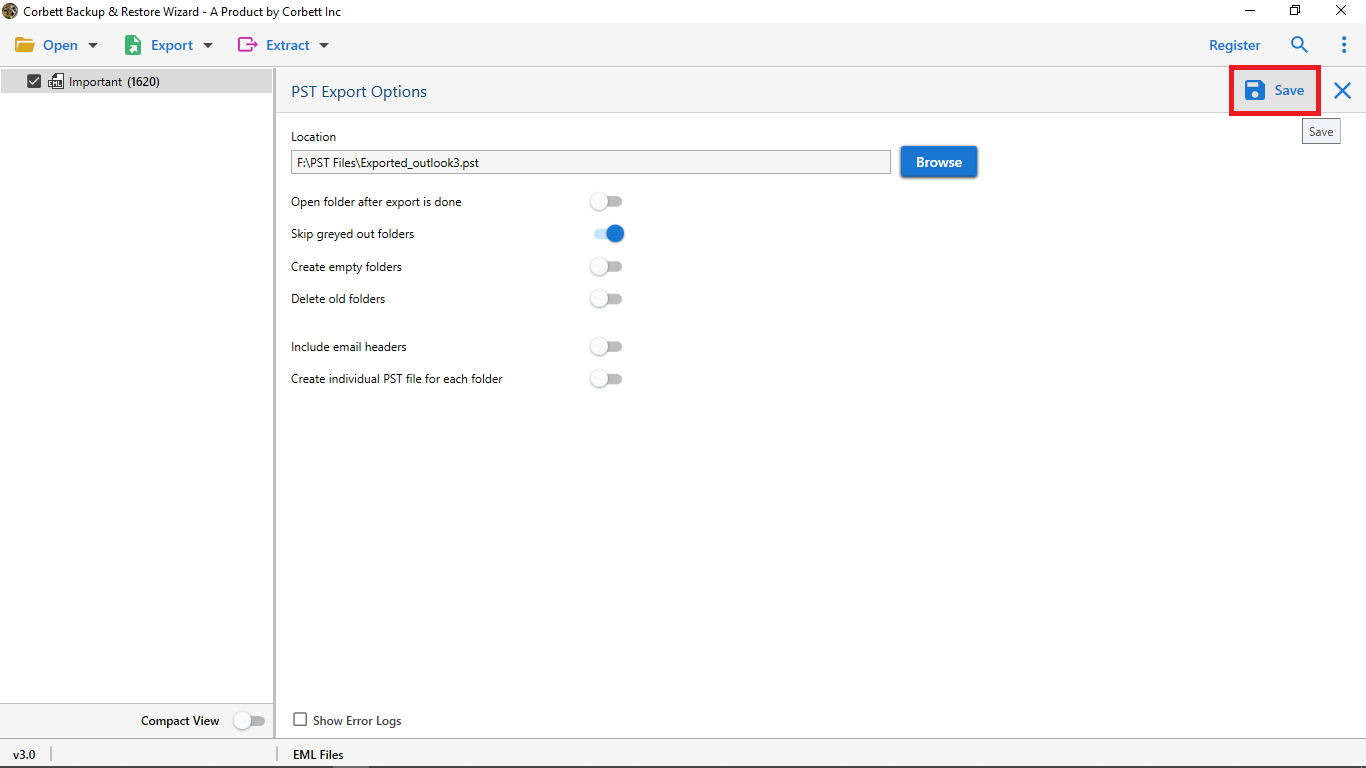
Users can open EML file attachments by converting EML file. A reliable solution like Corbett EML Converter tool that allows you to convert EML file into different file formats and lets you open EML file with all attachments without any email application or extra setup. It enables you to handle large EML file without file size limitations and solve your “cannot open .eml attachments” issue.
Steps to Use Profession Tool
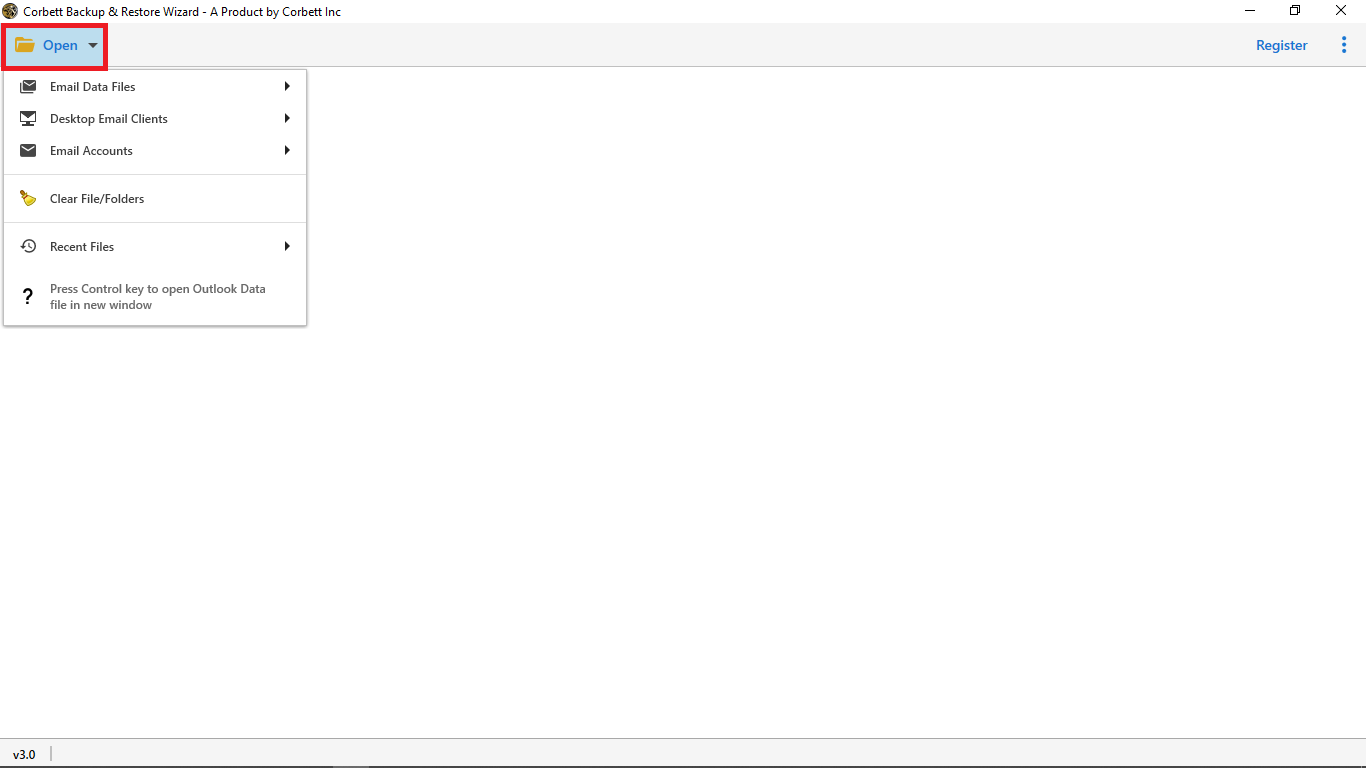
- Install the software on your computer and click “Open”.

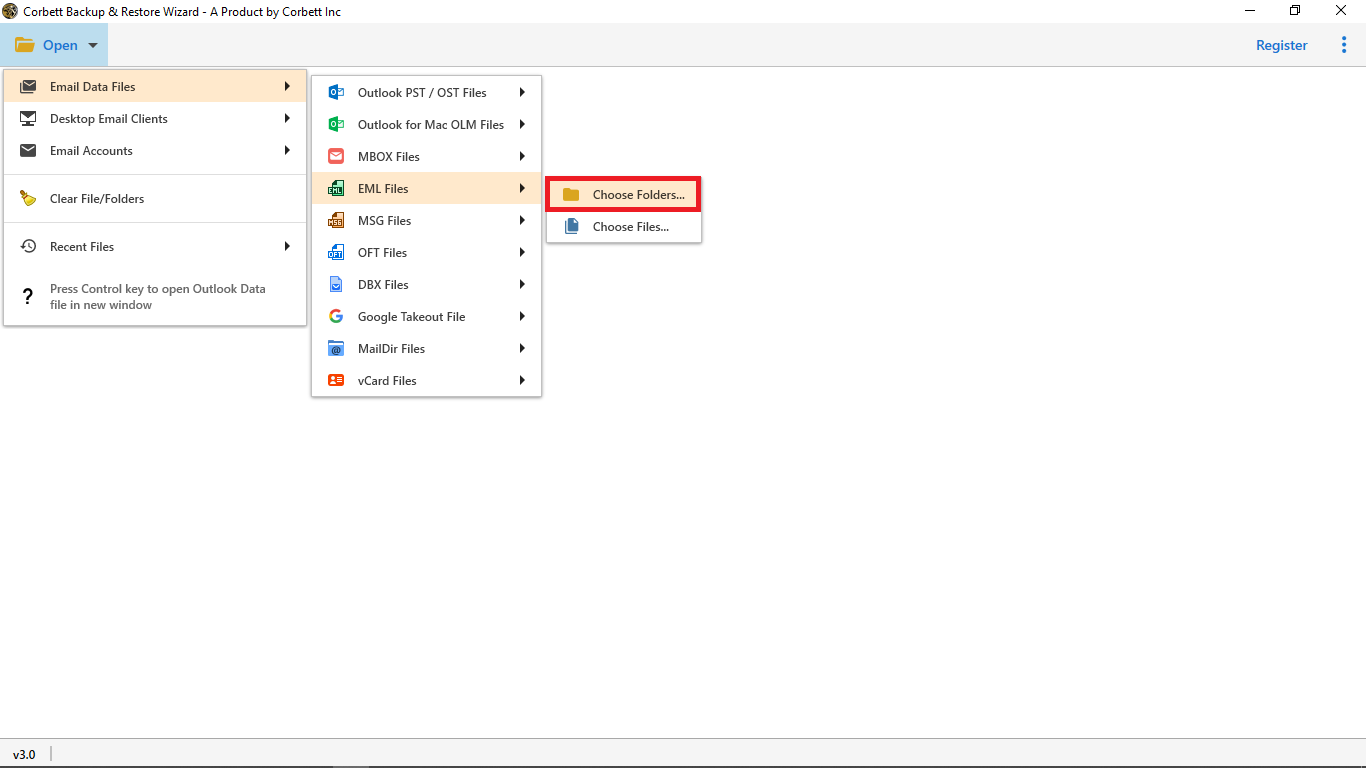
- Now, choose Email Data File and select EML File>>Choose a Files/Folders.
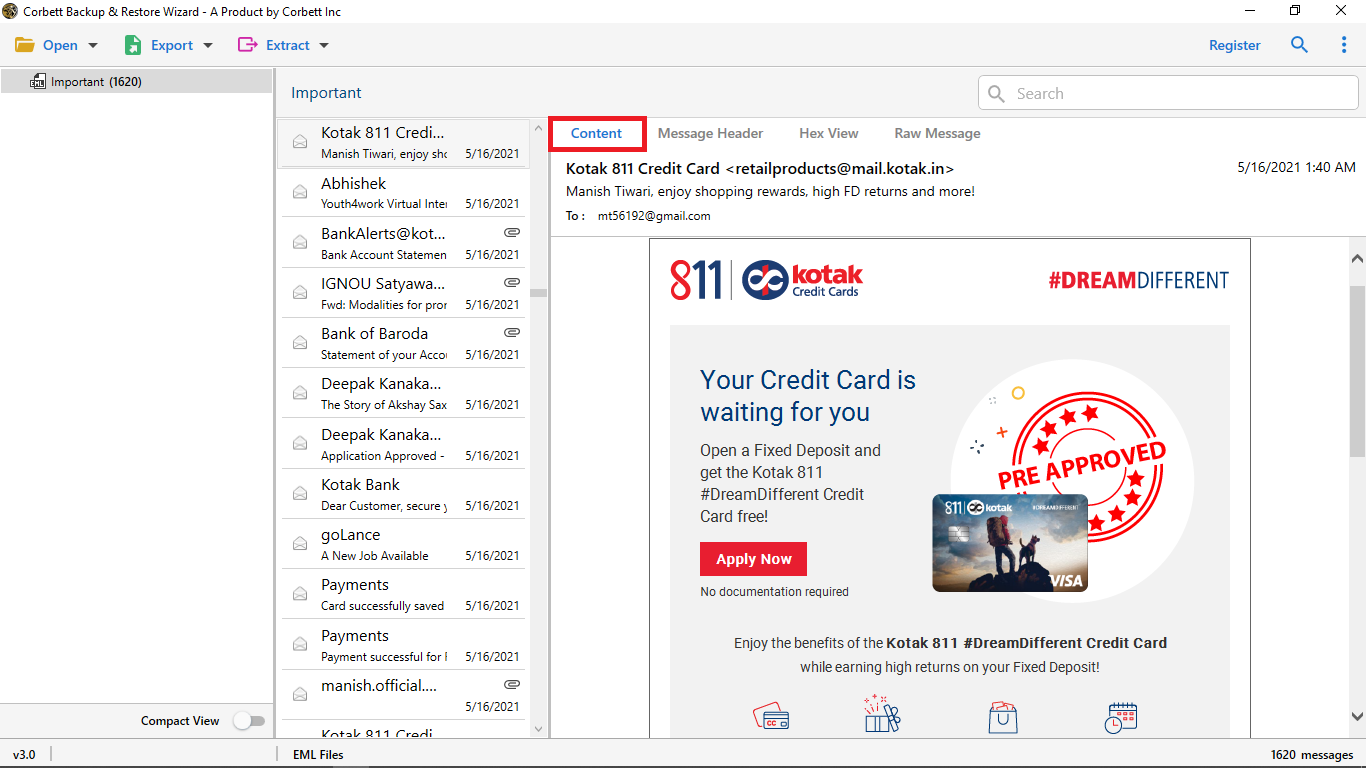
- After uploading EML file, preview email data in different viewing modes like content, message header, hex view, raw messages and more.
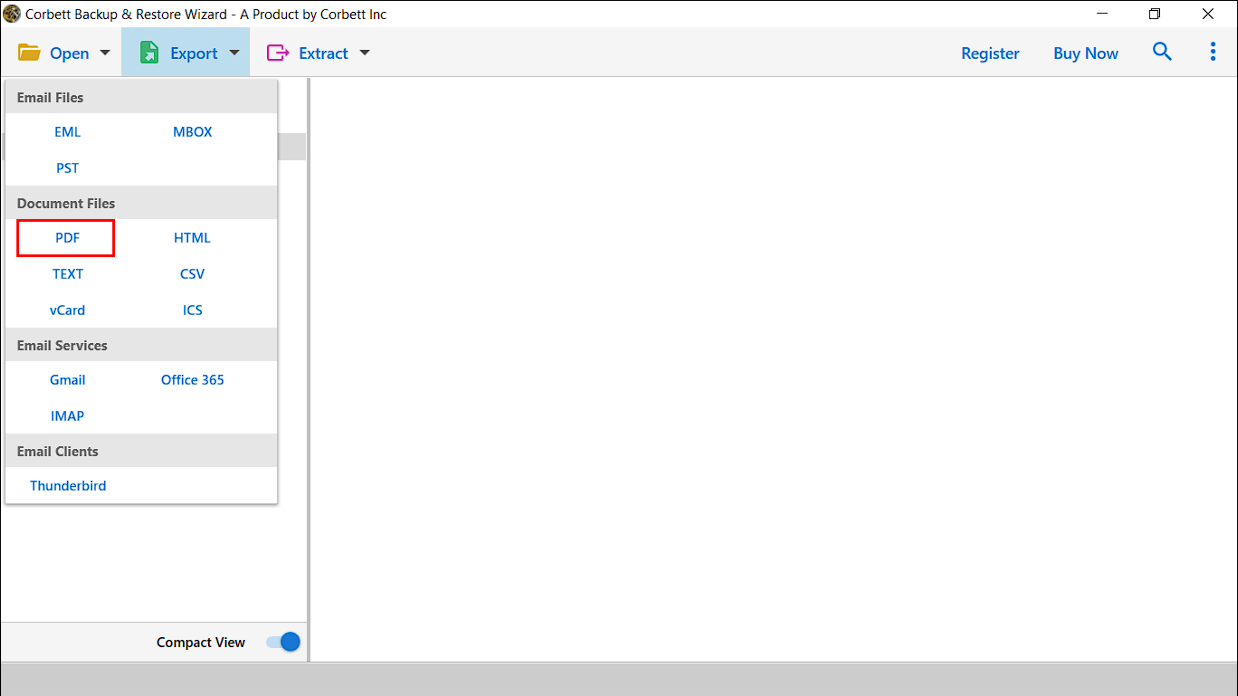
- Click “Export” tab and choose “PDF” as a saving format to convert EML to PDF.

- Finally, browse destination path and select desired file name to save.
Time to Wrap Up
In conclusion, we discussed how to overcome “cannot open EML Attachments” issues and reasons why this issue occurs when we try to open EML attachments. However, we provide different methods to open EML file but we recommend you to use professional software to open EML attachments because it is standalone application and provide variety of features like advanced filter option, handle large file, maintain original folder hierarchy and offer 100% secure and accurate results. You can also use trial version and test software how it works.