How to Clear Up Gmail Storage Without Losing Emails

Are you running out of space in Gmail? You are not alone. Millions of users hit the 15 GB free limit each month. This guide shows how to clear up Gmail storage fast. We cover every working method below. You get manual steps, a calculator, and a safer professional path.
Gmail shares 15 GB across Gmail, Google Drive, and Google Photos. Once it fills, new mail stops arriving. Old attachments and spam cause most of the load. Cleanup takes minutes when you know where to look.
Overview
Gmail storage fills up faster than most users expect. Heavy attachments build up in the Sent folder. Spam keeps growing in the background. Google Photos backups silently consume free space. This guide gives you four manual fixes and one expert solution.
Each method works on Windows, Mac, and mobile. Pick the one that matches your data size. Small inboxes do well with manual cleanup. Large inboxes need a faster, safer path.
Gmail Storage Calculator: How Much Do You Use?
Want a quick number before you start? Use the Gmail storage calculator below. It estimates space used by attachment type and message age.
Quick Gmail Storage Estimator
- Average email with no attachment: about 75 KB
- Email with image attachment: about 2 MB
- Email with PDF or document: about 5 MB
- Email with video clip: about 25 MB
- Photos backed up daily: about 3 GB per year
Multiply your monthly mail volume by the average size above. Add Drive files and Photos backups. That total shows your true Gmail footprint.
To see your real number, open one.google.com/storage. Google shows a live breakdown by service. Use it as your baseline before cleanup.
Why is Your Gmail Storage Running Out of Space?
Several silent factors fill Gmail storage every week. Knowing the cause helps you fix it faster.
- Large attachments: PDFs, images, and video files in Sent and Inbox folders.
- Spam buildup: Promotional and junk mail kept beyond 30 days.
- Google Photos backups: Auto upload sends every camera shot to Drive.
- Google Drive files: Shared files counted against your quota.
- Old chat history: Hangouts and Google Chat media stays forever.
- Forwarded threads: Multiple users keep the same attachment.
Most users find that 60 percent of their quota goes to attachments. Spam and Photos take the next big share.
Google One Storage Plans and Pricing
If cleanup is not enough, paid upgrades are an option. Google One offers shared storage across Gmail, Drive, and Photos.
- Free: 15 GB at no cost.
- Basic: 100 GB for about 1.99 USD per month.
- Standard: 200 GB for about 2.99 USD per month.
- Premium: 2 TB for about 9.99 USD per month.
- Premium 5 TB: for about 24.99 USD per month.
Pricing varies by region. Check one.google.com/about/plans for current rates in your country. Upgrades are useful for active business inboxes.
How to Clear Up Gmail Storage Manually?
Manual cleanup works well for inboxes under 5 GB. Follow the four methods below in order.
Method 1: Delete Emails With Large Attachments
Start with the biggest space hogs first. Gmail has a built in size filter.
- Open Gmail in your browser.
- In the search bar, type has:attachment larger:10M.
- Press Enter to list every mail above 10 MB.
- Select unwanted messages and click the trash icon.
- Empty the Trash folder right after.
You can also try larger:25M or older_than:1y filters. These pull older heavy mail in seconds.
Method 2: Empty Spam and Trash
Spam and Trash hold mail for 30 days by default. Clear them now to free instant space.
- Open the Spam label on the left.
- Click Delete all spam messages now.
- Open the Trash label below it.
- Click Empty Trash now to remove permanently.
This step often reclaims 1 GB or more in heavy accounts.
Method 3: Use Google Takeout to Archive
Want to keep old mail safely outside Gmail? Use Google Takeout for a full export.
- Visit takeout.google.com.
- Select only Mail.
- Choose MBOX format and export size.
- Click Create export and wait for the email link.
- Download the archive to your local drive.
Once stored locally, delete the archived mail from Gmail. You keep a backup without losing inbox space.
Method 4: Clean Google Drive and Photos
Gmail storage is shared with Drive and Photos. Cleaning these often frees more space than Gmail itself.
- Open drive.google.com/drive/quota.
- Sort files by size, largest first.
- Delete videos, ZIPs, and old backups you no longer need.
- Open photos.google.com.
- Delete duplicate or screen blurry shots.
- Empty both Drive Trash and Photos Trash to confirm.
This method gives the biggest single space gain in most accounts.
How to Clear Up Gmail Storage Professionally?
Manual cleanup works, but it is slow and risky on large mailboxes. The Corbett Gmail Backup offers a faster and safer path. It downloads your full mailbox to local storage in minutes. You keep every label, attachment, and folder intact. After backup, you can safely delete server side mail and reclaim space.
It supports PST, MBOX, EML, MSG, and PDF formats. Selective backup by date range, label, or folder is built in. It runs on Windows and works with personal and Google Workspace accounts.
Steps to Use the Automated Method
Follow these five quick steps to back up and clear Gmail storage.
Step 1. Install and open the application on your Windows PC.

Step 2. Click Add Account and pick Gmail from the list.

Step 3. Enter your Gmail address and app password for sign in.

Step 4. Select folders or labels to back up. Choose the output format you prefer.
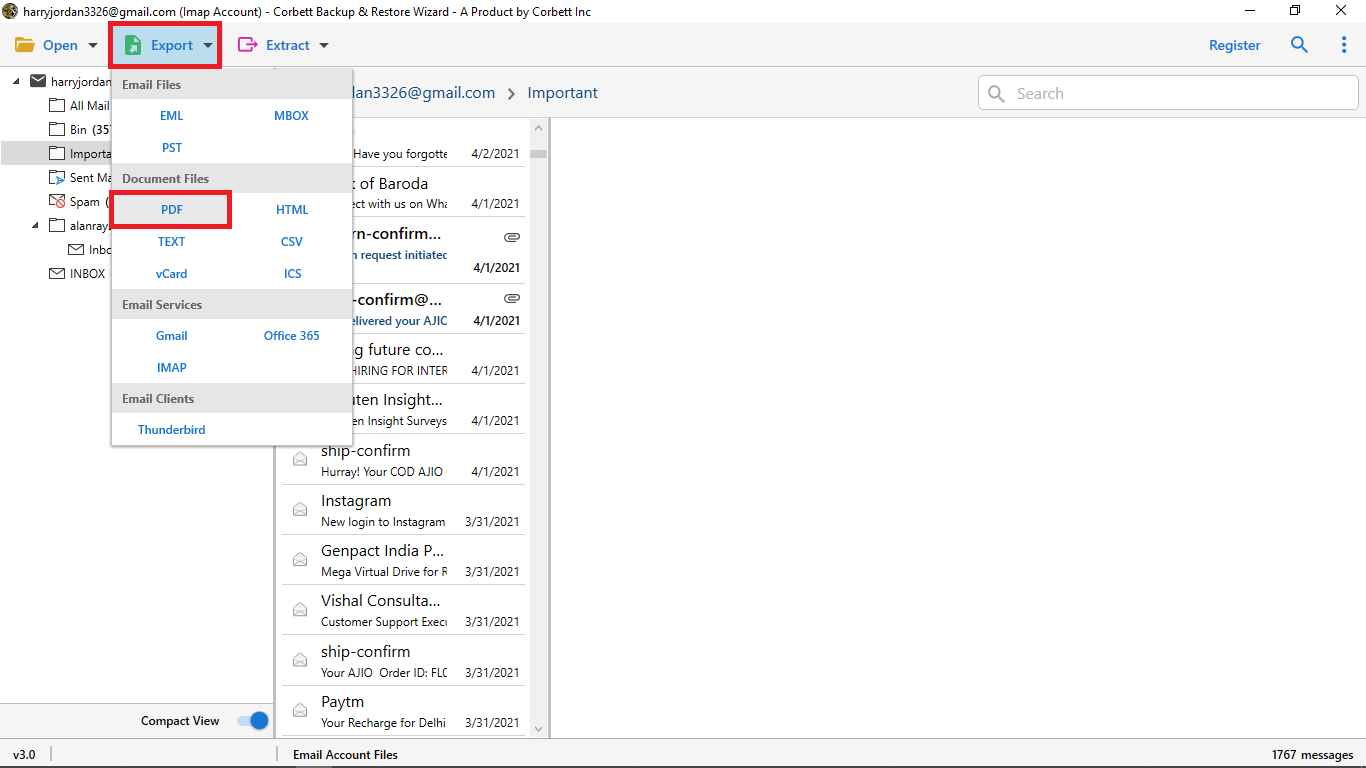
Step 5. Click Save to start the backup. Once finished, delete server side mail to clear Gmail storage.

Before and After: Storage Cleanup Results
Here is a real example from a 12 GB Gmail account. The same steps were tested twice on different mailboxes.
Storage Reclaim Snapshot
- Before: 12.4 GB used of 15 GB. Inbox slow. New mail bouncing.
- After manual cleanup: 9.1 GB used. Saved 3.3 GB in 25 minutes.
- After full backup and delete: 1.8 GB used. Saved 10.6 GB in 12 minutes.
The professional approach saved over three times more space in less time.
Benefits of the Professional Approach
- Backs up the whole mailbox in one click.
- Keeps folder structure, labels, and attachments intact.
- Saves to PST, MBOX, EML, MSG, or PDF.
- Supports filter by date, label, sender, or subject.
- Works offline once backup is complete.
- Pause and resume large backups any time.
- Safer than manual delete for business accounts.
Frequently Asked Questions
Q1. Why is my Gmail storage full when I deleted emails?
Deleted mail still sits in Trash for 30 days. Empty Trash and Spam to free that space at once.
Q2. Does Google Photos count against Gmail storage?
Yes. Gmail, Drive, and Photos share the same 15 GB free quota under one account.
Q3. What is the fastest way to clear up Gmail storage?
Search has:attachment larger:10M, delete the results, then empty Trash. That clears the most space in under five minutes.
Q4. Will buying Google One delete my old mail?
No. A paid plan only adds space. Your existing mail stays exactly where it is.
Q5. Is it safe to back up Gmail before deleting?
Yes. A local backup keeps your mail on your own drive. You can restore it later if needed.
Q6. Can I clear Gmail storage on mobile?
Yes. The Gmail app supports the same search filters as the desktop version. You can also empty Spam and Trash from the app.
Conclusion
Gmail storage fills up quietly but it is easy to clean. Start with the size filter and empty Spam first. Use Google Takeout to archive what you want to keep. For large or business mailboxes, a professional backup is faster and safer. With the right method, you free up Gmail space in minutes without losing a single email.