How to Convert Outlook Express DBX Files to MSG Format?
Outlook Express stores emails in DBX format to save messages and folder structures like Inbox.dbx and Sent Items.dbx. However, DBX files are now outdated and hard to access. There is no direct way to convert outlook express DBX files toMSG, so users rely on specialized DBX to MSG Converter tool to export DBX file to MSG data without losing data.
MSG is a file format used by Microsoft Outlook to save a single email message or items as individual files. It also contains full email details like sender, receiver, subject, date, message body, and attachments. MSG files are easy to open, save, and share, which makes them helpful for email backup, migration, and viewing emails in newer Outlook versions.
Dedicated DBX to MSG Converter to Export Outlook Express Emails
Corbett DBX Converter is a reliable tool that converts Outlook Express (.dbx) email files into Microsoft Outlook (.msg) format. The software offers batch conversion, email preview, save emails with attachments and preserves original folder structure during the conversion process. This tool also helps you to recover or convert corrupted or damaged DBX files.
The software is designed with a user-friendly interface. You can easily export DBX to MSG file without technical guidance. 24/7 tech support is also available. If you need technical advice and modification in software directly connected with them. Download free DBX to MSG converter to check tool performance. Trial version lets you convert up to 10 emails from each DBX folder into MSG format.
Steps to Export Outlook Express DBX Files to MSG Format
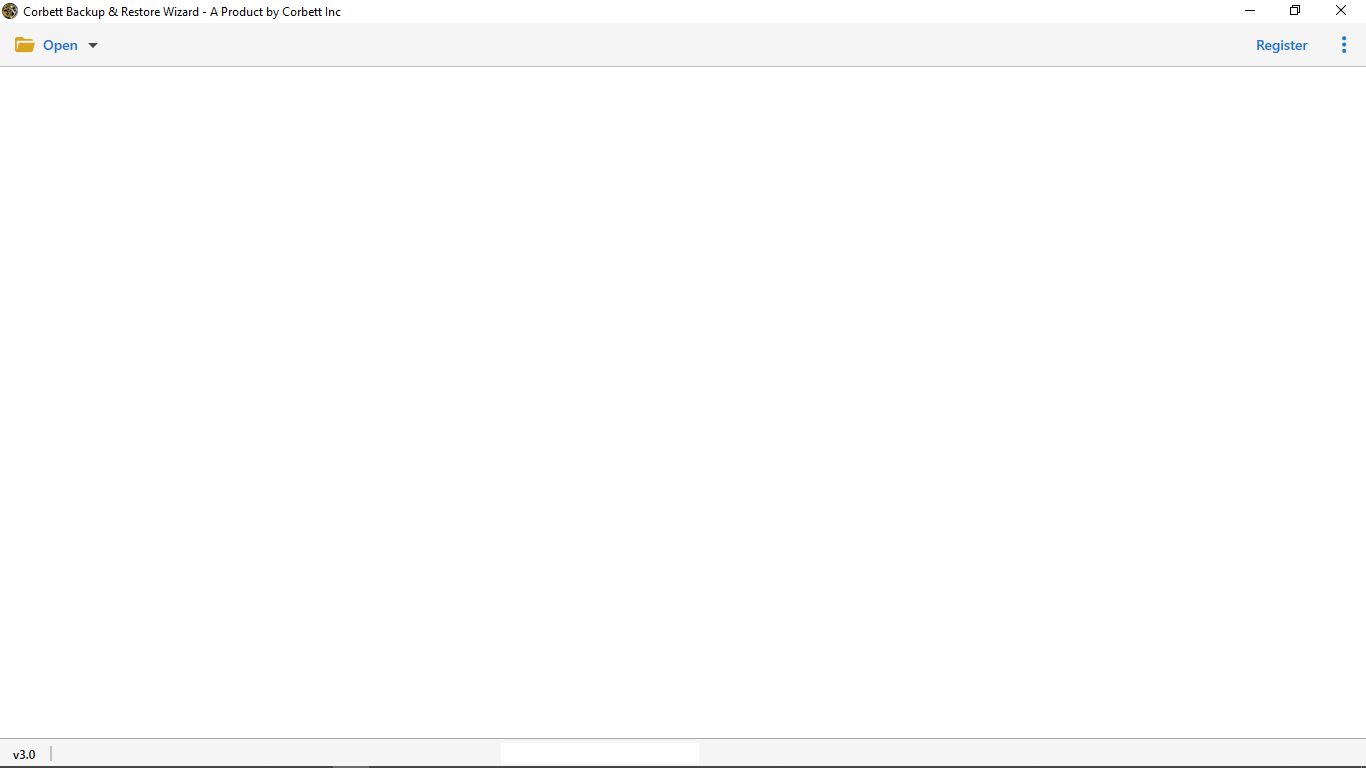
- Download or install the DBX file to MSG Converter tool on your Operating system.

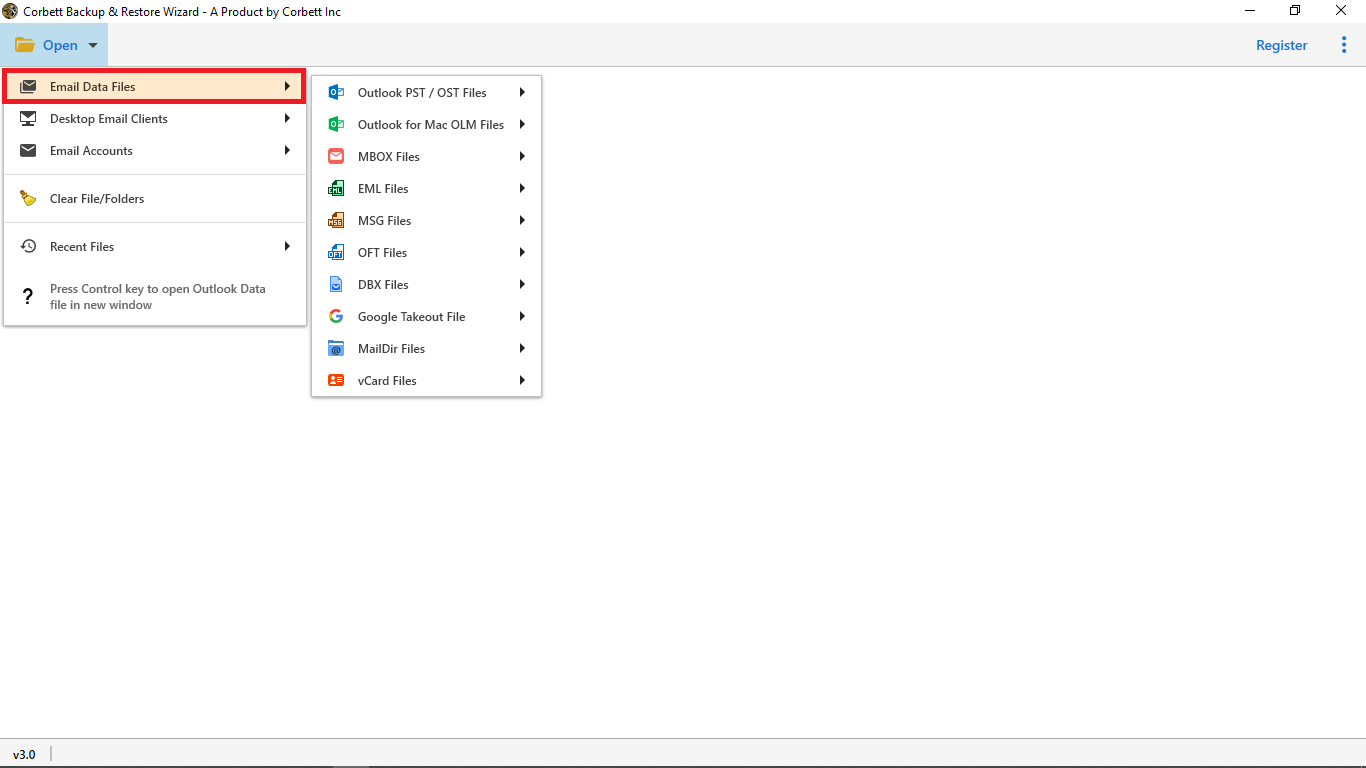
- Click Open, select Email Data Files>>DBX Files.
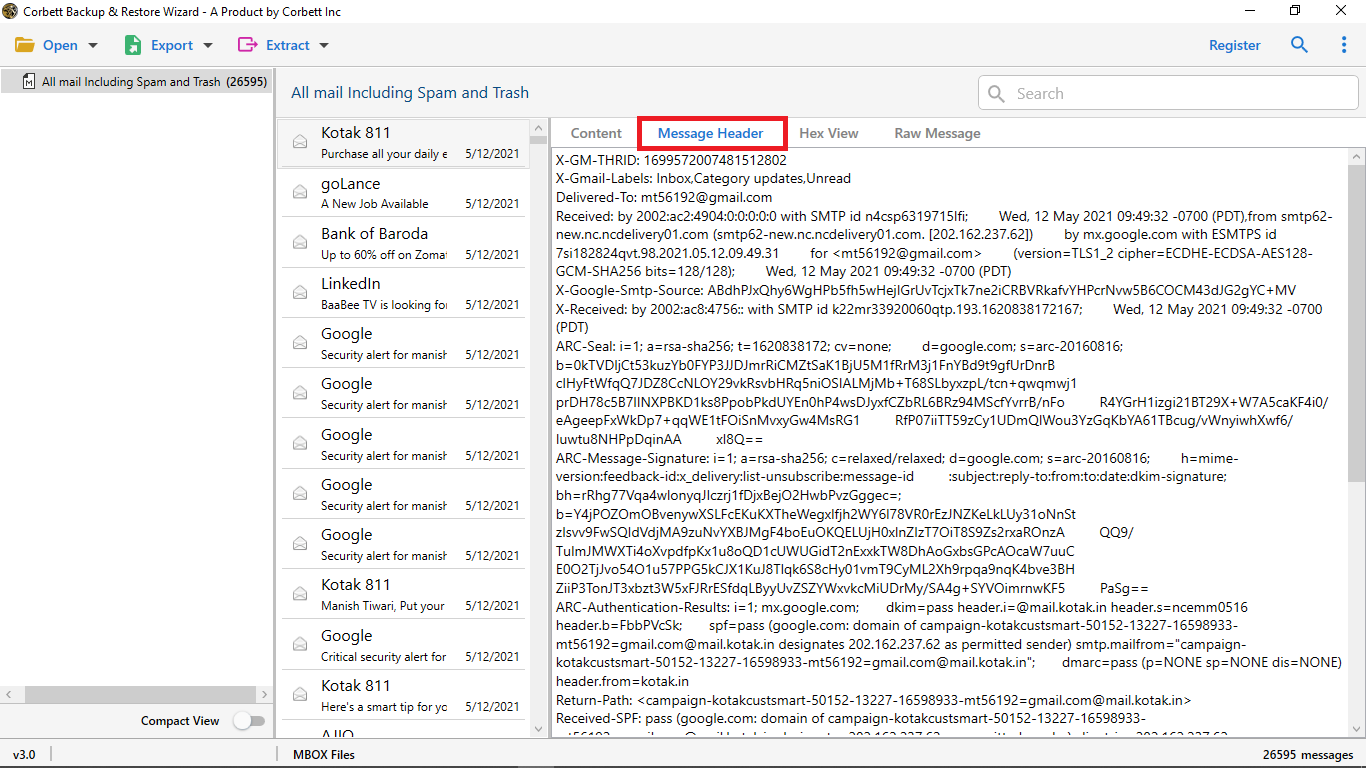
- Upload your DBX file and preview emails in various modes like content, message headers, raw, hex, and properties.
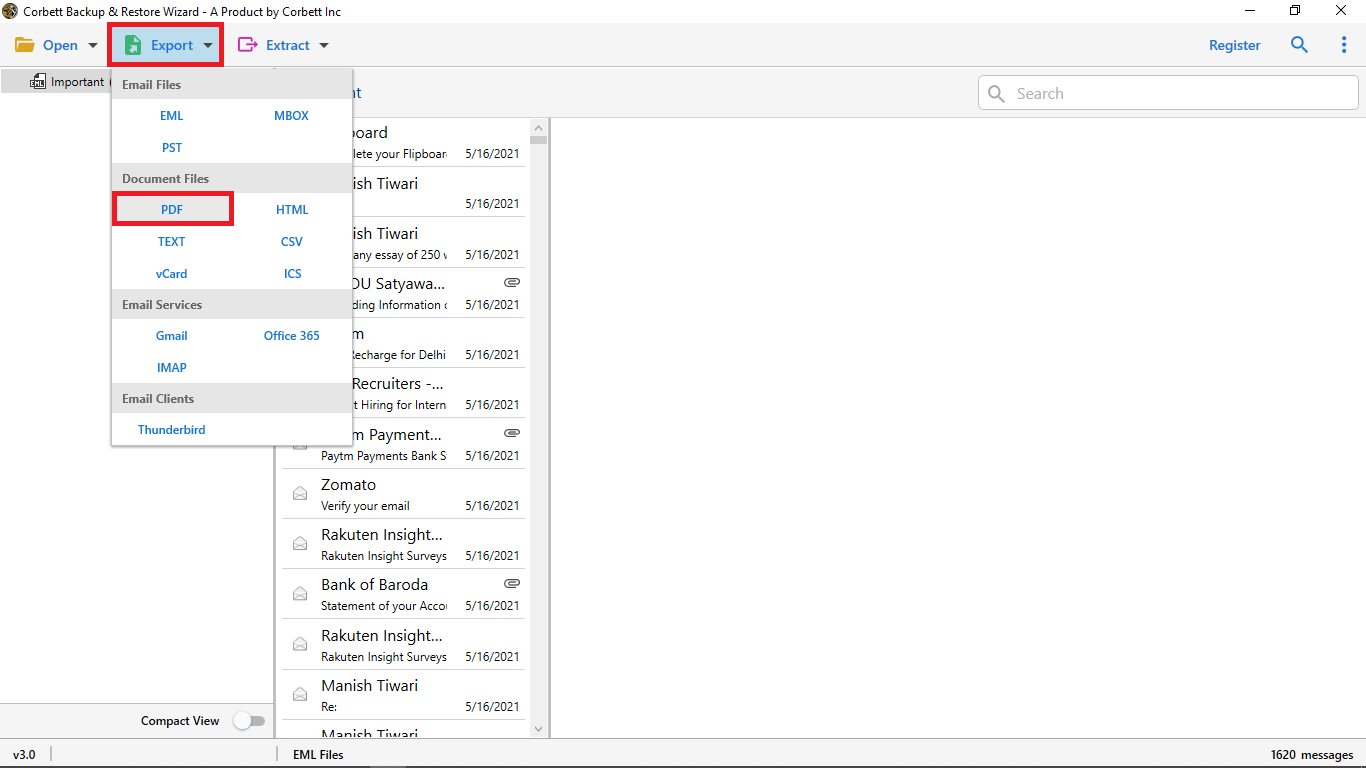
- Choose MSG as export format from the available options.
- Now, browse preferred location and hit Save to finish DBX to MSG conversion.
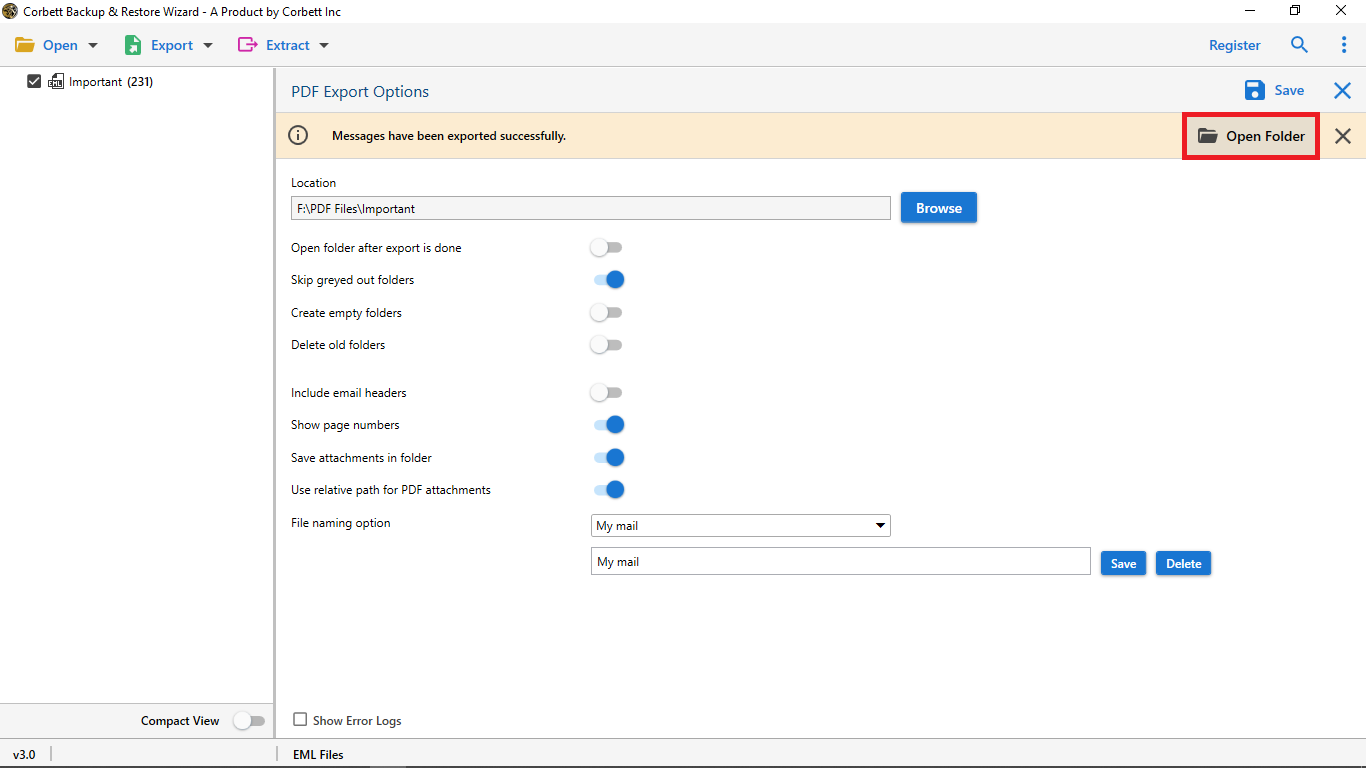
Features of Advanced Solution to Export DBX Emails to MSG Format
- Batch Convert DBX to MSG: You can add a single file or entire folders at once as per requirements. It allows you to convert multiple files at once without file size limitations. The software saves users time and lets them convert large data effortlessly.
- Multiple Export Options: The software allows you to change Outlook DBX files into different file formats like MBOX, PST, EML, PDF, DOC, CSV and more. You can also migrate data directly to Outlook, Thunderbird, Apple Mail, Gmail, Yahoo, or any IMAP servers.
- Preserve Email Properties: When you convert DBX to MSG, all email properties like sender, receiver, date, subject, and attachments remain the same. Keep data 100% secure, even formatting, inline images, and hyperlinks are also preserved.
- Windows Compatible: It works with all versions of Windows 11, 10, 8, 7 (32 or 64-bit) and even Windows Server versions like 2019, 2016, 2012, and 2008. You also don’t require any additional installation or setup.
- Advance Filter and Search Option: Selectively migrate Outlook Express DBX to MSG format with quick search and filter. Get only required emails or folders by sender, date, or subject and save time.
Time to Wrap Up
In conclusion, we provide a reliable solution to convert DBX files to MSG format without losing any data. Protect your data with specified DBX to MSG converter software. It can easily handle large files and makes conversion offline. Thus, you don’t need to upload your important data on any external server. You can use the trial version of software and test utility features and performance how it works before making a purchase.
Commonly Asked Users’ Queries
Q. How to convert DBX files?
You can convert DBX files by opening a dedicated third-party tool, selecting your DBX files, choosing MSG as output format, and clicking Save.
Q. How do I import DBX files into Windows Live Mail?
To import DBX files into Windows Live Mail, open program, go to File → Import Messages → Microsoft Outlook Express 6, and select your DBX folder. If your DBX file is corrupted or damaged, the import may fail to convert the DBX file into another format.
Q. Does this tool work on all Windows versions?
Yes, this DBX to MSG converter supports all Windows versions, including Windows 11, 10, 8, 7, XP, and Vista.
Q. Can I export multiple DBX emails to MSG at once?
Yes, the software allows you to export multiple DBX files or entire mailboxes to MSG format at once with no size limit.
Q. Can I choose where to save the converted MSG files?
Yes, you can choose where you want to save the converted MSG files. It allows you to browse and select desirable saving locations.