What is a DBX converter?
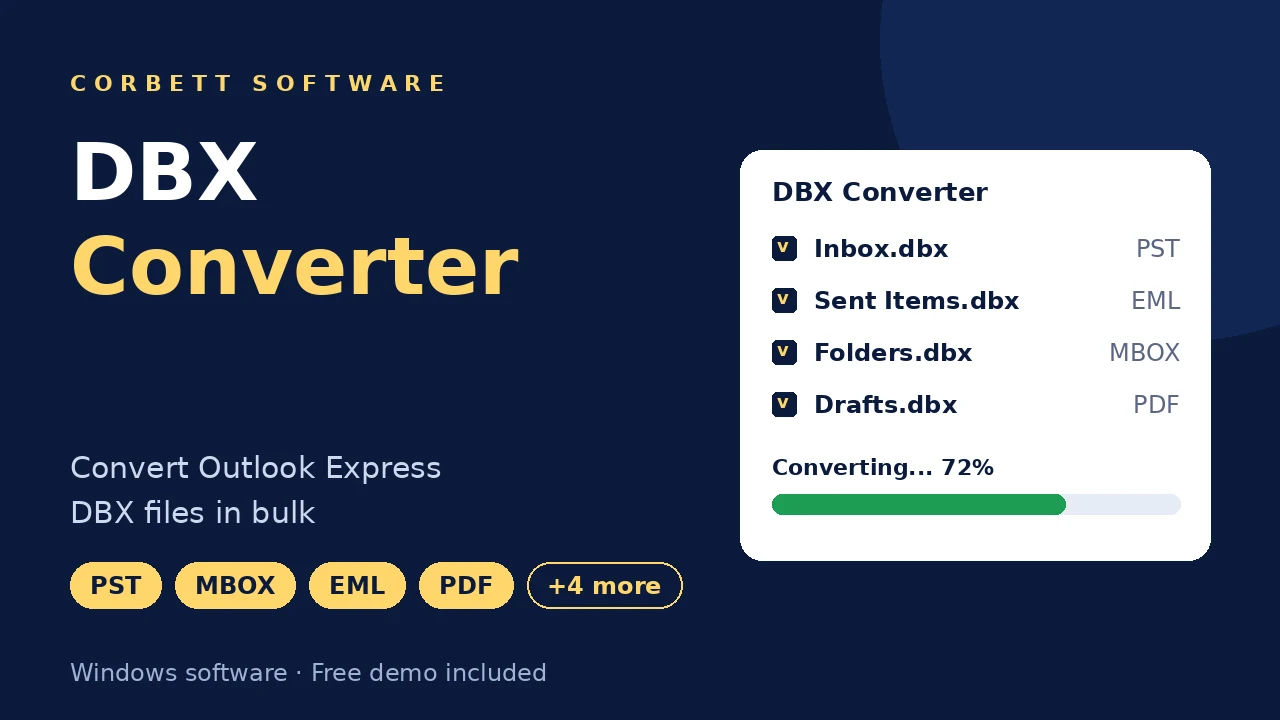
A DBX converter opens Outlook Express DBX files and converts them into another format. Corbett DBX Converter does that offline on Windows, so DBX file converter needs no Outlook Express.
How do I convert DBX files with attachments?
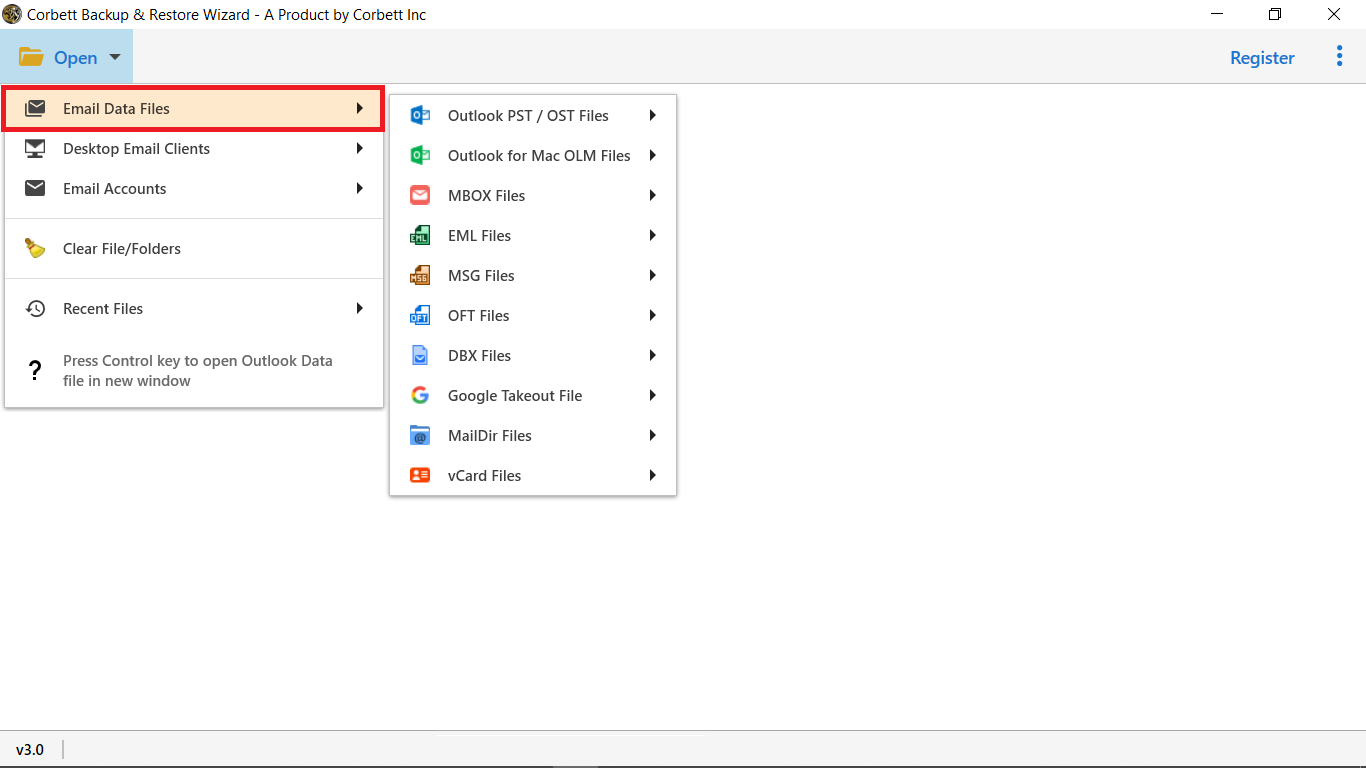
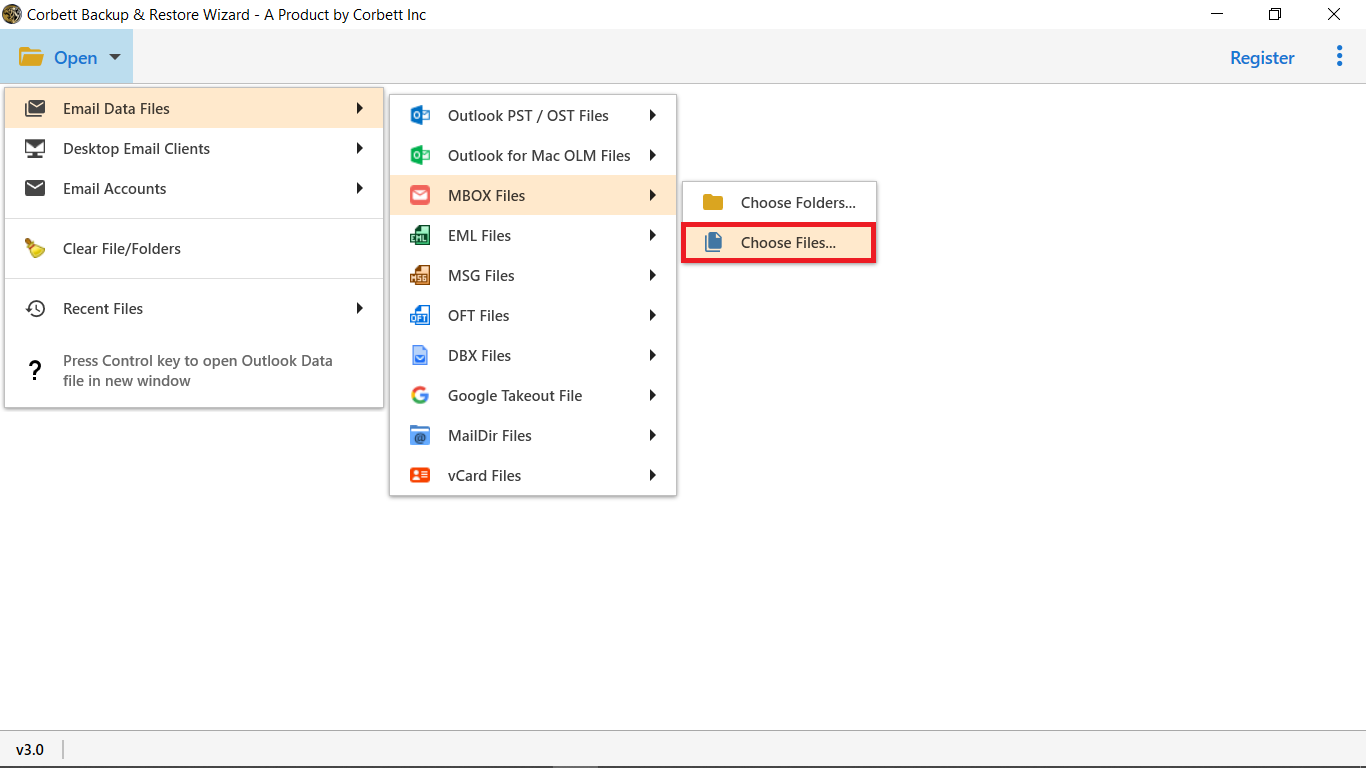
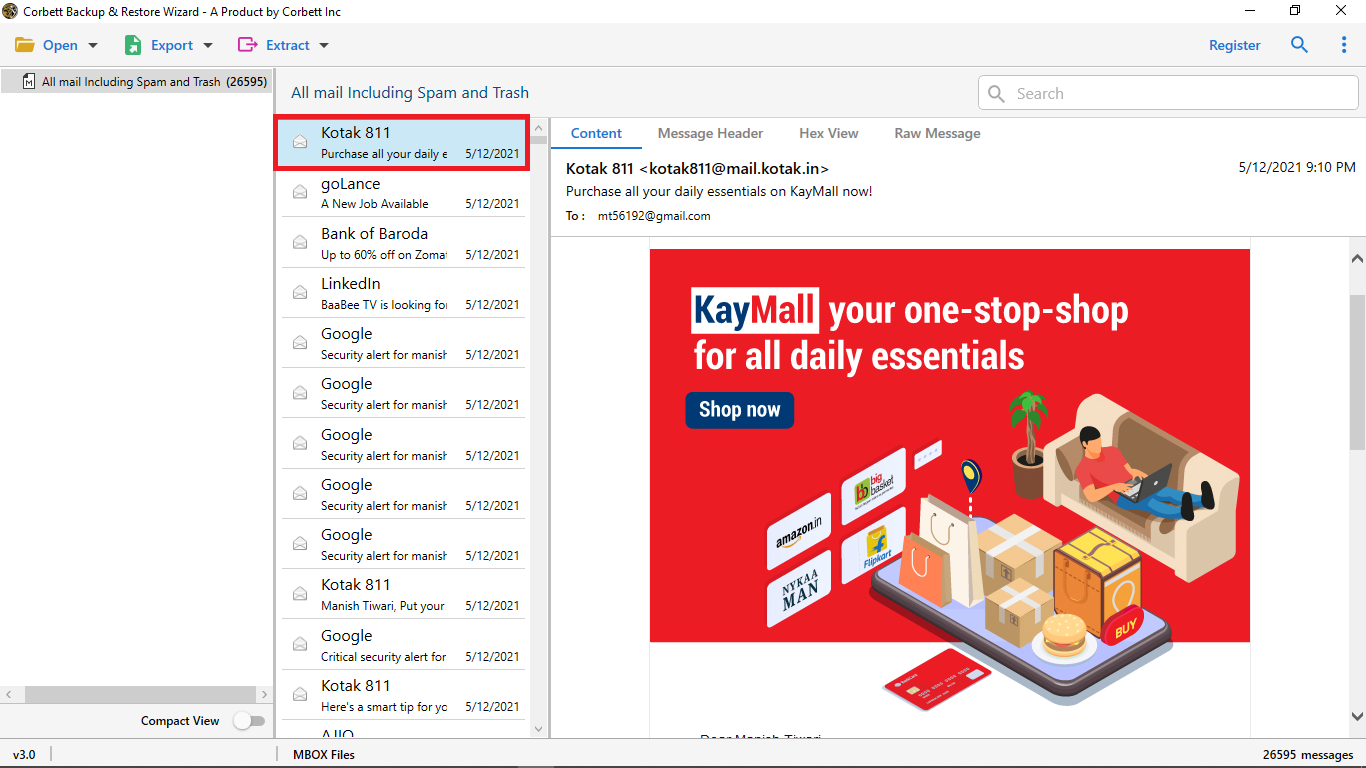
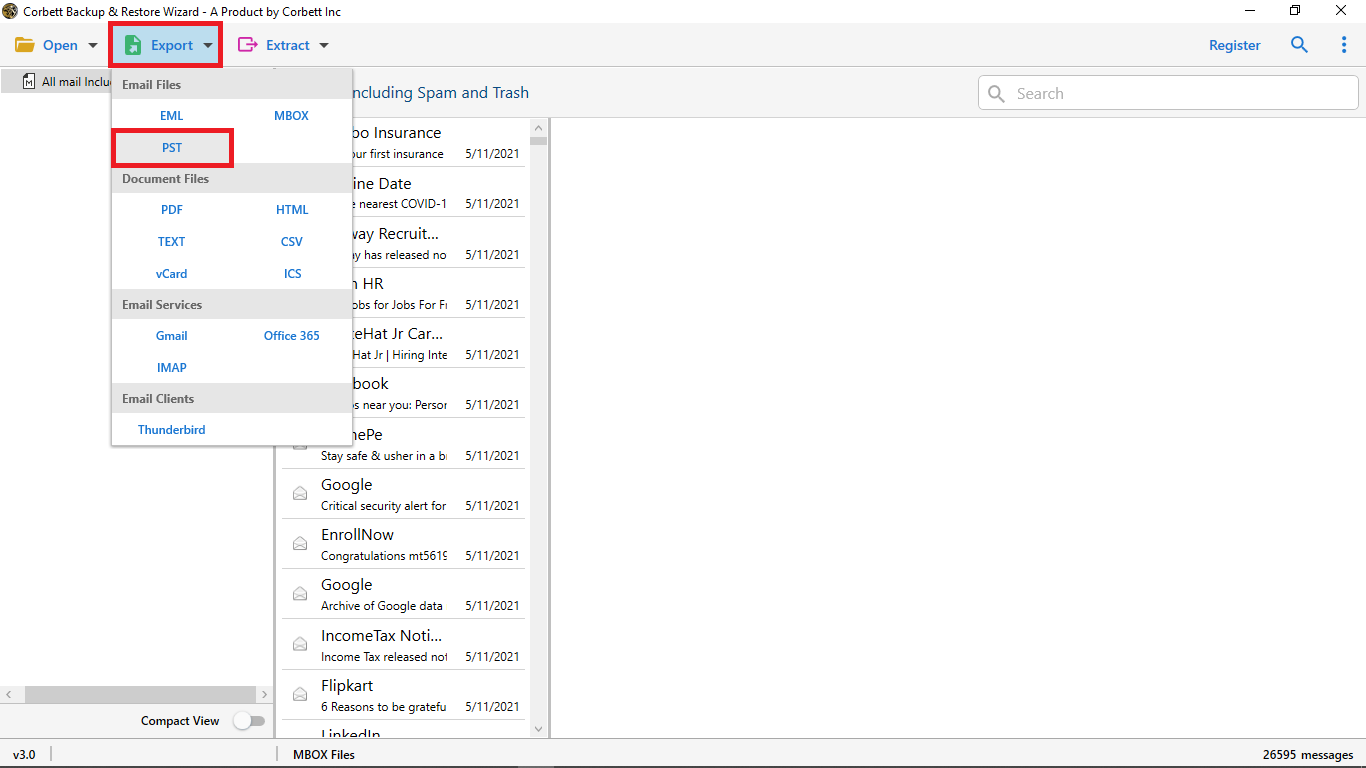
Open DBX converter, select Open, then Email Data Files and add your DBX files. Choose Files or Choose Folders, preview your mail, select Export, choose a format and press Save. Attachments stay with every message.
What is a DBX file?
FileInfo DBX page says a DBX file is an Outlook Express mail folder. A DBX file holds one mailbox, such as Inbox.dbx or Sent Items.dbx, and Folders.dbx holds the index.
Why does a DBX file show an empty folder in a new program?
Outlook Express stored mail in a closed format that later mail programs stopped supporting. Copying the file in gives nothing to read. DBX converter decodes the folder and rewrites the messages in a format your new program accepts.
Can I convert DBX files without Outlook Express?
Yes. DBX converter reads your files by itself, so a modern Windows PC with no Outlook Express or Outlook still converts DBX files. No internet connection or mailbox password is needed.
Which formats can I convert DBX files to?
PST, EML, MBOX, MSG, EMLX, PDF, HTML, TXT, CSV, MHT and DOC. The Export menu also lists Gmail, Office 365, IMAP and Thunderbird for sending mail into an account.
How do I convert DBX to PST?
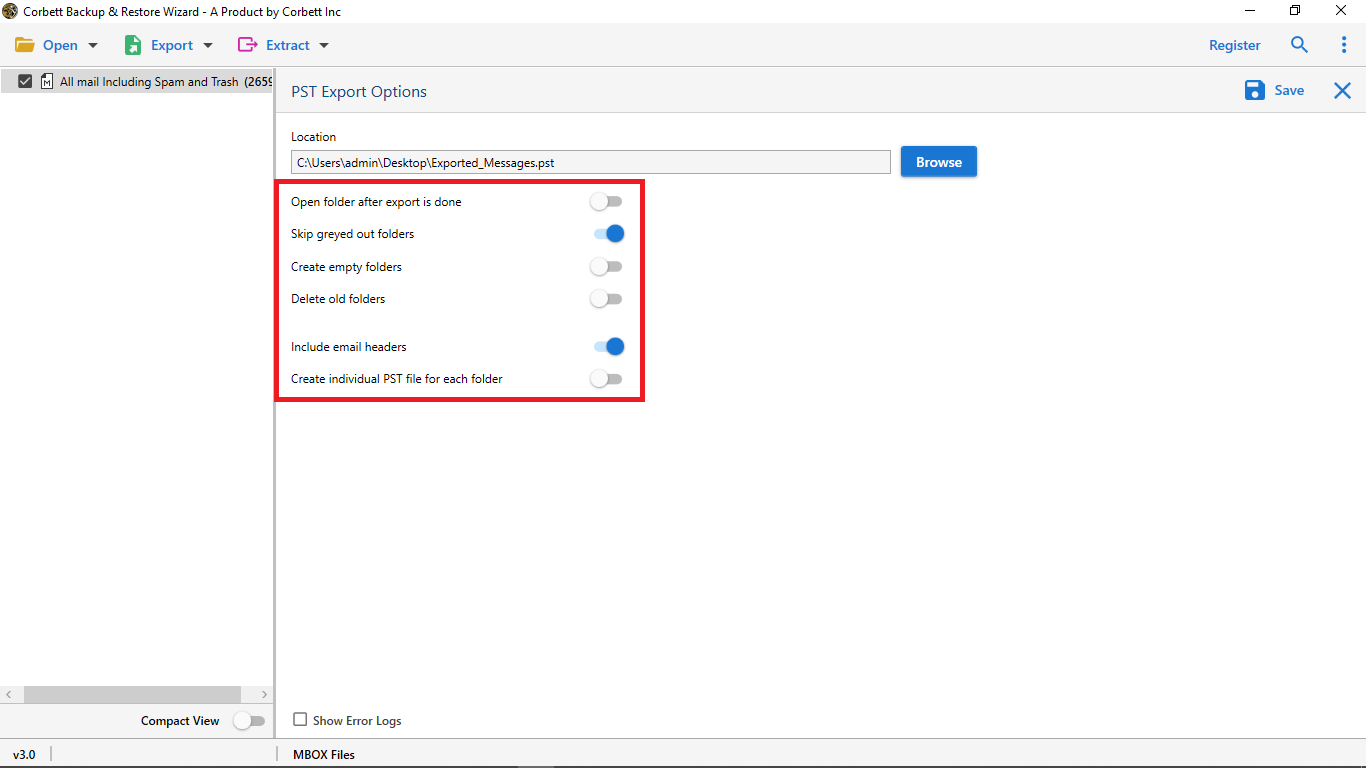
Select PST in the Export menu, set options such as an individual PST for every folder and press Save. DBX to PST Converter covers that job.
How do I convert DBX to PDF?
Select PDF in the Export menu, search for the emails you need, choose a naming option and press Save. Every message becomes a PDF. Convert DBX to PDF shows the steps.
Can I convert DBX to EML or MBOX?
Yes. Select EML for one file per email, or MBOX for Thunderbird and Apple Mail. Folders stay in order. EML Converter and MBOX Converter cover those files.
Can I convert DBX to CSV?
Yes. Select CSV in the Export menu and open the file in Excel. DBX to CSV shows the steps.
Can I move DBX mail into Thunderbird?
Yes. Select MBOX or EML and load the output in Thunderbird. Import DBX to Thunderbird shows the steps.
Can I convert many DBX files at once?
Yes. Select Choose Folders and load an entire directory, then DBX converter converts every file in one session.
Is there a DBX file size limit?
No. DBX converter sets no size cap, and DBX files of any size convert. Keep free disk space for your output.
Can I convert only some emails from a DBX file?
Yes. Search by keyword with quick search, or use Advance search across every field or only name, subject, To, Cc and content, then save matched items.
Can I preview DBX emails before converting?
Yes. A reading pane opens beside content, message header, properties, hex and raw message views for every email.
Can I extract addresses and attachments from DBX?
Yes. Save attachments alone, export addresses to CSV and pull phone numbers from message bodies. Extract email addresses from DBX files shows the steps.
Will converting change my original DBX files?
No. DBX converter opens your files read only, and output goes to a new folder. Keep a spare copy anyway.
Does my DBX data pass through Corbett?
No. Conversion happens on your PC with no upload. Corbett never sees your DBX files or messages.
How many emails can free demo convert?
Free demo of DBX converter opens your files, shows every folder and gives you every search and preview. Conversion stops at 10 messages per folder, enough to test your output before you buy.
Which Windows versions work?
Windows 11 (64 bit), 10, 8 and 7, plus Windows Server 2016, 2012 R2 and 2008. There is no macOS or Linux build.
How many PCs does one licence cover?
Personal licence covers 5 machines for $99, Business covers 25 for $299 and Enterprise covers 100 for $499. All three are one time payments with lifetime validity, 24/7 support and a 30 day refund.