How to Export Windows Live Mail to Outlook & Office 365?

Written by Shaks George, Senior Analyst at Corbett Software. Shaks works on email client migration and mailbox data recovery cases.
Want to move your old Windows Live Mail to Outlook? The built in Export to Microsoft Exchange option only works if Outlook is installed on the same PC, and it throws a MAPI error with 64 bit Outlook because the export engine needs the 32 bit version. The reliable free fallback is dragging EML files into Outlook. For a big mailbox, a tool does it in bulk.
Why Move Windows Live Mail to Outlook
Windows Live Mail was Microsoft’s free desktop client for Windows 7 and 8, and Microsoft stopped supporting it years ago. With no security updates coming, most people move their old WLM mail into Outlook, which keeps a connected calendar, stronger protection and a place inside the wider Microsoft 365 apps. The catch is that the move itself trips a lot of users up, mostly because of one detail older guides skip over.
The Built in Exchange Export and Its Real Catch
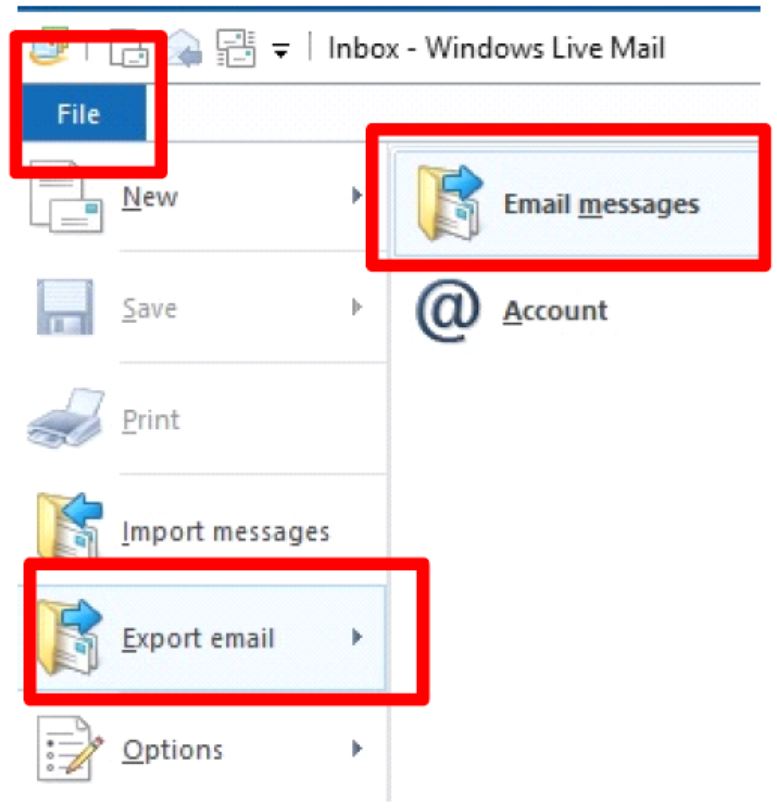
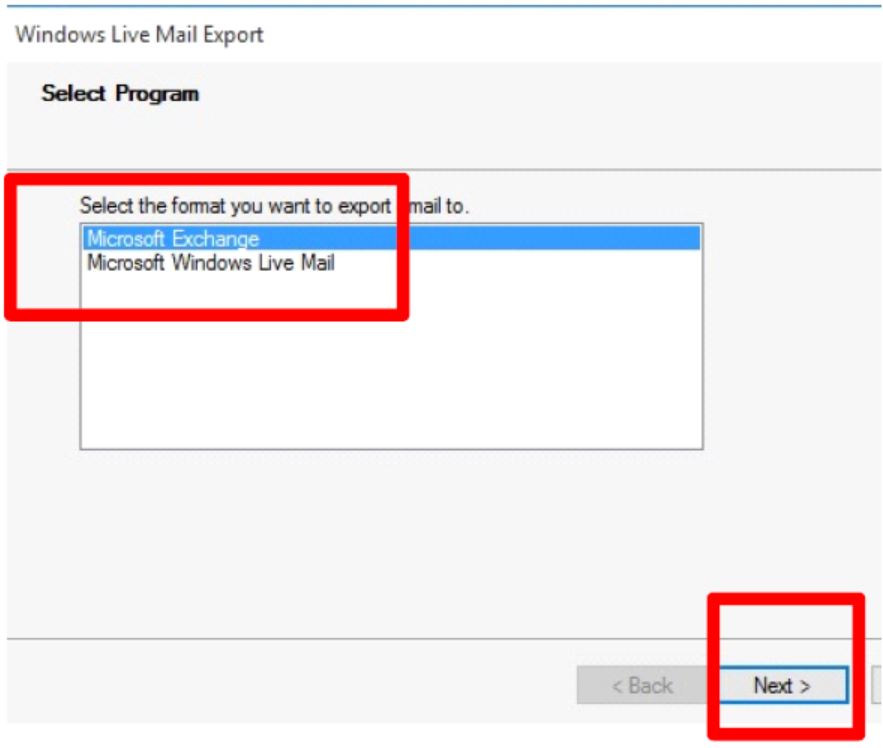
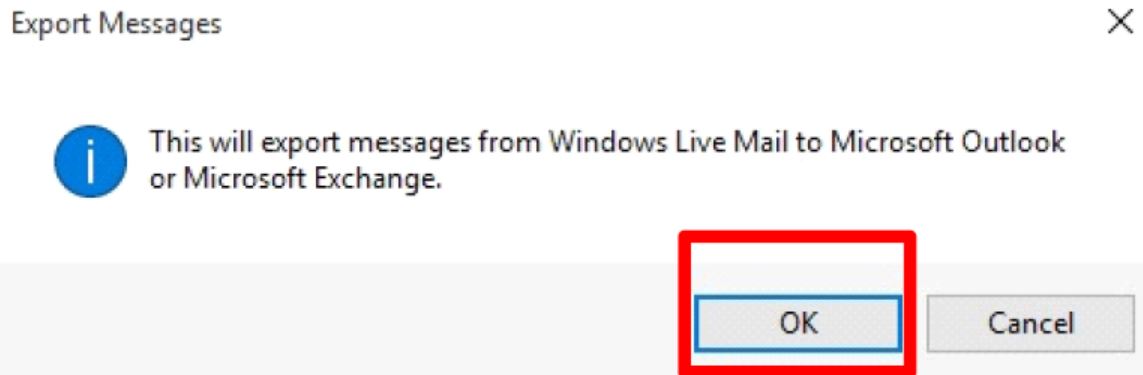
Windows Live Mail has a File then Export email then Email messages option that lists Microsoft Exchange as a target. The name is misleading. This option actually pushes mail straight into a locally installed Outlook profile, no PST file in between. It can work, but here is the part that wrecks most attempts. Tested on Windows 10 with Outlook 2016, the export only runs when Outlook is installed on the same machine, and it fails with a MAPI initialization error when that Outlook is 64 bit. The WLM export engine talks to a 32 bit MAPI layer, so you need the 32 bit build of Outlook installed for this route to finish.
If you see the MAPI error, that is why. Either swap to a 32 bit Outlook install, or skip this route entirely and use the EML method below, which has none of these requirements.
The Reliable Free Fallback: Drag EML Files In
Both Windows Live Mail and Outlook understand the EML format, so you can move messages by hand without touching MAPI at all. This route does not care which Outlook bit version you run, and it works even if Outlook sits on a different computer.
- In Windows Live Mail, open the folder holding the emails you want to move.
- Create a folder on your desktop to hold the exported files.
- Select the messages, then drag and drop them into that desktop folder. They land as EML files.
- Open Outlook and pick or create the folder you want the mail to live in.
- Drag the EML files from the desktop folder into that Outlook folder.
The mail now sits in Outlook. The trade off is time. For a handful of folders this is fine, but selecting and dragging thousands of messages is slow and easy to get wrong.
For users who also need their WLM data as a standalone PST file rather than dropped into a live profile, see our guide on how to convert Windows Mail to PST.
Moving Windows Live Mail to Office 365
If your destination is Office 365 rather than desktop Outlook, the route has one extra hop, because Windows Live Mail cannot push mail to an online account directly. You first get the mail into a form Office 365 can take, then upload it.
- Get your Windows Live Mail into a PST file first, either through the Outlook export above or with a converter. Our guide on how to convert Windows Mail to PST covers this step.
- Open Outlook signed in to your Office 365 account, go to File, then Open & Export and Import/Export.
- Choose Import from another program or file, pick Outlook Data File (.pst), and select the PST you created.
- Choose the Office 365 mailbox as the destination folder and finish. The mail uploads to the online account.
For a single mailbox this works well. For several users at once, a Microsoft 365 admin can instead run a network upload or use the Corbett tool below to send mail straight to Office 365 without the PST middle step.
Limitations of the Free Manual Methods
- The Exchange export needs Outlook installed locally and the 32 bit build, or it fails with a MAPI error.
- Dragging EML files is slow and tedious for large mailboxes.
- Folder hierarchy can flatten, so a tidy WLM folder tree may not survive intact.
- There is no built in filter to move only a date range or only certain folders.
- A dropped connection or interruption mid move can leave the job half done.
Faster Way to Transfer WLM to Outlook in Bulk
If you are moving one or two folders, the free EML drag method wins and costs nothing. What changes the answer is volume. For a large mailbox, several profiles, or when you want to filter by date and keep the folder tree exactly as it was, the manual routes turn into a long afternoon. That is where the Corbett Email Migration Tool helps. It reads a configured Windows Live Mail profile, previews the data and moves it into Outlook or Office 365 in bulk with attachments, contacts and folder structure kept. It also supports IMAP based migration if your target is an online account.
Steps to Export Windows Live Mail to Outlook
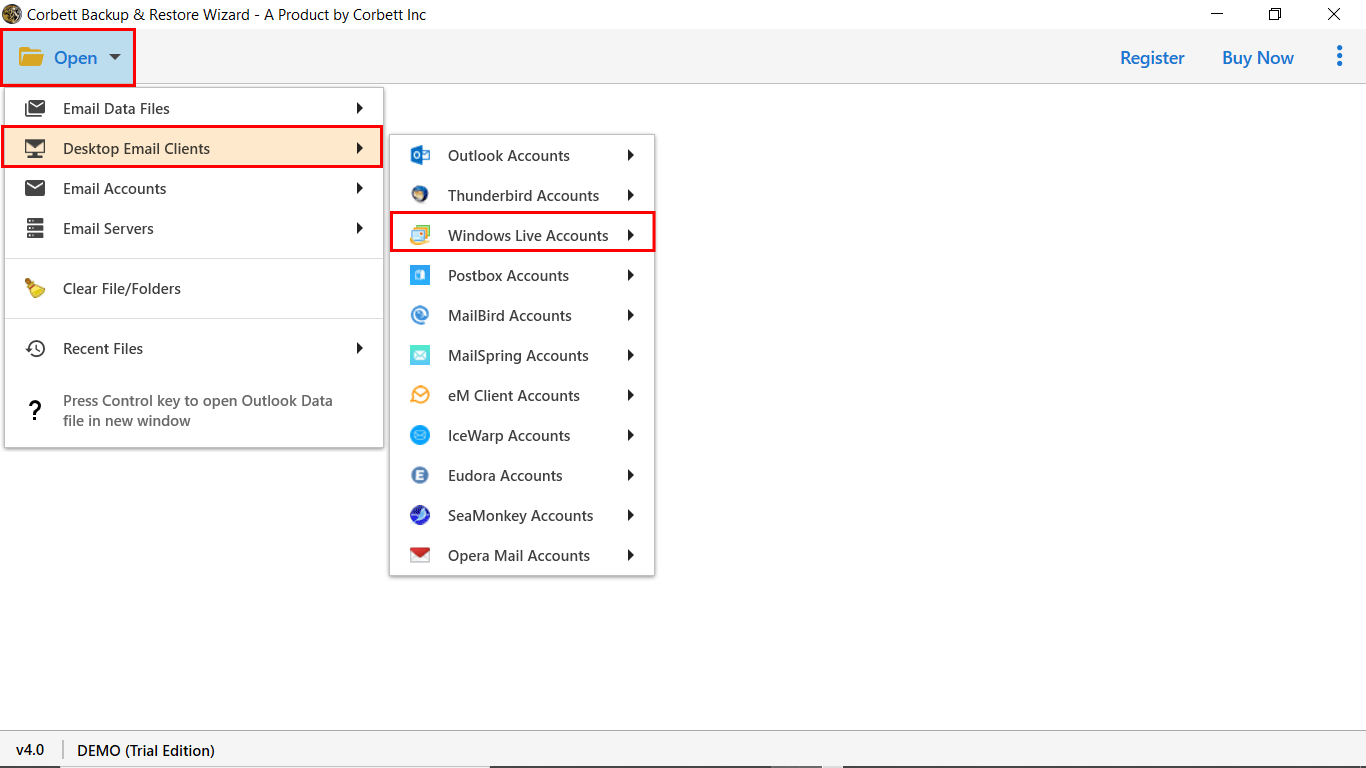
- Install and launch the tool, then open the Desktop Email Clients option and pick your configured Windows Live Mail profile.


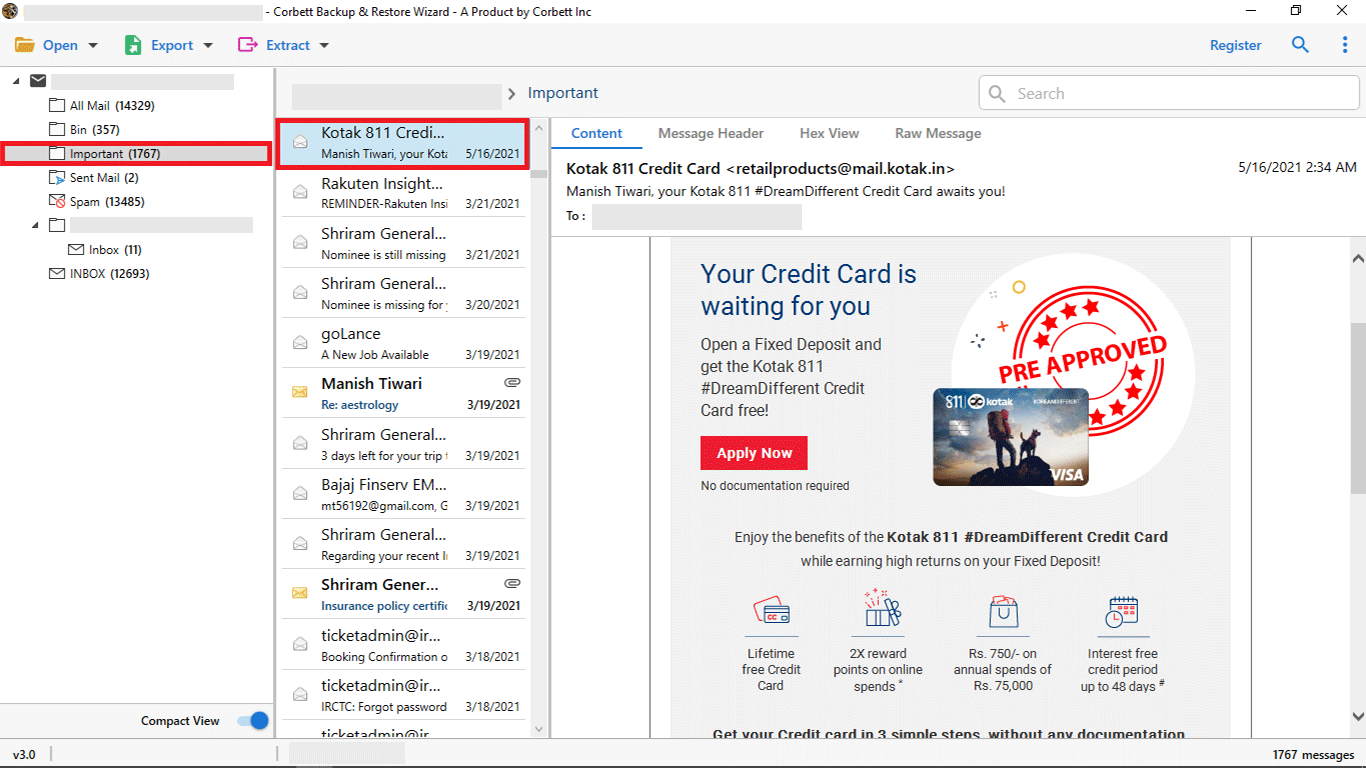
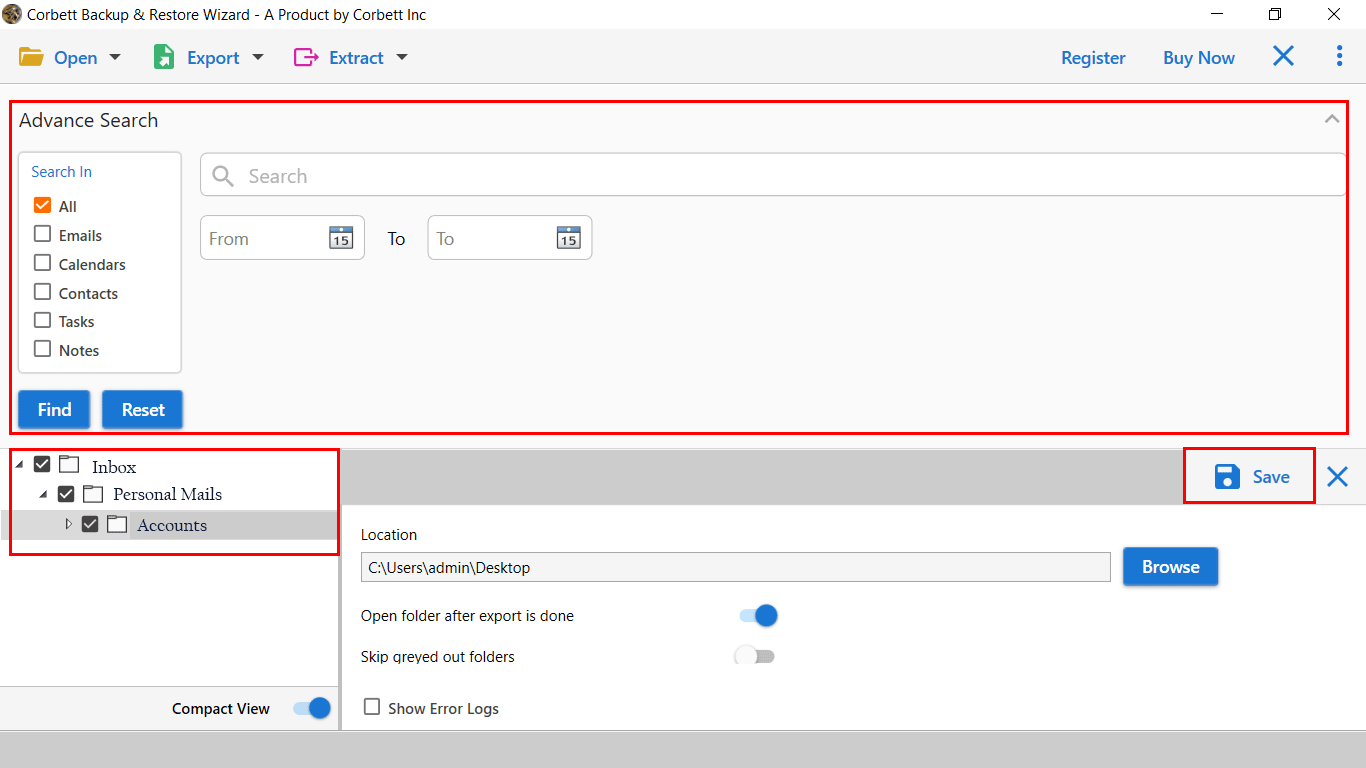
- Let the tool scan the profile, then check the preview panel to confirm the right folders are selected.
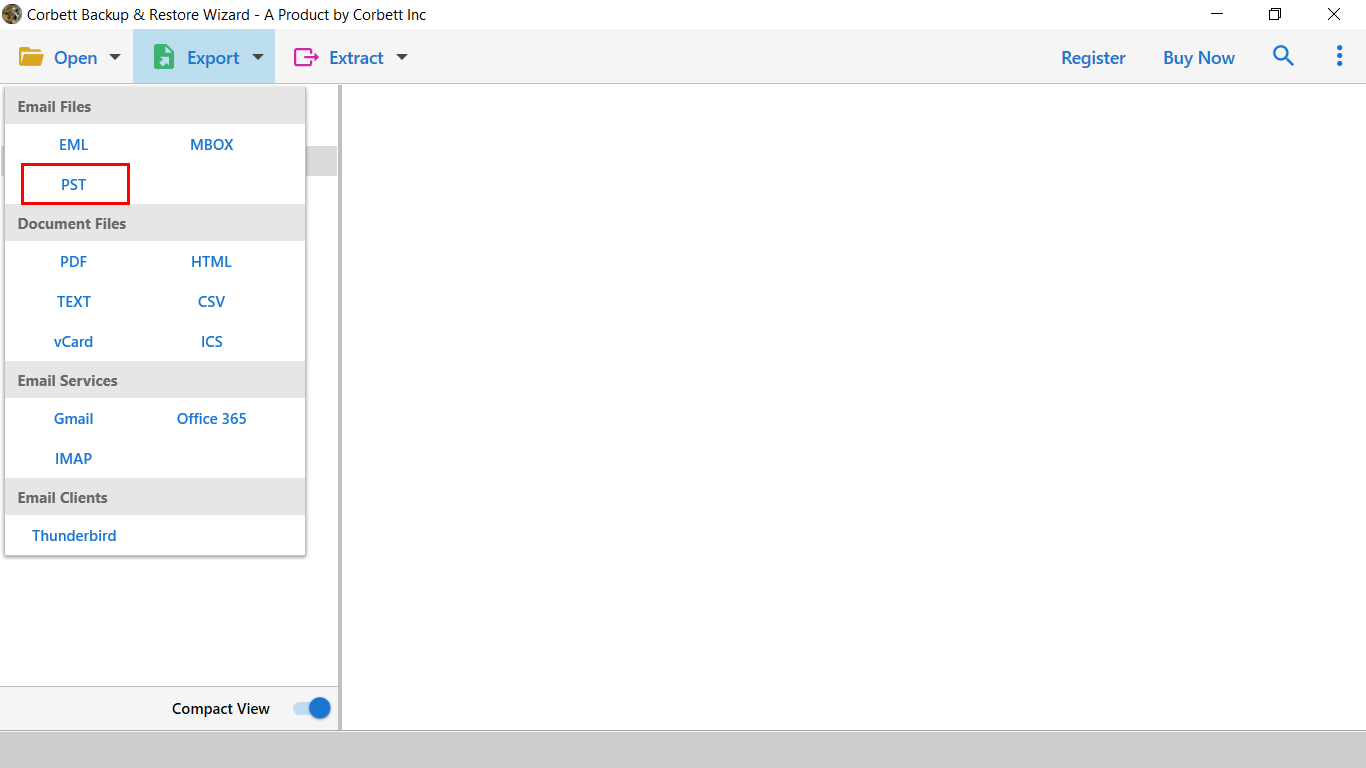
- Click Export and choose your target, Outlook or Office 365, then apply any date or folder filters you need. If you need a standalone PST file instead, see the convert Windows Mail to PST guide linked above.
- Click Save to run the migration. The tool moves your WLM mail with attachments and folder layout intact, ready for Outlook 2019, 2016, 2013, 2010 or Office 365.
Features of the Automatic Tool
- Works across Outlook 2010 through 2019 and Office 365.
- No cap on file size or message count.
- Keeps folder hierarchy and structure intact during the move.
- Pulls emails, contacts, calendars, tasks and attachments together.
- Filters by date so you only move what you need.
- Exports to other formats too, such as PDF, HTML, Text and CSV.
Which Method Should You Use
| Need | Exchange Export | EML Drag | Migration Tool |
|---|---|---|---|
| Cost | Free | Free | Paid |
| Outlook must be installed locally | Yes, 32 bit | Yes, on target PC | No |
| Good for large mailboxes | Limited | Slow | Yes |
| Keeps folder structure | Mostly | Can flatten | Yes |
| Filter by date or folder | No | Manual | Built in |
Read Similar Blogs:
Frequently Asked Questions
Q2: Do I need Outlook installed to export from WLM?
A2: For the Exchange export, yes, on the same machine. The EML drag method also needs Outlook present, but it can be on another computer.
Q3: Where is Windows Live Mail data stored?
A3: By default under AppData then Local then Microsoft then Windows Live Mail on your drive.
Q4: Will my folder structure stay intact?
A4: The Exchange export usually keeps it, EML dragging can flatten it, and a dedicated tool preserves it.
Q5: Can I move only certain emails?
A5: The manual routes move whole folders. A migration tool lets you filter by date or folder before the move.
Final Thoughts
Moving Windows Live Mail to Outlook is doable for free, but only if you know the one trap that sinks most attempts. The built in Exchange export needs a 32 bit Outlook installed locally or it throws a MAPI error, so for many people the EML drag method is the safer free route. When the mailbox is large or you want filtering and a clean folder tree, a migration tool saves the hassle. Which Outlook bit version are you running, and how big is the WLM mailbox you need to move?