How to Convert DBX to CSV Format? Quick Guide
DBX is the database format Outlook Express used on older Windows systems, with one file per folder such as Inbox.dbx and Sent Items.dbx. CSV is a plain table of comma-separated values that opens in Excel or Google Sheets. Getting from one to the other is useful when you want your old mail as a searchable, sortable spreadsheet. The honest part most pages skip is that nothing modern reads DBX directly, so every route involves a conversion step.
Why convert DBX to CSV
- CSV opens in any spreadsheet program, so the data is easy to read and edit.
- Sender, subject, date, and message text sit in clear rows and columns for fast sorting and filtering.
- A single CSV can hold a large batch of emails as a lightweight archive.
- It gives you a plain backup that does not depend on an old, unsupported email client.
The free route: DBX into Thunderbird, then export to CSV
There is a free way, and the old claim that no option exists outside a paid tool is not quite right. The catch is that it takes a few steps, because Thunderbird cannot read a .dbx file on its own. You first turn the DBX into something Thunderbird accepts, then let a free add-on write the CSV.
- Get the DBX content into a Thunderbird-readable form. Thunderbird imports MBOX and EML, not DBX, so you need an intermediate step first, such as opening the mail in Outlook Express on the original machine and dragging messages out as EML, or using a free DBX-to-MBOX converter.
- In Thunderbird, install the free ImportExportTools NG add-on from Tools, then Add-ons.
- Import the EML or MBOX into a local folder by right-clicking the folder and choosing ImportExportTools NG.
- Right-click that folder again, choose ImportExportTools NG, then Export all messages in the folder, and pick CSV. Set the fields and file naming you want, then save.
ImportExportTools NG genuinely supports CSV export with index and naming options, so once the mail is inside Thunderbird the final step is quick and free.
Where the free route falls short
The free path works, but be realistic about its limits before you commit to it:
- It is multi-step, and the DBX-to-EML or DBX-to-MBOX stage needs the original machine or a separate converter.
- There is no clean one-click batch across many DBX files at once.
- Attachments do not fit neatly into a flat CSV, so they are usually left out or saved separately.
- Folder structure flattens, since a CSV is a single table rather than a folder tree.
When a one-step desktop converter makes sense
If you have many DBX files or you do not have Outlook Express handy, a dedicated tool like the Corbett DBX Converter reads DBX directly and writes CSV in one pass, no intermediate step. It runs offline, does not need Outlook Express installed, and can also export to PST, PDF, EML, MBOX, MSG, and more. The honest case for paying is batch work and folder-hierarchy preservation, not a single small file the free route already handles.
The free trial converts up to 10 emails from each DBX folder to CSV, which is enough to test the output before you decide.
Steps to convert DBX to CSV with the tool
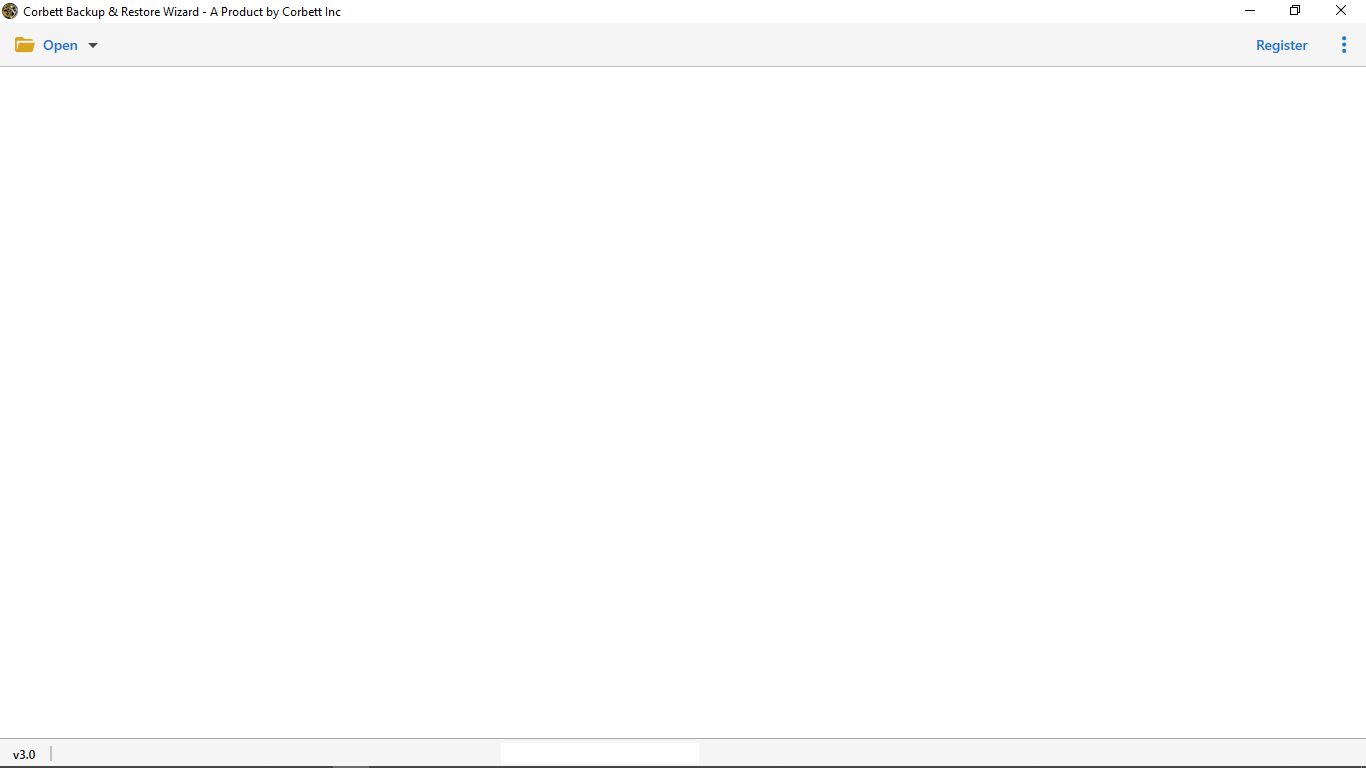
- Download and install the DBX Converter, then open it.
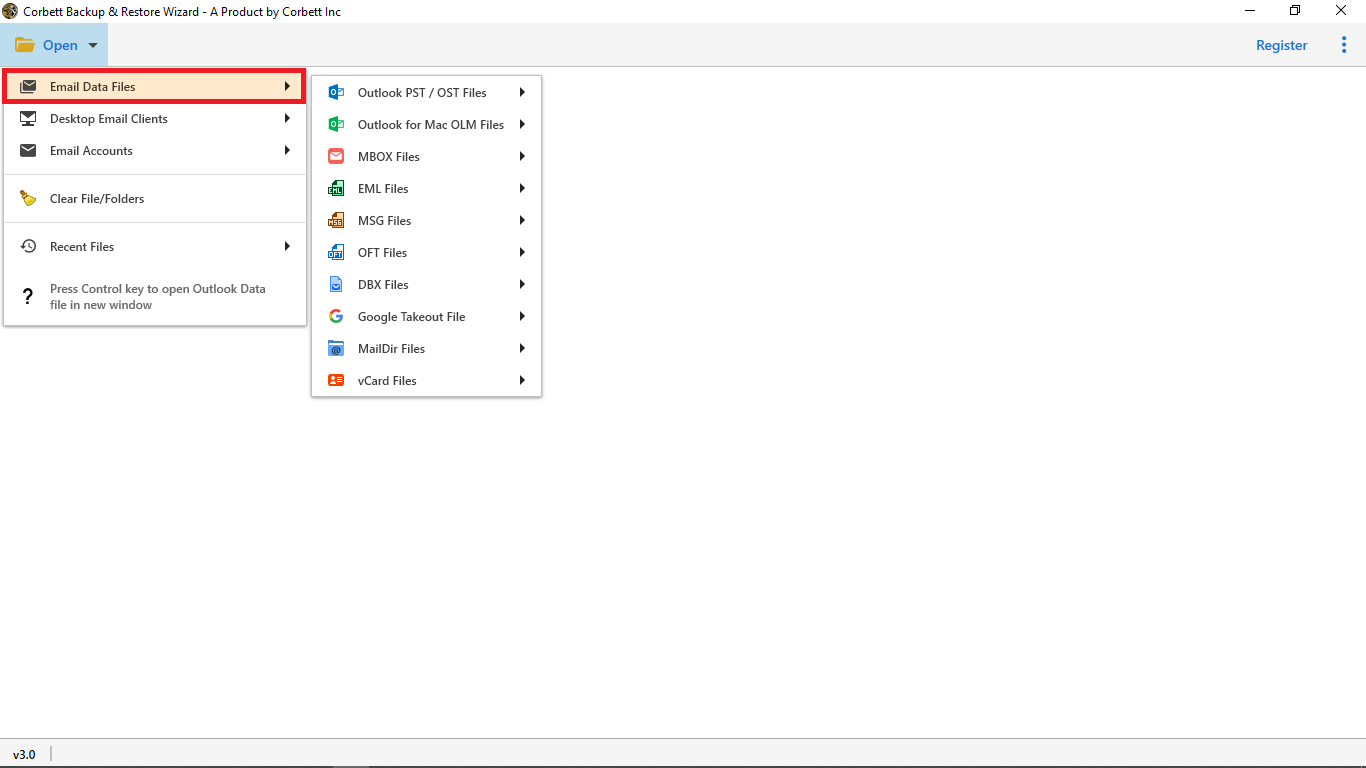
- Click Open, then Email Data Files, then DBX Files, and add your DBX file.
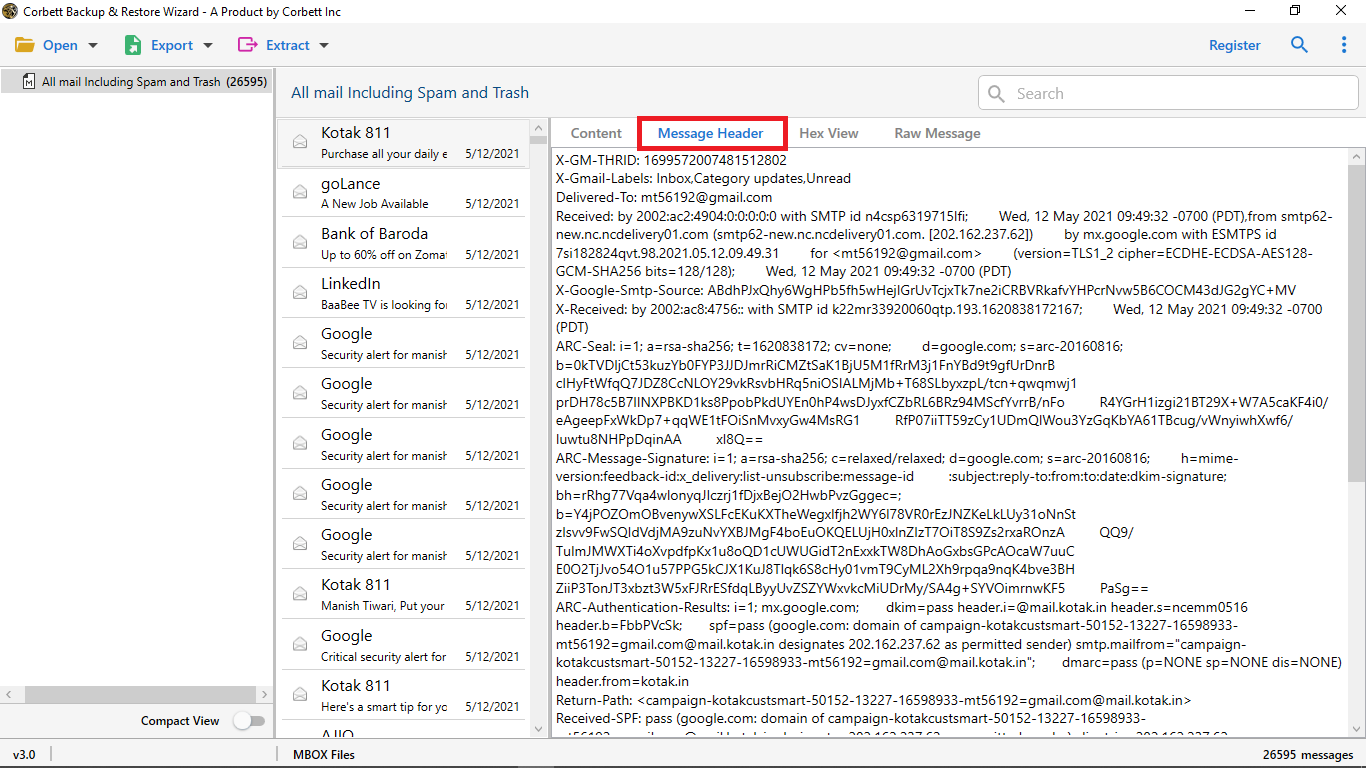
- Preview the mail in content, header, or properties view to confirm it loaded.
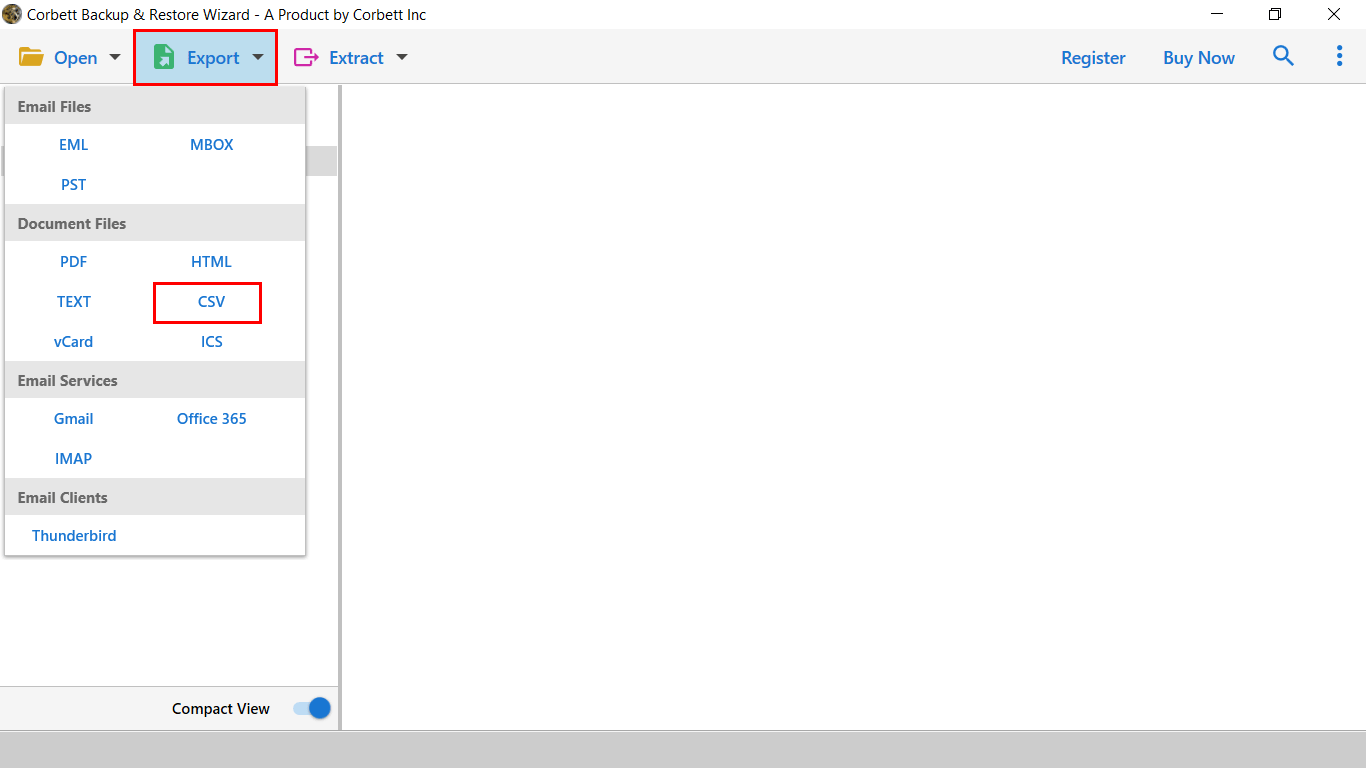
- Click Export and choose CSV from the list of saving formats.
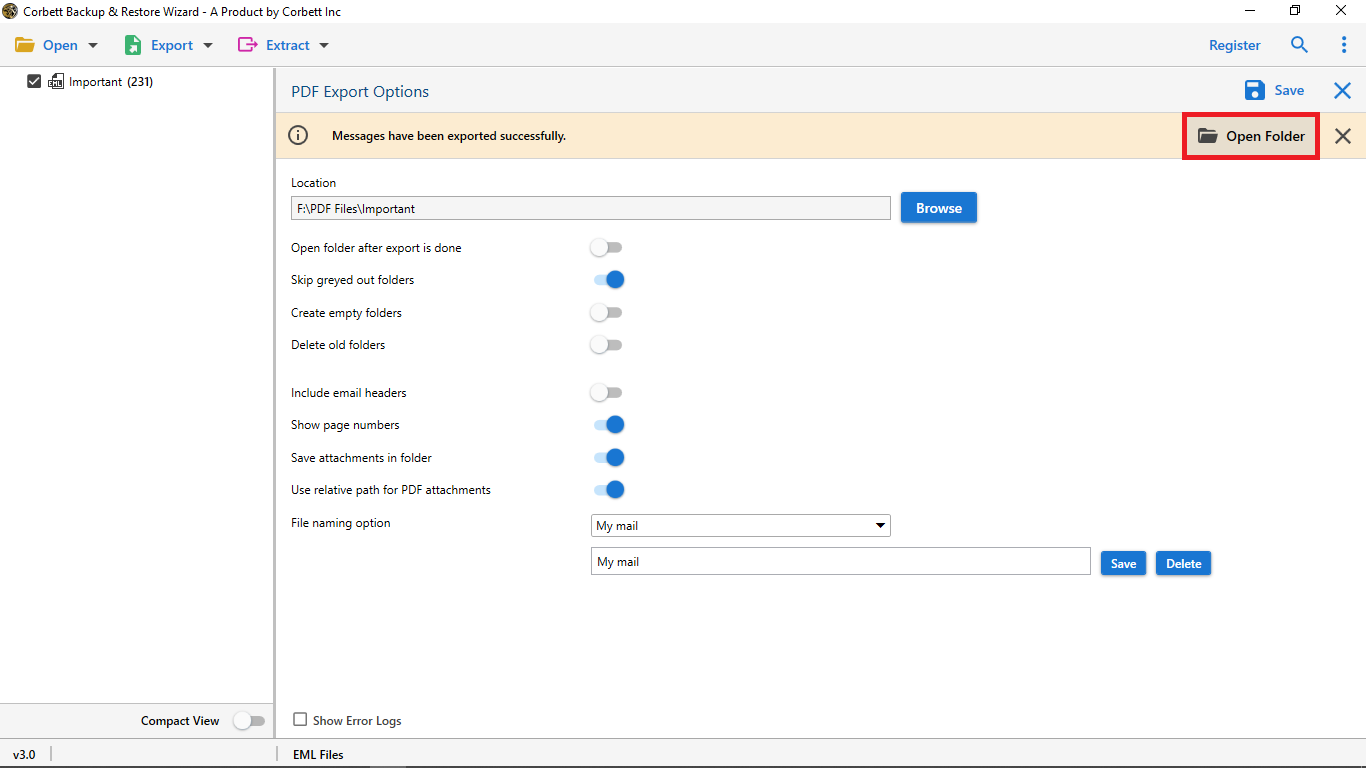
- Pick a save location and click Save to finish the conversion.
Features of the converter
- Search and filter for selective conversion, so you export only the mail you need.
- Standalone tool that does not require Outlook Express or Outlook installed.
- Runs on current Windows versions, including 11, 10, and 8.
- Batch converts multiple DBX files with no file-size limit.
- Keeps the original folder hierarchy for an organised result.
- Flexible file naming such as Subject, Date, From, or combinations.
Also Read: How to Convert DBX File into PDF Format
Frequently asked questions
Can I open DBX files without Outlook Express?
Yes. A free DBX viewer can read and preview the messages, or you can convert the DBX into MBOX or EML and import that into a modern client like Thunderbird.
Is there a built-in Windows way to turn DBX into CSV?
No. Windows has no native DBX-to-CSV option. You either use the free Thunderbird and ImportExportTools NG route or a dedicated converter.
How do I open the CSV after converting?
Open it in Excel or Google Sheets to see the rows and columns, or in a plain text editor like Notepad for a quick look.
Can I convert several DBX files at once?
The free route handles them one folder at a time. A desktop converter is the practical choice when you need true batch conversion across many files.
Do attachments come across into the CSV?
Not cleanly. A CSV is a flat table, so attachments are usually left out or saved separately. If you need attachments kept, export to a format like PST or EML instead.
Conclusion
Converting DBX to CSV comes down to a simple trade. The free Thunderbird route costs you a few extra steps but no money, and it is fine for a single folder. A desktop converter reads DBX directly and handles bulk in one pass, which earns its price when you have many files or no Outlook Express to fall back on. For your situation, is it one folder you can move by hand, or a pile of DBX files that need a batch run?