View Hidden Attachments in Outlook- Easy Guide
Outlook is an email application created by Microsoft. Users can easily send/receive emails, manage calendars, schedule meetings and store contacts. Outlook is used for businesses and personal communication because it provides advanced security features and productivity tools.
Why Does Outlook Hide Attachments?
Here are some common reasons due to which you are not able to see hidden attachments.
- Security Protection: To protect your system from viruses Outlook automatically hides unsafe files.
- Conversation View: Sometimes you are finding attachment in reply email chain. Open original email or whole conversation to view attachment.
- Embedded or Hidden Content: Logos, signatures, or images are embedded in email body and do not appear in normal attachment lists.
- Email Format Limitations: Attachments not visible properly when email is sent in Plain Text as compared to HTML or Rich Text formats.
- Attachment Preview Disabled: To see attachment in Outlook email make sure “Turn off attachment preview” is unchecked.
- Temporary Secure Storage: Outlook saves opened attachments in “Secure Temp Folder” that is why attachments are not visible in Outlook.
View Hidden Attachments in Outlook Manually
In this section, we will provide different manual methods to fix “Outlook hidden attachments” issue. Follow the following steps mentioned below to locate and open hidden attachments in Outlook emails.
1st Solution: Always Expand Conversation
- Launch and open Outlook on your computer.
- Select email from your mailbox.
- Click on “View” tab and hit Current View.
- Select Show as Conversations and choose “This Folder” (or All Mailboxes if you want this setting for all messages).
- Now, go to Conversation Settings and select Always Expand Selected Conversation.


This method will expand conversation and show all previous messages and attachments.
2nd Solution: Check Outlook Security Settings
- Open Microsoft Outlook.
- Go to File and select Options.
- Select Trust Center on the left side.
- Hit Trust Center Settings >Attachment Handling.
- Click Attachment and Document Previewers.
- In “File Previewing Options” review blocked attachment list.


Some file formats (like .exe) are hidden for security reasons.
3rd Solution: Filter Emails with Attachments
- Open Outlook.
- Click Filter icon (funnel symbol) in the ribbon.
- Select Has Attachments option.
- Now, Outlook will display only emails that contain attachments.

4th Solution: Save Email as .msg or .eml File
- Go to Outlook and open email.
- Click File>>Save As.

- Choose Outlook Message Format (.msg) or .eml.
- Reopen saved file.

With given methods, you can view hidden attachments in Microsoft Outlook. However, these solutions have some limitations that will be explained in the next section.
Drawbacks of Manual Method
- This method takes a lot of time when you have a large number of emails.
- Without Outlook installation you are not able to open hidden attachments in Outlook.
- Requires technical knowledge if you miss any steps, there is a chance to lose data or file corruption.
- Opening hidden attachments manually can harm your computer with viruses or other malware.
Best Solution to View Hidden Attachments in Outlook
After reviewing above methods to find hidden attachments in Outlook, we observed a few security gaps. If you want to view hidden attachments in Outlook securely use Corbett PST Converter Software. A reliable solution that allows users to extract PST file attachments without changing original email structure. It enables users to handle large email data and view attachments in Outlook without any data loss.
Procedure for Professional Solution
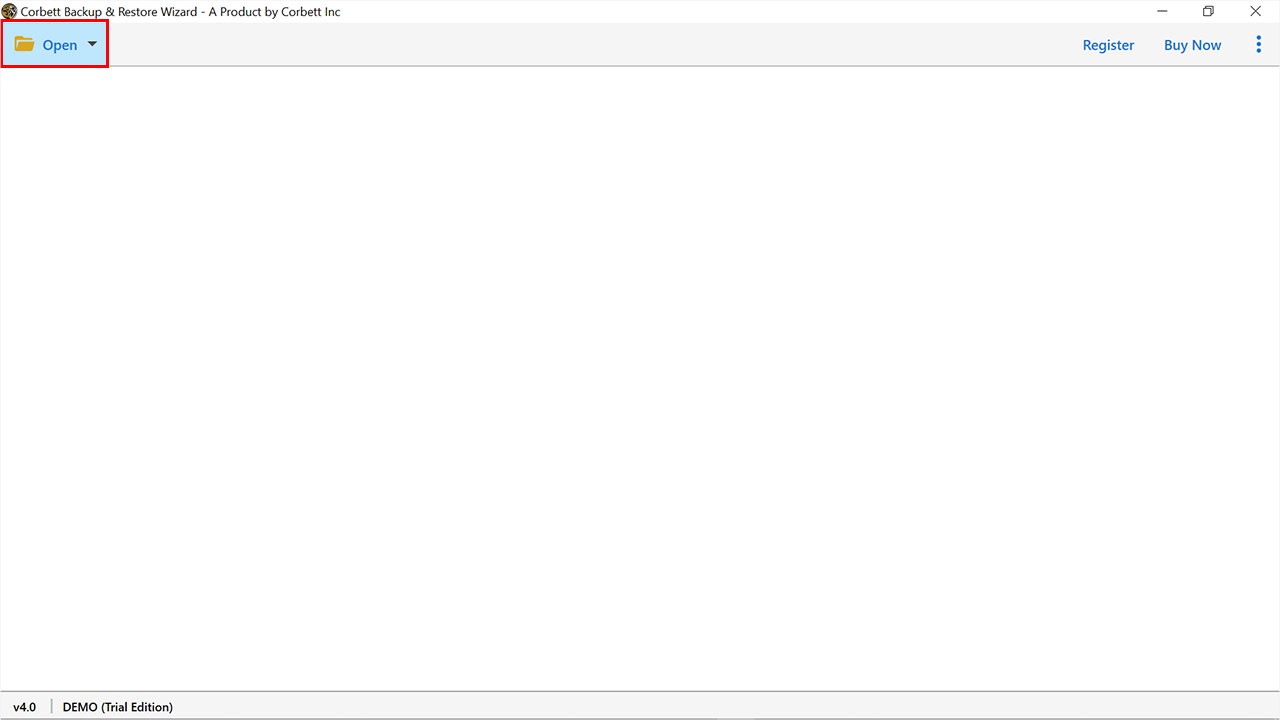
- Download and open application on your Windows OS.
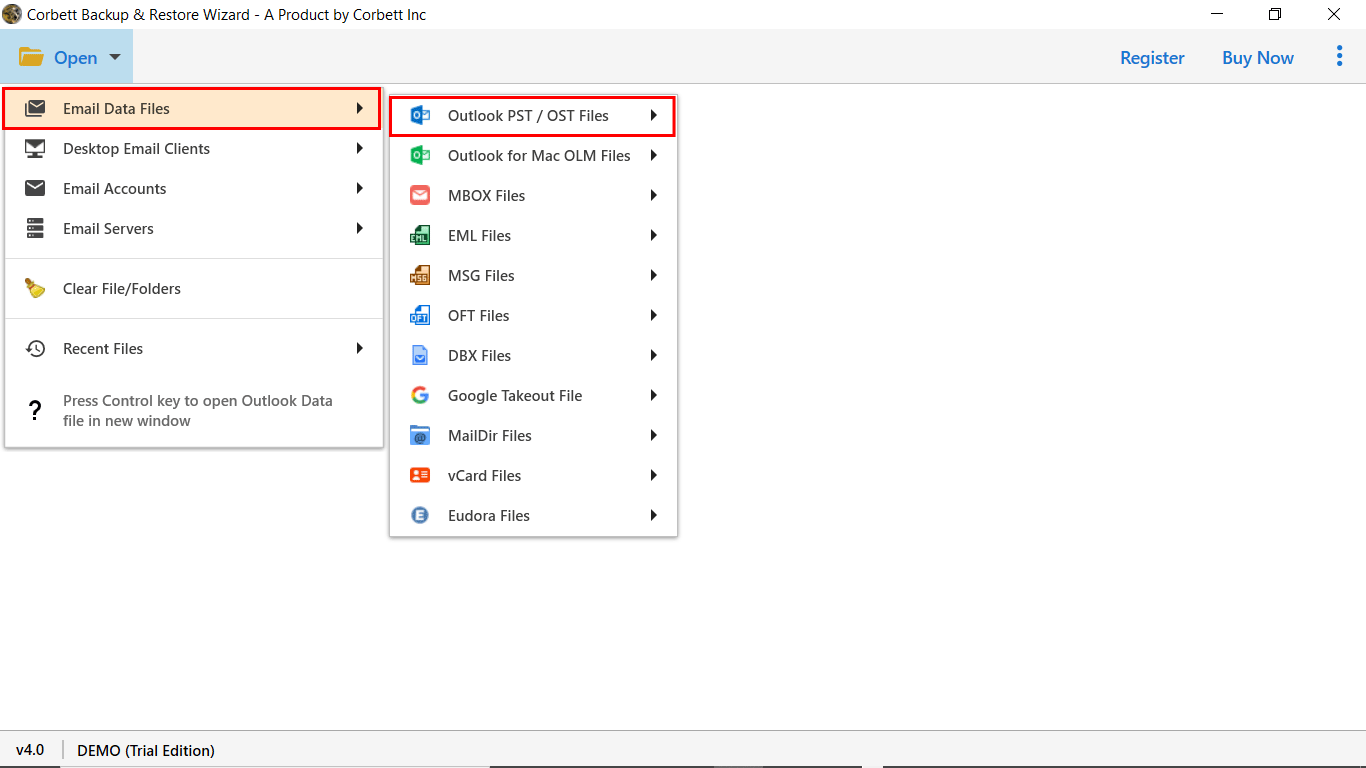
- Click Open tab and select Email Data Files>>PST/OST Files.

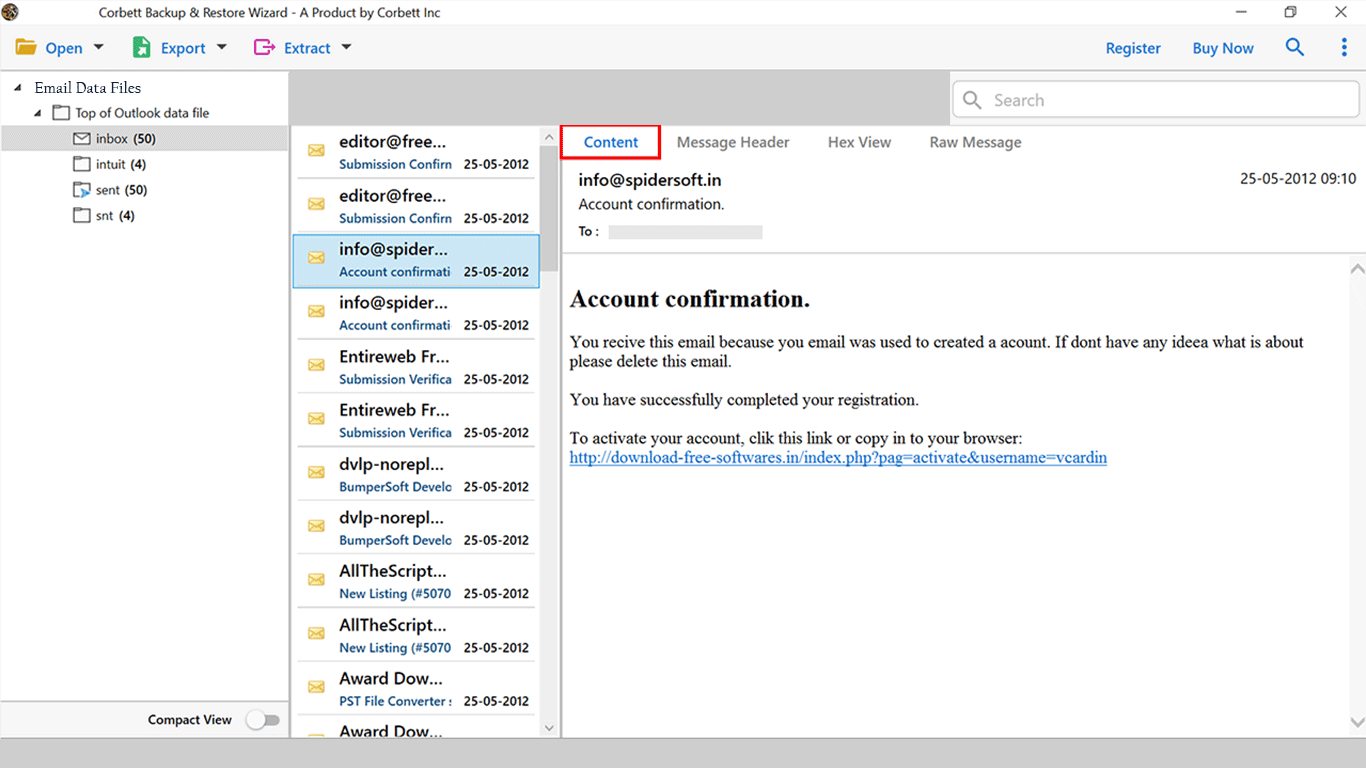
- After uploading file, preview and analyze email data in different modes.
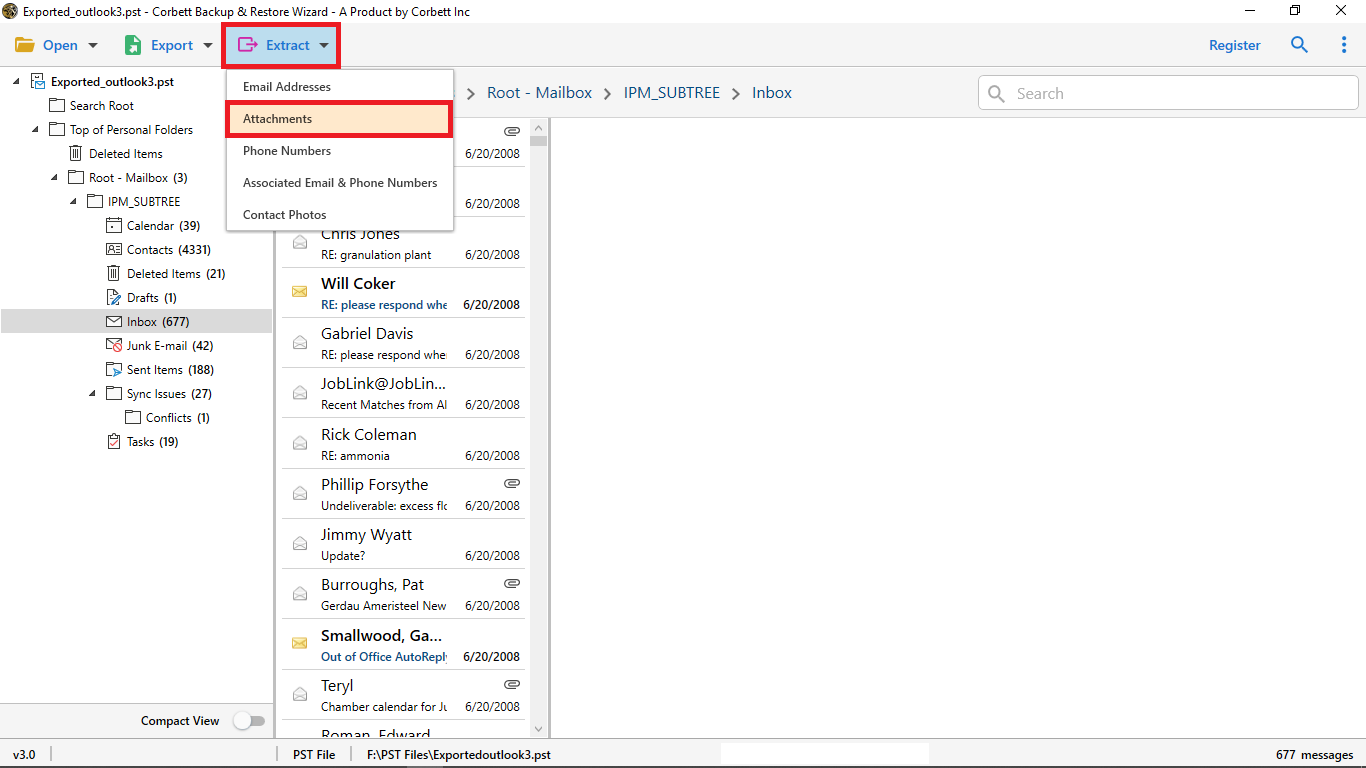
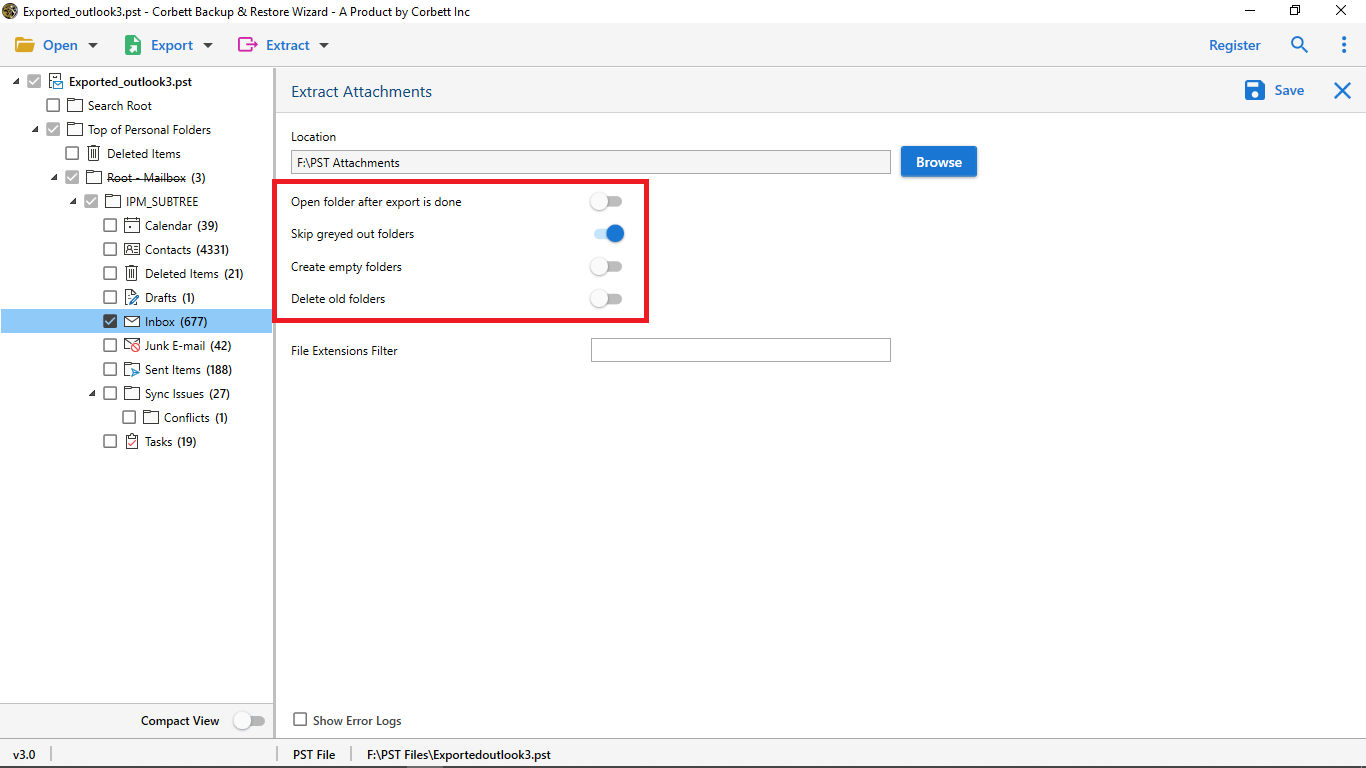
- Then, click Extract option and hit Attachments.
- Now, browse destination path and click save to view all hidden attachments in Outlook email.
Key Features and Benefits of Automated Solution
- There are several advantages to view hidden attachments in Outlook with professional software:
- Handle multiple files in a single process and provide 100% data integrity.
- Offline functionality to protect users data and provide safe and secure results.
- Preserves original email attributes like sender, receiver, subject, date, & metadata.
- Standalone application, so no additional setup or email application is required.
- It also allows you to convert PST files into different file formats like PDF, EML, MSG, MBOX & others.
Time To Wrap Up
In conclusion, we discussed different methods to view hidden attachments in Outlook. We also cover some common reasons why you are not able to see hidden attachments in Outlook. Additionally, we also explored different manual solutions to view hidden attachments in Outlook but they are risky and time consuming. Therefore, if you want to view all attachments in Outlook without viruses or any hassle it is recommended to use a reliable professional tool.