How to Change Google Account From Business to Personal

Written by Justin Cener, Technical Executive and Staff Writer at Corbett Software. Justin covers email data formats and migration workflows.
Tired of paying for a business Google account and want to go back to a normal personal one? You are not alone, and there is an honest answer. Google does not let you flip an account from business to personal with a button. What you do instead is move your data to a personal Gmail, then close the business plan. Here is the whole process, free.
Summary: You cannot change a Google account type from business to personal. A business account, also called Google Workspace, and a personal Gmail are different kinds of account. To switch, use or create a personal Gmail, copy your old mail and Drive files into it free with Google Takeout, then cancel the Workspace subscription.
Can You Change a Business Account to Personal?
The honest answer is no, not directly. A business Google account, the kind that runs on Google Workspace, is a different type of account from a free personal Gmail. There is no setting that turns one into the other. Anyone promising a one click switch is overstating it.
What you can do instead works just as well for most people. You move everything you care about, your mail, your Drive files, your contacts, into a personal Gmail account, and then you cancel the paid business plan. The end result is the same. You are back on a free personal account with your data, and you have stopped paying. The rest of this guide walks through that move step by step.
The 3 Steps to Move From Business to Personal
The whole switch is three steps, and the first two are free using Google’s own tools. Here is the path at a glance before the detail.
Business to Personal in 3 Steps
You cannot switch the account type. You move your data instead.
1. Personal Gmail
Sign in to a personal Gmail, or create a free new one to receive your data.
2. Copy the Data
Use Google Takeout to copy mail and Drive to the personal account. Free.
3. Cancel Workspace
Once the data is safely copied, cancel the paid business plan to stop billing.
Step 1: Use or Create a Personal Gmail
First you need the destination. This is the free personal account your data will move into.
- If you already have a personal Gmail, just sign in to it and use that.
- If not, go to the Gmail sign up page and create a new free account ending in @gmail.com.
- Make sure it has enough free storage for your old mail and files, since the free account comes with 15 GB.
Keep this account signed in. It is where everything lands in the next step.
Step 2: Copy Your Data With Google Takeout
Google has a free transfer tool that copies your business account’s mail and Drive files straight into a personal account. It even keeps your Gmail labels.
- Sign in to your business account and go to takeout.google.com/transfer.
- Enter your personal Gmail address as the destination and click Send code.
- Open your personal Gmail, get the confirmation code from Google and enter it to verify.
- Choose to copy Gmail and Drive, then click Start transfer.
- Wait for the email from Google saying the copy is done. It can take a few hours to a few days.
The transfer copies your mail with its labels and your Drive files into the personal account, and it leaves the originals in place. One thing it does not move is contacts, calendars and chats, so for those, use the main Google Takeout export at takeout.google.com and import them into the personal account separately.
Step 3: Cancel the Workspace Subscription
Once your data is safely in the personal account and you have checked it, cancel the paid business plan so the billing stops.
- Open the Google Admin console at admin.google.com and sign in as the administrator.
- Go to Billing, then Subscriptions.
- Select your Workspace subscription and choose Cancel subscription.
- Confirm. Check your data is fully copied first, because cancelling closes the business account for good.
When the Free Transfer Will Not Work
There is one honest catch. Google’s free transfer only works if the administrator of the business account has left the transfer permission turned on. If your account is managed by an employer or school, the admin may have switched it off, and then takeout.google.com/transfer will not let you copy your mail. The free transfer also skips contacts and calendars, and it moves everything or nothing rather than letting you pick. When the transfer is blocked, or you want your mail moved with filters and your folders kept exactly, a migration tool reads the mailbox directly and copies it across.
Steps to Move Your Mail With the Tool
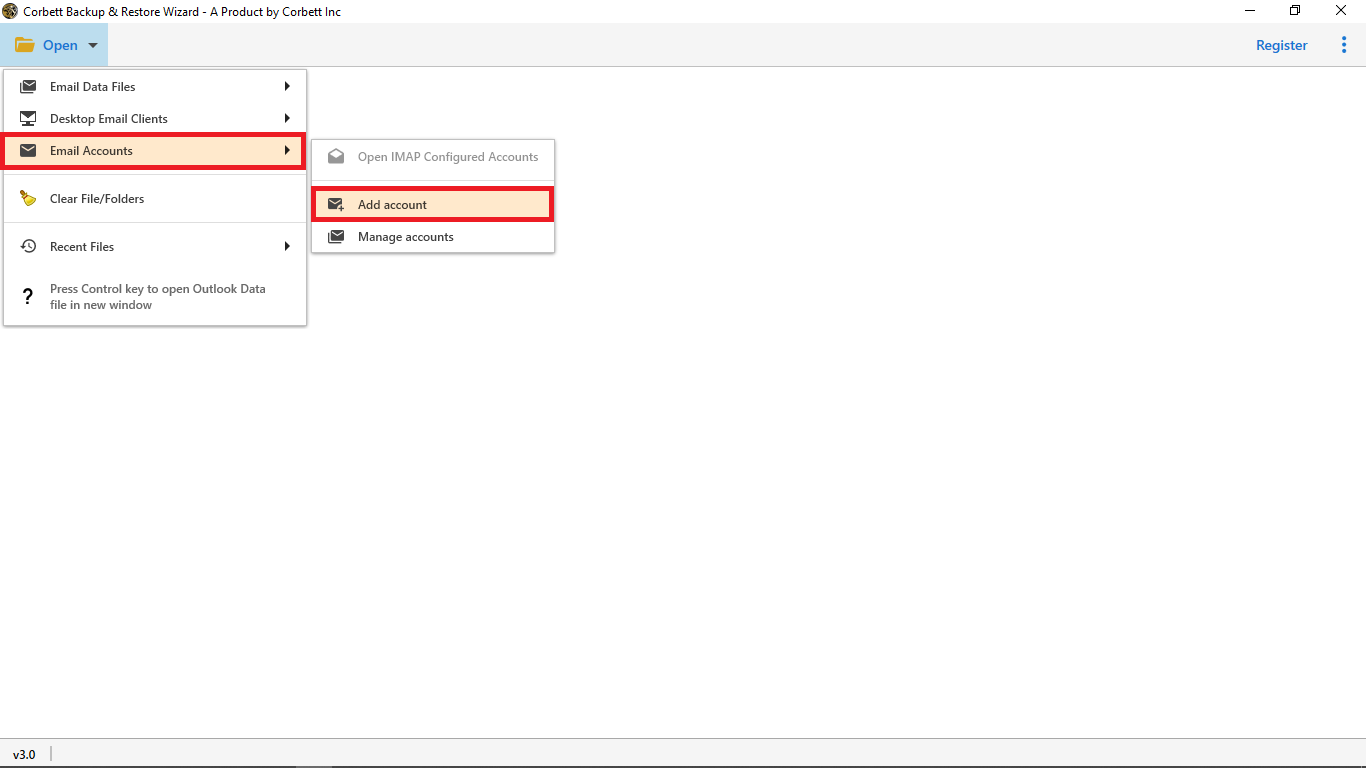
- Install and launch the software, then click Open, choose Email Accounts and select Add Account.

Step 1: Adding the source business account.
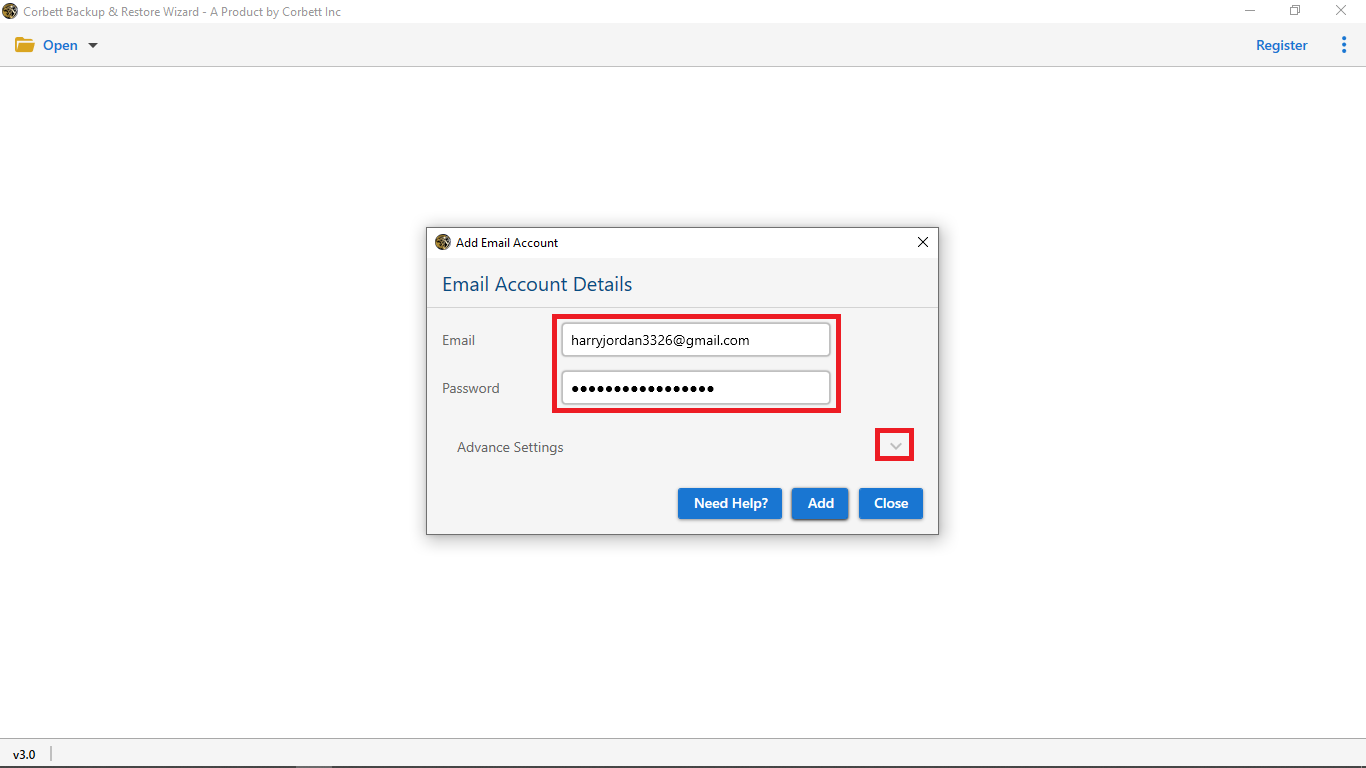
- Enter your business Google account with its app password and let the mailbox load.
Step 2: Business account credentials entered.
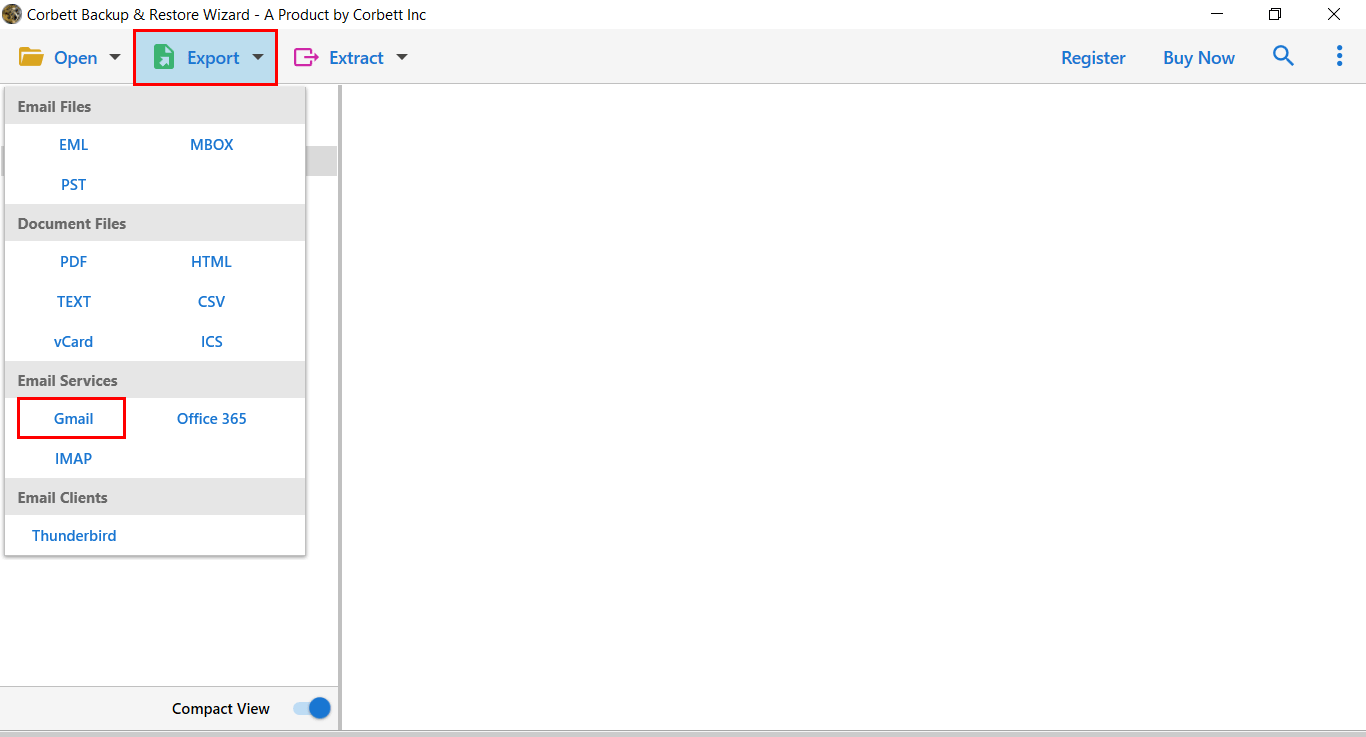
- Click Export and select Gmail as the destination.

Step 3: Choosing Gmail as the destination.
- Enter your personal Gmail with its app password, apply any filters, then click Save to run the move.
With the mail in the personal account, you can go back to Step 3 above and cancel the business plan.
People Also Ask
Q2: How do I change my business Gmail to a personal Gmail for free?
A2: Sign in to your business account, go to takeout.google.com/transfer, enter your personal Gmail and verify it, then copy Gmail and Drive across. The transfer is free and keeps your Gmail labels.
Q3: Will I lose my emails when I switch from business to personal?
A3: No, if you copy them first. Google Takeout copies your mail to the personal account and leaves the originals in place, so nothing is lost until you cancel the business account yourself.
Q4: Why can’t I use the free Google transfer?
A4: The free transfer needs the administrator to have left the transfer permission on. If an employer or school manages the account and has turned it off, use a migration tool to copy the mailbox over IMAP instead.
Q5: Do I have to cancel my Workspace subscription?
A5: Yes, if you want the billing to stop. Once your data is safely in the personal account, cancel the Workspace plan in the Admin console, otherwise Google keeps charging for the business account.
Conclusion
Changing a Google account from business to personal is really a move, not a switch, because Google keeps the two account types separate. Use or create a personal Gmail, copy your mail and Drive across for free with Google Takeout, and once it is safely there, cancel the Workspace plan to stop paying. If the free transfer is blocked or you want your folders kept exactly, the Corbett Gmail Migration Tool copies the mailbox for you. Which part of your business account matters most to bring across?