How to Convert DBX to CSV Format? Quick Guide
DBX file is a Microsoft Outlook Express database file that stores email messages from folders (like Inbox.dbx, Draft.dbx, Sent Items.dbx). It was common in older Windows systems and works as an email repository .
Today, DBX files can be open using modern email clients or conversion tools for backup and migration purposes. You cannot manually edit DBX files because it leads to data loss or file corruption.
CSV stands for Comma-Separated Values. It is a simple, plain text file format used to store data in rows and columns, where each value is separated by a comma. CSV files are easy to open, edit, and share using spreadsheet programs like Excel or Google Sheets.
Why Do We Need to Convert DBX to CSV?
- CSV files can be opened and edited easily using simple text editors or spreadsheet programs.
- CSV is a lightweight and user-friendly format for long-term email storage.
- All email details are saved in clear rows and columns, making data easy to read.
- CSV format lets users store a large number of emails in a single file.
- Managing, sorting, and filtering email data becomes much simpler.
- It creates a safer backup that reduces the risk of file corruption.
Professional Solution to Export DBX to CSV Format
Corbett DBX Converter is a one-stop solution that allows you to convert DBX emails to CSV files in offline mode. It allows you to convert Outlook Express DBX to PST, PDF, EML, MBOX, DOC, MSG, EMLX, vCard, and more. The software has a user-friendly interface for everyone. But if you need any technical advice, you can contact the customer support team directly.
Download Free DBX to CSV Converter today and analyze how the software works. The free trial allows you to convert up to 10 emails from each DBX folder into CSV file format. Chosen and trusted by thousands of users because of its security, data integrity, and selective conversion.
Steps to Transfer Outlook Express DBX file to CSV format in Bulk
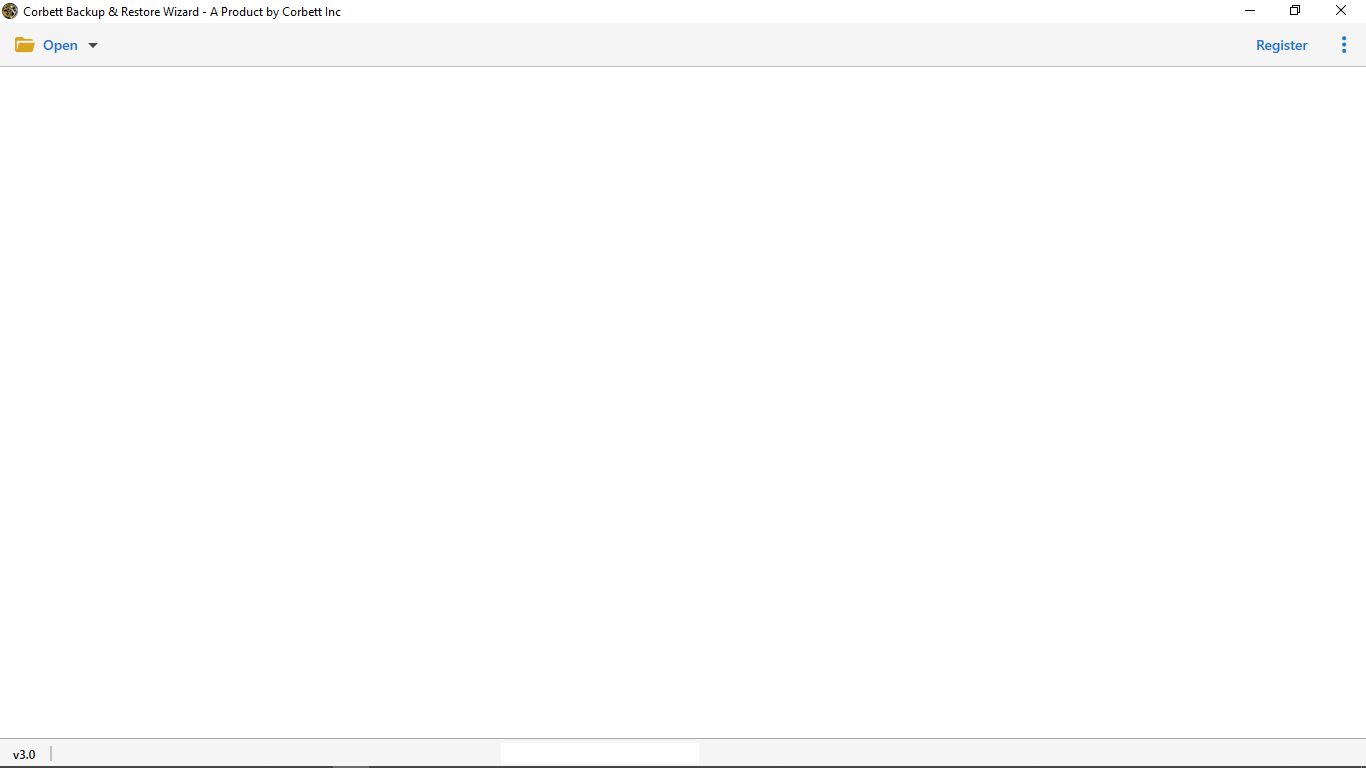
- Download and install DBX to CSV Converter on your Operating System to export DBX emails to CSV format.

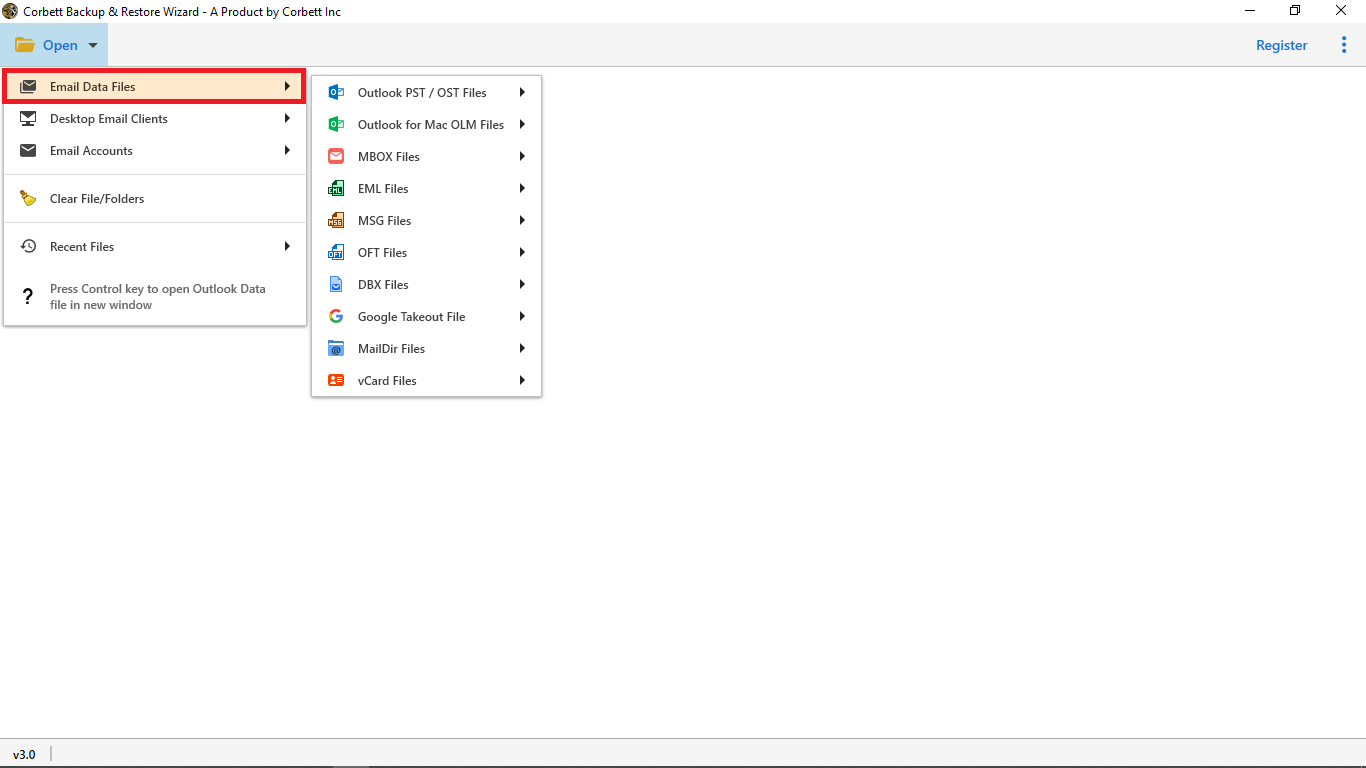
- Click Open and hit Email Data Files>>DBX Files.
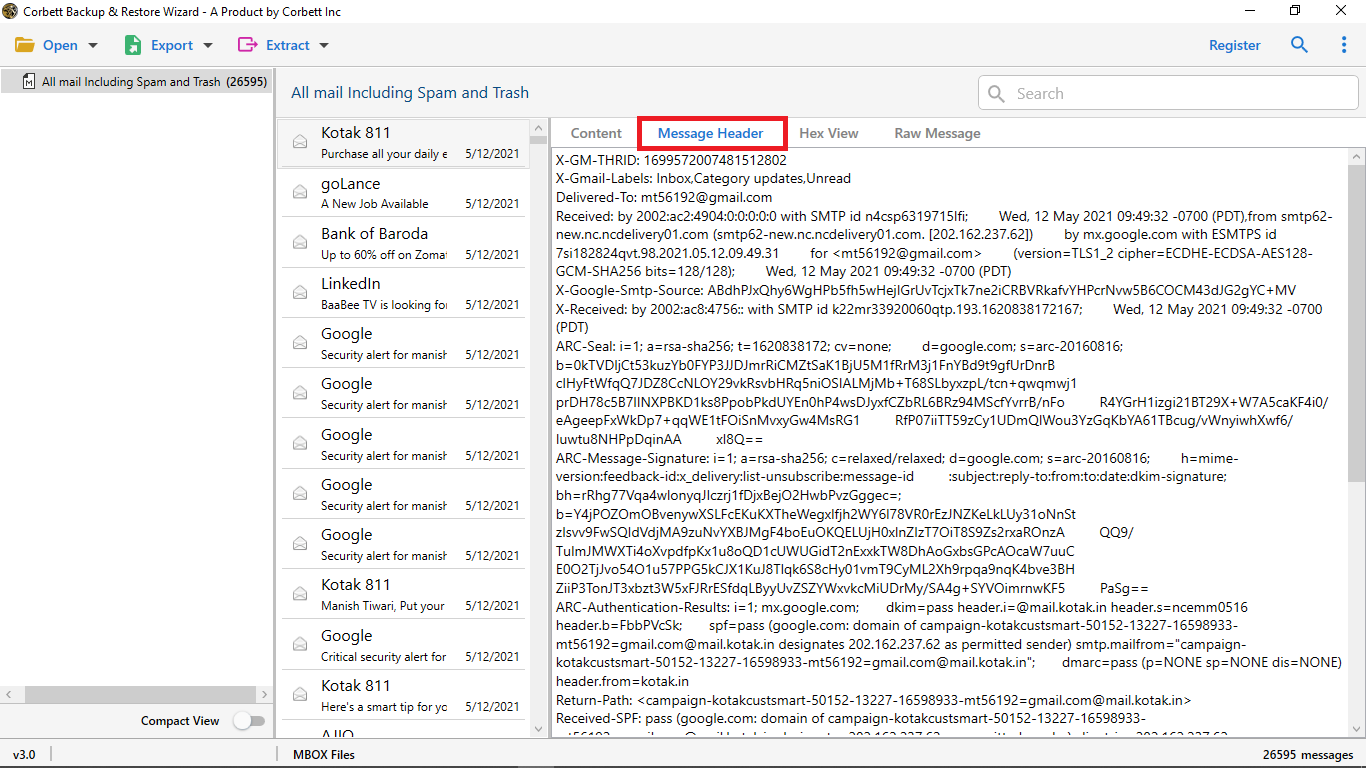
- Now, upload a DBX file and preview data in different modes such as content, message header, properties, and more.
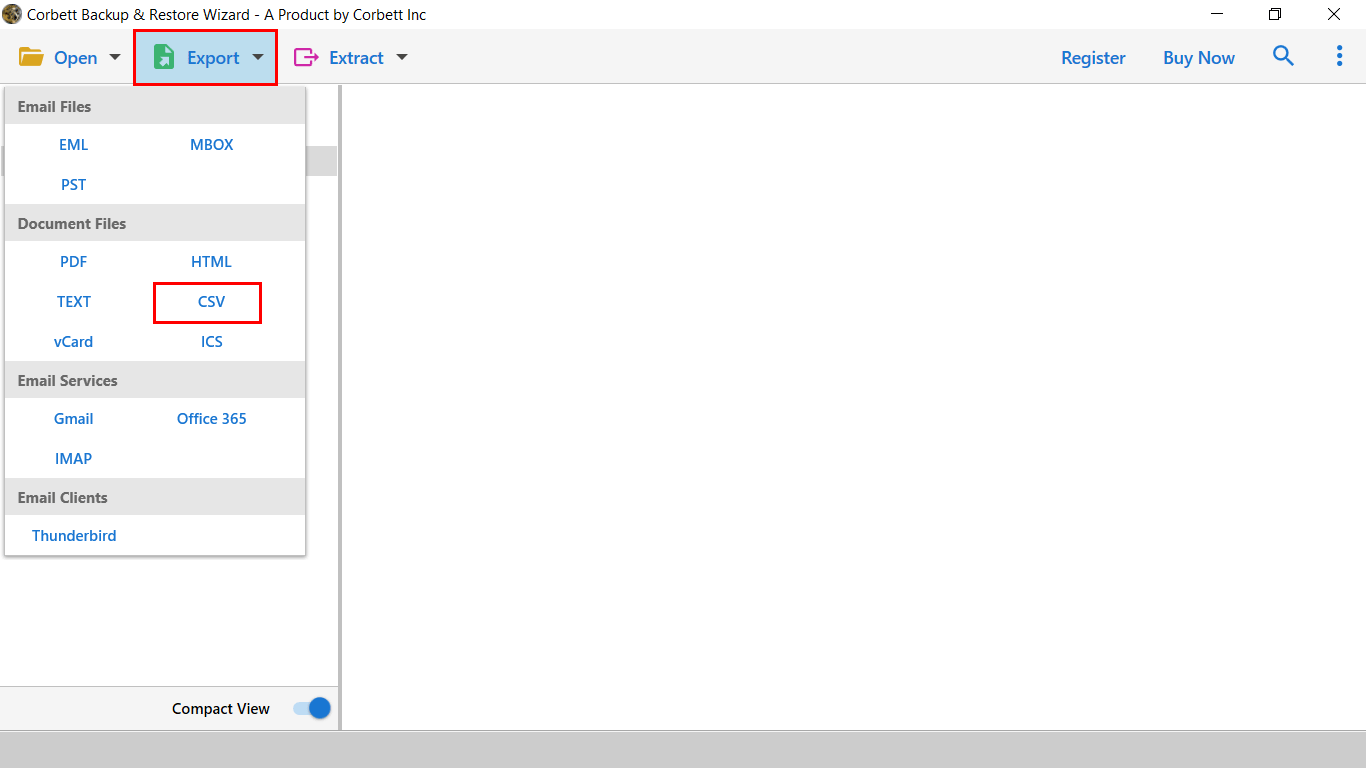
- Click Export and select CSV as a saving format from the given list.
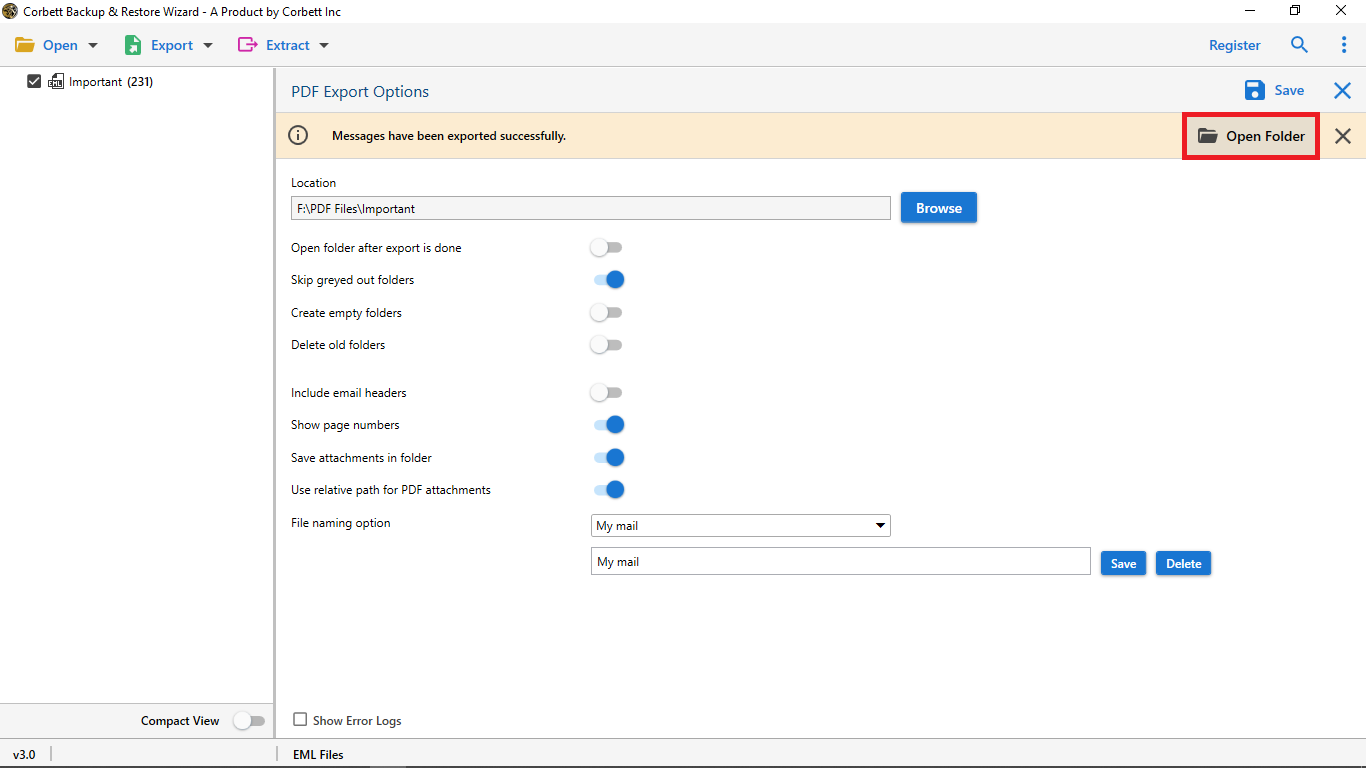
- Finally, browse the desirable location and click Save to complete DBX to CSV conversion.
Advanced Features of DBX File to CSV Converter
- Advanced search and filter option for selective conversion.
- It is a standalone tool and doesn’t require Outlook Installation.
- Compatible with all versions of Operating Systems like Windows 11, 10, 8, etc.
- Batch convert DBX to CSV without file size restriction and save time.
- Maintain original folder hierarchy for an organized data structure.
- Choose any desired path to save converted DBX files for easy access.
- Multiple file naming options such as Subject, Date, From, or combined formats like Subject+Date or From+Subject+Date, etc.
Time to Wrap Up
In conclusion, we cover how to convert DBX file to CSV format with all email attributes. A free trial version is also available. You can test the software features and their performance before making a purchase. The software provides 100% accurate results without losing any data.
Common Asked User’s Query
Q. How to open DBX files without Outlook Express?
Yes, you can open DBX files without Outlook Express by using a DBX viewer tool to preview and read emails, or by importing them into a modern email client that supports DBX.
Q. How do I convert my File to CSV?
To convert file to CSV, open your file in Excel or Google Sheets, go to File > Save As (or Download), choose CSV (Comma-delimited) as the format, and click Save.
Q. How do I open CSV files after conversion?
CSV files can be opened in spreadsheet programs like Excel or Google Sheets, or even in simple text editors like Notepad.
Q. Can I convert multiple DBX files at once?
Yes, tools allow batch conversion so you can convert multiple files at once without data loss.