Merge Two Gmail Accounts: What Google Allows and How


Written by Justin Cener, Technical Executive and Staff Writer at Corbett Software. Justin covers email data formats and migration workflows.
Tired of logging in and out of two Gmail accounts all day and want them in one place? You can get there, but the honest first step is knowing what is actually possible. Gmail has no single button that fuses two accounts together. What it does give you, free, is everything you need to run both from one inbox.
Summary: Google does not let you truly merge two Gmail accounts into one. Instead you consolidate them, free, by importing the old account’s mail and contacts, forwarding its future mail to your main inbox, and adding it as a send as address so you can reply from either. Together these make two accounts behave like one.
Can You Really Merge Two Gmail Accounts?
The honest answer is no, not in the literal sense. Google does not provide a merge button that combines two accounts into a single one, and any guide promising that is overstating things. What you can do, and what people usually mean by merging, is bring both accounts together so you read, receive and send from one inbox. That is entirely possible with Gmail’s own free tools, and it takes three settings to set up. None of it costs anything or needs extra software.
Step 1: Import the Old Account’s Mail and Contacts
First, bring the existing mail and contacts from the second account into your main one.
- Sign in to your main Gmail account, click the gear icon and choose See all settings.
- Open the Accounts and Import tab and click Import mail and contacts.

Step 1: The Import mail and contacts option in Gmail settings.
- Enter the second Gmail address and follow the sign in prompt to authorise it.
- Choose to bring contacts and existing mail, then start. Gmail copies them into your main account.
This pulls the history across once. The next two steps handle mail that arrives from now on.
Step 2: Forward Future Mail to One Inbox
So new messages sent to the second account land in your main inbox automatically, set up forwarding.
- Sign in to the second account and open See all settings.
- Go to the Forwarding and POP/IMAP tab and click Add a forwarding address.
- Enter your main Gmail address, then confirm the verification message Gmail sends to it.
- Back in the second account, select Forward a copy of incoming mail to your main address and save.
From here, anything sent to the second account shows up in your main inbox without you logging in.
Step 3: Send Mail as the Other Address
To reply from your main inbox but have it come from the second address, add it as a send as identity.
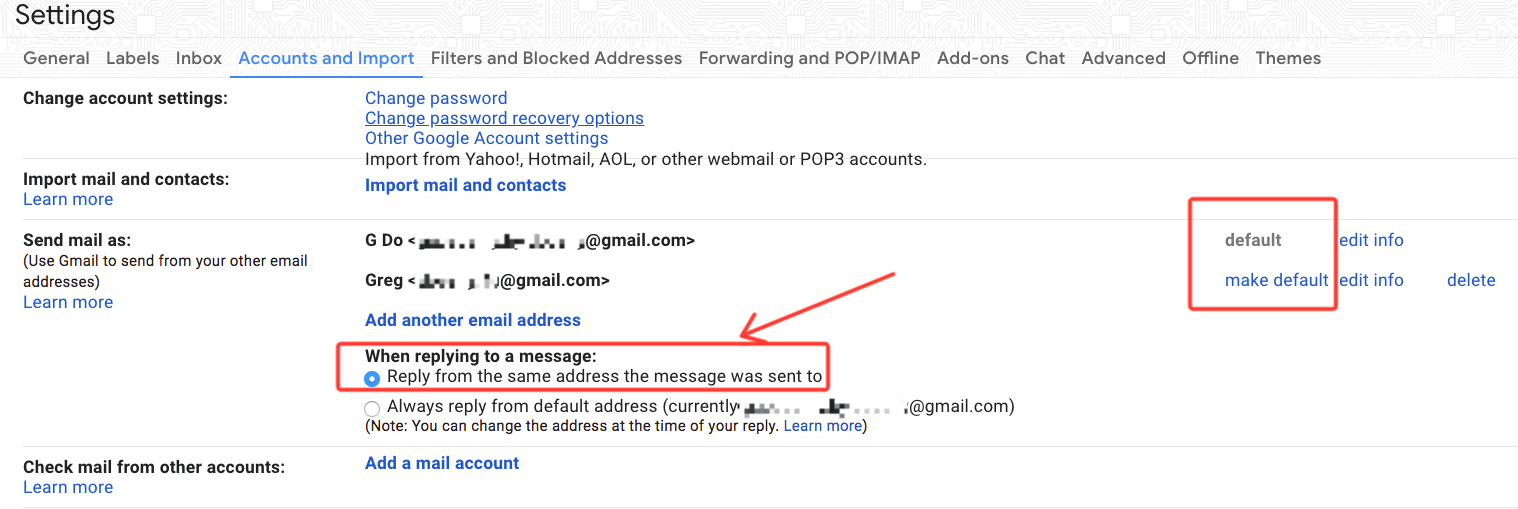
- In your main account, open Accounts and Import and find Send mail as.
- Click Add another email address, enter the second address and verify it.
- Turn on Reply from the same address the message was sent to so replies match automatically.
With these three steps done, your two accounts now read, receive and send from one place, which is as close to merged as Gmail allows.
What This Free Setup Does Not Do
It is worth being clear on the edges. This consolidation makes two accounts behave as one inbox, but the second account still exists as a separate Google account, you have not deleted or absorbed it. The import step also runs over POP, so the old mail arrives in your main inbox without its original labels or folder structure, everything lands together. For day to day convenience that is usually fine. If keeping the old account’s label structure intact matters to you, that needs a different approach than Gmail’s built in import.
If You Want a Full Copy with Labels Intact
When the goal is a complete, structured copy of the old account’s mail in the new one, rather than a flat import, an IMAP based migration preserves the labels that Gmail’s free import drops. We cover that route in detail in our guide on how to migrate one Google account to another, which walks through the Corbett Gmail Migration Tool for a label preserving move. For simply running two accounts from one inbox, though, the three free steps above are all you need.
People Also Ask
Q2: How do I receive emails from both Gmail accounts in one place?
A2: Set up forwarding in the second account to your main address, so new mail arrives there automatically. Add the second address as a send as identity so you can also reply from it.
Q3: Will merging keep my old labels and folders?
A3: Gmail’s free import uses POP and flattens everything into the inbox, so labels are not kept. For a label preserving copy, an IMAP based migration tool is needed instead.
Q4: Does the second Gmail account get deleted when I merge?
A4: No. The second account stays separate and active. This setup links the two so they work as one inbox, it does not remove or absorb either account.
Q5: Can I send emails from my second address after merging?
A5: Yes. Add the second address under Send mail as in your main account and verify it. Then you can choose either address as the sender, or reply automatically from whichever one received the message.
Conclusion
Merging two Gmail accounts is really about consolidation, since Google offers no true merge. Import the old mail and contacts, forward future messages, and add the second address as a send as identity, and the two accounts run from one inbox at no cost. The only time you need more is when you want the old labels preserved, which is a migration job rather than a merge. Do you just want one inbox to manage, or a full structured copy of the old account?