How to Migrate Gmail Emails to Another Gmail Account?

Written by Jared Young, an engineering graduate in Computer Science who specializes in data recovery and email backup at Corbett Software.
Moving to a new Gmail address and want every old email to come with it? You have two real ways to do a Gmail to Gmail migration. A free route built into Gmail, and a tool that moves everything in bulk with your labels kept. The free one comes first, with its limits stated plainly.
Summary: To migrate Gmail to a Gmail account, use Gmail’s free Import mail and contacts feature to pull your old mail into the new account, or use the Corbett Gmail Migration Tool to move every email over IMAP with the label structure kept. The free route suits a simple inbox. The tool suits a full mailbox you want moved exactly as it was.
Why Migrate Gmail to Another Gmail Account?
The reason is usually a fresh start. People set up a new Gmail address for a new job or business, retire an old account that is full or cluttered, or consolidate to a cleaner inbox, and they do not want years of old mail stranded behind them. Whatever the trigger, the goal is the same. Get every email from the old account into the new one, ideally with the folders and labels still in place.
Your Gmail to Gmail Migration Options
There are three ways people move Gmail to Gmail, and they are not equal. Here is how they compare at a glance, so you can pick the right one before you start.
3 Ways to Migrate Gmail to Gmail
Pick the route that matches how much you need moved.
Gmail Import (Free)
Pulls old mail and contacts in. Uses POP, so labels are flattened. Best for a simple inbox.
Forwarding (Free)
Sends only new mail to the new account. Does nothing for old emails already in the mailbox.
Migration Tool
Moves every email over IMAP with labels kept. Best for a full mailbox moved as is.
Free Method: Import Emails into the New Account
Gmail has a built in importer that pulls mail and contacts from your old account into the new one at no cost. This is the free route to use.
- Sign in to your new Gmail account, click the gear icon and choose See all settings.
- Open the Accounts and Import tab and click Import mail and contacts.
- Enter your old Gmail address and follow the sign in prompt to authorise the connection.
- Choose to bring contacts, existing mail and new mail for the next while, then start the import.
Gmail copies the old account’s mail and contacts into the new one and keeps importing new messages for about thirty days. For a straightforward inbox, this free route does the job.
What the Free Import Leaves Behind
Worth knowing before you rely on it. Gmail’s importer works over POP, and POP hands the new account a flat inbox. Your labels and folder structure do not survive the move, everything arrives lumped together, and mail you had carefully filed under labels can be hard to find again. The import also runs on Google’s schedule, so a large mailbox trickles in over days rather than landing at once. For a tidy inbox that does not matter. For an account you have organised into labels over years, it quietly erases that work, which is the reason the next method exists.
Expert Method: Migrate Every Email with Labels Intact
The Corbett Gmail Migration Tool connects to both accounts over IMAP rather than POP, so it reads every label and recreates the same structure in the new account. You add the source Gmail account, the tool loads the full mailbox, and date, sender and label filters let you move only what you want. It copies rather than deletes, so the old account stays intact, and a free demo edition lets you evaluate the migration first. One setup note, the same as for any tool connecting to Gmail. Turn on IMAP in the source account and, if two step verification is on, sign in with a Google app password. It runs on all editions of Windows.
Steps to Migrate Gmail to Gmail
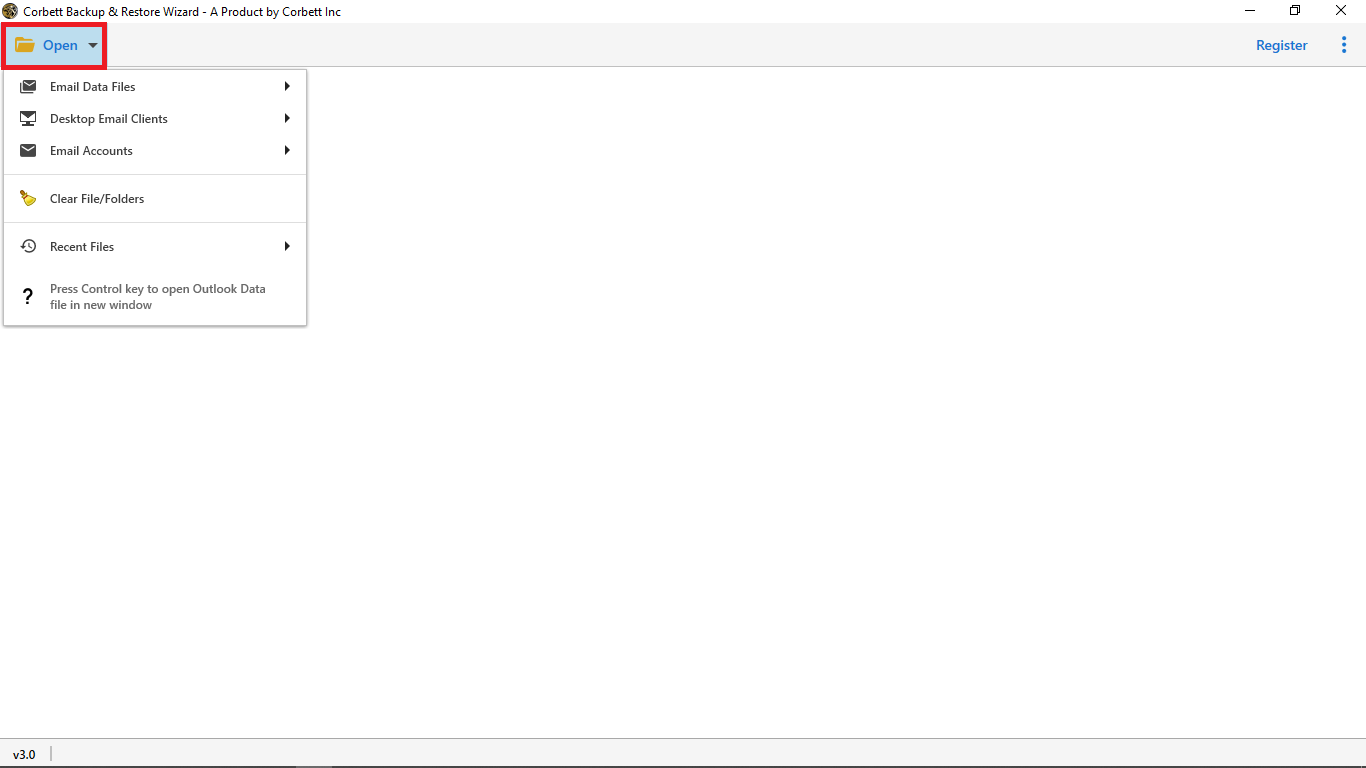
- Install and launch the software, then click Open.

Step 1: The Open button on the start screen.
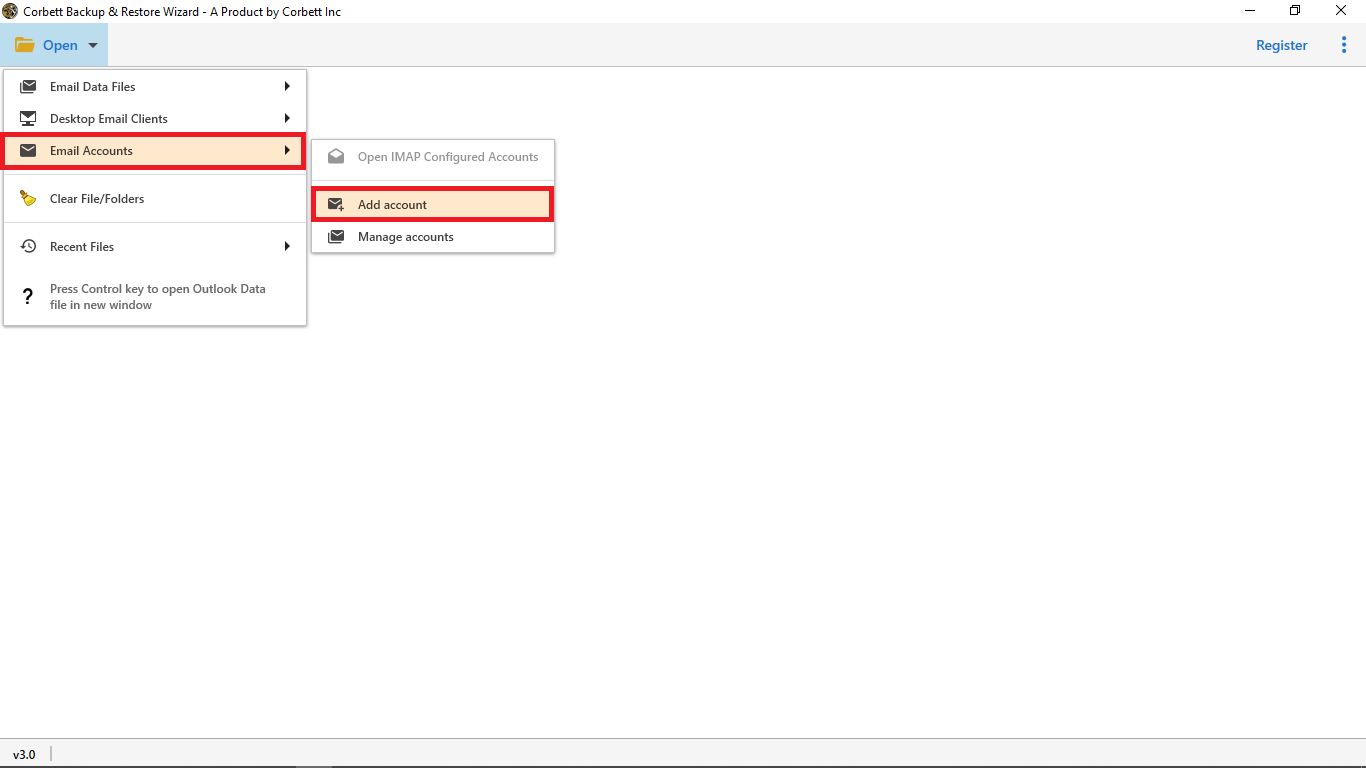
- Choose Email Accounts, then Add Account, and enter your source Gmail address with its app password.
Step 2: Adding the source Gmail account.
- Let the mailbox load, then review your labels and emails in the preview panel.
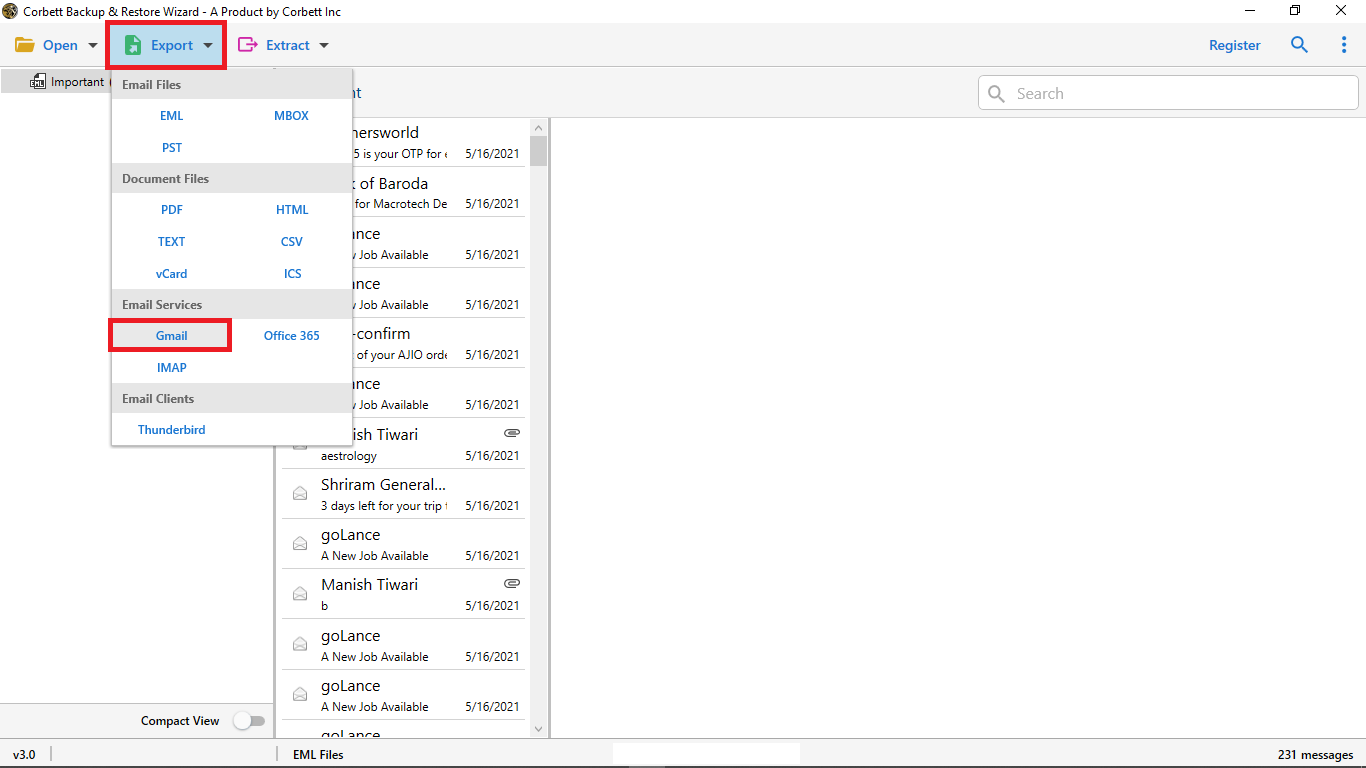
- Click Export and choose Gmail as the destination.
Step 3: The Export menu with Gmail selected.
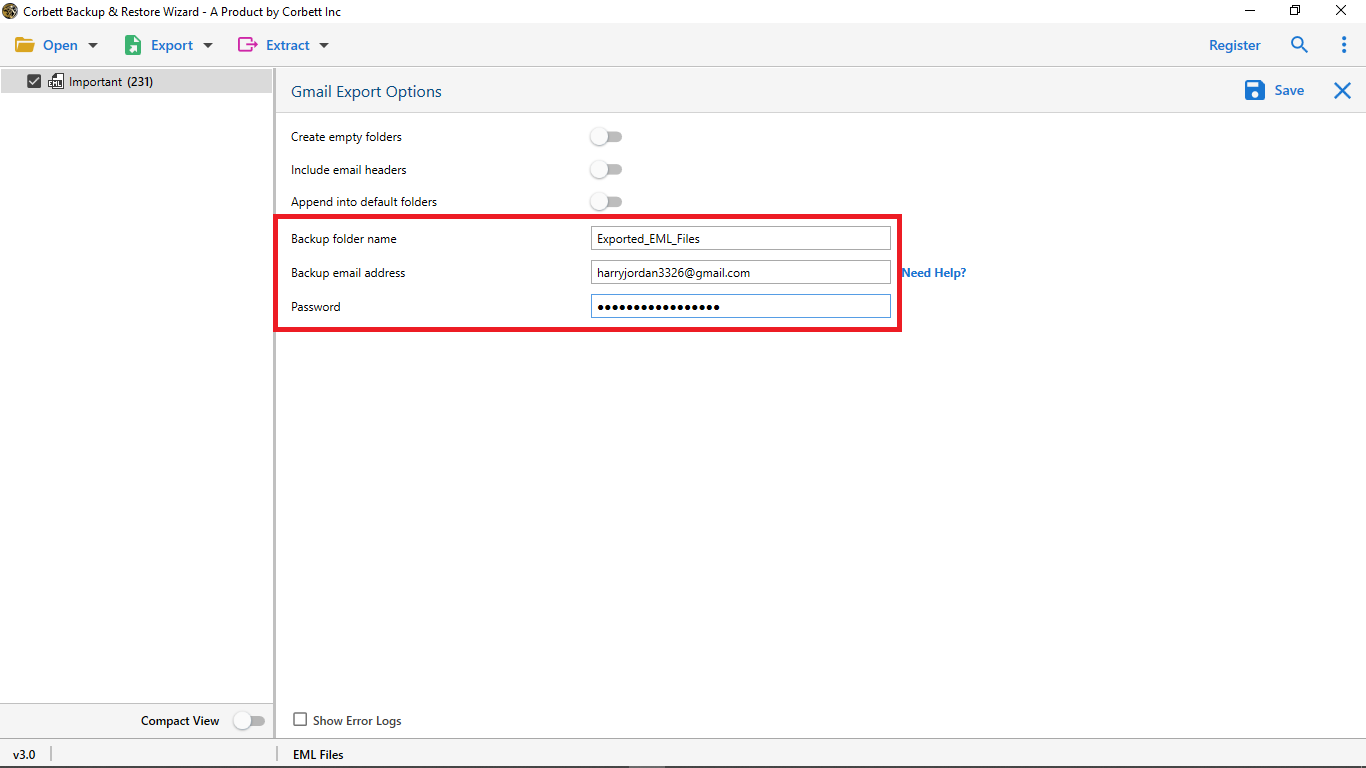
- Enter your destination Gmail address and password, apply any filters, then click Save to start.
Step 4: Destination account entered and ready to run.
Because the migration copies your mail, nothing leaves the old account until you choose to close it yourself.
Free Import vs the Migration Tool
| Gmail Import (Free) | Corbett Migration Tool | |
|---|---|---|
| Protocol | POP | IMAP |
| Labels and folders | Flattened into the inbox | Kept as the original structure |
| Selective move | All or nothing | Filter by date, sender or label |
| Speed on a large mailbox | Trickles in over days | One controlled run |
| Cost | Free | Free demo, paid license for full use |
Read Similar Blogs:
People Also Ask
Q2: Does the free Gmail import keep my labels?
A2: No. The free import uses POP, which flattens everything into the inbox, so labels are not kept. An IMAP based migration tool reads each label and recreates the same structure in the new account.
Q3: Why does the migration tool ask for an app password?
A3: Google blocks normal passwords in third party tools when two step verification is on. Turn on IMAP in the source account and generate a Google app password, then sign in with that app password instead.
Q4: Will migrating delete the emails from my old Gmail account?
A4: No. Both routes copy your mail to the new account and leave the originals in place. Nothing is removed until you delete or close the old account yourself.
Q5: What is the difference between this and merging two Gmail accounts?
A5: This moves your old emails into a new account. Merging is about running two accounts from one inbox at the same time. If that is what you want, see our guide on how to merge two Gmail accounts.
Conclusion
A Gmail to Gmail migration comes down to one question. Do your labels matter? If they do not, Gmail’s free Import mail and contacts moves your old mail into the new account at no cost. If they do, the Corbett Gmail Migration Tool carries every email across over IMAP with the label structure kept, in one controlled run. Decide which fits your mailbox and the path is clear. Are you moving a simple inbox or a full account organised into labels?