How to Backup Outlook.com Emails as PDF Files in Bulk
Why Save Outlook.com Emails as PDF
A PDF copy works in many real cases.
- Court ready record with full header and date
- One file per mail for quick search and share
- Easy upload to cloud storage like Drive or Dropbox
- Safe long term archive that any device can read
- Quick way to print a hard copy when needed
Method 1: Use Microsoft Print to PDF in Outlook
This path saves one mail at a time. Use it for a small set.
- Sign in to outlook.live.com and open the mail.
- Click File > Print or press Ctrl + P.
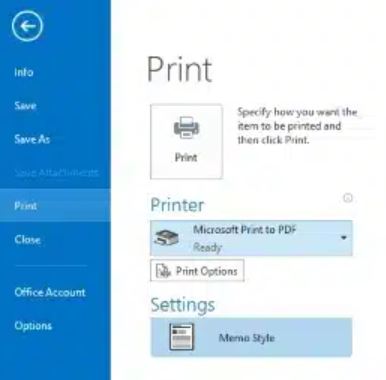
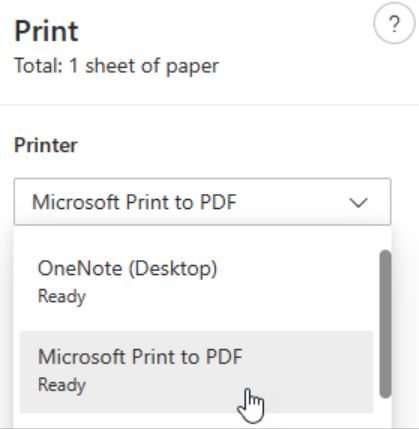
- Pick Microsoft Print to PDF as the printer.
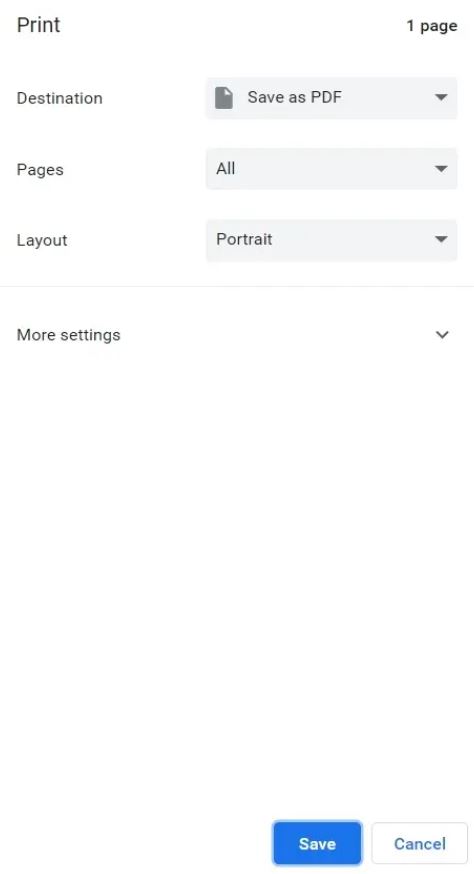
- Click Save, name the PDF, and pick a folder.
This path is slow for hundreds of mails. It also skips files inside nested folders.
Method 2: Bulk Backup Outlook.com Emails as PDF
A direct tool is the right pick for many mails. Corbett Email Backup reads every Outlook.com folder and saves each mail as a PDF with attachments inside. It keeps the date and the sender of every mail.
Steps to Save Outlook.com Emails as PDF
- Install and launch the software on a Windows PC.
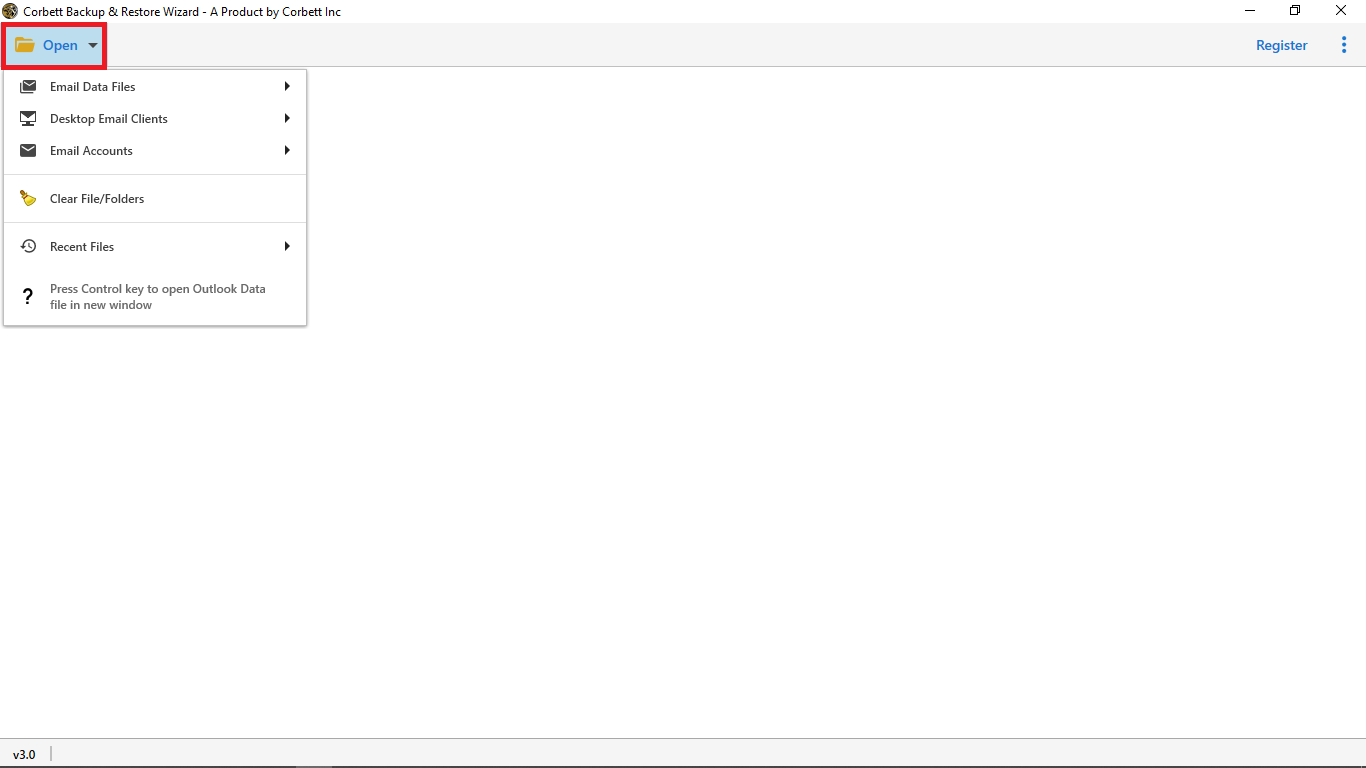
- Click Open > Email Accounts > Add Account.
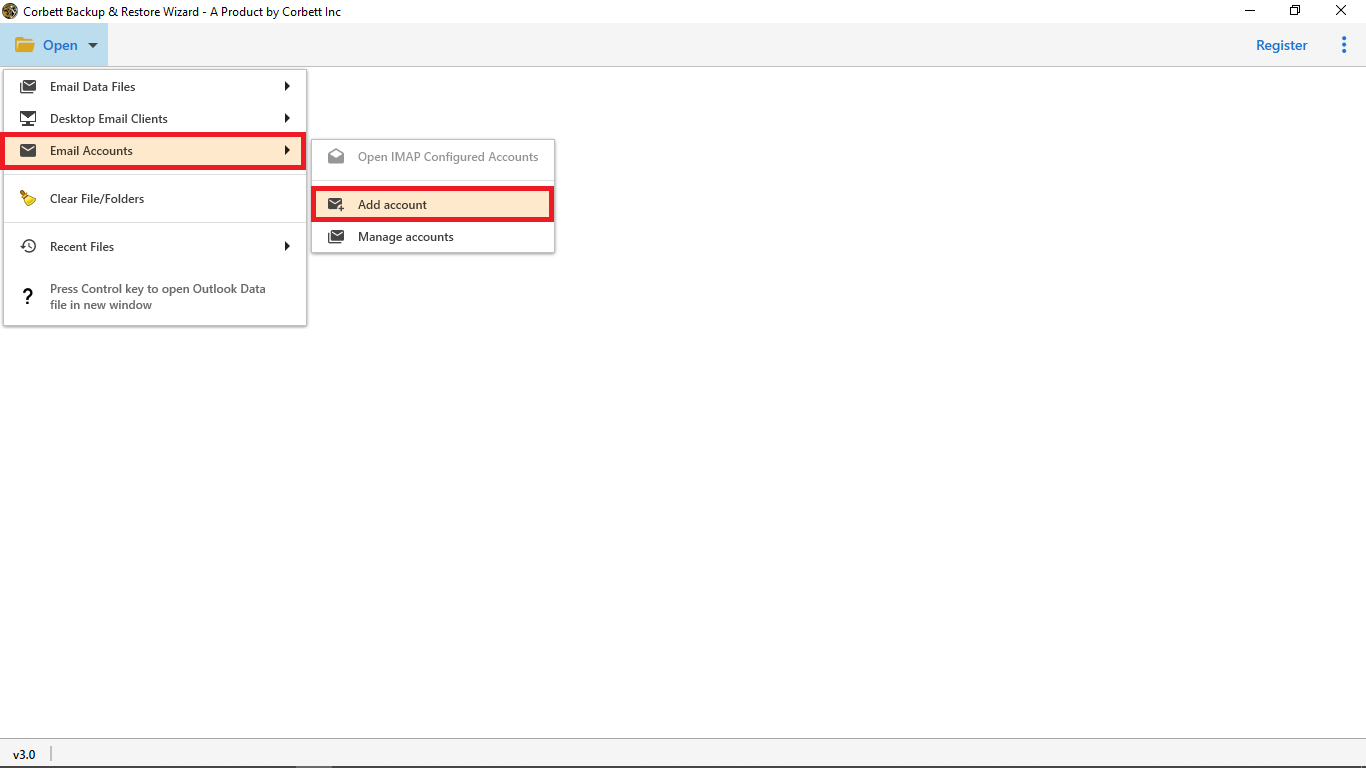
- Type the Outlook.com address and the app password from your Microsoft account.
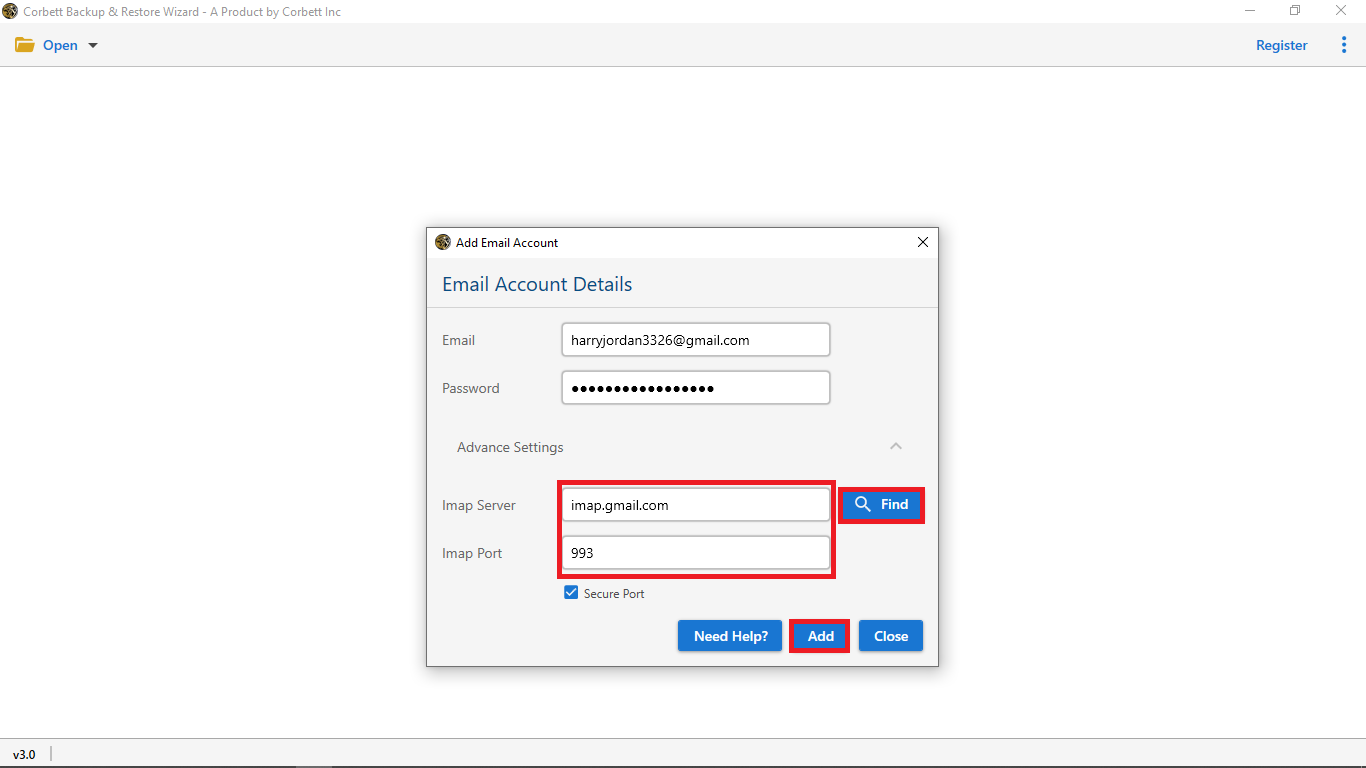
- Preview every folder and mail in the side pane.
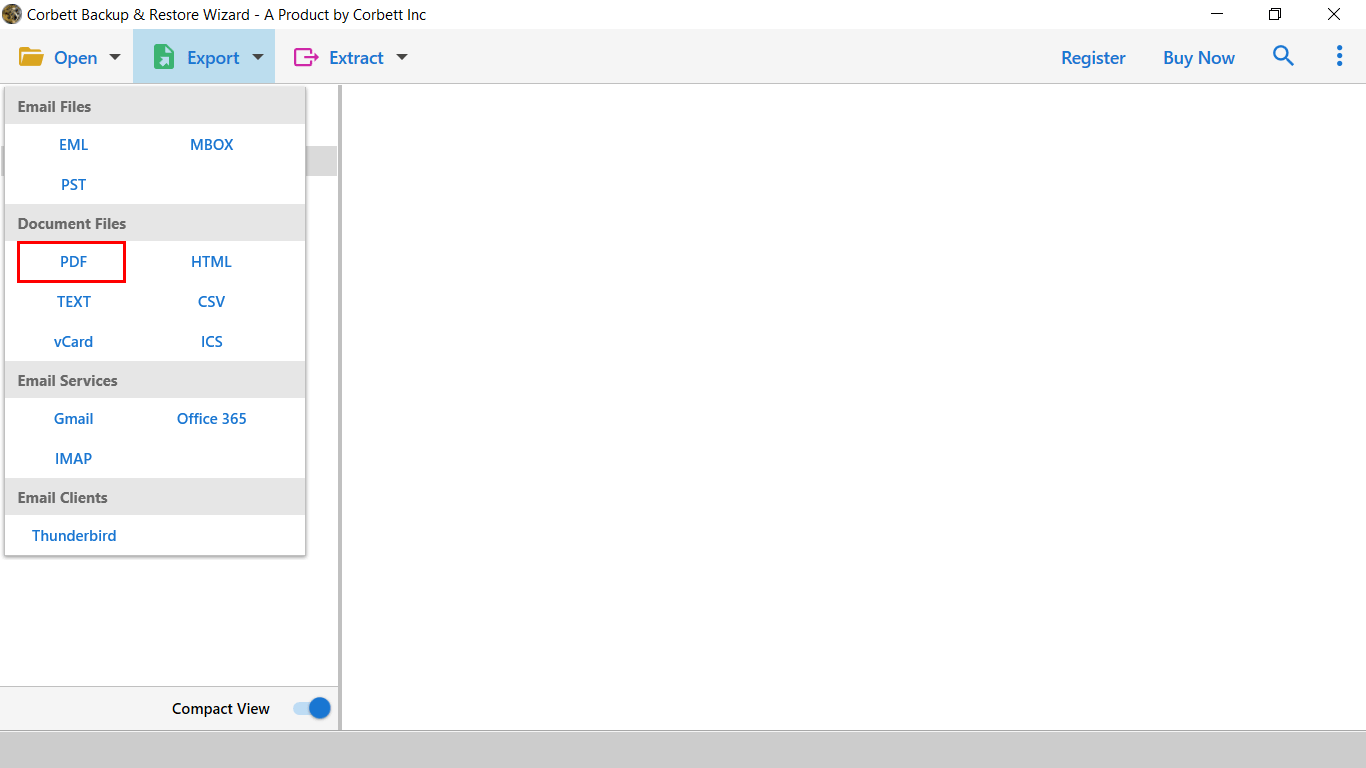
- Click Export and pick PDF as the output.
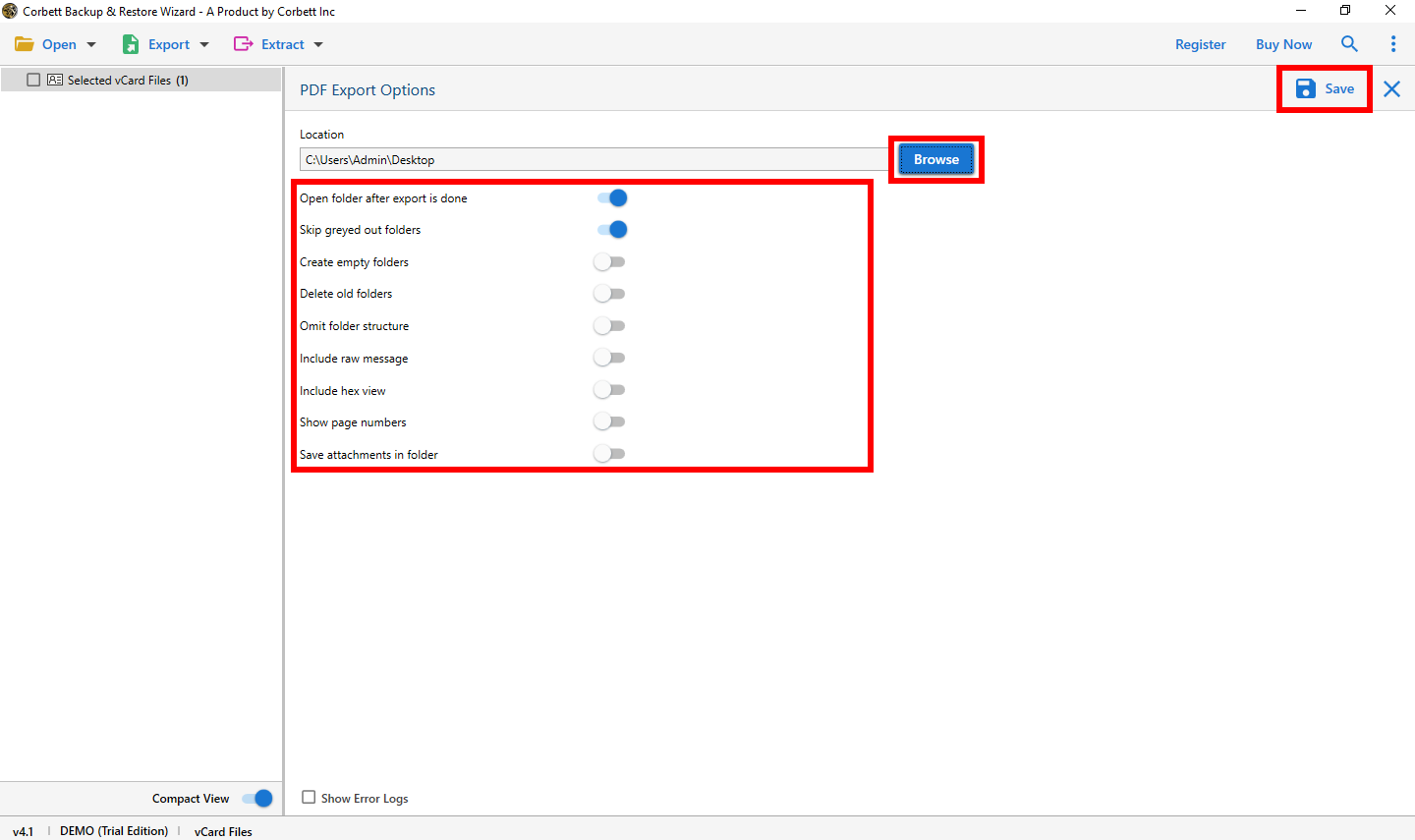
- Browse a save folder and click Save.
You may also like the guide on how to add Hotmail to Windows Live Mail for a desktop link. If you also need to move Hotmail mail into Gmail later, the dedicated guide covers every step.
Frequently Asked Questions
Q1. Can I save Outlook.com emails as PDF in bulk?
Yes. The Corbett Email Backup tool saves every Outlook.com mail as a separate PDF in one job.
Q2. Will the PDF keep attachments and images?
Yes. The tool saves attachments inside the PDF or in a side folder with a link in the PDF.
Q3. Do I need an app password for Outlook.com?
Yes. Microsoft blocks normal passwords for third party access. Create an app password in the Microsoft account.
Q4. Will the PDF file open on a Mac or an iPhone?
Yes. The PDF output follows the open standard and opens on Mac, iPhone, Android, and any Windows PC.
Conclusion
You can backup Outlook.com emails as PDF with the manual print option or with a direct bulk tool. The print path fits a small set. The direct tool is the right pick for a full inbox or an audit ready archive. Every PDF will sit safe on the local drive with the full mail and the attachment ready to read.