Gmail “Something Went Wrong” Error: How to Fix It
In short: Gmail shows “Oops… something went wrong” when the browser session, cached data or an extension breaks the connection to Google’s servers. Clear the Gmail cache and cookies, disable extensions one at a time, then open an incognito window. If the error shows up on every browser and device, the cause is account-side or a Google outage, not your computer.
What causes the “something went wrong” error in Gmail?
Gmail shows “Oops… something went wrong” when it cannot finish a request. The cause is almost always one of these:
- An outdated browser or corrupt cookies and cache.
- A browser extension, an ad blocker or a VPN sitting between you and Gmail.
- A weak connection or a firewall or proxy blocking Google’s servers.
- A Google-side outage.
- An account issue such as a failed sign-in, a two-step verification prompt or a sync error.
- A blocked sign-in after Google flags unusual activity. Related settings problems show up as Gmail account settings out of date.

Senior Analyst, Corbett Software
“The one test that saves the most time is incognito. If Gmail loads fine in a private window, the problem is a cached file or an extension in your normal profile, not your account. If it fails there too, stop cleaning the browser and check whether Gmail itself is down.”
Fix it in the right order
Work down this list from the top. The cheapest fixes come first and most people are back into Gmail within the first three.
- Check your connection and turn off any VPN. A dropped or filtered connection is the most common trigger. Switch networks or restart the router, then disable a VPN or proxy while you test.
- Open an incognito window. Incognito loads Gmail with no extensions and no cached data. If it works there, the fault is local and steps 3 and 4 will fix it.
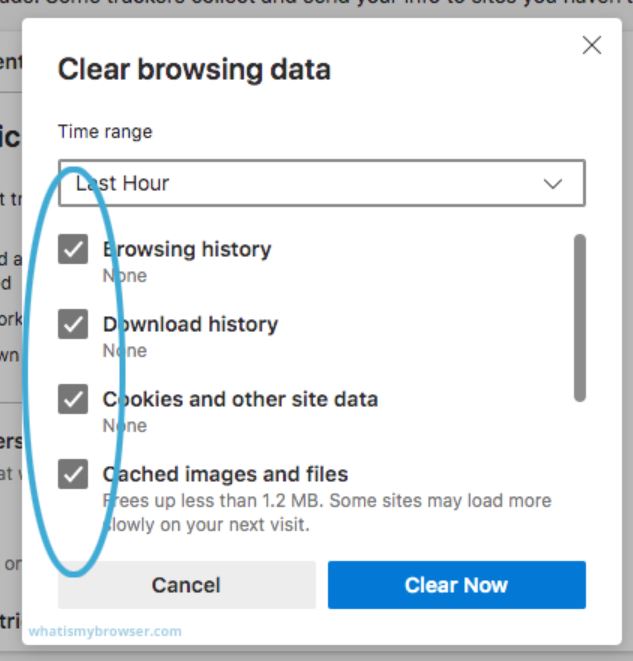
- Clear Gmail’s cache and cookies. In Chrome, click the three-dot menu, choose More tools then Clear browsing data, tick Cookies and other site data and Cached images and files, then click Clear data.

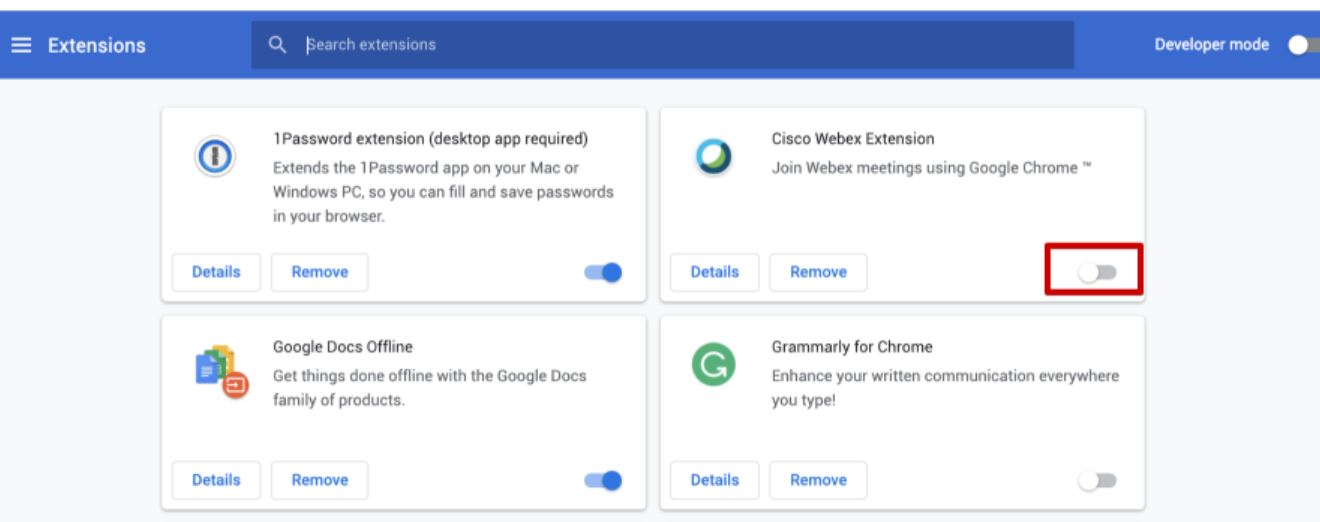
Clearing cookies and cached files in Chrome. - Disable extensions one at a time. Ad blockers and privacy tools are frequent culprits. Open the browser’s Extensions page, turn them off, then re-enable them one by one to find the one at fault.

Turning off browser extensions. - Update your browser. Go to Settings → About Chrome (or your browser’s equivalent), let it update then restart. Gmail drops support for old browser versions over time.
- On your phone, clear the app data or reinstall. On Android, go to Settings → Apps → Gmail → Storage → Clear cache. On iPhone, delete the Gmail app then reinstall it.
- Remove and re-add your Google account. If one account is stuck, sign it out and add it again. For a blocked account, use Google Account Recovery and remove any devices you do not recognize.
Is Gmail down right now or is it just my account?
Before you spend any longer cleaning your browser, rule out Google. If the error appears in incognito, on a second browser and on your phone, the problem is not local. Check the official Google Workspace Status Dashboard for a red or amber marker next to Gmail. If Google shows an outage, there is nothing to fix on your side. Wait for the service to recover. If the dashboard is all green but you still cannot get in on any device, the cause is account-side, so move to account recovery.
What the error looks like on mobile and desktop
On desktop the message usually reads “Oops… something went wrong” with a Retry link and points at the browser. On the mobile app the same fault tends to show as a blank inbox, a spinning loader or a “couldn’t reach Gmail” notice that points at the app cache or the account. The fixes are the same, they just live in different places: the browser on desktop, the app storage on the phone.
How to stop it happening again
Keep one browser updated and reserved for Gmail, with only the extensions you trust. Clear the cache every few weeks rather than waiting for a break. Keep two-step verification on so a security prompt never locks you out by surprise. None of that stops a Google outage, which is exactly why a local copy of your mail matters.
Back up your Gmail before you troubleshoot
Some of the fixes above remove and re-add your account. A blocked-account recovery can take days. A local backup means an outage or a lockout never costs you access to your old mail.
The Corbett Gmail Backup Tool downloads your Gmail messages, contacts and calendars to your computer as PST, PDF, MBOX or EML, with the folder structure and attachments intact. A free demo edition runs on every edition of Windows.
Frequently asked questions
Why does Gmail keep saying something went wrong?
Because the same trigger keeps coming back, usually a cached file, an extension or a network filter. Clear the cache, test in incognito to confirm the profile is the problem, then re-enable extensions one at a time so the culprit cannot return.
Does clearing the cache delete my emails?
No. Your mail lives on Google’s servers, not in the browser cache. Clearing cookies and cached files only signs you out and removes local temporary data. Your emails are untouched.
Is “something went wrong” a sign my account was hacked?
Not on its own. It is almost always a browser or connection fault. If it comes with a forced sign-out or an unfamiliar-device alert, treat it as a security event, recover the account and turn on two-step verification.
Why does it happen on my phone but not my computer?
The phone runs the Gmail app with its own cache and account setup, separate from your browser. A fault on one does not mean a fault on the other. Clear the app cache on Android or reinstall the app on iPhone.
How do I know if Gmail is down for everyone?
Check the Google Workspace Status Dashboard. If Gmail has a red or amber marker, the outage is Google’s and the fix is to wait. If it is green and you still cannot sign in, the cause is your account or your device.