How to Transfer MailPile Emails to Gmail Effortlessly?

Mailpile is a free, open source webmail client built around privacy and encryption. It runs on your own computer and connects to your existing email over IMAP. People reach for Gmail instead when they want more storage, easy access from a phone, and a service they do not have to maintain themselves. Mailpile’s own development has been quiet for a long stretch, which is another honest reason people are moving their mail somewhere more actively supported.
Why Move From Mailpile to Gmail
A few practical reasons push this migration.
- Gmail gives you 15 GB of free storage shared across Google services, plenty for years of mail.
- Your mail follows you to any device, a phone, tablet, or any browser, without running a local server.
- A Gmail or Google Workspace account ties into the wider Google toolset and needs no upkeep from you.
- Mailpile is lightly maintained these days, so consolidating into a live service is simply safer for important mail.
Understand What You Are Actually Moving
This is the step that makes the rest easy. Mailpile is not a storage format like a PST file. It is a client that reads your IMAP mailboxes, so in many setups the messages still live on the original mail server, with Mailpile showing them. That means moving to Gmail is a transfer between two IMAP mailboxes, the original account and Gmail, rather than an export and import of a special file. Knowing which account actually holds the mail decides your route. If the mail sits on a source IMAP server, you copy from there into Gmail. If you want a standalone offline copy first, Mailpile can export your data from Settings then Data and Security then Export Data.
Manual Route: Bridge Both Accounts in a Desktop Client
A desktop client that speaks IMAP, such as Thunderbird, can hold both accounts at once and copy mail between them. This is the genuine free method, and it works because both sides are IMAP.
- In Gmail, open Settings then See all settings then Forwarding and POP/IMAP and turn IMAP on.
- Install Thunderbird and add your Gmail account, signing in through Google when prompted.
- Add the source IMAP account, the one Mailpile reads, into the same Thunderbird window.
- Wait for both accounts to finish syncing so their folders appear in the left pane.
- Select the messages or a folder on the source side, right click, choose Copy To, and pick the Gmail folder or label as the target.
- Let the copy finish. The messages now sit in Gmail and stay on the source too, so nothing is lost.
One thing to expect is that Gmail treats folders as labels, so a deep folder tree may flatten or need tidying after the copy. A quick note on a method you may have read about elsewhere. Gmail’s old Check mail from other accounts import was retired by Google, so it is no longer a route worth planning around.
Where the Manual Route Gets Painful
The desktop bridge is fine for one account and a modest amount of mail. It starts to wear thin as the volume grows.
| Situation | How the Manual Bridge Holds Up |
|---|---|
| One small mailbox | Works well. A single Copy To finishes quickly and free. |
| Thousands of messages | Copying is slow and can stall mid way, leaving you unsure what transferred. |
| Many folders or accounts | You repeat the setup and copy for each one, which adds up fast. |
| Folder to label mapping | Deep folder trees flatten into Gmail labels and need cleanup afterward. |
| Duplicate risk | Re running a copy can duplicate messages, so you have to track what is done. |
Faster Route for a Large Mailbox
When the mailbox is large, or you are moving several accounts, a dedicated tool saves the repetition. The Corbett IMAP Migration Tool connects directly to the source IMAP account and to Gmail and moves the mail in one run, with a preview first. The honest trade off is simple. For a single small account the free Thunderbird bridge does the job and costs nothing, so use that. Reach for the tool only when the volume or the number of accounts makes the manual copy impractical.
Steps to Use the Tool
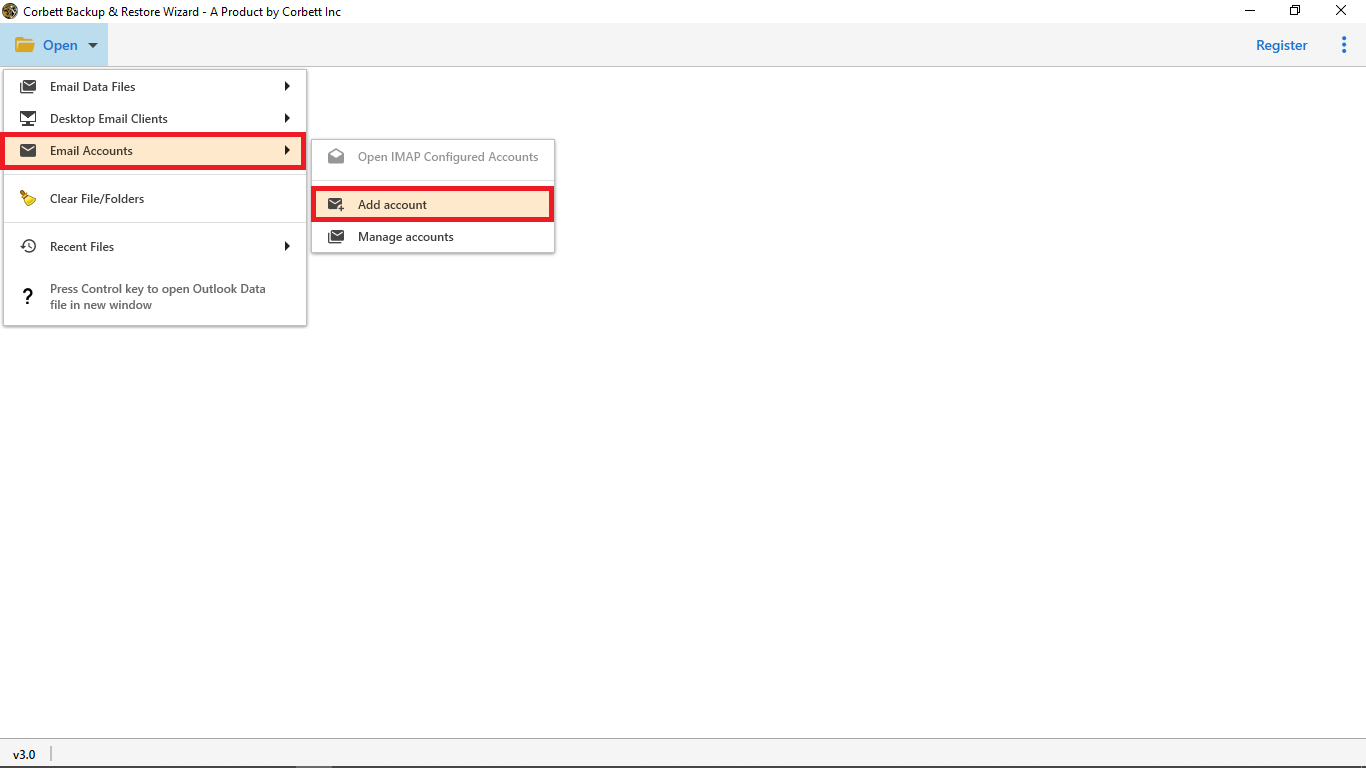
- Step 1. Download the utility and click Open, then Email Accounts, then Add Account.

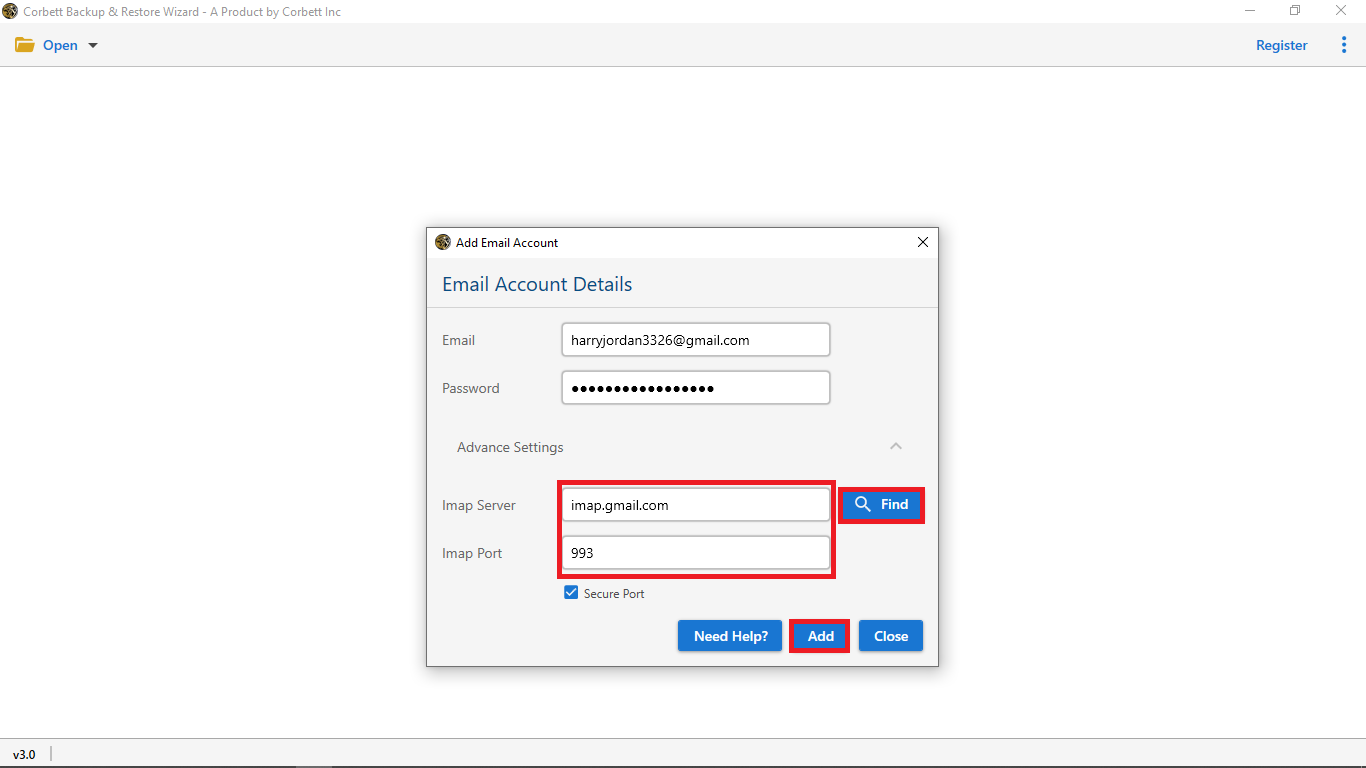
- Step 2. Enter the source IMAP account details and click Add.
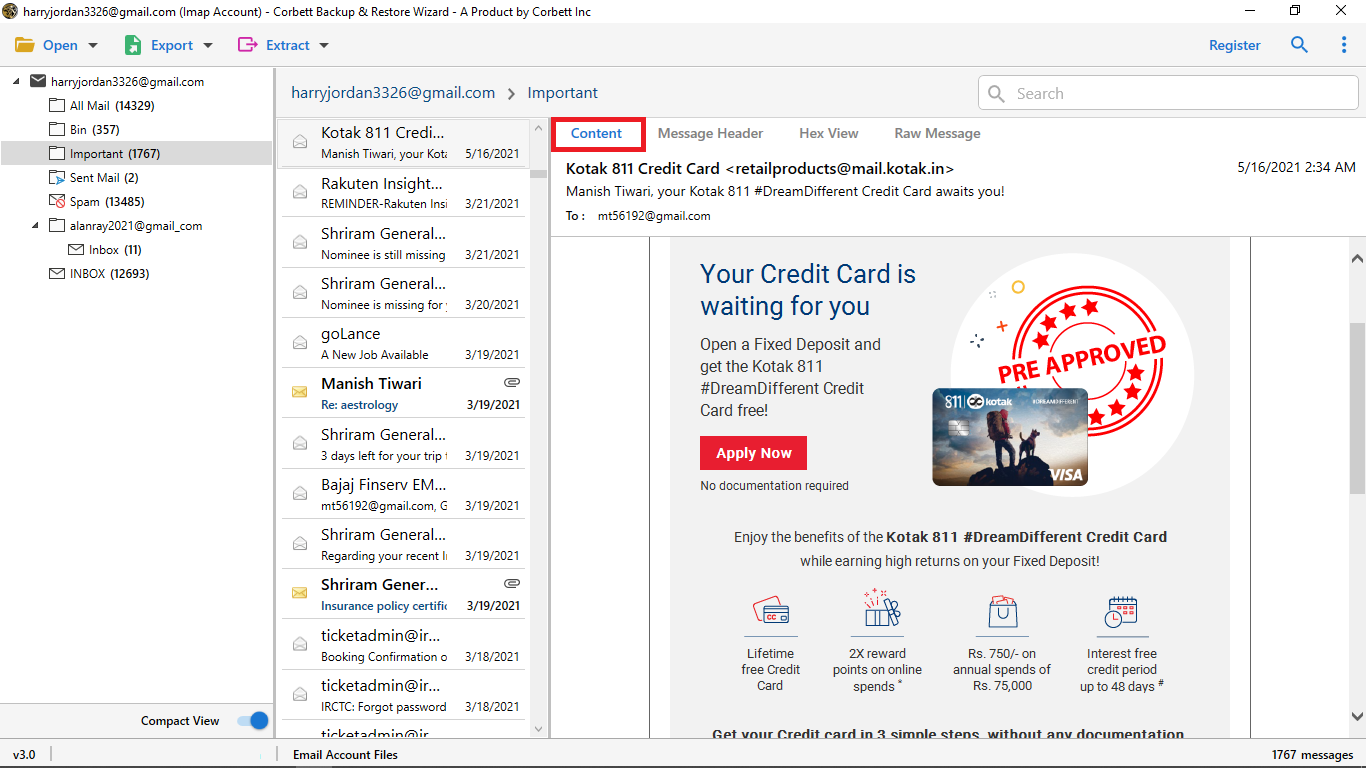
- Step 3. The mailbox loads in the panel. Preview the emails to confirm the right ones are there.
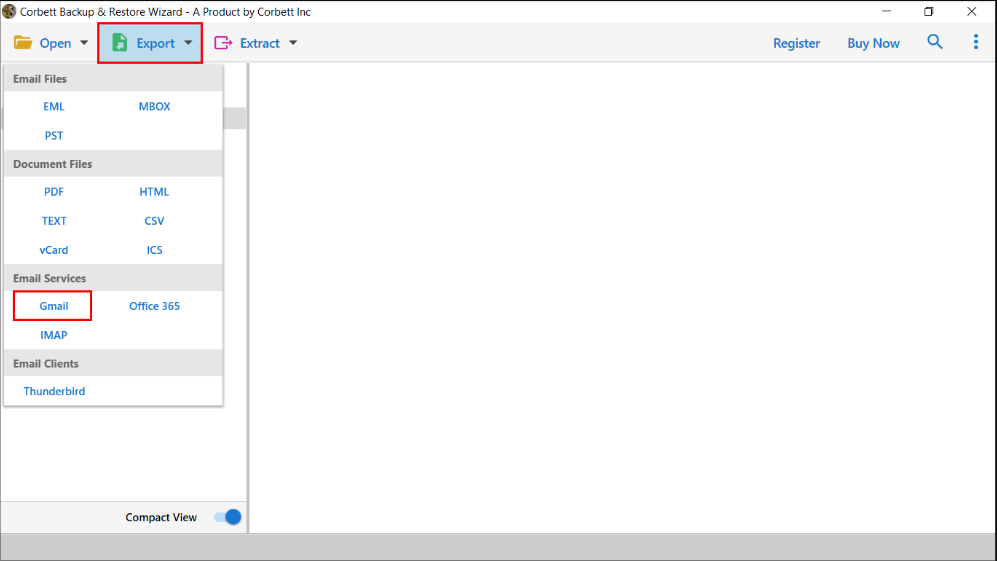
- Step 4. Click Export and choose Gmail.

- Step 5. Sign in to the Gmail account and start the migration. The mail lands in the Gmail or Workspace mailbox.

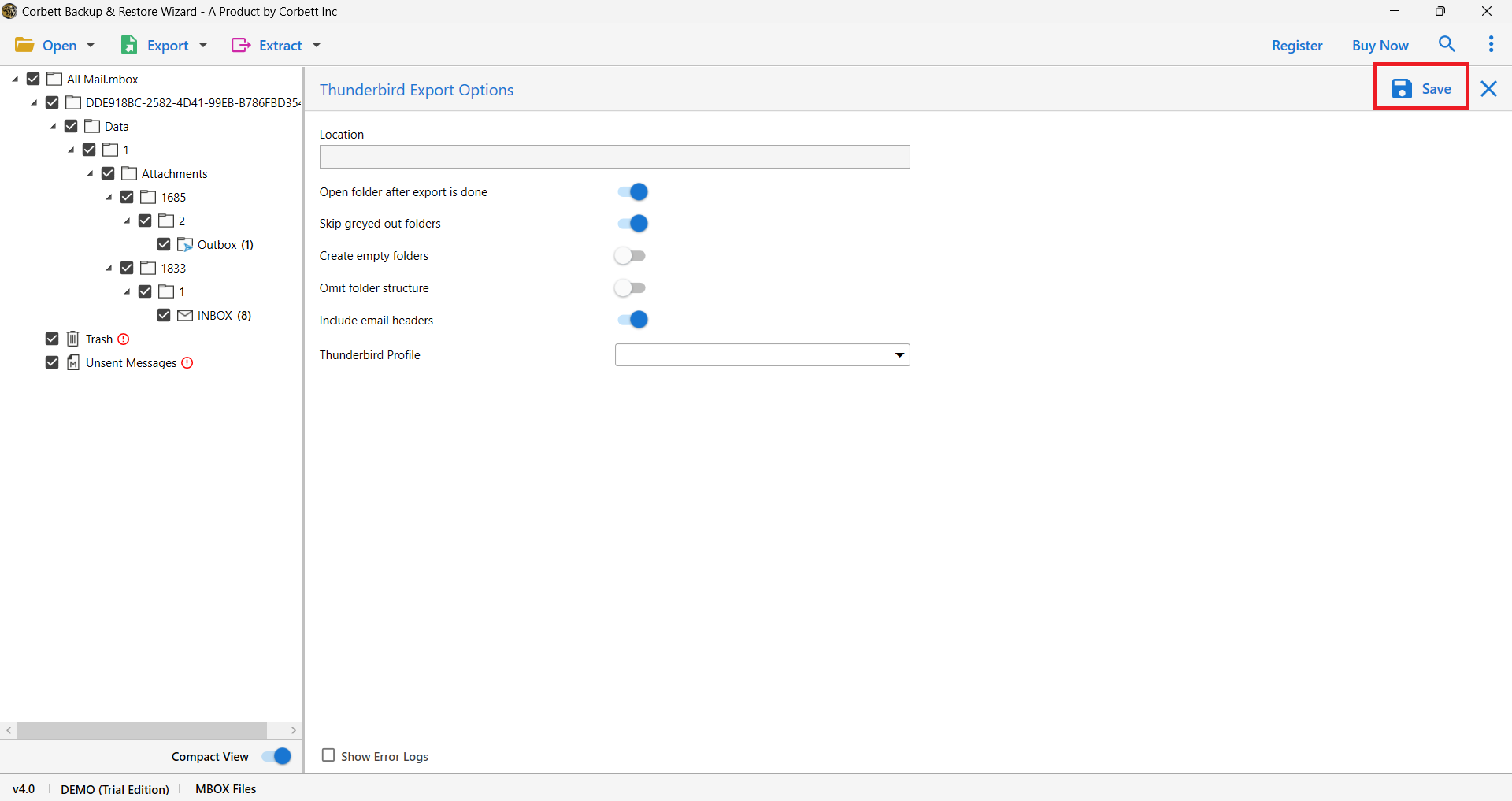
That moves the whole account across without copying folder by folder.
Time to Wrap Up
The trick is to stop thinking of this as exporting a Mailpile file and start treating it as an IMAP to IMAP move. Turn on IMAP in Gmail, bridge both accounts in Thunderbird, and copy the folders across for free when the mailbox is small. When the volume grows or several accounts are involved, a migration tool spares you the repetition and the duplicate tracking. Which describes your move, one tidy mailbox or a pile of accounts to bring over?
Frequently Asked Questions
Q. Is Mailpile a file I export, like a PST?
Ans. No. Mailpile is a webmail client that reads your IMAP mail. Moving to Gmail is a transfer between two IMAP mailboxes, though Mailpile can also export a standalone copy from Settings then Data and Security then Export Data.
Q. Can I still use Gmail’s Check mail from other accounts to import?
Ans. Google retired that feature, so it is no longer a reliable route. Bridge both accounts in a desktop client like Thunderbird, or use a migration tool instead.
Q. Will my folder structure survive the move?
Ans. Mostly, but Gmail uses labels rather than folders, so a deep folder tree can flatten and may need a little tidying once the copy finishes.
Q. Does copying to Gmail delete the mail from the source?
Ans. No. Using Copy To in Thunderbird leaves the originals in place and adds a copy in Gmail, so nothing is removed from the source account.
Q. How do I avoid duplicate emails?
Ans. Copy each folder once and keep track of what you have done. Re running a copy on the same folder can create duplicates, which you would then sort out by subject or date.
Q. What if Mailpile will not open to let me reach my mail?
Ans. A login or sync failure is usually a configuration, server, or connection issue. Since the mail lives on the IMAP server, you can often add that account straight into Thunderbird and skip Mailpile entirely.