Easily Add Gmail Email to Outlook Using the Expert Way
Want your Gmail messages sitting right inside Outlook so you can read, search, and reply from one inbox? The fastest route is not exporting anything. You connect your Google account to Outlook over IMAP and your mail shows up on its own. The one modern catch is that Google retired plain password sign in, so classic Outlook now needs a 16 character app password and 2 Step Verification turned on. This guide walks the IMAP connect method, when a local PST copy actually helps, and a quicker tool for bulk moves.
Connect Gmail to Outlook the Free IMAP Way
Here is the part most older guides get wrong. You do not have to export a single file to read Gmail in Outlook. When you add your Google account over IMAP, Outlook syncs the mailbox live, so every folder and label appears and stays current both ways. Tested on classic Outlook for Windows in May 2025, the inbox finished its first sync in a few minutes on a 3 GB account.
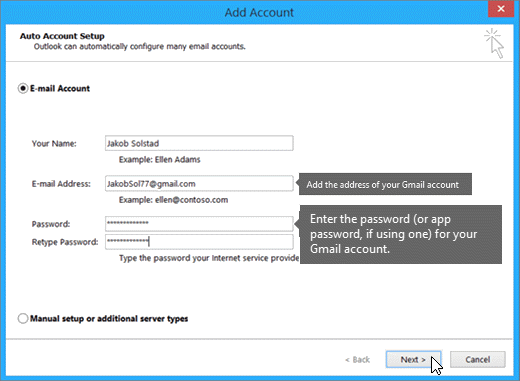
The modern gotcha is sign in. Google switched off plain password access for third party apps, so classic Outlook over IMAP needs two things set up on the Google side first. Turn on 2 Step Verification for your Google account, then generate a 16 character app password and paste that into Outlook instead of your normal password. New Outlook for Windows and Outlook on the web skip the app password and use a Google sign in pop up (OAuth) instead, so the steps differ depending on which Outlook you run.
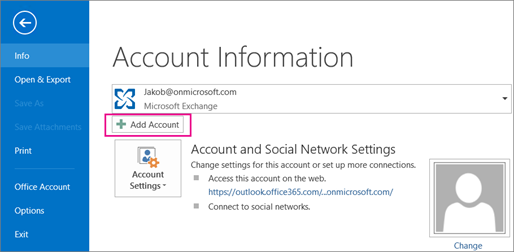
For classic Outlook the flow is to open File, choose Add Account, type your Gmail address, pick the IMAP option, and enter the app password when prompted. Once it connects, your Gmail sits in the folder pane next to any other accounts. No PST, no import wizard, no waiting on a file transfer.
When You Actually Need a Local PST Copy
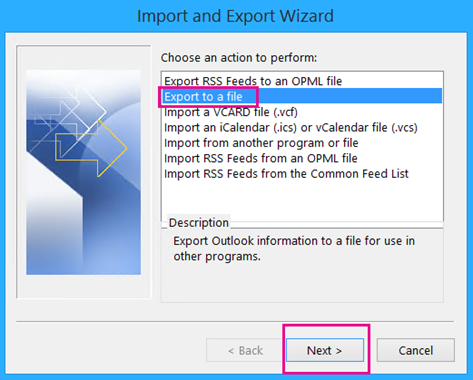
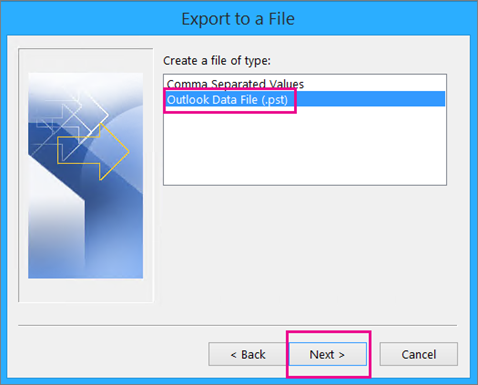
The IMAP connection covers daily reading and replying. But the mail still lives on Google servers, so if you want a copy that survives losing internet access or closing the account, you need a local PST. In classic Outlook that means using Open and Export, then Export to a file, picking Outlook Data File (.pst), choosing the Gmail folder, and saving it to your drive. That PST is a detached snapshot you can open later or import elsewhere.
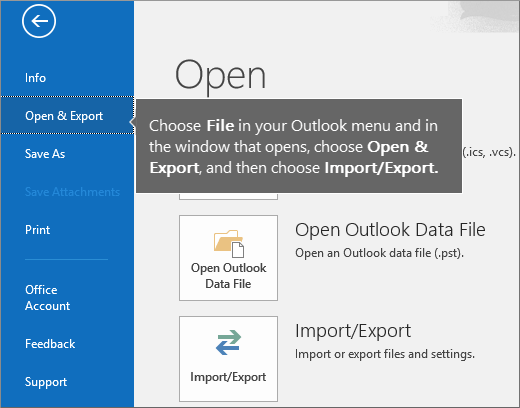
Worth knowing that the export wizard lives only in classic Outlook. New Outlook has no Import/Export option, so if you are on the new client you would switch back to classic for this one step or use a dedicated tool.
Limitations of the Manual Route
- Setup takes patience The first connection means enabling 2 Step Verification, generating an app password, and configuring Outlook, which is a fair bit of clicking for someone who is not technical.
- No selective filtering The manual method moves whole folders. You cannot easily pull only a date range, only attachments, or only one label without sorting it yourself first.
- Needs a steady connection IMAP sync runs online, so a flaky network can stall or break the process and leave you re running it.
- One account at a time If you have several Gmail accounts to move, you repeat the whole setup for each, which adds up quickly.
Add Gmail to Outlook With Attachments Faster
If you are moving one mailbox and have time, the free IMAP method is the better choice and costs nothing. The honest trade off is scale. When you have several accounts, a huge mailbox, or you want to filter by date and file type before moving, the manual steps turn into a chore. That is where the Corbett Software Gmail Migration Tool earns its place. It connects to Gmail, previews the mailbox in several view modes, keeps attachments and folder structure intact, and moves data straight into an Outlook.com account or any of 100+ IMAP supported services without a separate PST step.
Steps to Add Google Mail to Outlook Web/Windows/Mac
The tool follows the same path on Windows and Mac and works whether your target is Outlook on the web or the desktop client.
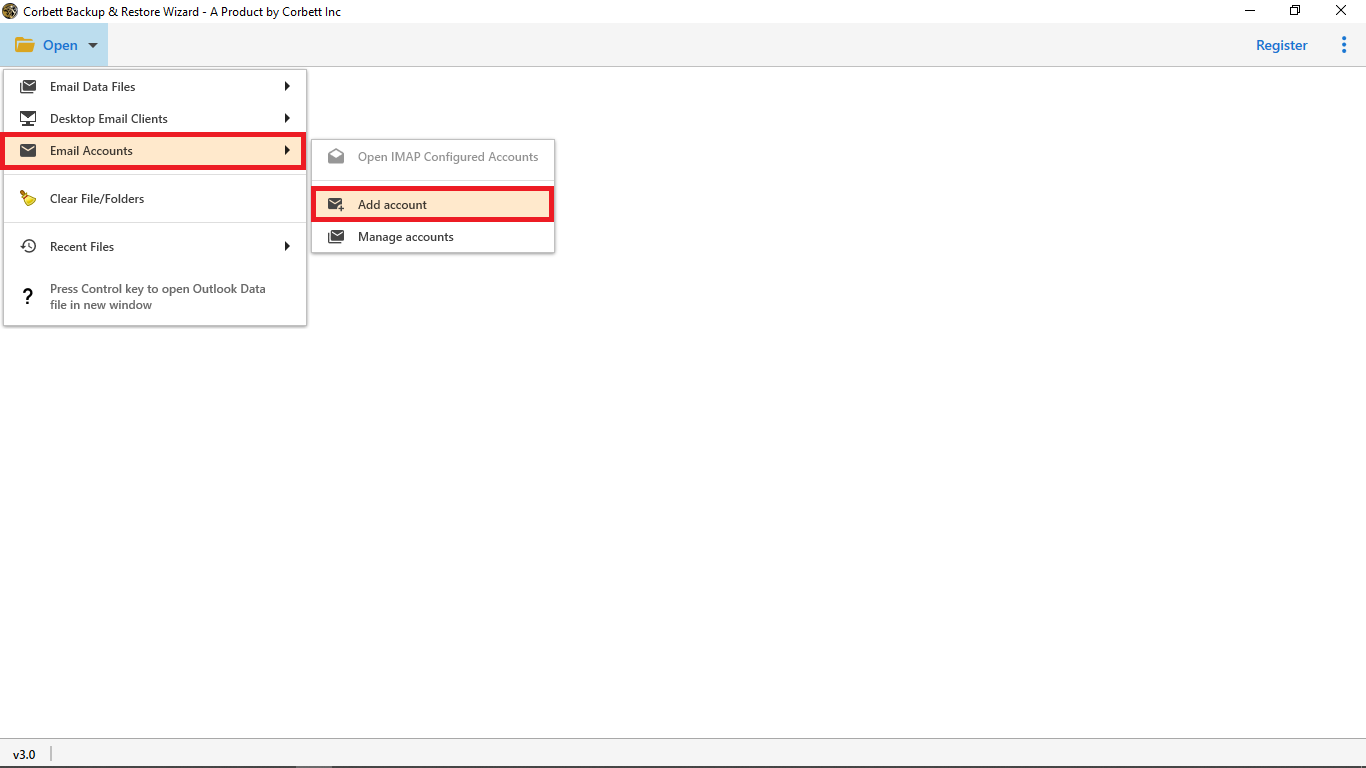
1. Launch the tool and choose Gmail as the source account, then sign in with your Gmail address and app password.
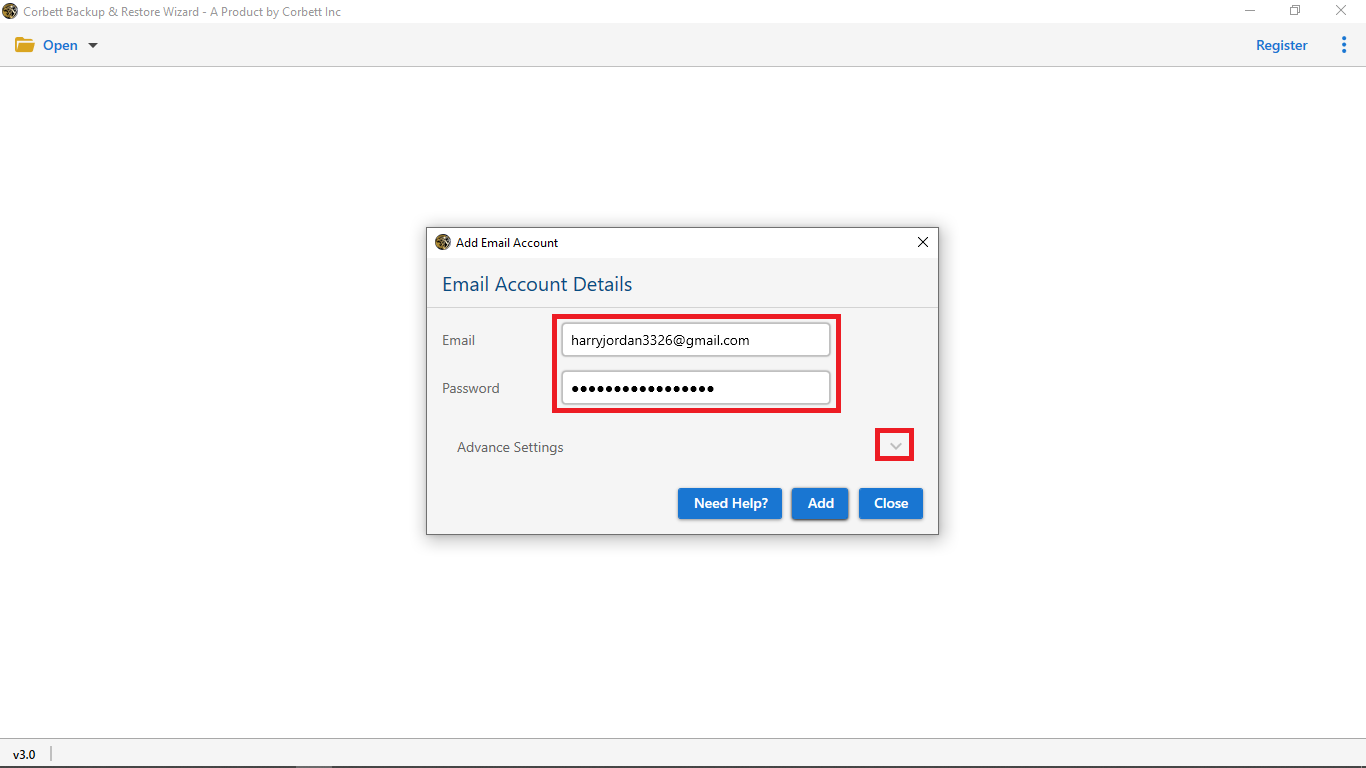
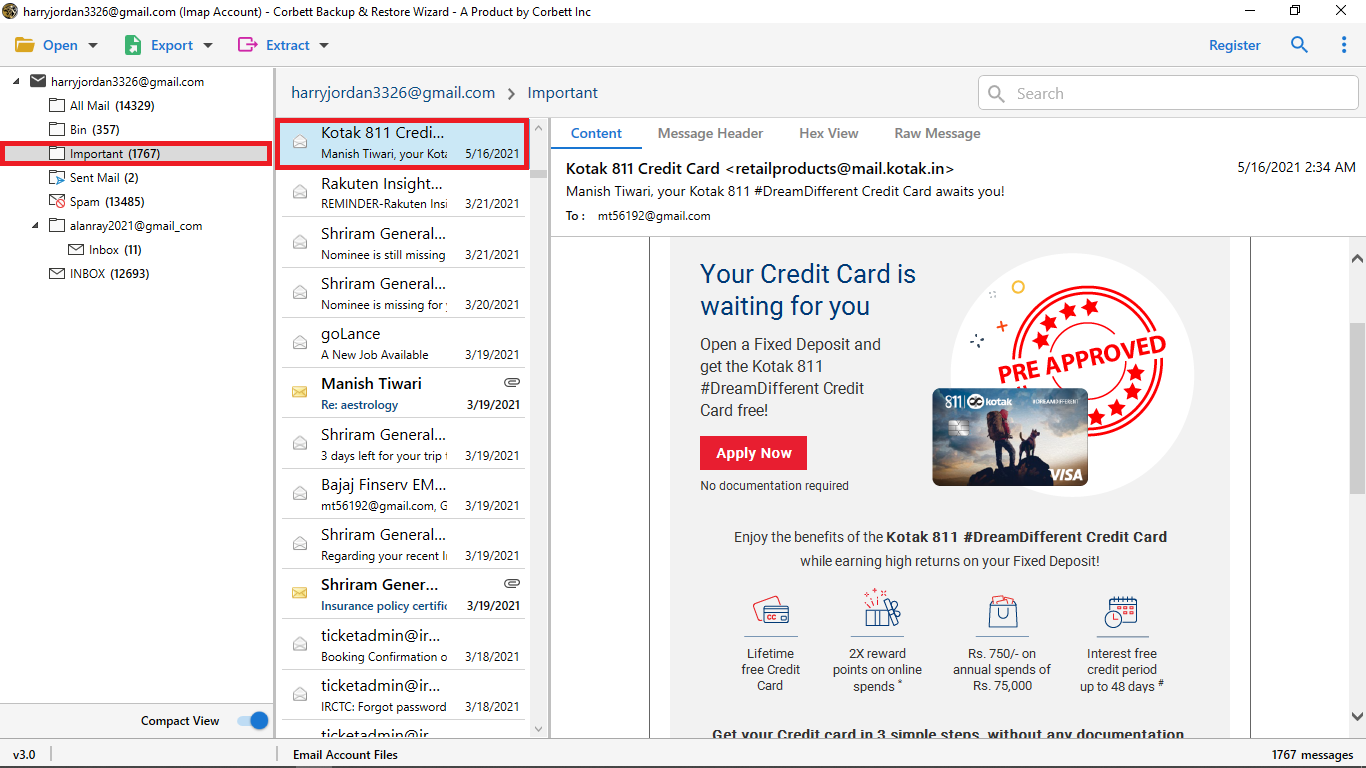
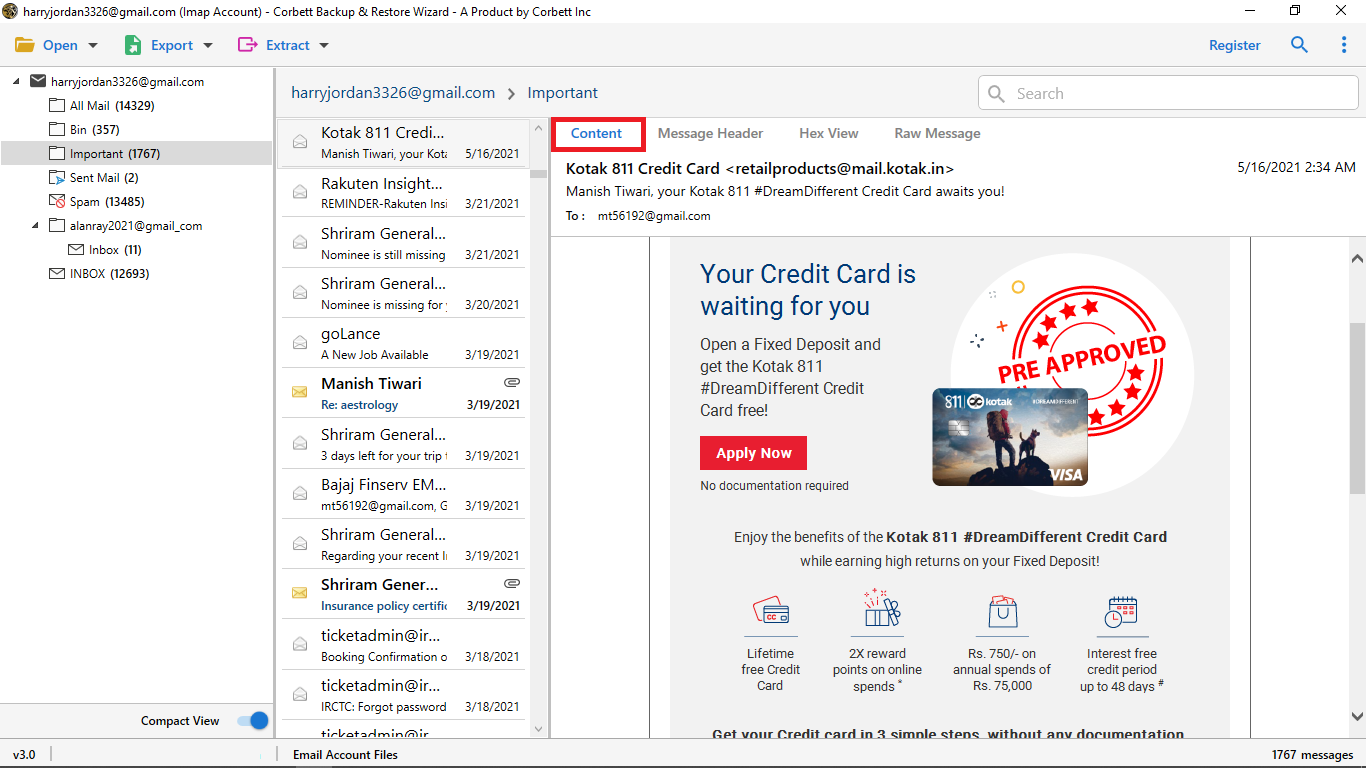
2. Let the tool load your folders, then preview the mailbox in the view mode you prefer to confirm the right messages are selected.
3. Pick Outlook.com (or any IMAP service) as the destination, sign in to that account, and apply any date or folder filters you want.
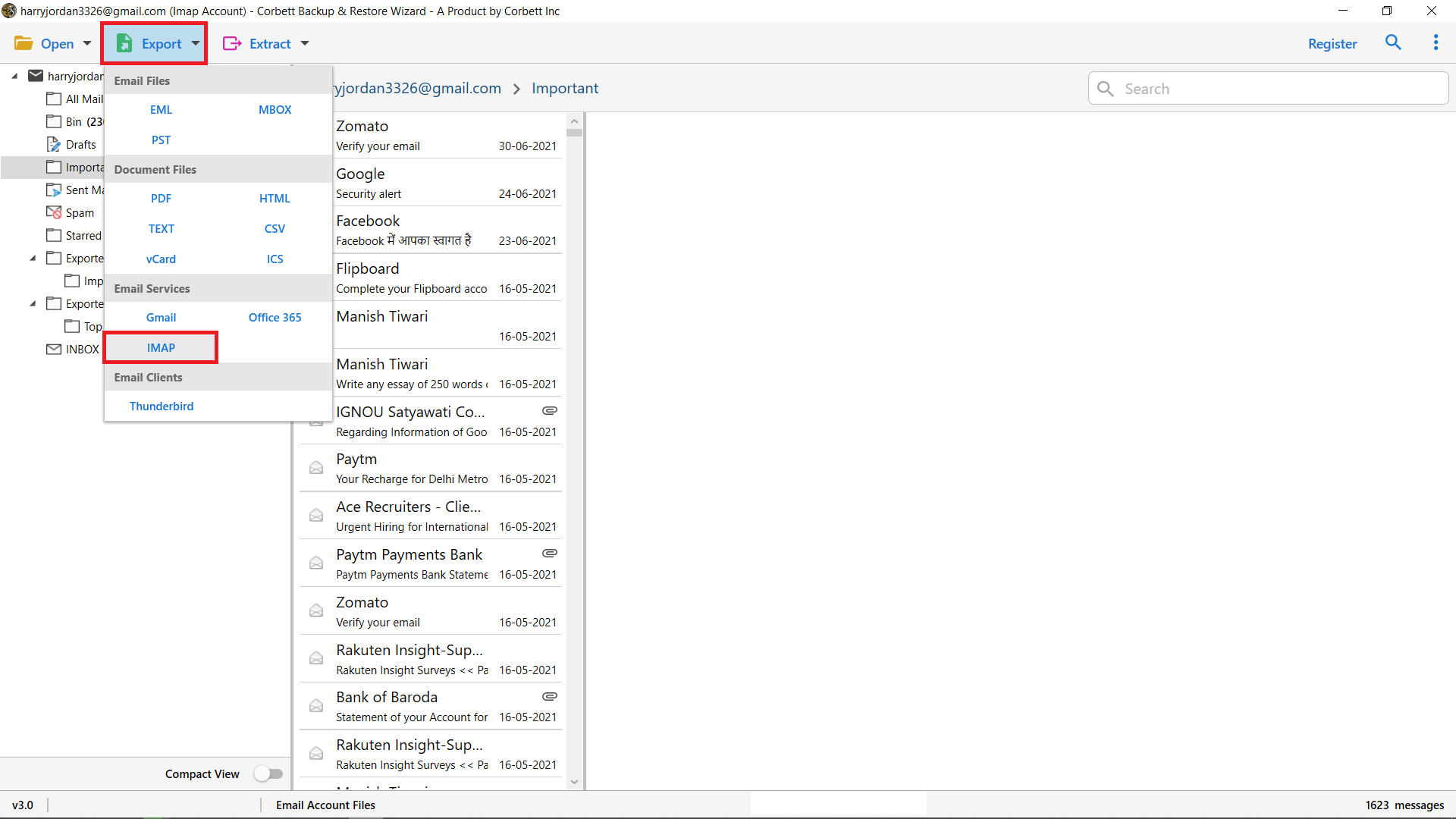
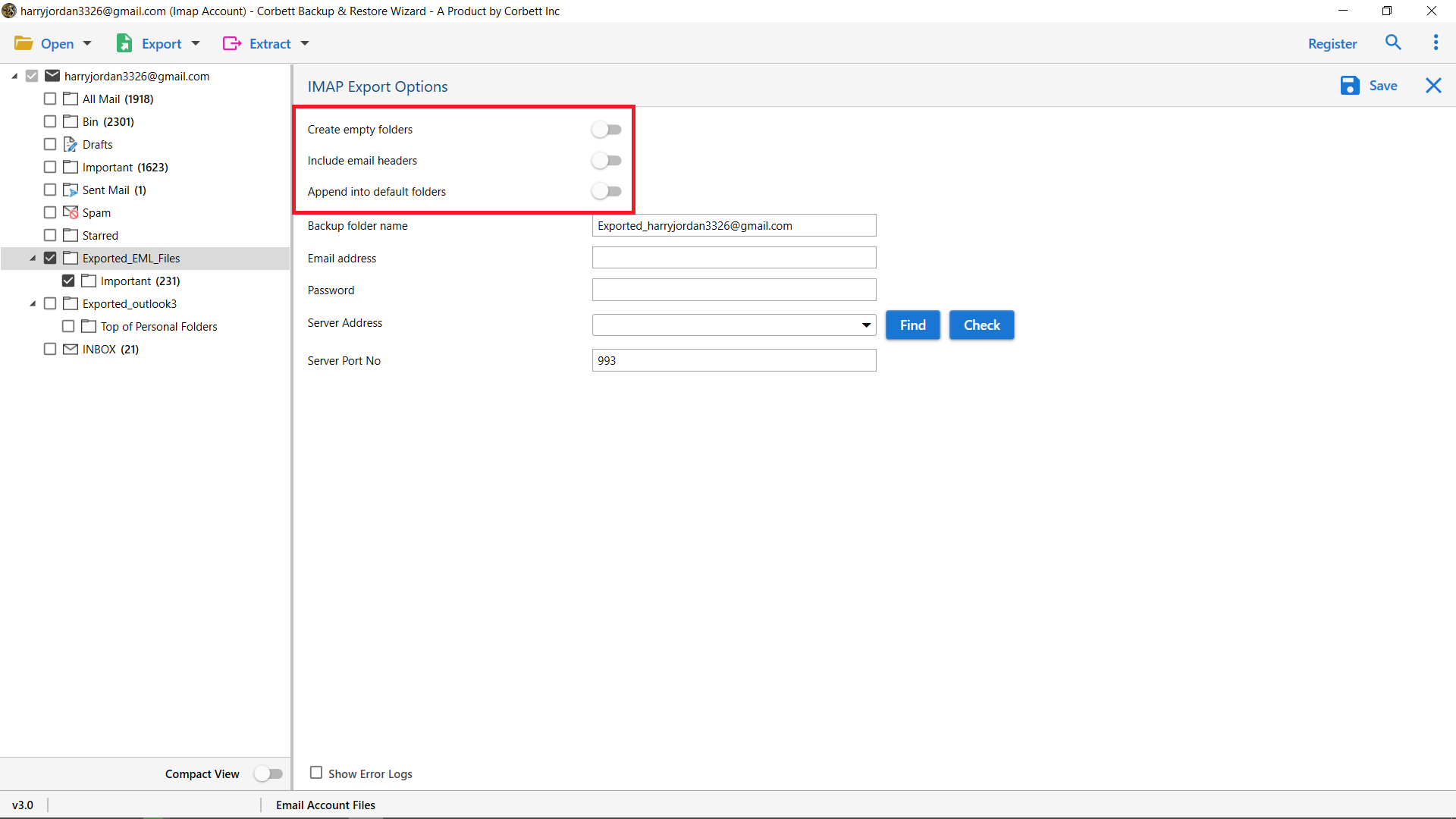
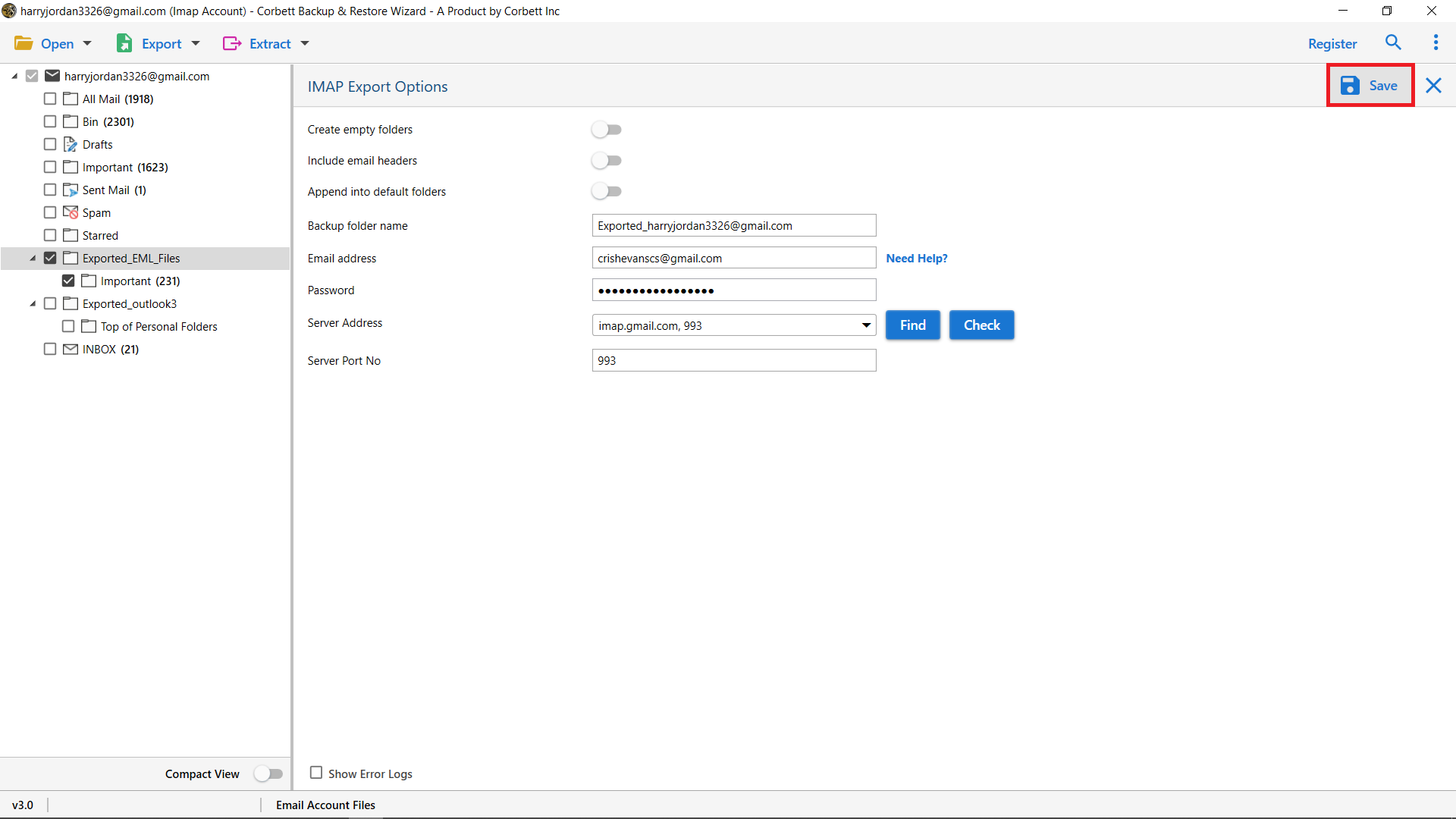
4. Hit Save to start the move. The tool migrates your Gmail mail with attachments and folder layout preserved into Outlook.com.
Essential Characteristics of the Tool
- Bulk migration Move one or many Gmail accounts to Outlook.com in a single run instead of repeating manual setup.
- Selective filters Choose a date range or specific folders so you only move what you need.
- Attachments and structure kept Folder hierarchy and attachments carry over without rebuilding anything by hand.
- Multiple preview modes Read and verify Gmail messages in several views before the move.
- 100+ IMAP targets Outlook.com is one option among many supported IMAP services.
Which Method Should You Pick
| Need | IMAP Connect | PST Export | Migration Tool |
|---|---|---|---|
| Read Gmail in Outlook now | Yes, live sync | No, offline copy only | Yes, after move |
| Cost | Free | Free | Paid |
| Local backup copy | No | Yes | Optional |
| Filter by date or folder | Manual | Limited | Built in |
| Several accounts at once | One by one | One by one | Yes |
Frequently Asked Questions
Do I really need an app password to add Gmail to classic Outlook?
Yes. Google turned off plain password sign in for third party apps, so classic Outlook over IMAP needs 2 Step Verification on and a 16 character app password in place of your normal one.
Does new Outlook need an app password too?
No. New Outlook for Windows and Outlook on the web use a Google sign in pop up, so you approve access there instead of generating an app password.
Will my Gmail labels show up in Outlook?
Yes. Over IMAP, Gmail labels appear as folders in Outlook and the sync runs both ways while the account stays connected.
Is the IMAP connection a backup?
No. It mirrors mail that still lives on Google servers. For a copy that survives losing access, export a local PST or use a migration tool.
Can I move only emails from a certain date range?
The manual route makes that awkward since it moves whole folders. A migration tool lets you filter by date or folder before the move.
Why can I not find Import/Export in my Outlook?
New Outlook removed that wizard. Switch to classic Outlook for the export step or use a dedicated tool.
To Conclude
For one mailbox, connecting Gmail to Outlook over IMAP is the cleanest free route. Your mail appears on its own, the only modern hurdle being the app password Google now requires for classic Outlook. Reach for a PST export when you want an offline copy, and pick a migration tool when you are juggling several accounts or want date and folder filtering built in. Which Outlook are you running, classic or new, and how big is the mailbox you are moving?
Also Read: