Effortlessly Download Attachments from Thunderbird

Thunderbird is an open source email client people use to keep several accounts in one place. Over time the messages pile up and so do the files attached to them, and at some point you want those files sitting in a normal folder on your computer rather than locked inside the mailbox. The good news is that Thunderbird does most of this on its own. The part worth knowing is which built in option to reach for, and when the manual route genuinely runs out of road.
Why Download Attachments From Thunderbird
There are a few honest reasons to pull attachments out of Thunderbird rather than leave them in the mailbox.
- Offline access: Files saved to a local folder open without a connection and without loading Thunderbird first.
- A real backup: Important documents living only inside a single mail profile are one corruption away from gone. A copy on disk is safer.
- Reclaiming space: Thunderbird keeps attachments inside the profile, so a few years of invoices and photos can bloat it. Saving then detaching trims that weight.
- Easier sharing: Once the files sit in a folder you can drop them into another email, a drive, or a chat without hunting through old messages.
Save Attachments From a Single Email
This is the part guides tend to bury under an add-on pitch. For one email, Thunderbird already does it. I tested this on Thunderbird 115 and it took a couple of clicks.
- Open the email that has the attachments, or select it in the message list.
- Look at the attachment bar near the bottom of the message. Click the small arrow next to Save.
- Choose Save All to grab every file in that message at once, or pick a single attachment to save just that one.
- Pick the folder you want them in and confirm. The files land there with their original names.
The same options sit under the menu at File then Attachments then Save All, which is handy when the attachment bar is collapsed.
Detach to Also Free Up Profile Space
Saving copies the file out but leaves it inside the message, so the profile stays the same size. If space is the goal, use Detach instead. From the same attachment menu choose Detach or Detach All. Thunderbird saves the file to the folder you pick and then replaces the attachment in the email with a small link to that saved copy. The message body stays intact, but the heavy part is gone from the mailbox. It is a one way move, so only detach once you are sure the saved copy is where you want it.
Where the Built In Method Stops Being Practical
The native Save All is excellent for one message. It starts to drag the moment your files are spread across a pile of emails, because there is no native way to sweep a whole folder of messages in one pass.
| Situation | What the Built In Method Does |
|---|---|
| One email, several files | Save All handles it instantly. No tool needed. |
| Dozens of emails | You open and Save All on each one, which is slow and easy to lose track of. |
| A whole folder or account | There is no native bulk export across messages. The manual route does not scale here. |
| Filter by type or sender | No built in filtering. You save everything in a message or nothing. |
| Keeping a folder structure | Manual saving drops files flat. Organising them afterward is on you. |
Saving Attachments Across Many Emails at Once
When the files are scattered across hundreds of messages or a full account, opening each email is not realistic. The Corbett Email Attachment Extractor reads the Thunderbird profile and pulls attachments from the whole mailbox in one run, with a preview before it saves. The honest trade off is simple. For one email or a handful, the built in Save All is faster and free, so use that. Reach for a dedicated extractor only when the manual route has clearly stopped scaling.
Steps to Use the Extractor
- Step 1. Launch the software, then click Open, choose Desktop Email Client, and select Thunderbird Account.

- Step 2. The software loads the entire mailbox and shows a preview of all the data in its panel.

- Step 3. Click Extract from the menu bar and choose Attachments.
- Step 4. Browse to the destination folder where the attachments should be saved.
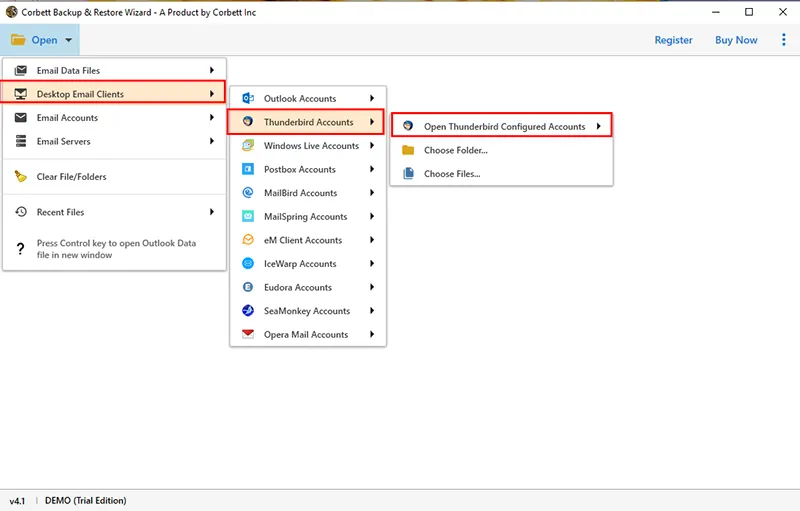
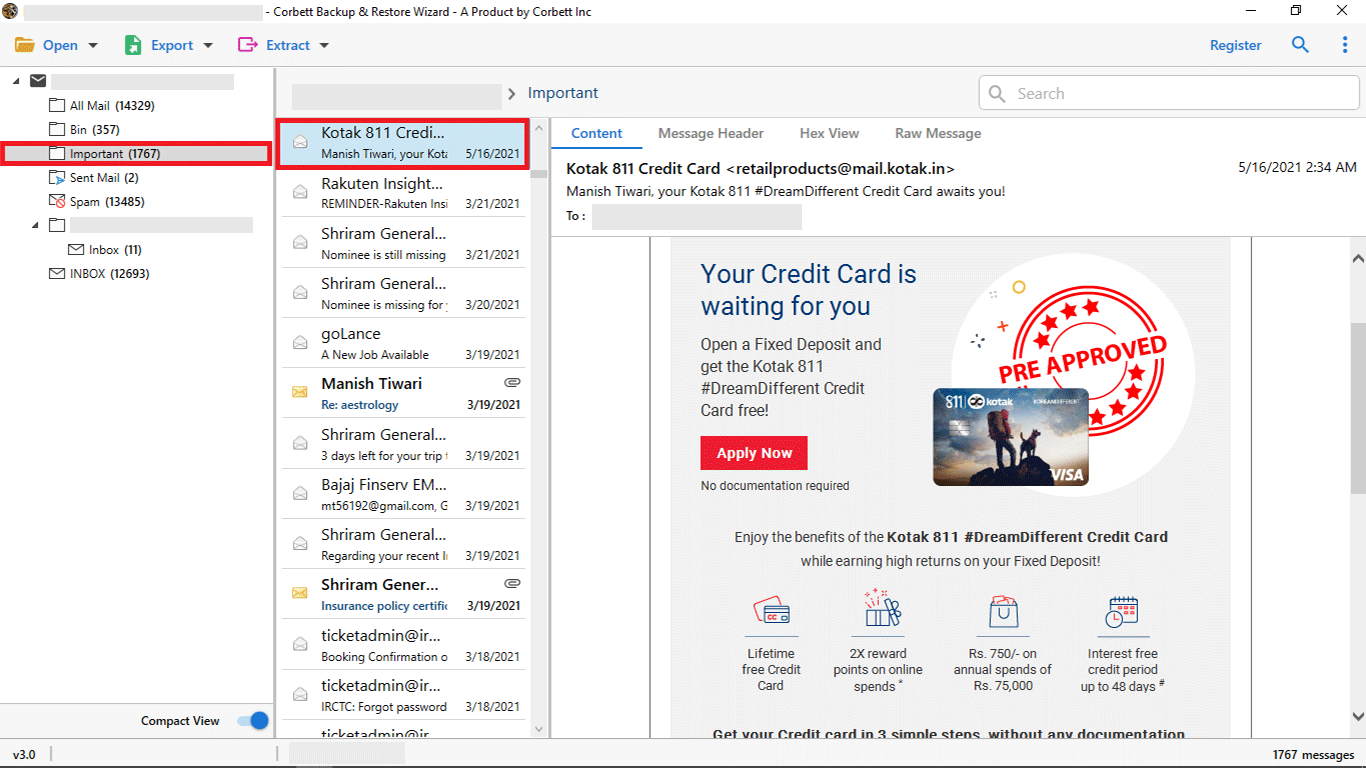
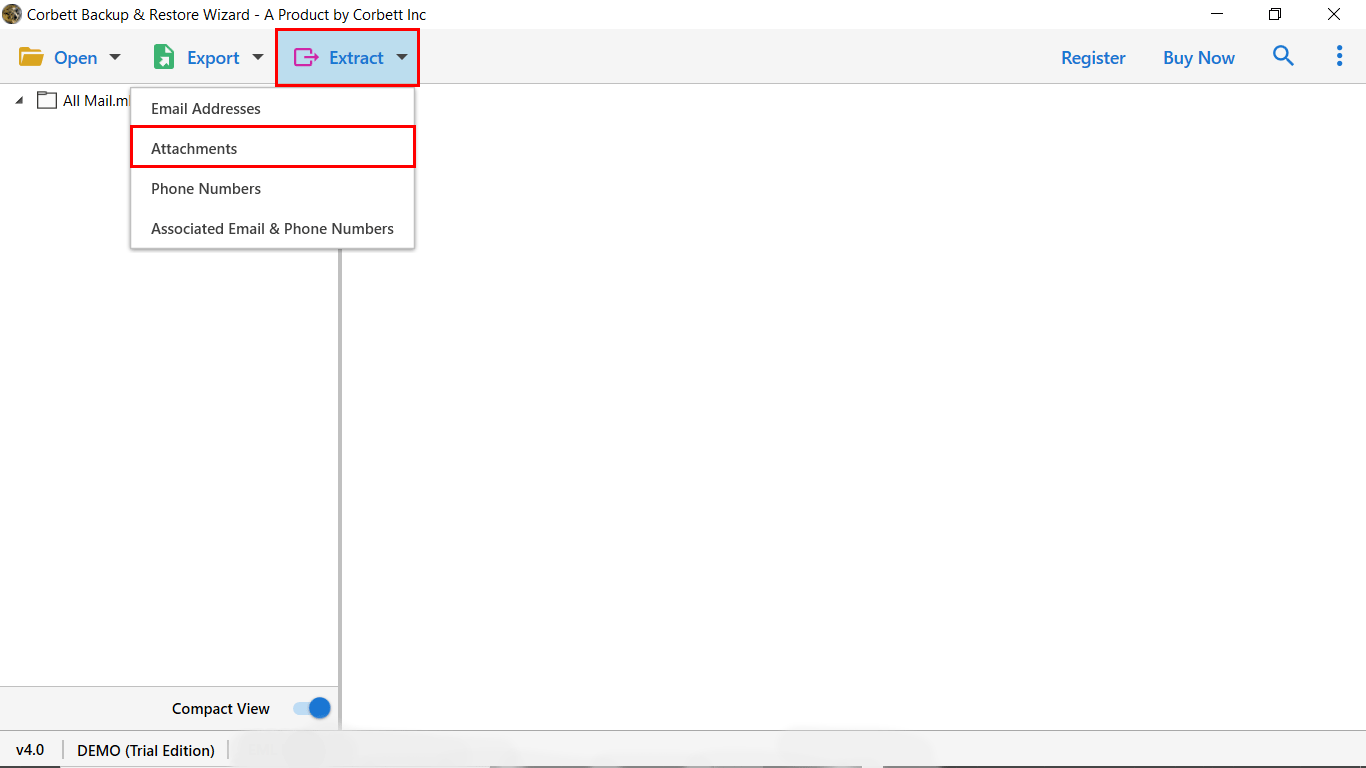
That pulls every attachment in the profile into one folder without opening each email by hand.
Also Read:
Time to Wrap Up
For a single email, the answer is built right into Thunderbird. Click the attachment bar and choose Save All, or use Detach if you also want the file out of the mailbox to save space. That covers most everyday needs without installing anything. The manual route only breaks down when attachments are scattered across many messages, and that is the point where a profile wide extractor saves real time. So which case are you in, one email or a mailbox full of them?
Frequently Asked Questions
Q1. Do I need an add-on to save attachments from Thunderbird?
A: No. Thunderbird has a built in Save All on the attachment bar of any message, reachable also from File then Attachments then Save All. Add-ons or tools only help when you need to pull files from many emails at once.
Q2. Where does Save All put the files?
A: Into whatever folder you choose in the save dialog. The files keep their original names, and nothing inside the email changes.
Q3. Can I save attachments from many emails at once?
A: Not with the native menu, which works one message at a time. For a whole folder or account you need a dedicated extractor that reads the profile and exports in bulk.
Q4. What is the difference between Save and Detach?
A: Save copies the file out and leaves it in the email. Detach saves the file out and removes it from the message, replacing it with a link, which shrinks the profile.
Q5. Does saving an attachment delete it from the email?
A: Saving does not. Only Detach removes the attachment from the message after saving it. If you just want a copy, use Save.
Q6. Can I save attachments from an entire folder in one go?
A: Thunderbird has no native command for a whole folder. You would save each message in turn, or use an extractor built to process a folder or full mailbox at once.