How to Open an MSG File Without Outlook
In short: To open an MSG file without Outlook, use a free MSG viewer or convert the file to PDF or EML, since MSG is an Outlook-only format that no other app opens on its own. For a quick text-only read, rename the .msg to .txt and open it in Notepad, though that drops the formatting and the attachments.
Why an MSG file will not open
An MSG file is a single Outlook email saved to disk, with the body, header, sender, date and any attachments inside. The reason it will not open is simple: MSG is Microsoft’s own format, built for Outlook and nothing else. Double-click one on a PC without Outlook and Windows asks which app to use, with no good answer. On a Mac it usually will not open at all, because even Outlook for Mac does not handle .msg well. So the file is not broken. You just need a way to read an Outlook format outside Outlook, which is what the methods below do.

Senior Analyst, Corbett Software
“The part people miss is that MSG is Microsoft’s own format, made for Outlook and nothing else. That is why double-clicking it without Outlook or on any Mac just fails. For a quick read the Notepad trick works, but it strips the formatting and the attachments, so for anything that matters I convert it first.”
Quick free ways to open an MSG file without Outlook
If you only need to read the text of one email, two rename tricks work with no software. Both are quick, but both share the same limits, so read the caveat after them.
- Rename to .txt and open in Notepad. Copy the file first, then change the copy’s extension from .msg to .txt and open it in Notepad. You see the header and the plain text of the message.
- Rename to .html and open in a browser. Change the extension to .html, then right-click and open it in Chrome, Edge or Firefox. This sometimes shows the body more cleanly than Notepad.
The catch: both methods show the text only. The formatting can look broken. The attachments do not come through either, appearing as unreadable code or not at all. For a single quick read that is fine. For anything you need to keep, print or forward, use one of the methods below. One more note: the Windows File Explorer preview can show .msg files, but only if a 32-bit copy of Outlook is installed, so it is not a true no-Outlook option.
Use a free MSG viewer
A dedicated MSG viewer opens the file with its formatting intact, which the rename tricks cannot do. Two cautions are worth stating plainly. First, some free viewers found through a search bundle unwanted software, so stick to a reputable one. Second, online MSG viewers ask you to upload the file to their server, which is fine for a harmless message but a real privacy risk for anything confidential, legal or work-related. If the email is sensitive, keep it on your own machine and use an offline tool instead.
Open an MSG file without Outlook on a Mac
Macs are the hardest case, because Apple Mail does not open .msg files and Outlook for Mac does not handle them reliably either. The rename to .txt trick still works for a plain text read. Beyond that, the dependable route on a Mac is the same as on a locked-down PC: convert the .msg to a normal format such as PDF or EML on any Windows machine. An offline converter does the same job. You then open the result in any app the Mac already has.
The reliable way: convert it to PDF or EML
If the message matters, the cleanest answer is to turn the Outlook-only file into a format everything can open. Convert it to PDF for a fixed, shareable copy that opens on any device. Convert it to EML to load it into Thunderbird, Apple Mail or another client. Either way you keep the formatting and the attachments, so you never need Outlook. Our guides cover both routes: convert MSG files to PDF and convert an MSG file to EML.
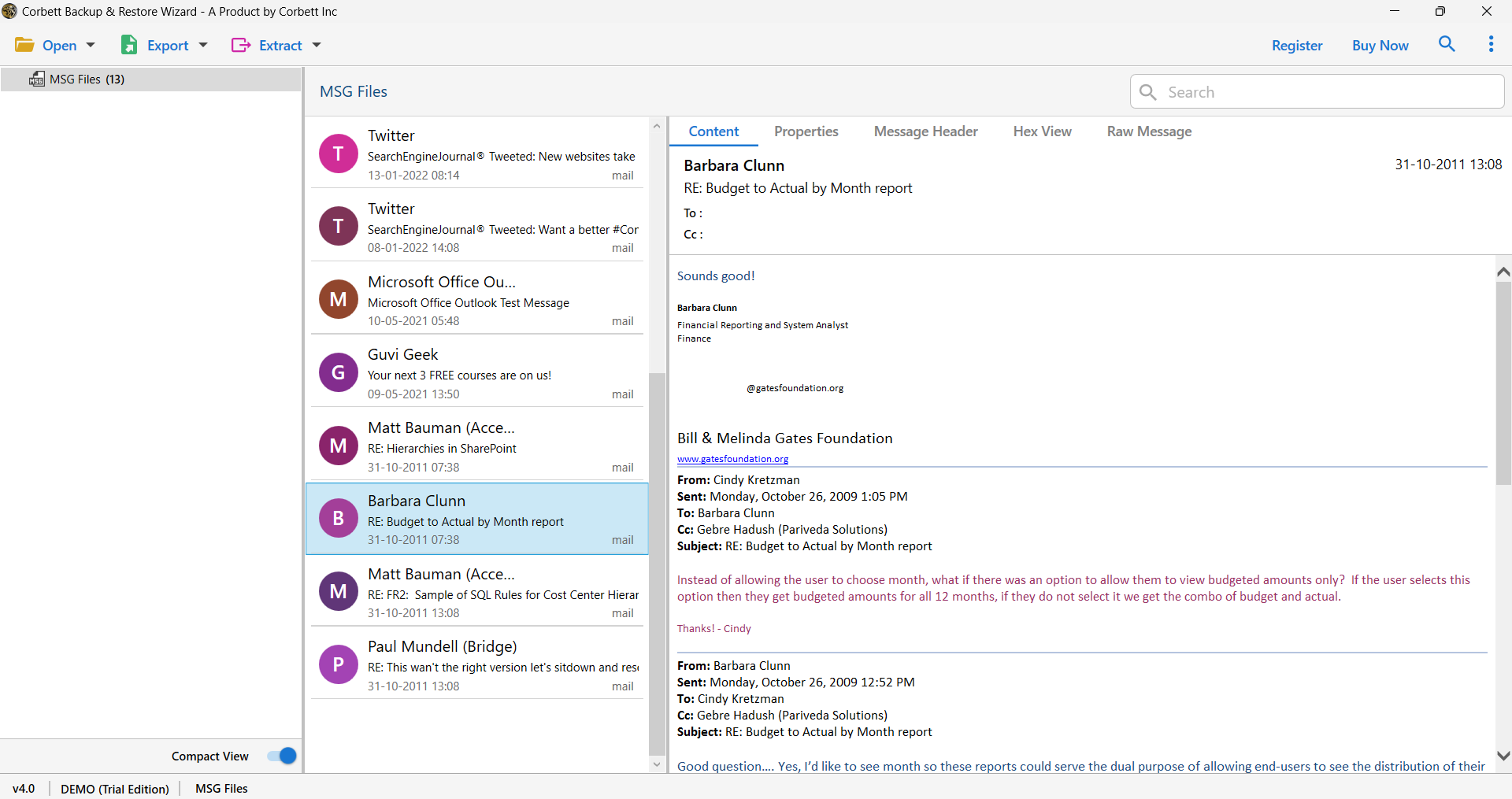
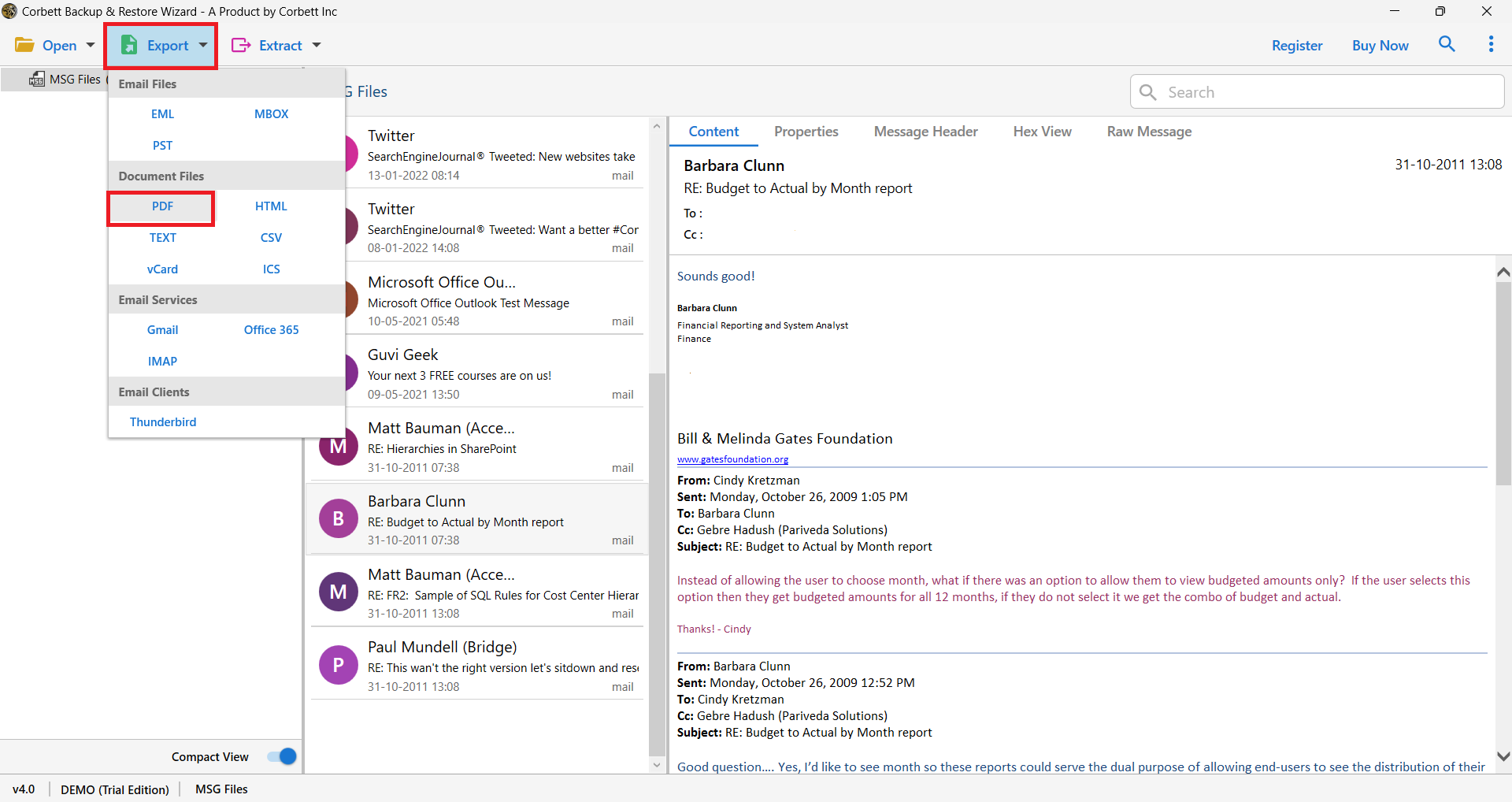
The Corbett MSG Converter opens and reads MSG files with no Outlook installed, then saves them as PDF, EML, MBOX, HTML or CSV, with attachments and formatting kept. It previews each message first, handles one file or a whole folder, then a free demo edition runs on every edition of Windows.
- Install and open the tool, then click Open and choose Email Data Files then MSG Files.
- Select a single file or a folder, then each message loads into the preview panel, which reads the MSG without Outlook on its own.
- To save a copy, click Export, pick PDF or EML, then Save.
What about the attachments?
This is where the free tricks fall down. Renaming a .msg to .txt or .html gives you the message text but not usable attachments, so any files inside are effectively lost. To get them out, use a converter that keeps attachments with each message. You can also pull them out with our guide on how to extract attachments from MSG files.
Frequently asked questions
Can I open an MSG file without Outlook?
Yes. For a quick text read, rename the .msg to .txt and open it in Notepad. For a clean copy with formatting and attachments, use a free MSG viewer or convert the file to PDF or EML, none of which needs Outlook.
How do I open an MSG file in Notepad?
Copy the file, change the copy’s extension from .msg to .txt, then right-click and open it with Notepad. You will see the header and the plain text, but not the formatting or the attachments.
How do I open an MSG file on a Mac?
Apple Mail does not open .msg files. Use the rename to .txt trick for a plain read. For a full copy, convert the file to PDF or EML with an offline tool, then open the result in any Mac app.
Is it safe to use an online MSG viewer?
For a harmless message, yes. For anything confidential or work-related, no, because the file is uploaded to someone else’s server. Keep sensitive mail on your own machine and use an offline viewer or converter.
Why can I read the text but not the attachments?
The rename tricks expose the message text only. Attachments are stored in the MSG in a way plain text cannot show. Use a converter or an attachment extractor to get the files out intact.
What is an MSG file?
It is a single email saved by Microsoft Outlook, holding the body, header, sender, date and attachments. Because Microsoft made the format for Outlook, other apps do not open it without a viewer or a conversion.